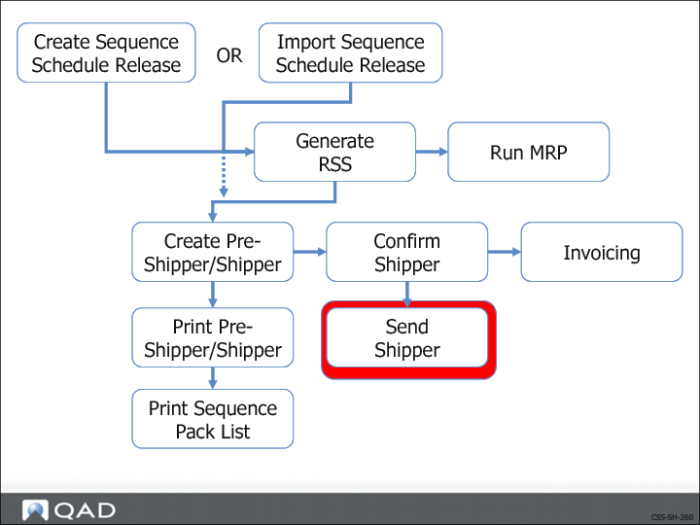
Confirm Shipper
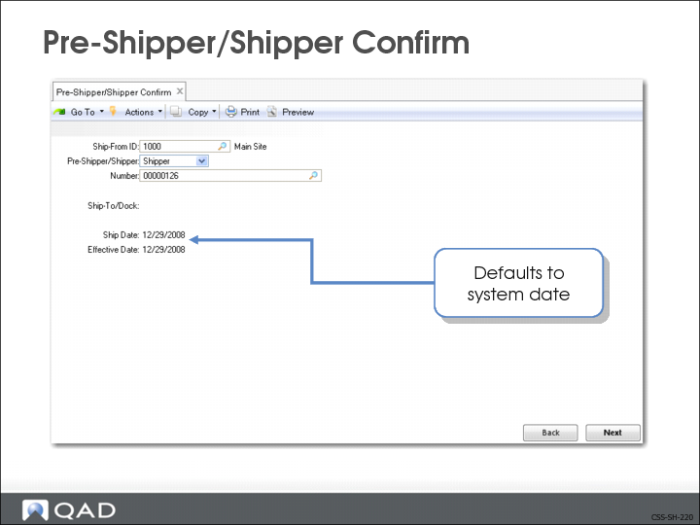
Pre-Shipper/Shipper Confirm (7.9.5)
Use Pre-Shipper/Shipper Confirm to:
• Record the shipments
• Convert pre-shipper to shipper
• System displays a message advising you it is converting the pre-shipper to shipper and displays the shipper number
Requirement quantities are considered open until you confirm the shipper. Once a shipper is confirmed:
• Pegged quantities are transferred to shipped quantities
• Shipped quantities are incremented by the ship line quantities
• Pegged quantities are decremented by the ship line quantities
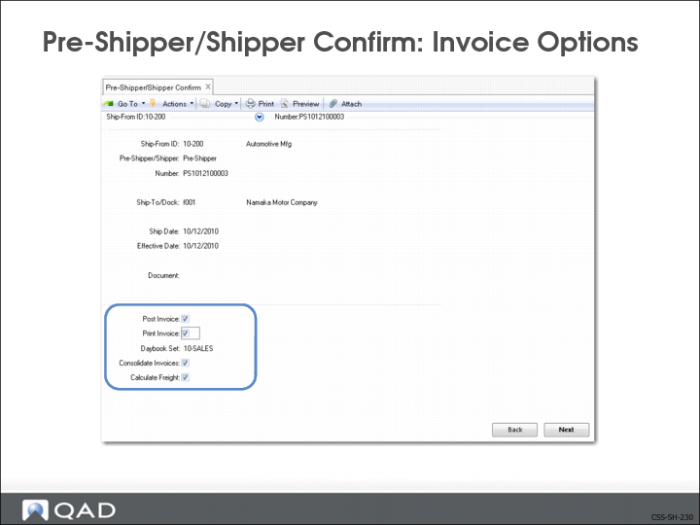
Pre Shipper/Shipper Confirm: Invoice Options
You use the fields in this frame to determine how the system processes the invoices generated by the shipment.
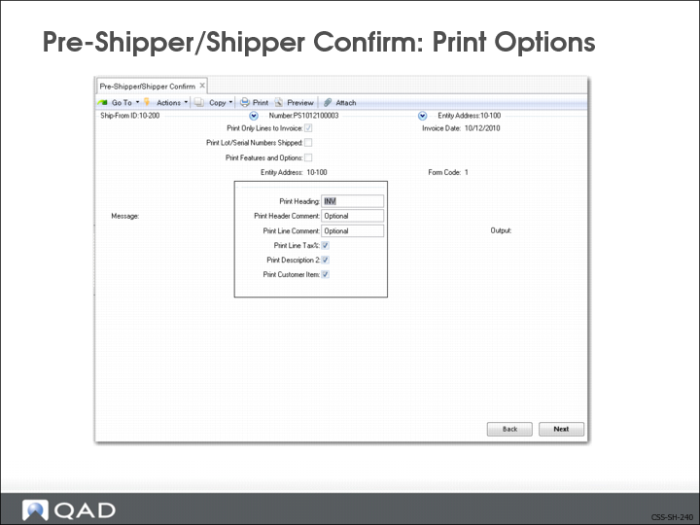
Pre-Shipper/Shipper Confirm: Print Options
If you want to print the invoice, a frame displays asking for invoice printing information.
Note: If printing a Brazilian Nota Fiscal, enter 11. The Invoice Number must contain a value.
Exercise: Confirm the Shipper
Use Pre-Shipper/Shipper Confirm (7.9.5)
1 Confirm the shipper by entering:
Field | Data |
Ship-From: | 10-200 |
Pre-Shipper/Shipper: | Shipper |
Number: | <shipper #> |
2 Advance to the next frame and enter the following:
Field | Data |
Post Invoice: | Yes |
3 Choose Yes at the system prompt asking if you want to print the invoice.
4 Verify the invoice contains the range of sequences.
Write invoice number here:______________________________________
Exercise: Change Status
It’s now later in the day and you receive the notification from Namaka that they corrected the cars and you should send the blue sunroofs now.
1 Create pre-shipper for the day by entering:
Use Sequence Pre-Shipper - Automatic (7.5.4.10)
Field | Data |
Due Date: | <next Monday> |
To: | <next Monday> |
Ship-To: | f001 |
To: | f001 |
Status: | offline |
Auto Allocation: | Yes |
Update: | Yes |
2 Verify the Pre-Shipper and Sequence Pack List.
3 Verify the offline sequences are included.
Write pre-shipper number here:______________________________________
4 Delete the pre-shipper and build it again by entering:
Use Pre-Shipper/Shipper Workbench (7.9.2)
Field | Data |
Ship-From: | 10-200 |
Pre-Shipper/Shipper: | Pre-Shipper |
Number: | <pre-shipper #> |
Write pre-shipper number here:______________________________________
Note: If the output report from the Pre-Shipper/Shipper Print function fails to display check the result with Pre-Shipper/Shipper Report 7.9.6.
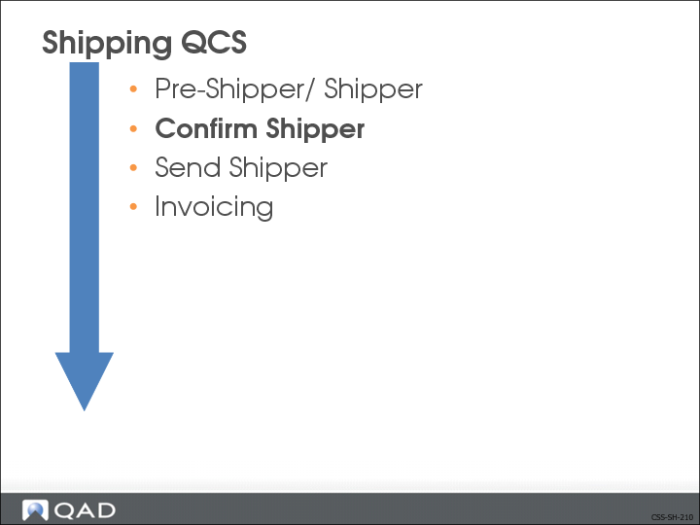
Send Shipper
QAD Enterprise Applications gives you two options to send the shipper to your customer:
• Print it and include with the shipment, like a packing list
• Electronically as an ASN when the shipment leaves your shipping area