Login and Welcome Screens
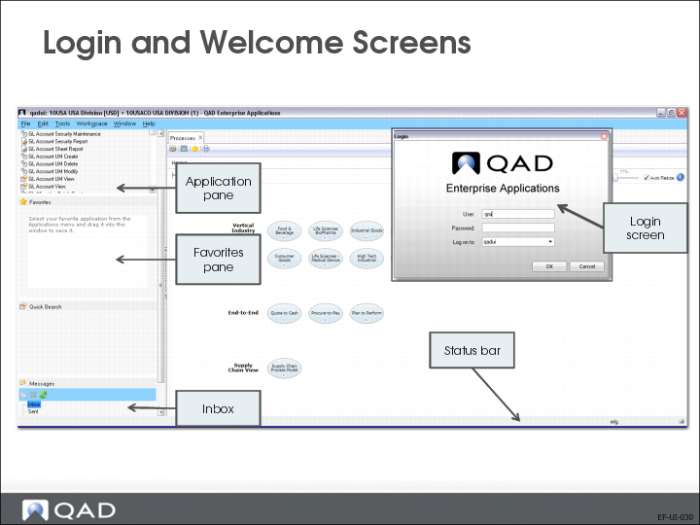
On the Login screen, enter your assigned username and password. The third field represents the environment to log on to and usually defaults. The Welcome screen comprises several areas:
• The Application pane, with the menu search bar and menu list.
• The Favorites pane, where menus, reports, and browses can be dropped for direct access.
• The Inbox where you manage your messages. You can choose to hide the Inbox.
• The Workspace Selector, which lets you jump from one entity to the other in one click.
• In the middle, the menu windows open and represent your main work area.
Toolbar
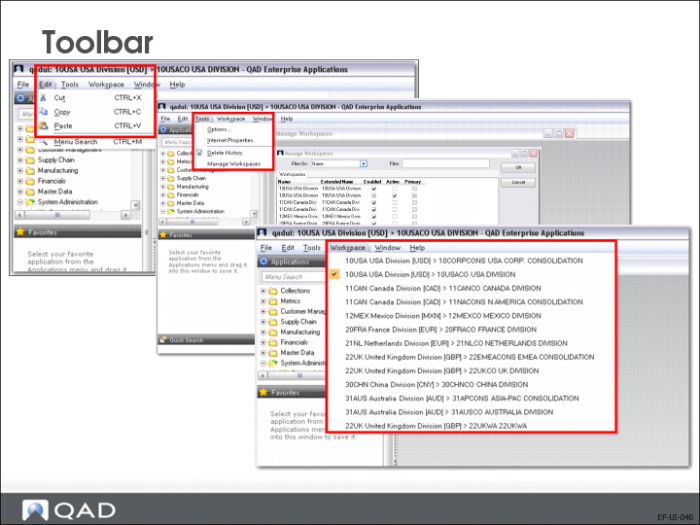
The toolbar provides access to:
• The Edit menu, with standard Windows functions, such as cut, copy, and paste.
• The Tools menu, which lets you change various interface attributes, including the workspace (entity) to display.
• The Workspace menu, which allows navigation between workspaces.
• The Help menu.
Menu Search: Four Options
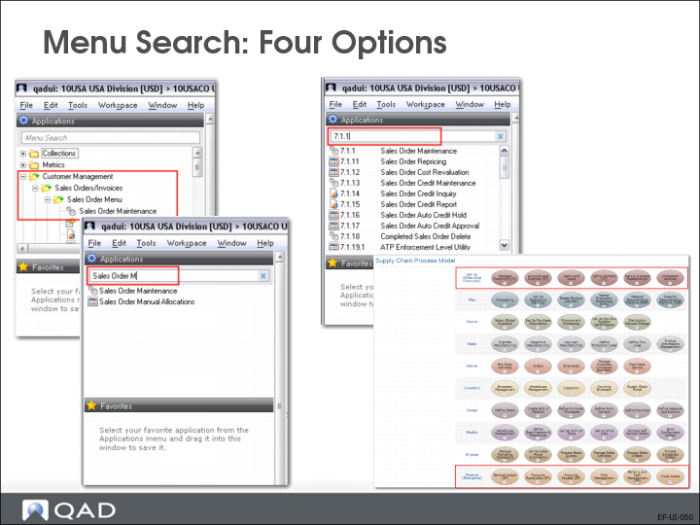
You can access menus items in four ways:
• By navigating down the menu tree.
• By entering the beginning of the menu name in the menu search bar.
• By entering the menu number.
• By navigating to the menu using process maps.
Menu Properties
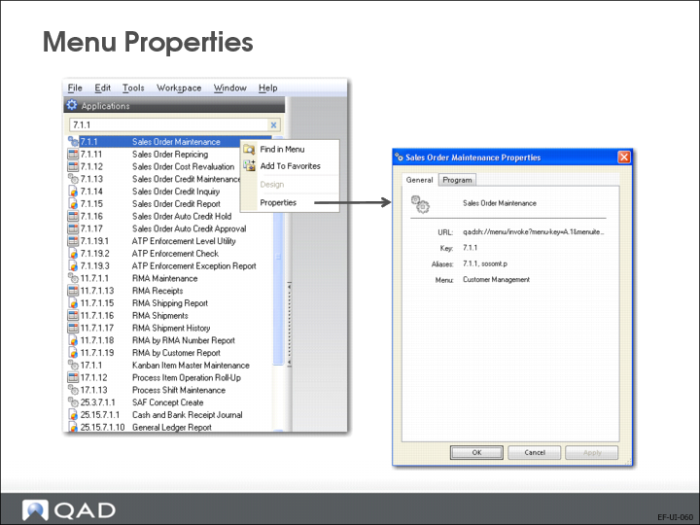
To find a menu number, name, or other menu attributes, right-click the menu name in the menu pane and choose Properties.
Using the right-click menu, you can also display the menu in the menu tree.