Application Integration
The powerful XML integration and advanced Excel integration features facilitate data exchange between systems, and record creation, maintenance, and reporting.
XML Integration
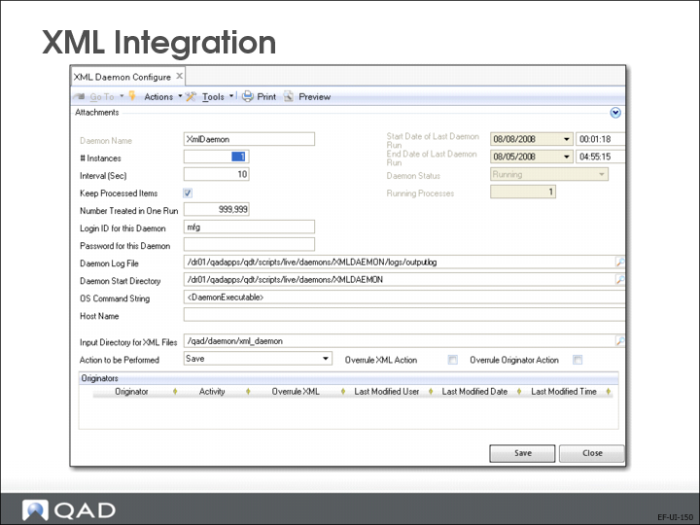
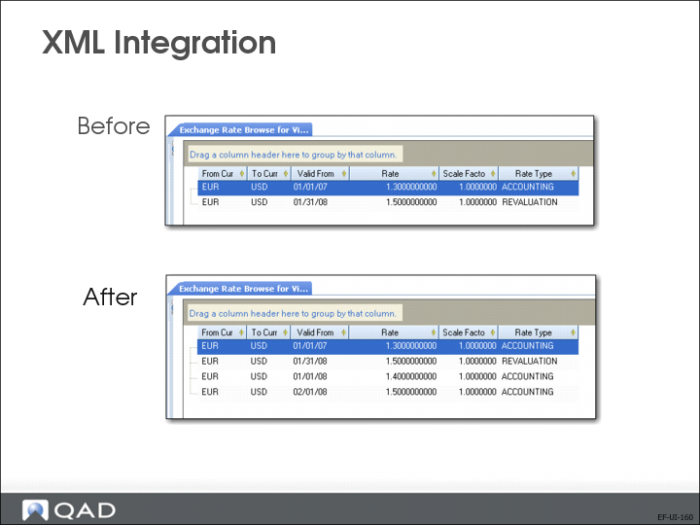
You can use XML to upload data at the start of an implementation, or to automatically load data, such as exchange rates, that must be imported on a regular basis.
XML integration is very flexible and easy to manage. See User Guide: QAD System Administration for more information.
XML Integration
Data imported using XML integration.
Advanced Excel Integration
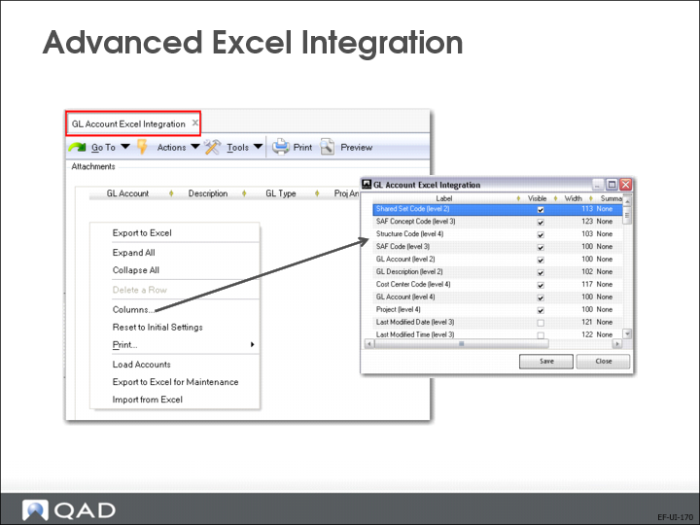
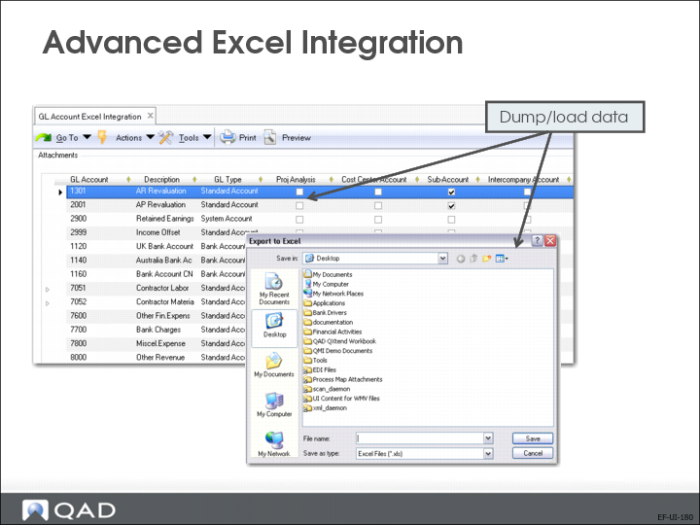
With advanced Excel integration, you can export all records for remote maintenance, modify the data, and re-import the saved results into the system database.
The starting point for Excel integration is a blank template with column headings for all fields in a business component. You right-click in the grid for business components that support Excel integration and export the template to Excel to enable you to remotely maintain data for the business component. You can then create the data in the spreadsheet or load data from another application into the template to import it to the system database.
Advanced Excel integration is available as a right-click option on the results grid of the following business components:
• GL Account
• Business Relation
• County
• Customer
• Journal Entry
• Payment Formats
• Supplier
• Customer and Supplier Bank Number
You do not have to exit the QAD application before working in Excel. When making minor changes, it might be more convenient to run your QAD application and Excel simultaneously, and to switch back to your QAD application to import the saved data.
You can also use Excel integration to maintain budgets. In the Budget module, the integration is maintained in real time, and is referred to as a hotlink. This feature is discussed in more detail in Training Guide: QAD Advanced Financials.
To export data to Excel for maintenance, choose the Excel integration activity for one of the supported record types, such as GL Account. Select an export location. In the Excel worksheet, make changes or add data, and save the changes. Then return to the QAD application and import the modified data. The system validates any data before importing it. For example, if a mandatory field is missing, the record cannot be imported.
Note: The Excel integration function is described in detail in Training Guide: QAD Advanced Financials.
Browse Export to Excel
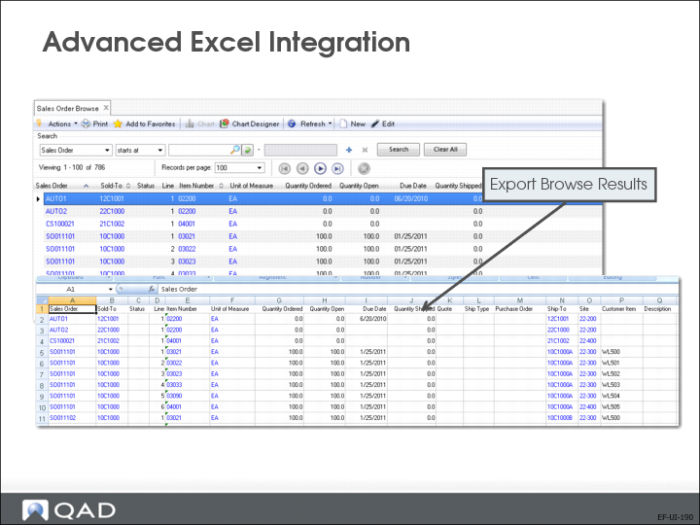
You can also export browse results to Excel. To export data directly into an Excel spreadsheet, right-click in the results screen, and choose Export to Excel from the Actions menu.
The browse results are displayed in a new Excel window. The format of the original grid is preserved in the new spreadsheet.
Note: You cannot re-import this data to the database.