Invoice Status Codes
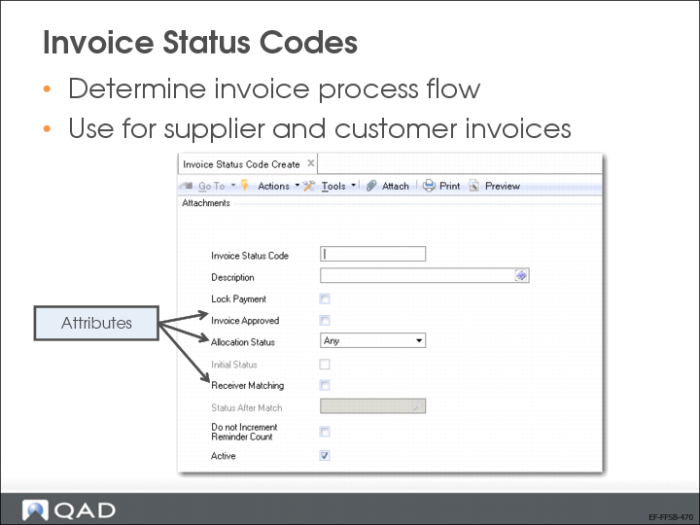
Use Invoice Status Code activities (36.1.11) to create, modify, view, and delete codes used to:
• Manage the approval, allocation status, and payment of invoices to suppliers.
• Identify contested invoices for filtering reports and managing finance charge calculation for customers.
• Associate a default invoice status with each customer and supplier record.
Invoice status codes are primarily used with suppliers. You approve supplier invoices and release them for payment by modifying the invoice status code applied to the invoice. You can also control how postings occur by specifying an invoice status code with a different allocation status.
Invoice Status Code Attributes
The combination of the different attribute values indicates to the system how to treat a document (primarily, a supplier invoice).
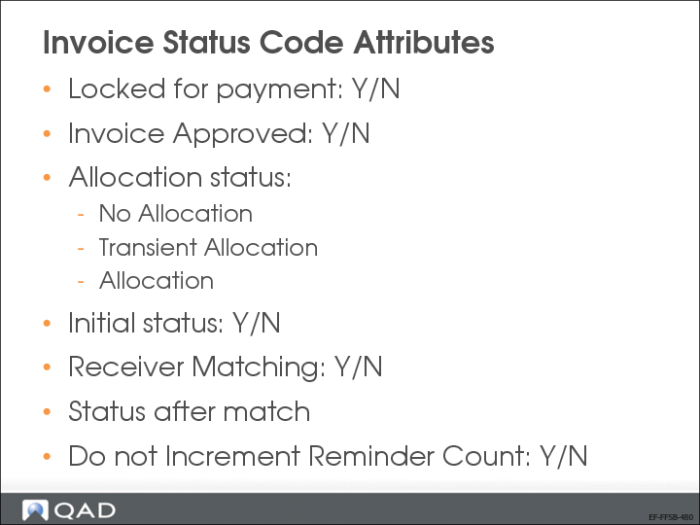
Attributes of invoice status codes include:
Locked for Payment
Use this option to prevent invoices from being included in payment selections.
Invoice Approved
Use this option to determine whether an invoice is approved for payment.
Allocation Status
The options are Allocation, No Allocation, Transient Allocation, and Any.
Initial Status
Use this setting for initial invoices that are locked for payment, unapproved, or that have a status of No Allocation.
Receiver Matching
Use this option for invoice status codes used in receiver matching.
Status After Match
When no allocation and receiver matching are selected, specify the invoice status code to apply to the invoice after it has been matched. This code must have the Allocation and Receiver Matching field selected.
Do not Increment Reminder Count
Select this field to create an invoice status code that prevents reminder levels on customer reminder letters from incrementing. You can use these status codes to create invoices that remain at the same reminder level for each print run.
Different sets of codes might be needed, depending on whether you are creating a financial invoice or an invoice for matching with a purchase order.
None of the invoice status settings has an effect on customer invoices. The status code is used to filter in reports and to determine how invoices are included in finance charge calculations. Invoice status codes do not have a blocking effect on customer invoices and do not form part of the credit checking process.
US and EMEA Exercise: Domain Setup
In the US, log in to entity 10USACO. In EMEA, log in to entity 22UKCO
Domain and Entity Creation
1 Use Domain Create (36.1.1.1.1) to create a domain using the details below. Name your domain, complete the fields as necessary, and link shared sets to the domain.
Field | Value |
Domain | 41STHAMS |
Name | South American Division |
Primary Entity: | Blank |
Setup Complete: | Blank |
Language Code | us |
Base Currency | USD |
Statutory Currency | USD |
2 Link the following shared sets:
Shared Set Type | Shared Set Code |
General Ledger | QMS-GL-US |
Customer | QMI-CUST |
Supplier | QMI-SUP |
Sub-Account | QMS-SubAccount |
Sub-Account COA Mask | Sub-Account COA Mask |
Cost Center | QMS-CostCenter |
Cost Center COA Mask | Cost Center COA Mask |
Project | QMS-Project |
Project COA Mask | Project COA Mask |
Daybook | QMS-DB-US |
Exchange Rate | QMS-ExRate-US |
3 Save the domain record, but do NOT select the Setup Complete field.
Note: You cannot select the Setup Complete field without error until you have updated the domain record with the entity you will create in step
6.
4 In Business Relation Create (36.1.4.3.1), create a business relation for 41STHAMS.
Field | Value |
Business Relation | 41STHAMS |
Name | South American Division |
Search Name | 41STHAMS |
| |
General Tab | |
Internal Entity | Yes |
Intercompany Code | STHAMS |
| |
| |
Address Info Tab | |
Address Line 1 | 11 Domingo |
City | Rio de Janeiro |
Country Code | BR |
| |
Tax Information Tab | |
Taxable Address | Yes |
Tax Zone | BR |
| |
5 Save your changes.
6 Create a new entity in Entity Create (36.1.1.2.1). Complete all fields as required.
Field | Value |
Entity Code | STHAMS |
Entity Description | South American Division |
Business Relation | 41STHAMS |
Domain | 41STHAMS |
On the Shared Sets tab, note that the shared sets defined for the domain 41STHAMS are automatically displayed.
7 Save your changes.
Security Setup
1 Use User Domain/Entity Access Maintain (36.3.4) to give your user ID access to the newly created domain/entity.
a Enter your user ID. Then, click Search.
A list of domains and entities displays.
b Select the field next to your domain/entity combination in the Link column.
c Click Save.
2 Use Role Membership Maintain (36.3.6.6) to update the Superuser role:
a Enter your user ID and the role Superuser, and click Search.
A list of domains and entities displays.
b Select the field next to your domain/entity combination in the Link column.
c Click Save.
Complete the Domain Setup
1 Use Domain Modify (36.1.1.1.2). Assign your newly created entity as the domain’s primary entity.
Field | Value |
Domain | 41STHAMS |
Primary Entity | STHAMS |
| |
Cross-Company Tab | |
Accounts Receivable GL Account | 1950 |
Accounts Payable GL Account | 2950 |
Inventory GL Account | 1960 |
Manual Journal Entry GL Account | 1970 |
Fixed Assets GL Account | 1980 |
2 Select the Setup Complete field and save the domain record.
Note: After you have selected the Setup Complete field, you can still make some limited changes to the domain record. However, you can no longer modify the primary entity, shared set list, or domain currencies.
Other Domain Foundations Setup
1 Log off the system and log back in.
2 Select Workspace 41STHAMS-STHAMS.
3 Define the domain’s GL calendar in Domain GL Period Create (25.4.1.1).
Field | Value |
New Year | Current year |
Copy from GL Calendar Year | Last Year or Create Manually |
4 Click Save.
5 Review the created periods. Save.
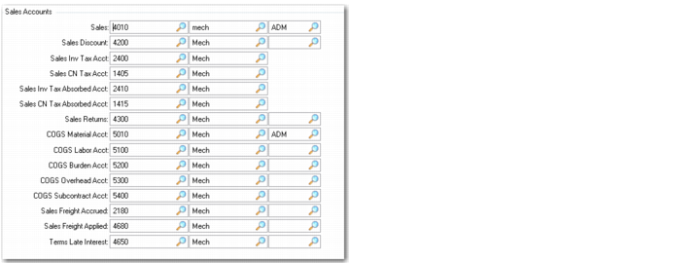
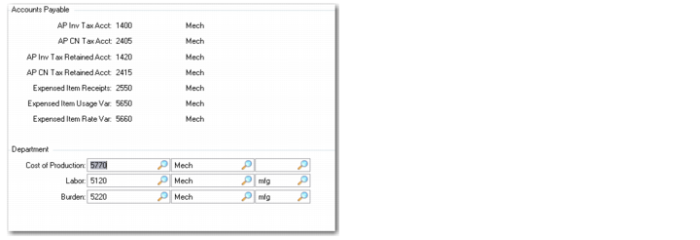
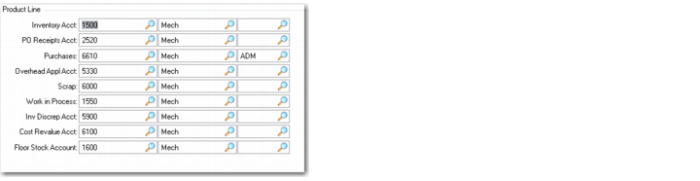
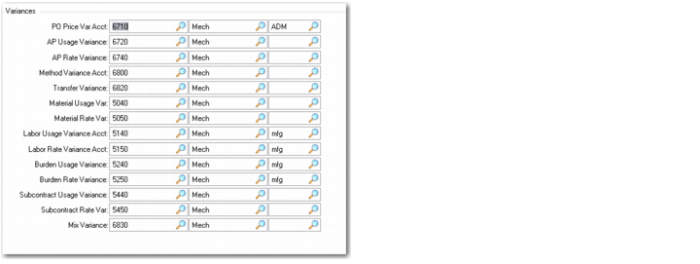
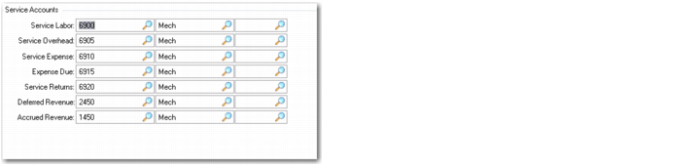
6 Set up default GL accounts in Domain/Account Control (36.9.24) as shown below and set the Verify GL account field to Yes.
Note: The 10USA and 22UK domains use the same GL account shared set. Therefore, the accounts displayed in the graphics pertain to both domains.
Domain/Account Control, Sales Accounts
Domain/Account Control, Accounts Payable Accounts
Domain/Account Control, Product Line Accounts
Domain/Account Control, Variances Accounts
Domain/Account Control, Service Accounts