Banking Setup
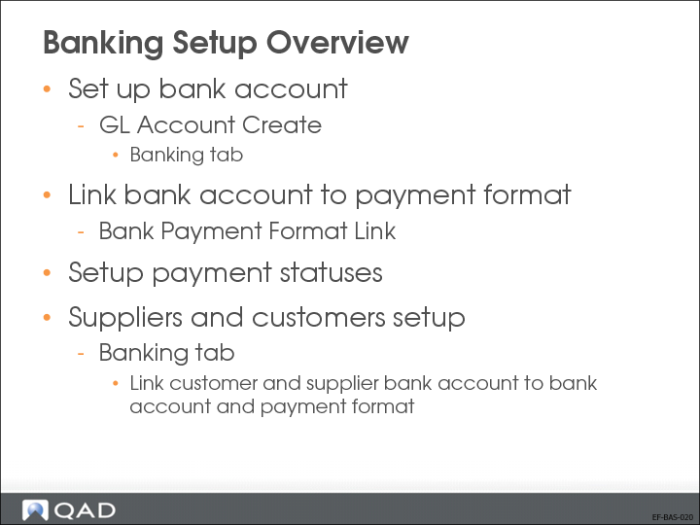
Banking Setup Overview
In this chapter, you will learn how to set up the components required for banking.
In order to process banking transactions, you need to set up your entity bank record. The entity bank record consists of the bank account to which the final postings are made and the business relation, which contains the address and tax information for your bank.
To store your bank account number in the system, you first apply a validation format to the account number. Therefore, before you create your bank account, ensure that the correct validation format is available for your account number.
To create electronic payment files for transfer to other banks, you can use electronic payment formats that you download to the system and associate with your bank account.
Setting Up a Bank Account
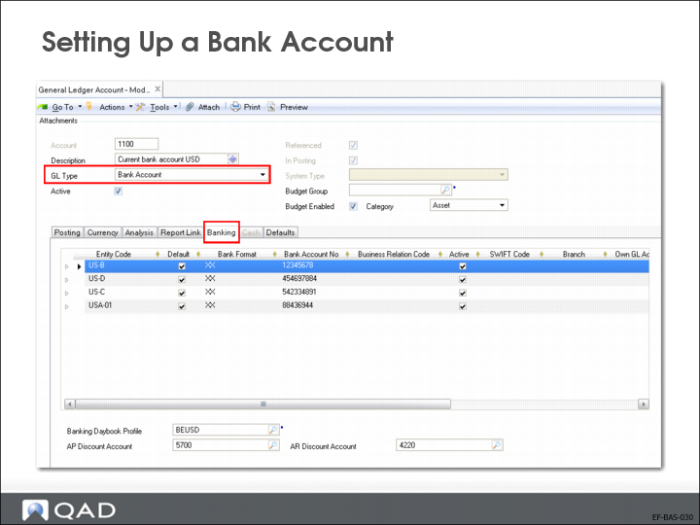
You create bank accounts in GL Account Create (25.3.13.1). Select the Bank account type from the drop-down list of available account types.
The Banking tab is enabled when you create an account of type Bank or Cash. The bank information specified here identifies your company banks. Associate these banks with customer and supplier banks in the customer and supplier functions (see later in this chapter).
To add lines on the grid, right-click in it and insert a new row for each bank account. Each bank account is linked to at least one entity.
Use the Banking tab to specify the following details:
Entity Code
This is typically the code of the current entity. When you link the current entity to the bank account, you define the account as your own bank account, through which all customer and supplier payments are processed.
Business Relation Code
This is the business relation linked with the bank account. This business relation provides your bank address and tax information in customer and supplier payments. You can assign multiple bank accounts for each GL account, to support each activity where the GL account is used.
Bank Format
If the bank account number must be validated, choose the validation method from the drop-down list. When you select a bank number format, the system creates a child row in which you enter the number to be validated.
Use Bank Account Format Maintain (25.11.4) to view an international account number format to apply to the bank accounts you create. You can also define new number formats, which must comply with the banking system of the country in which you are doing business, or with your customer or supplier banking systems. See User Guide: QAD Financials for more information about bank account formats.
When you click to save the account details, the system displays a warning to say that you have not defined bank accounts for all the other entities using this account shared set. You need only define bank accounts for the entities in which you are working, this message does not prevent you from saving the account.
Bank Payment Formats
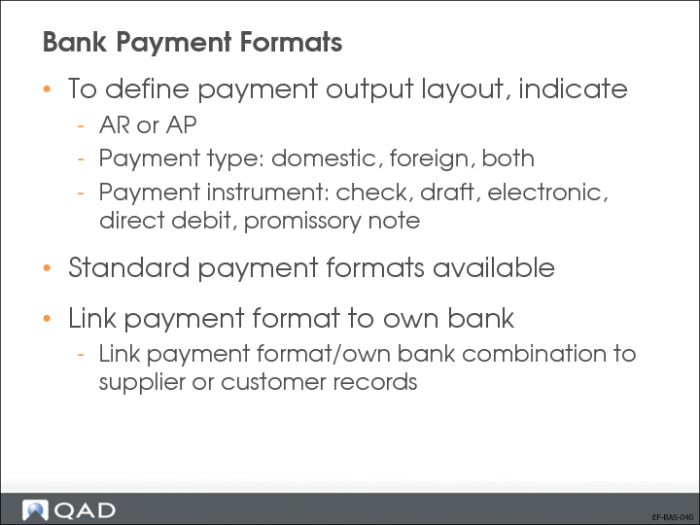
Payment formats are used in customer and supplier payments to define the layout of the payment output. These codes ensure that each payment from your account is formatted according to the requirements of the receiving customer or supplier bank. Each individual payment contains your own bank account details, the required format, and the correct customer and supplier account information.
Payment formats determine such aspects of the payment as:
• Whether the payment is for AR or AP
• Whether the payment is domestic, foreign, or both
• The payment instrument to use, for example, check, draft, or electronic transfer
Electronic payment formats are used with paper-based payments, such as checks or drafts, and with payments, such as direct debit or electronic transfer. Formats tend to be common to certain regions. For example, US banks tend to deal with AP and AR checks. Northern European banks more commonly use AP electronic transfers and AR direct debits. Southern European banks use checks, drafts, and transfers.
Preconfigured formats are available on the QAD Support Web site for download and can be loaded in the system using standard EDI eCommerce functions. These formats are designed for specific banking systems, and are used to create electronic payment files to be transferred to these banks.
Ensure that supplier and customer payments automatically use the correct format by linking the format to your bank account using Bank Payment Format Link and then associating the linked account number to the supplier or customer bank account number. When the account numbers are linked, the system selects the correct format.
When a customer or supplier payment is created, the customer or supplier default bank is automatically displayed in the payment screen. If multiple account numbers for a supplier or customer are defined, you can select another account number for the payment, but only if it has been linked to a format.
Bank Format Setup Flow
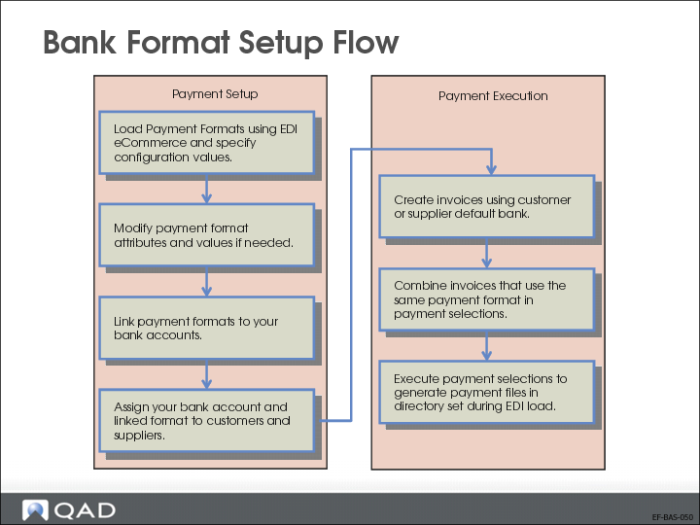
A number of different types of data must be set up before you can generate customer and supplier payments.
The figure above illustrates the general flow. To complete this flow, you must have already created bank account validations and defined your entity banks.
You can also use Payment Format Excel Integration to create a template and load data. However, this is typically not required, since the EDI load provides this data for you.
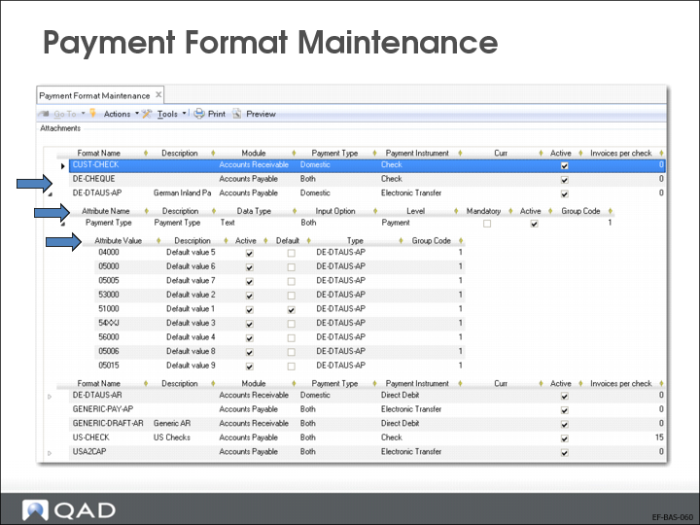
Generally, no changes are needed to these formats, but if necessary, attributes and values can be changed in Payment Format Maintenance (25.11.1). See
Payment Format Maintenance.
Link the payment formats to your entity bank account using Bank Payment Format Link (25.11.2).
Associate your bank account and the correct linked format with the customer and supplier bank account numbers specified on the Banking tab of the Customer or Supplier function.
When this setup is complete, you can create invoices using this payment information, combine them in payment selections, and execute the selections to generate payment files.
Payment Format Maintenance
Use Payment Format Maintenance (25.11.1) to view and modify payment formats, their attributes, and attributes’ values. You can create a new format by adding a new row in the grid and specifying its attributes. Ensure that these attributes match the requirements of the banking system to which you will send the payment.
For electronic payment formats, most users download predefined formats and do not need to manually create formats. The formats that you load using EDI eCommerce are displayed here.
When you have used a payment format in a payment, you cannot modify the format code, but can modify the description and currency.