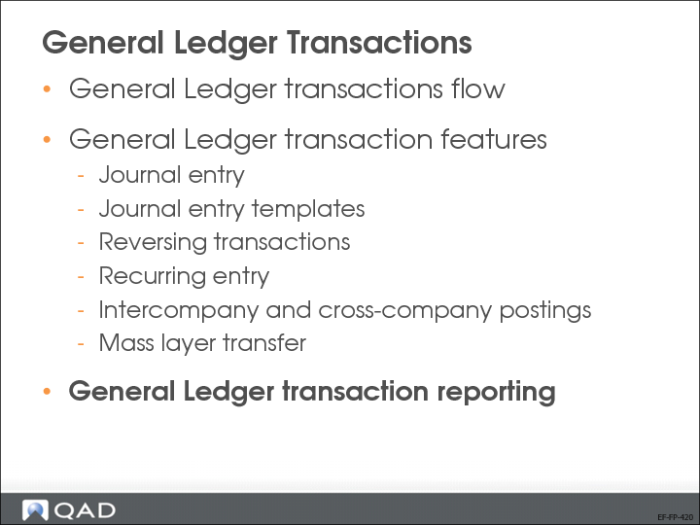
General Ledger Transaction Reporting
The system provides a wide range of analytical reports. The budgeting and GL activity reports let you to view and manage account balances in the general ledger. The GL transaction reports let you monitor transactions in the general ledger. Running reports by daybooks enables you to group, analyze and report on similar transactions.
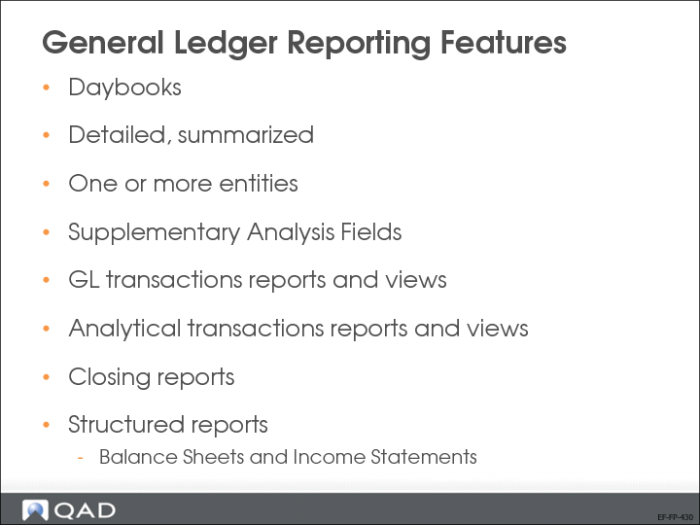
General Ledger Reporting Features
GL reporting can be detailed or summarized, and includes information on one or a range of entities. In addition, you can define supplementary analysis fields (SAFs) to fine tune transaction reporting. These provide the basis for powerful and flexible financial reporting and analysis. You can define SAFs based on your unique reporting requirements.
GL reports are grouped according to the chart of accounts, and cannot include budget structures. They are grouped as follows:
• GL Transaction Activity Reports Menu (25.15.1) and Views (25.15.2). See more details on the following pages.
• Analytical Transaction Reports (25.13.3) and Views (25.13.4) are reports and views for detailed transactional analysis, project, cost center and SAFs.
• Closing Process Reports (25.21.2): A number of reports are provided to facilitate the closing process. These reports are all on the Closing Process Reports menu (25.21.2) except for the Revaluation Report, which is grouped with other revaluation activities.
Structured Reports are Balance Sheet and Income Statement reports. These are handled in a separate section of this class, as well as budget reports.
In this section, we will concentrate on GL transactions activity reports and views.
GL Transactions Reports
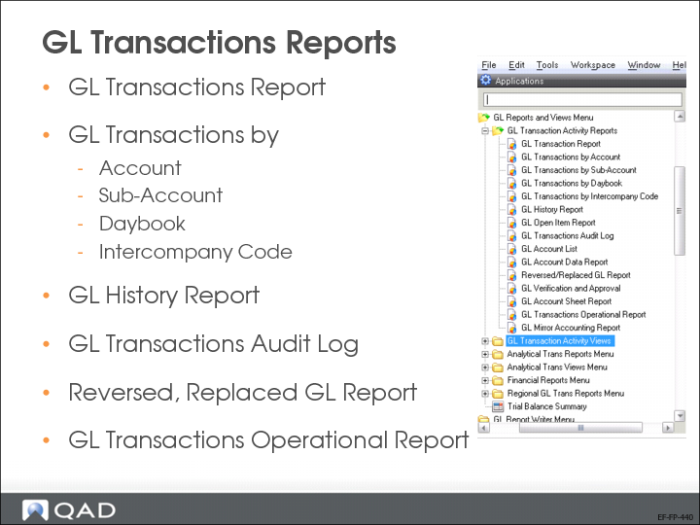
Some of the available GL transactions activity reports are:
• GL Transactions and GL Transactions by Account or Sub-Account (described on next slides).
• GL Transactions by Daybook Report, which lists all activity for the selected GL accounts during the selected time frame, grouped by daybook.
• GL Transactions by Intercompany Report, which lists all activity for the selected GL accounts and time frame, grouped by intercompany code.
• GL History Report, which lists transactions on the GL accounts that meet the selection criteria for the periods indicated. It also lists the currency in which each transaction was denominated.
• GL Open Item Report, which lists and totals GL open items within the Open Items sub-ledger. The output is grouped by allocation key.
• GL Transactions Audit Log Report, which prints a detailed list of each transaction for a particular GL period. It is only possible to run the report for a single GL period.
• Reversed/Replaced GL Report, which displays a list of all reversed/replaced GL transactions for the period indicated in the selection criteria.
• GL Transactions Operational Report, which is similar to GL Transaction Report (25.15.1.1), but focuses on transactions created from operational transactions and their associated details, such as the GL reference, transaction type, doc type, and address.
For the complete list of available reports, refer to the User Guide: QAD Financials.
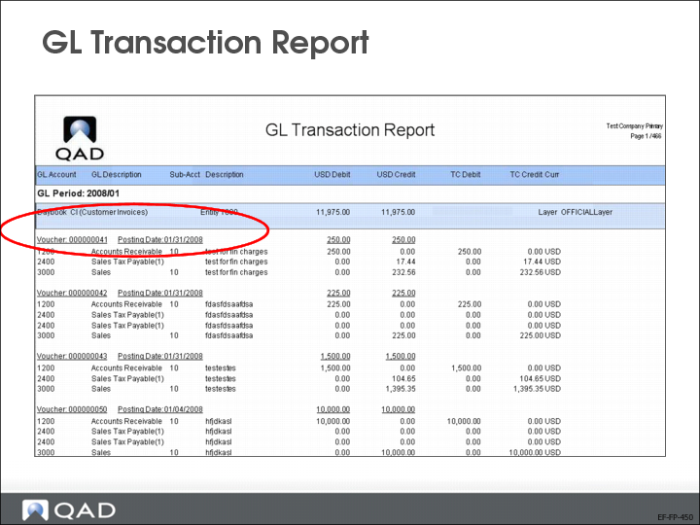
GL Transaction Report—Example
The GL Transaction report lists all posting lines for the selected daybooks. The transactions are grouped by GL calendar year and GL period, daybook code, and entity. Within each grouping of daybook code and entity, transactions are grouped by voucher and posting date.
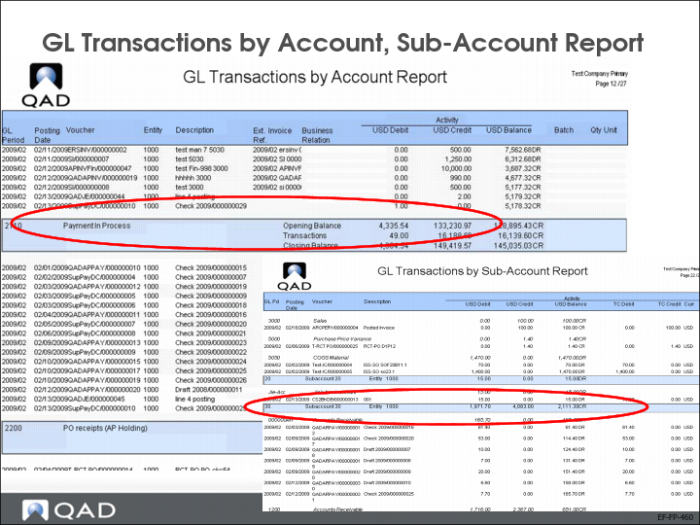
GL Transactions by Account/Sub-Account Reports—Examples
• GL Transactions by Account Report
The GL Transactions by Account report lists all activity for the selected GL accounts during the selected time frame, grouped by account.
• GL Transactions by Sub-Account Report
The GL Transactions by Sub-Account report lists all activity for the selected GL accounts during the selected time frame, grouped by sub-account.
GL Transactions Views
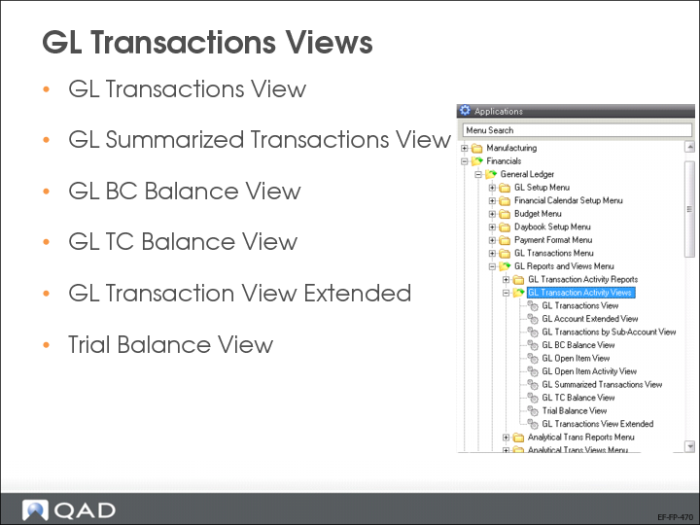
The GL Transactions Views are especially useful because they allow drill down into the source document for a transaction, such as the invoice that created it. Generally, the most used views for the day to day business are:
• GL Transactions View (25.15.2.1), which displays and sums all GL transactions that meet the search criteria.
• GL Summarized Transactions View (25.15.2.7), which displays the posting history of the accounts specified in the selection criteria.
• GL BC Balance View (25.15.2.4), which shows the actual balance in base currency for all GL accounts that meet the selection criteria.
• GL TC Balance View (25.15.2.8), which shows the actual balance in transaction currency for all GL accounts that meet the selection criteria.
• GL Transaction View Extended (25.15.2.10), which displays extended details of GL accounts, including the posting sign (debit/credit), posting type, analysis, revaluation settings, shared sets, and budget groups, and discloses the full GL transaction analytical detail.
• Trial Balance View (25.15.2.9) this view can include the detail of the full allocation keys that are used within a business, such as entity, account, sub-account, cost center, project, SAFs 1-5, and intercompany code.
But this highly depends on your business needs. Refer to the User Guide: QAD Financials for a complete list of available GL Transaction Activity Views and their descriptions.
GL Transactions View Extended
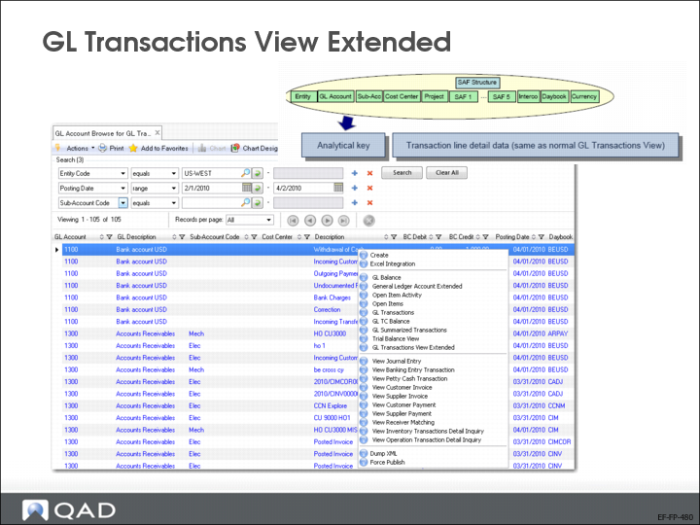
In addition to letting you view GL transactions on all analytical levels (sub-accounts, cost centers, projects, SAFs, as well as intercompany, daybook, and currency), GL Transactions View Extended (25.15.2.10) allows you to summarize activity for any of these levels.
The right-click option gives you direct access to other reports and views as well as record creation and Excel integration menus. The following right-click options are available:
• Create
Opens GL Account Create (25.3.13.1).
• Excel Integration
Opens GL Account Excel Integration (25.3.13.5).
• GL Balance
Opens the GL Account Browse for GL Balance.
• Open Item Activity
Displays detailed information on activities for GL open item accounts.
• General Ledger Account Extended
Displays extended details of GL accounts, including the posting sign (debit/credit), posting type, analysis, revaluation settings, shared sets, and budget groups.
• Open Items
Displays and sums all transactions on GL open item accounts that meet the search criteria.
• GL Transactions
Opens the GL Account Browse for GL Transactions.
• GL TC Balance
Displays the actual balance in transaction currency for all GL accounts that meet the selection criteria.
• GL Summarized Transactions
Displays summarized posting history for the accounts specified in the selection criteria.
• Trial Balance View
• GL Transactions View Extended
• Cross-Company GL Transactions
Opens the GL Account Browse for Cross-Company GL Transactions.
• View Journal Entry
Opens Journal Entry View in a separate window and displays the postings for the transaction.
• View Banking Entry Transaction
When you select a GL transaction for a banking entry, the system opens a separate Banking Entry View window that displays the specific banking entry you selected. The option to view the source detail is also available for customer and supplier invoices, customer and supplier payments, receiver matchings, petty cash, and banking entry transactions.
• View Petty Cash Transaction
• View Customer Invoice
• View Supplier Invoice
• View Customer Payment
• View Supplier Payment
• View Receiver Matching
• View Inventory Transactions Detail Inquiry
When you select a GL transaction for an associated operational inventory control transaction, the system opens the Inventory Transactions Detail Inquiry, which displays details on the original inventory transaction.
• View Operational Transactions Detail Inquiry
When you select a GL transaction for an associated operational work order transaction, the system opens the Operational Transactions Detail Inquiry, which display details on the original work order transaction.
• Dump XML
Lets you dump the selected rows in XML format.
• Force Publish
Publishes a business event for the selected GL transaction. A business event in this case is any modification to a Financials business object; for example, create, modify, or delete. By publishing the event, the system ensures that the update is passed to the QXtend Outbound database and replicated to other instances of Financials or third-party applications. This facility eliminates the need for the other applications to extract the data directly from the Financials database.
In order to publish an event for journal entries, for example, you must first define an event for the Journal Entry component using Event Configuration Create (36.14.16.15.1). In Event Configuration Create, you select the Publish Any Update field to ensure that all data updates for the business object for which you defined the event are published to QXtend.
See User Guide: QAD System Administration for more information.
Trial Balance View
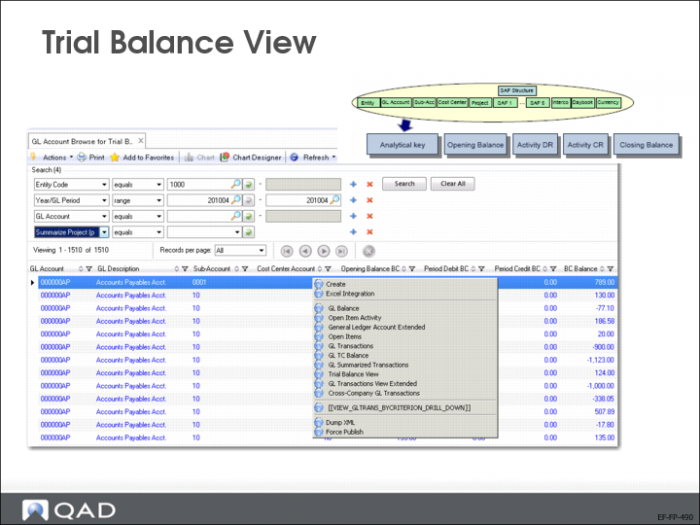
The Trial Balance View (25.15.2.9) lets you view balance details for the combinations of analytical elements that meet the selection criteria. You can use the view to ensure that the total of the debit balances equals the total of the credit balances for the selected GL periods.
The Trial Balance View contains many of the same right-click options as the GL Transactions View Extended. The following option is unique to the Trial Balance View:
• GL Transactions Details
Opens the Posting Browse for GL Transaction details.
The Trial Balance View also contains some additional filtering options in relation to the GL Transactions View Extended (25.15.2.10). Here is an example of how to make use of the filters:
Example: You are a managing two cost centers (CC1,CC2) and three projects (PJ1, PJ2, and PJ3). Each cost center or project has a manager reporting to you. At the end of last month, you have the following cost data:
Cost Center | Project | Cost |
CC1 | PJ1 | 10 |
CC2 | PJ1 | 20 |
CC1 | PJ2 | 25 |
CC2 | PJ3 | 43 |
CC2 | PJ3 | 21 |
As the manager, you want to see the performance of each cost center’s manager on cost control. By choosing Summarize Projects, you can see the following data:
Cost Center | Project | Cost |
CC1 | | 35 |
CC2 | | 84 |
Similarly, you can see the performance of project managers by choosing Summarize Cost Centers:
Cost Center | Project | Cost |
| PJ1 | 30 |
| PJ1 | 25 |
| PJ3 | 64 |
If you want to see your own performance on cost control, choose Summarize Cost Centers and Summarize Projects:
Cost Center | Project | Cost |
| | 119 |
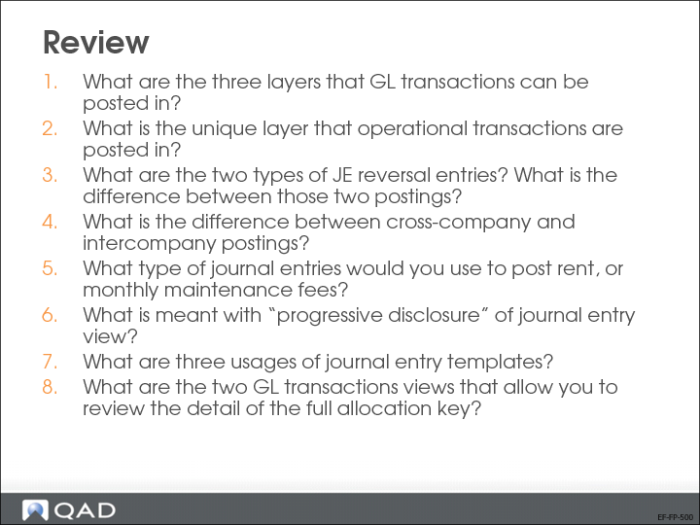
Review
Test your acquired knowledge by trying to answer the above questions. Verify your answers with the ones given below.
1 Primary, secondary and transient.
2 Primary
3 Reversal or correction. Correction entries are posted at the same GL side as the original posting, with negative sign.
4 Cross-company involves entities within the same database, intercompany involves entities in different databases.
5 Recurring journal entries, with a posting template
6 By drilling down, the user can progressively view the entire posting details (GL account, sub-account, cost center, project, SAF postings).
7 Recurring entries, repetitive postings, allocations
US Exercise: Complete Financial Business Flow
In this exercise, you will:
• Set up a new bank account and link it to a payment format.
• Set up supplier and customer payment instruments.
• Create supplier and customer payment instruments.
• Create journal entries for accruals.
• Order and receive goods.
• Process and pay supplier invoices for stock receipts.
• Process and pay recurring supplier invoices for expenses.
• Process payment in the bank.
• Process customer orders.
• Create customer invoices and credit notes.
Please follow the instructions and ask additional information if something is not clear. Use the following parameters (if needed):
• Log on using the user demo (password qad) to entity 10USACO
• Sub-account: use the default or else use Gserv
• Cost center: use the default or else use Adm
• Period: current period
• For all other fields: use the lookup and choose from the list.
1 In Daybook Create (25.8.1.1), create a new daybook BENWUSD of type Banking Entries controlled by Financials.
Field | Value |
Daybook Code | BENWUSD |
Description | BENWUSD |
Daybook Type | Banking Entries |
Layer Code | Primary |
Daybook Control | Financial |
Daybook Group Code | DGC-BE |
2 In Profile Create (36.1.1.4.1), create the profile code BENWUSD and link the daybook BENWUSD to the shared set from the current domain (QMS-DB-US) using the Linked Object grid.
Field | Value |
Profile Code | BENWUSD |
Profile Type | Banking Entry Daybook Profile |
3 In GL Account Create (25.3.13.1), create a new GL account 1112 of type Bank Account.
Field | Value |
GL Account | 1112 |
Description | Bank USD |
GL Type | Bank Account |
Category | Asset |
| |
Currency Tab | |
Currency Code | USD |
| |
Banking Tab | |
Entity | 10USACO |
Default | Yes |
Bank Format | XX |
Own Bank Number | 87654321 |
| |
Banking Daybook Profile | BENWUSD |
Deduction Daybook Profile | DedDaybookProfile |
AP Discount Account | 5700 |
AR Discount Account | 4220 |
4 Use Bank Payment Format Link (25.11.2) to link the newly created bank account to the payment format.
Format | Module | Payment Instrument |
US-CHECK | Accounts Payable | Check |
CUST-CHECK | Accounts Receivable | Check |
5 In Supplier Payment Status Create (28.9.1.1.1), set up statuses for the payment instrument Check using the following details:
Field | Status 1 | Status 2 | Status 3 | Status 4 |
Payment Instrument | Check | Check | Check | Check |
Status | Initial | For Collection | Paid | Bounced |
Bank GL Account | 1112 | 1112 | 1112 | 1112 |
Daybook Code | | APPAY | APPAY | APPAY |
Supplier Payment Account | | 2080 | 2080 | 2090 |
Default Value Days | 0 | 0 | 0 | 0 |
6 Use Supplier Payment Status View (28.9.1.1.3) to review the payment statuses you just created.
7 In Supplier Modify (28.20.1.2), add the newly created bank account to the following suppliers in combination with the payment format US-CHECK:
10S1003
10S1005
Note: Ensure that only one bank account is marked as the default for the current entity. You must also specify a supplier bank number in the new grid line before you can save the record.
8 In Purchase Order Maintenance (5.7), create a purchase order for supplier 10S1005 for 2,000 EA of item 02002 at 0.50 USD each. The PO is nontaxable. The item site is 10-200.
9 Receive the full purchase order in Purchase Order Receipts (5.13.1).
10 Use Operational Transaction Post (25.13.7) to post the transaction from this receipt.
11 Use Supplier Invoice Create (28.1.1.1) to create a supplier invoice of $1,000.00 for supplier 10S1005. Link it to the newly created bank account (GL 1112) with payment format US-CHECK, and match it against the PO receipt.
Currency USD, nontaxable
Ensure you select the correct bank account and set the amount to pay.
No variances
12 Use Supplier Invoice Create (28.1.1.1) to create an expense supplier invoice of $5,000.00 for 10S1003, and link it to the newly created bank account (GL 1112) with payment format US-CHECK.
Currency USD, nontaxable, Invoice Status Code = OK2PAY
Ensure you select the correct bank and set the amount to pay.
Allocate the costs to the accrual account 2470, sub-account Elec.
13 Use Supplier Invoice View (28.1.1.3) to review the invoices you just created.
Try changing the columns selected and the order of the columns to tailor the view to your needs.
14 Create a new SAF structure, Introduction.
a Use SAF Concept Create (25.3.7.1.1) to create the following concepts:
Field | Value |
SAF Concept Code | Campaign |
SAF Concept Description | Promotional Campaign |
Field | Value |
SAF Concept Code | Market |
SAF Concept Description | Market for Product Introduction |
b Use SAF Code Create (25.3.7.2.1) to create the following SAF codes:
Field | Value |
SAF Code | Ultrasound |
SAF Description | Campaign for Ultrasound |
SAF Concept Code | Campaign |
Leave the other fields blank.
Field | Value |
SAF Code | ConsumerUltrasound |
SAF Description | Campaign for Consumer Ultrasound |
SAF Concept Code | Campaign |
Leave the other fields blank.
Field | Value |
SAF Code | NA |
SAF Description | North America |
SAF Concept Code | Market |
Leave the other fields blank.
Field | Value |
SAF Code | SA |
SAF Description | South America |
SAF Concept Code | Market |
Leave the other fields blank.
Field | Value |
SAF Code | NE |
SAF Description | Northern Europe |
SAF Concept Code | Market |
Leave the other fields blank.
15 Use SAF Structure Create (25.3.7.4.1) to create a SAF structure.
Field | Value |
Structure Code | Introduction |
Description | Market Introduction of New Products |
Add concepts Campaign and Market to the SAF structure.
16 Use GL Account Create (25.3.13.1) to create a new GL account 7410, Market Introduction.
Field | Value |
Account | 7410 |
Description | Market Introduction |
GL Type | Standard Account |
Category | Expense |
| |
Analysis Tab | |
Analysis Type | SAF |
SAF Structure Code | Introduction |
Sub-Account | Yes |
Default Sub-Account | DefSubAct |
17 Use Journal Entry Create (25.13.1.1) to create a journal entry template (markintro) allocating $1,000.00 of the accrual account 2470 to 7410, Market Introduction.
Warning Ensure you use the correct daybook.
18 Use Recurring Entry Create (25.13.4.1) to create a recurring journal entry (code = AMI-1) for three months, starting in the current GL period, using the template created at (17).
Post to primary layer (JE)
Amount: 1250, no reversal
19 Use Recurring Entry Post (25.13.4.5) to post the recurring entry for the first month.
20 Use Journal Entry View (25.13.1.3) to review the journal entry.
Try changing the columns selected and the order of the columns to tailor the view to your needs.
21 Use Supplier Payment Selection Create (28.9.4.1) to create a selection (code = PS-1) that includes the two invoices created in (11) and (12). The bank account to use is GL 1112 and the payment format is US-CHECK.
22 Confirm the payment selection (28.9.4.5) and print the supplier checks (28.9.9.3).
23 Go to Supplier Payment Mass Change (28.9.3.5) and change the status of your supplier check of $5,000.00 USD to Paid.
24 Go to Supplier Payment View (28.9.3.3) and review the outstanding supplier checks.
25 Check the postings for the creation and payment of supplier checks in Journal Entry View (25.13.1.3).
26 Check the movements on the bank GL account in GL Transactions View (25.15.2.1).
27 Run the report GL Transaction by Daybook (25.15.1.4) for both the banking entries and the entries in the supplier payment daybook.
28 Create a new business relation using Business Relation Create (36.1.4.3.1).
Field | Value |
Business Relation | 10-C1006 |
Name | Reston Plastics |
Head Office Address | 532 Broadway, New York, NY 10012, US |
Primary Contact | Mr. A. Schwartz, General Manager Telephone: 212 555 1212 |
29 Use Customer Create (27.20.1.1) to create a new customer 10C1006 linked to the business relation 10-C1006.
The following table contains some specific values to use. For the other required fields, select values as practised in the customer setup exercise in
Customer Setup.
Field | Value |
Customer Type: | DIST |
Credit Term: | CASH |
Supplier Bank Account: | 7777 |
Bank Format: | XX |
Link the customer record to the own bank account for GL 1112 and to the payment format CUST-Check.
30 Ensure that the new customer record is available for use in operational transactions by linking it to site 10-100 in Customer Data Maintenance (2.1.1). Fill in default values for any other required fields.
31 Use Customer Payment Status Create (27.6.2.1) to create payment statuses for the payment instrument Check using the following details:
Field | Status 1 | Status 2 | Status 3 | Status 4 |
Payment Instrument | Check | Check | Check | Check |
Status | Initial | For Collection | Paid | Bounced |
Bank GL Account | 1112 | 1112 | 1112 | 1112 |
Daybook Code | | ARPAY | ARPAY | ARPAY |
Customer Payment Account | | 1380 | 1380 | 1390 |
Default Value Days | 0 | 0 | 0 | 0 |
32 Use Sales Order Maintenance (7.1.1) to create a nontaxable sales order SC1000 for customer 10C1006.
1000 of item 02003 (standard connectors) at $2.34 USD each (total value = $2340.00).
33 Ship sales order SC1000 using Sales Order Shipments (7.9.15).
34 Produce one or more reports showing the uninvoiced sales order.
35 Produce a report that shows the unposted transactions.
36 Post the unposted transactions of type ISS-SO using Operational Transactions Post (25.13.7).
37 View the journal entry in Journal Entry View (25.13.1.3) for the transaction type ISS-SO.
38 Generate a sales invoice for SO SC1000 using Invoice Post and Print (7.13.4).
39 Review the customer invoice (27.1.1.3)
40 Produce a customer aging (27.17.6) as of the last day of the next GL period for customer 10C1006.
41 In Business Relation Modify, open 10-USA-CO and specify a primary contact. Save the change.
Note: This step is required before you can run a Customer Statement of Account report.
42 Produce a customer statement of account for customer 10C1006 as of the last day of the next GL period (27.17.19).
43 Create a nontaxable credit note (27.1.1.1) for customer 10C1006 for $340 USD and adjust this against the open invoice of $2340 USD using Open Item Adjustment (25.13.5).
44 Receive a check for $2000 USD from customer 10C1006 (For Collection payment status), and allocate this to the open invoice using Customer Payment Create (27.6.6.1).
Review the customer payment in Customer Payment View (27.6.4.3).
45 Change the status of the customer check (10C1006, value $2000 USD) to Bounced using Customer Payment Mass Change (27.6.4.5).
46 You receive a payment of $2000 USD from customer 10C1006, deposited in bank account 1112. Allocate the payment to the invoice using Banking Entry Create (31.1.1).
47 Create a customer account activity report for customer 10C1006 (27.17.3).
48 Review the Customer Activity Dashboard (27.18.1) for customer 10C1006.
EMEA Exercise: Complete Financial Business Flow
In this exercise, you will learn how to:
• Set up a new bank account and link it to a payment format.
• Set up supplier and customer payment instruments.
• Create supplier and customer payment instruments.
• Create journal entries for accruals.
• Order and receive goods.
• Process and pay supplier invoices for stock receipts.
• Process and pay recurring supplier invoices for expenses.
• Process payment in the bank.
• Process customer orders.
• Create customer invoices and credit notes.
Please follow the instructions and ask for additional information if something is not clear. Use the following parameters (if needed):
• Log on as the user demo (password qad) to entity 22UKCO
• Sub-account: use the default or else use Gserv
• Cost center: use the default or else use Adm
• Period: use the period of the system date
• For all other fields, use the lookup and choose from the list.
1 In Daybook Create (25.8.1.1), create a new daybook of type Banking Entries controlled by Financials.
Field | Value |
Daybook Code | BENWGBP |
Description | BENWGBP |
Daybook Type | Banking Entries |
Layer Code | Primary |
Daybook Control | Financial |
Daybook Group Code | DGC-BE |
2 In Profile Create (36.1.1.4.1), create the profile code BENWGBP and link the daybook BENWGBP to the shared set from the current domain (QMS-DB-US) using the Linked Object grid.
Field | Value |
Profile Code | BENWGBP |
Profile Type | Banking Entry Daybook Profile |
3 In GL Account Create (25.3.13.1), create a new GL account of type Bank Account.
Field | Value |
Account | 12300 |
GL Type | Bank Account |
Budget Group | Cash and Equivalents |
Category | Asset |
| |
Currency Tab | |
Currency | GBP |
| |
Banking Tab | |
Entity | 22UKCO |
Default | Yes |
Bank Format | XX |
Bank Account No | 12345678 |
| |
Banking Daybook Profile | BENWGBP |
Deduction Daybook Profile | DedDaybookProfile |
AP Discount Account | 5700 |
AR Discount Account | 4220 |
4 Using Bank Payment Format Link (25.11.2), link the newly created bank account to the following payment formats.
Format | Module | Payment Instrument |
UK-ELEC | Accounts Payable | Electronic |
GENERIC-DRAFT-AR | Accounts Receivable | Direct Debit |
5 In Supplier Payment Status Create (28.9.1.1.1), set up statuses for payment instrument Electronic Transfer with the following parameters:
Field | Status 1 | Status 2 | Status 3 |
Payment Instrument | Electronic Transfer | Electronic Transfer | Electronic Transfer |
Status | Initial | For Collection | Paid |
Bank GL Account | 12300 | 12300 | 12300 |
Daybook Code | | APPAY | APPAY |
Supplier Payment Account | | 2080 | 2080 |
Default Value Days | 0 | 0 | 0 |
6 Use Supplier Payment Status View (28.9.1.1.3) to review the payment statuses you just created.
7 In Supplier Modify (28.20.1.2), add the newly created bank account to the following suppliers in combination with the payment format UK-ELEC:
22S1000
22S1001
Note: Ensure that only one bank account is marked as the default for the current entity. You must also specify a supplier bank number in the new grid line before you can save the record.
8 In Purchase Order Maintenance (5.7), create a nontaxable purchase order for supplier 22S1000 for quantity 1000 EA of item number 60005 at 2.35 GBP each. Use site 22-100.
9 Use Purchase Order Receipts (5.13.1) to fully receive this purchase order (GBP and nontaxable)
10 Use Operational Transaction Post (25.13.7) to post the transaction from this receipt.
11 Use Supplier Invoice Create (28.1.1.1) to create a supplier invoice of 2350 GBP for 22S1000. Link it to the newly created bank account (GL 12300) using payment format UK-ELEC, and match it against the purchase order receipt.
Currency GBP, nontaxable
Ensure you select the correct bank account and set the amount to pay.
No variances
12 Use Supplier Invoice Create (28.1.1.1) to create an expense supplier invoice of 5000 GBP for 22S1001. Link it to the newly created bank account (GL 12300) using payment format UK-ELEC.
Currency GBP, nontaxable
Invoice status code OK2PAY
Ensure you select the correct bank account and set the amount to pay.
13 Use Supplier Invoice View (28.1.1.3) to review the invoices just created.
Try changing the columns selected and the order of the columns to tailor the view to your needs.
14 Create a new SAF structure, Introduction.
a Use SAF Concept Create (25.3.7.1.1) to create the following concepts:
Field | Value |
SAF Concept Code | Campaign |
SAF Concept Description | Promotional Campaign |
Field | Value |
SAF Concept Code | Market |
SAF Concept Description | Market for Product Introduction |
b Use SAF Code Create (25.3.7.2.1) to create the following SAF codes:
Field | Value |
SAF Code | Ultrasound |
SAF Description | Campaign for Ultrasound |
SAF Concept Code | Campaign |
Leave the other fields blank.
Field | Value |
SAF Code | ConsumerUltrasound |
SAF Description | Campaign for Consumer Ultrasound |
SAF Concept Code | Campaign |
c Leave the other fields blank.
Field | Value |
SAF Code | NA |
SAF Description | North America |
SAF Concept Code | Market |
Leave the other fields blank.
Field | Value |
SAF Code | SA |
SAF Description | South America |
SAF Concept Code | Market |
Leave the other fields blank.
Field | Value |
SAF Code | NE |
SAF Description | Northern Europe |
SAF Concept Code | Market |
Leave the other fields blank.
15 Use SAF Structure Create (25.3.7.4.1) to create a SAF structure.
Field | Value |
Structure Code | Introduction |
Description | Market Introduction of New Products |
Add concepts Campaign and Market to the SAF structure.
16 Use GL Account Create (25.3.13.1) to create a new GL account.
Field | Value |
Account | 44100 |
Description | Market Introduction |
GL Type | Standard Account |
Category | Expense |
| |
Analysis Tab | |
Analysis Type | SAF |
SAF Structure Code | Introduction |
Sub-Account | Yes |
Default Sub-Account | DefSubAct |
17 Use Journal Entry Create (25.13.1.1) to create a journal entry template (Markintro) allocating 1000 GBP from the accrual account 2470 to 44100, Market Introduction.
Ensure you use the correct daybook (Template).
18 Use Recurring Entry Create (25.13.4.1) to create a recurring journal entry for three months, starting in the current GL period using the template you just created.
Post to primary layer (JE)
Amount: 1250, no reversal
19 Use Recurring Entry Post (25.13.4.5) to post the recurring entry for the first month.
20 Use Journal Entry View (25.13.1.3) to review the journal entry created.
Try changing the columns selected and the order of the columns to tailor the view to your needs.
21 Use Supplier Payment Selection Create (28.9.4.1) to create a selection that includes the two invoices you created previously. The bank account to use is GL 12300 and the payment format is UK-ELEC.
22 Confirm the payment selection in Supplier Payment Selection Confirm (28.9.4.5) and run the payment selection with Supplier Payment Selection Execute (28.9.4.6).
23 Create a bank statement for bank GL 12300 using Banking Entry Create (31.1.1)
a Create a bank statement line for 5000 GBP, allocate it to the appropriate payment, and save your bank statement.
24 Create another bank statement for bank GL 12300.
a Create a bank statement line for 2350.00 GBP and allocate it to the appropriate payment. Save your bank statement.
25 Check the banking entry postings in Journal Entry View (25.13.1.3).
26 Check the banking entries in Banking Entry View (31.1.3) and create a browse that you find useful.
27 Run the GL Transactions by Daybook report (25.15.1.4) for both the banking entries and the entries in the supplier payment daybook.
28 Create a new business relation using Business Relation Create (36.1.4.3.1):
Field | Value |
Name | Reston Plastics UK |
Head Office Address | 11 Canter Road, Coventry, CV4 10EQ |
Primary Contact | Mr. A. Henson, General Manager Telephone 12345 |
29 Using Customer Create (27.20.1.1), set up a new customer 22C1003 linked to the business relation Reston Plastics UK.
The following table contains some specific values to use. For other required fields, select values as practised in the customer setup exercise in
Customer Setup.
Field | Value |
Customer Type | DIST |
Credit Term | CASH |
Customer Bank Number | 77776666 |
Bank Format | XX |
Link this to the own bank with GL 12300 and payment format Generic-Draft-AR.
Make sure this customer is ready to be used for operational transactions by linking it to site 22-100 in Customer Data Maintenance (2.1.1).
30 Use Customer Payment Status Create (27.6.2.1) to set up customer payment statuses for payment instrument Direct Debit with the following parameters:
Field | Status 1 | Status 2 | Status 3 | Status 4 |
Payment Instrument | Direct Debit | Direct Debit | Direct Debit | Direct Debit |
Status | Initial | For Collection | Paid | Bounced |
Bank GL Account | 12300 | 12300 | 12300 | 12300 |
Daybook Code | | ARPAY | ARPAY | ARPAY |
Customer Payment Account | | 1380 | 1380 | 1390 |
Default Value Days | 0 | 0 | 0 | 0 |
31 Use Sales Order Maintenance (7.1.1) to create a nontaxable sales order SC1000 for customer 22C1003.
1000 of item 02003 (standard connectors) at 2.34 GBP each (total value = £2,340.00).
32 Ship the entire sales order SC1000 using Sales Order Shipments (7.9.15).
33 Produce one or more reports showing the not yet invoiced sales order.
Report(s) used:
34 Produce a report that shows the unposted transactions
Report used:
35 Post the unposted transactions of type ISS-SO using Operational Transaction Post (25.13.7).
36 Use Journal Entry View (25.13.1.3) to view the journal entries for transactions of type ISS-SO.
37 Generate an invoice for sales order SC1000 using Invoice Post and Print (7.13.4).
38 Review the customer invoice in Customer Invoice View (27.1.1.3).
39 Create a customer aging report as of the end of the current period (= period of system date) for customer 22C1003. Use Customer Aging Analysis Current (27.17.6).
40 In Business Relation Modify, open 22-UK-CO and specify a primary contact. Save the change.
Note: This step is required before you can run a Customer Statement of Account report.
41 Create a customer statement of account for customer 22C1003 as of the end of the current period. Use Customer Statement of Account (27.17.19).
42 Create a nontaxable credit note for customer 22C1003 for 340 GBP in Customer Invoice Create (27.1.1.1). Adjust it against the previously created open invoice of £2,340.00 GBP using Open Item Adjustment Create (25.13.5).
43 Create a payment for customer 22C1003 for £2,000 GBP (direct debit, For Collection status). Use Customer Payment Create (27.6.4.1).
Review the customer payment in Customer Payment View (27.6.4.3).
44 Change the status of the customer payment (22C1003, value 2,000 GBP) to Bounced using Customer Payment Mass Change (27.6.4.5).
45 You receive a payment of 2,000 GBP from customer 22C1003 to bank GL 12300. Post this against the open invoice using Banking Entry Create (31.1.1).
46 Create a customer account report for customer 22C1003 using the Customer Activity report (27.17.3).
47 Review the Customer Activity Dashboard (27.18.1) for customer 22C1003.