General Ledger Setup
Overview
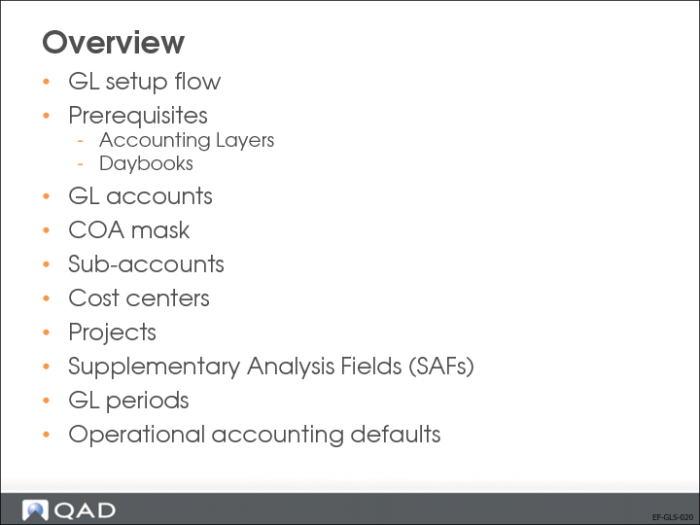
In this chapter, you will learn how to set up the general ledger and its components.
The GL account is the base unit in the general ledger. Transactions are posted during predefined GL periods within the GL calendar year. You can further analyze transactions using sub-accounts, cost centers, projects, and supplementary analysis fields (SAFs).
Transactions are recorded in daybooks, which are system- or user-defined views of the general ledger, and contain all transactions. Daybooks control the posting of transactions because each daybook must be linked to an accounting layer.
The COA mask lets you combine accounts, sub-accounts, and cost centers, and projects in a predefined posting framework.
General Ledger Setup Flow
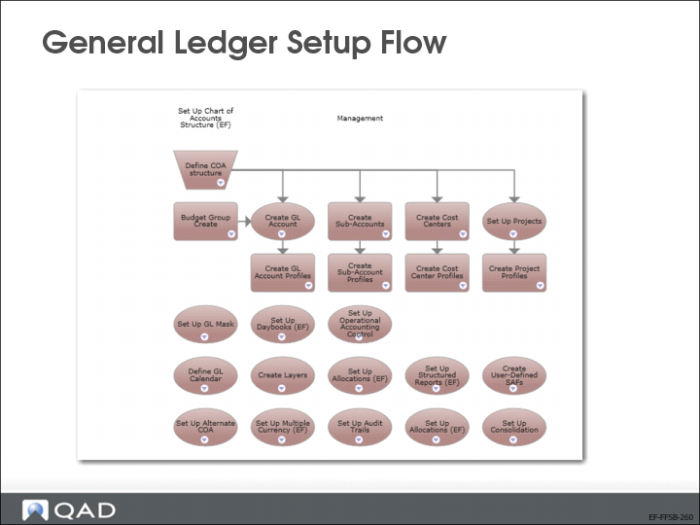
The process map in the slide displays the steps required to set up the general ledger.
You must set up the following GL components before you can define the chart of accounts:
• Accounting layers
• Daybooks
GL Account Structure
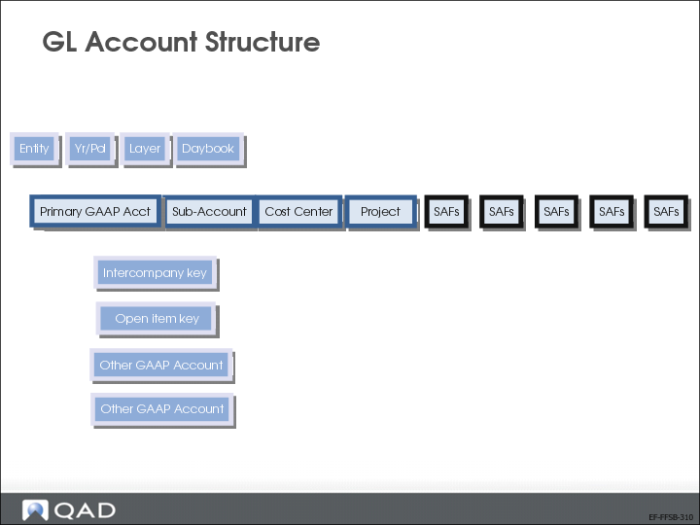
To support different types of reporting and analysis, some GL accounts can be used in combination with sub-accounts, cost centers, projects, and SAFs (refer to the User Guide: QAD Financials for a list of valid combinations). These elements provide greater granularity in financial reporting. Balances in sub-accounts and cost centers can be listed separately or summarized under account codes.
SAFs provide additional analytical reporting on transactions. SAFs can be used to provide costing on a particular service before you create a purchase order for the service.
You will now learn about the GL components in more detail. For a detailed description of each setup field, refer to User Guide: QAD Financials.
GL Account Features
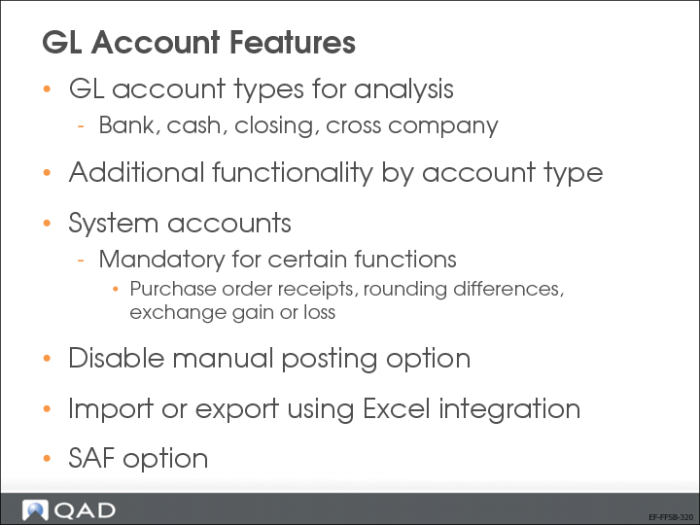
GL accounts are identified by the GL account type, which indicates the kind of transactions that post to the account. Additional functionality is available by GL account type, providing better control of account setup and transaction postings.
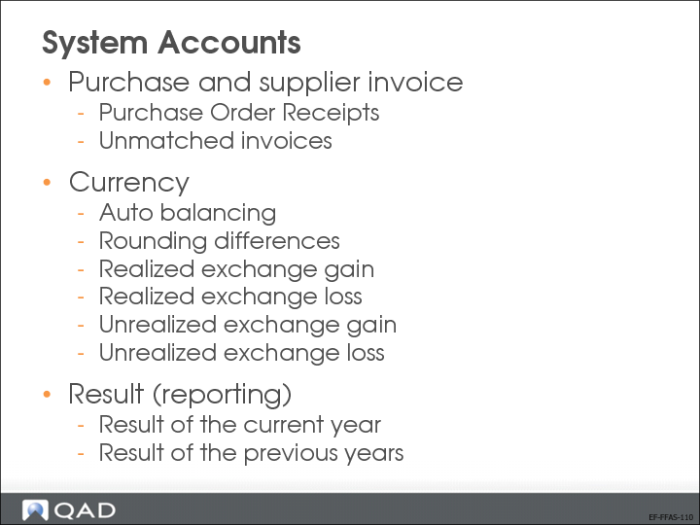
Specific accounts, called system accounts, are used for system-wide functions. System accounts are mandatory for certain functions such as purchase order receipts and rounding differences.
You can deactivate manual posting for specific GL accounts, for example, sub-ledger accounts to prevent error and mismatch.
You can use advanced Excel integration features to load chart of account data during implementation or for mass data updates.
Types of GL Accounts
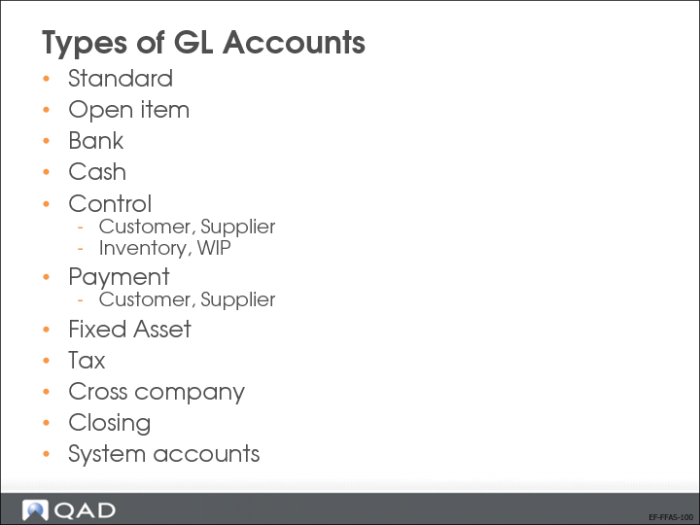
GL account types provide added control over transaction postings, where only certain account types can be used in combination with sub-accounts, cost centers, and projects. For example, bank accounts cannot be used in combination with cost centers, project, and SAFs.
The above slide lists the available GL account types. To learn more about each of these types, refer to User Guide: QAD Financials.
System Accounts
System accounts are used for system-wide functions, such as rounding differences or exchange rate gains and losses. The System Type drop-down list in the GL account screen is enabled when you specify a system account. Examples of system accounts include Purchase Order Receipts, Realized Exchange Loss/Gain, Unrealized Exchange Gain/Loss, and Result of Current Year.
GL Account Create
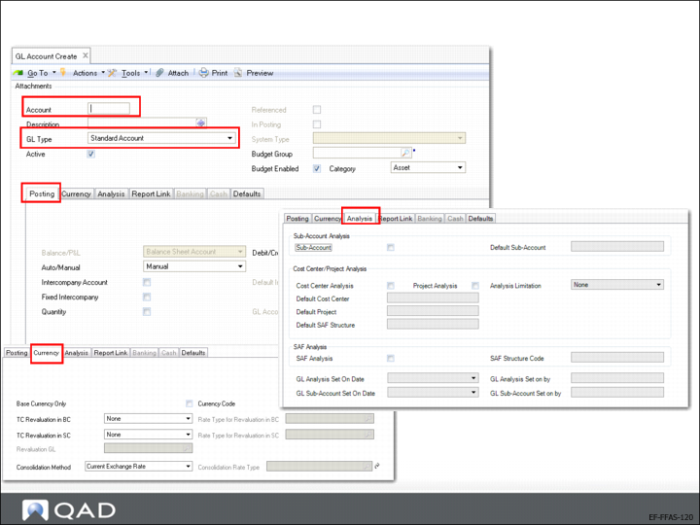
Use GL Account activities (25.3.13) to create, view, modify, and delete GL accounts. You can also use Excel Integration (25.3.13.5) to import account information from an Excel spreadsheet. For more details, see
UI Navigation and Browsing.
Use GL Account Create to define how posting should occur (limited based on the account type), whether foreign currency postings are accepted on the account, and the analysis type to use (sub-account, cost center, project, or SAF, or a combination of these). The analysis types you can use with each account is limited, based on the account type.
• Many attributes of a GL account can be modified if it has not been used in posting.
• The Balance/PL field cannot be modified in nonstandard accounts.
Validating Transactions COA Mask
The GL Mask Maintain function from previous releases has been replaced by new COA mask functions that provide greater flexibility in creating matrices to validate postings.
Three COA element types now have a separate COA mask maintenance function.
• Sub-Account Mask Create (25.3.9.1.1)
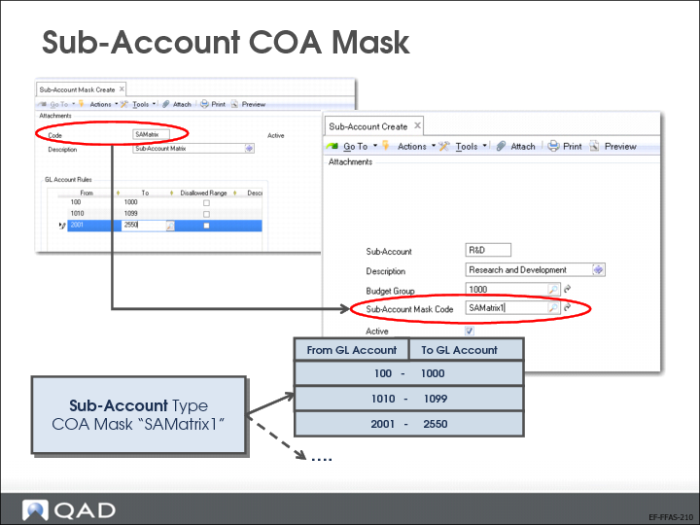
Specify a sub-account COA mask code and list the ranges of GL accounts with which sub-accounts assigned that COA mask can be combined.
• Cost Center Mask Create (25.3.9.2.1)
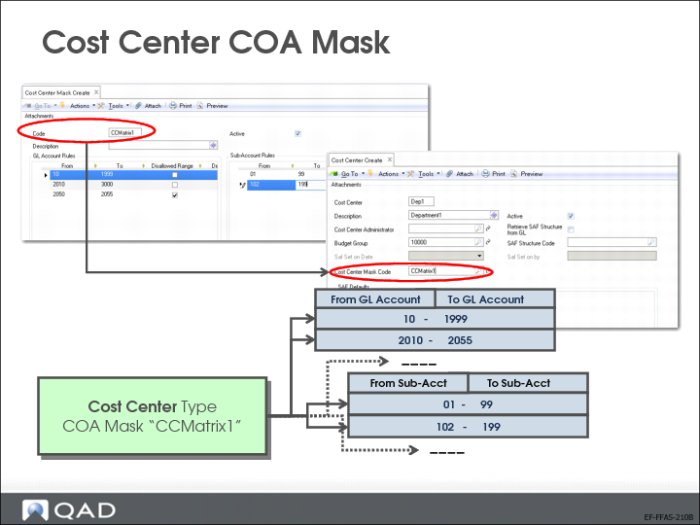
Specify a cost center COA mask code and list the ranges of GL accounts and sub-accounts with which cost centers assigned that COA mask can be combined.
• Project Mask Create (25.3.9.3.1)
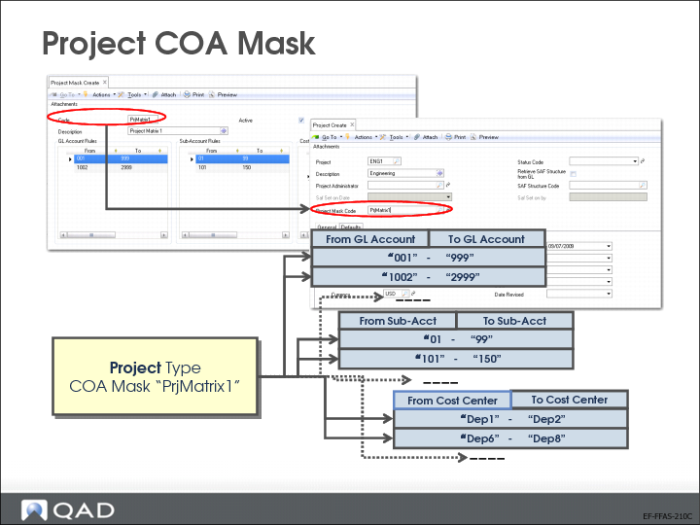
Specify a project COA mask code and list the ranges of GL accounts, sub-accounts, and cost centers with which projects assigned that COA mask can be combined.
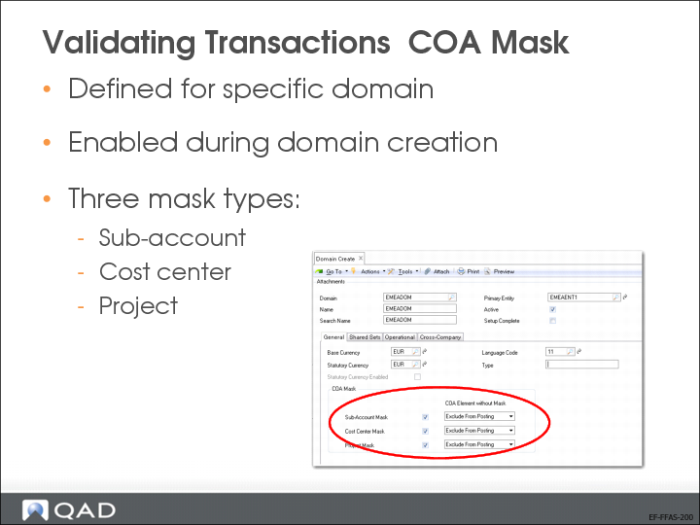
COA masks are implemented at domain level and as part of a shared set, and are activated using three control fields in Domain Create (36.1.1.1.1): Sub-Account Mask, Cost Center Mask, and Project Mask. You can only define a COA mask if it has been activated in Domain Create (36.1.1.1.1). The system validates postings for each of the COA masks marked as active.
An additional setting in Domain Create controls how the system treats COA elements that are not assigned a COA mask.
The COA Element without Mask field contains two options:
• No Posting Restrictions.
If, for example, you activate cost center masks and select No Posting Restrictions in the COA Element without Mask field, cost centers that are not assigned a COA mask can be used in any posting.
• Exclude from Posting
In the COA Element without Mask field, cost centers that are not assigned a COA mask cannot be used in postings.
Sub-Account COA Mask
Use Sub-Account Mask Create (25.3.9.1.1) to define the ranges of GL accounts with which a sub-account can be combined in postings. The sub-account mask is then assigned to the sub-account using Sub-Account Create (25.3.17.1) or Sub-Account Modify (25.3.17.2). If you assign a COA mask to a sub-account, the system will prevent it from being used with any GL account not specified within the ranges defined in Sub-Account Mask Create.
COA masks are described in detail in Training Guide: QAD Advanced Financials and in User Guide: QAD Financials.
Cost Center COA Mask
Use Cost Center Mask Create (25.3.9.2.1) to specify the ranges of GL accounts and sub-accounts that you can use in combination with a particular cost center.
You then associate the COA mask with a cost center by specifying the cost center COA mask code in the COA Mask field in the cost center record in Cost Center Create.
COA masks are described in detail in Training Guide: QAD Advanced Financials and in User Guide: QAD Financials.
Project COA Mask
Use Project Mask Create (25.3.9.3.1) to specify the ranges of GL accounts, sub-accounts, and cost centers that you can use in combination with a particular project when posting.
You then associate the COA mask with a project by specifying the project COA mask code in the COA Mask field in Project Create.
COA masks are described in detail in Training Guide: QAD Advanced Financials and in User Guide: QAD Financials.
Sub-Account Features
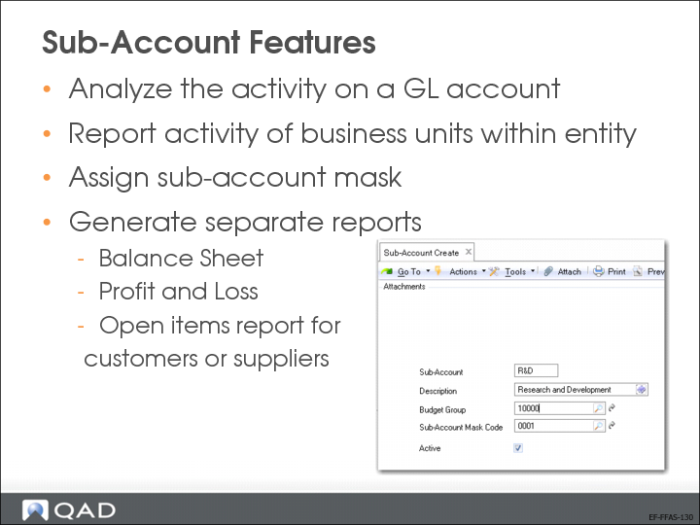
Use the Sub-Account activities (25.3.17) to create sub-accounts that let you analyze activity on an account code, and to provide further detail in financial reporting.
Sub-accounts are typically used to report on the financial activity of business units or divisions within an entity. You can create sub-accounts to correspond to those parts of the entity for which you would like to generate separate balance sheets, profit and loss statements, or open customer and supplier items. You can further analyze the sub-account by including it within a budget group.
A single GL account can be associated with multiple sub-accounts.
You can also use Sub-Account Create/Modify to assign a COA mask to the sub-account. A sub-account COA mask defines the list of GL accounts that the sub-account can be combined with during posting. If sub-account COA masks are not enabled for the current domain, the Sub-Account Mask Code field will be read only.
Cost Center Features
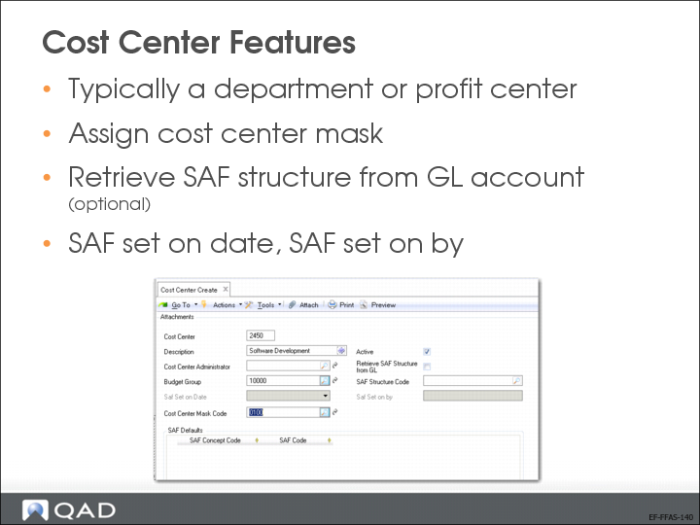
Use the Cost Center activities (25.3.20) to create cost centers that provide an additional reporting level for the GL accounts and sub-accounts.
Typically, a cost center can be a department or profit center within the entity for which you want to generate separate reports. You can associate a range of different accounts and sub-accounts with a cost center, and associate a number of cost centers with a single account.
You can further analyze a cost center by including it within a budget group.
You can use Cost Center Create/Modify to assign a COA mask to the cost center. A cost center COA mask defines the list of GL accounts and sub-accounts that the cost center can be combined with during posting. If cost center COA masks are not enabled for the current domain, the Cost Center Mask Code field will be read only.
Project Features
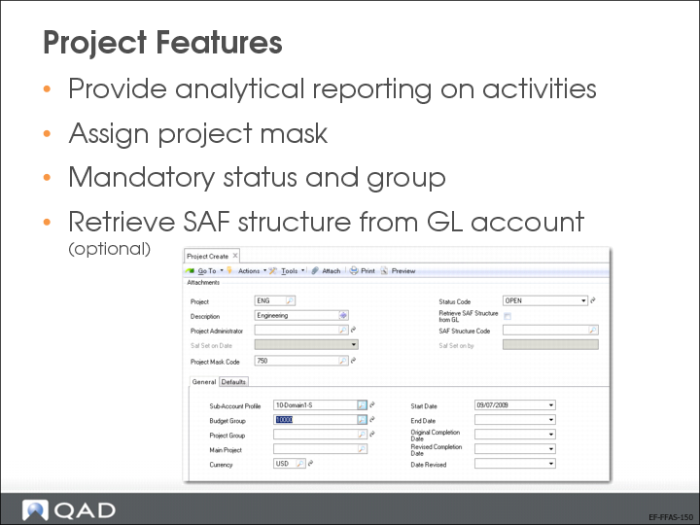
Projects are chart of account (COA) elements that provide analytical reporting on activities such as engineering design work or production rework.
You can associate a range of account codes, sub-account codes, and cost centers with a specific project or multiple projects. The COA mask determines the valid COA combinations (account, sub-account, cost center, and project) for posting.
Before creating projects, you must define two required codes: project groups and project status codes. You can post transactions to a project only if its system status is active.
Use Project Create (25.3.11.1.1) to create project codes.
You can also use Project Create/Modify to assign a COA mask to the project. A project COA mask defines the list of GL accounts, sub-accounts, and cost centers that the project can be combined with during posting. If project COA masks are not enabled for the current domain, the Project Mask Code field will be read only.