Process Payments
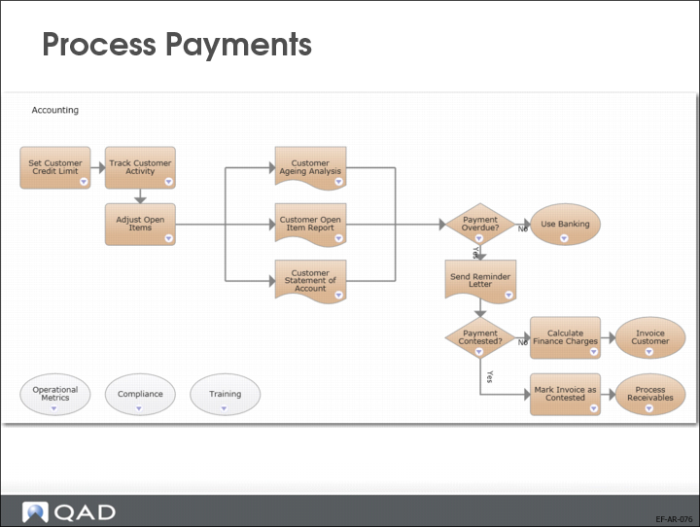
When processing customer transfer payments, you can use Banking functions to record the payments directly in your bank account while allocating the payment directly to invoices.
For other payment instruments, such as check payments, draft payments, and direct debit payments, you typically use Customer Payment and Customer Payment Selection functions to complete the payment process. These functions let you process a payment through a series of statuses, with postings to payment accounts for each status change. In this way, the payment is fully recorded in the AR sub-ledger, from allocation of the payment to an invoice to acknowledgement from the bank that the payment amount has been transferred to your bank account.
Once the amount is paid, you use Banking functions to update your account statement. The Payment functions handle all types of payment instrument (including checks, drafts, credit card, and direct debits), and both paper and electronic payment formats.
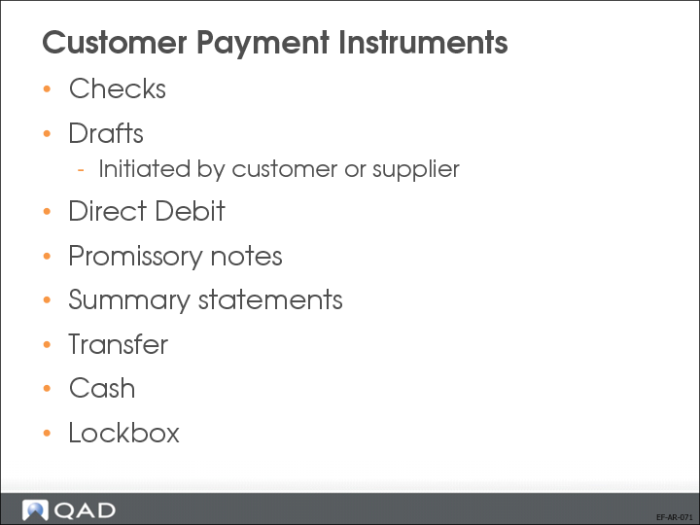
Customer Payment Instruments
The system offers a number of pre-defined types of customer payment instruments, as listed above.
You will now review process flows for some of these payment instruments.
Customer Payment Status Codes
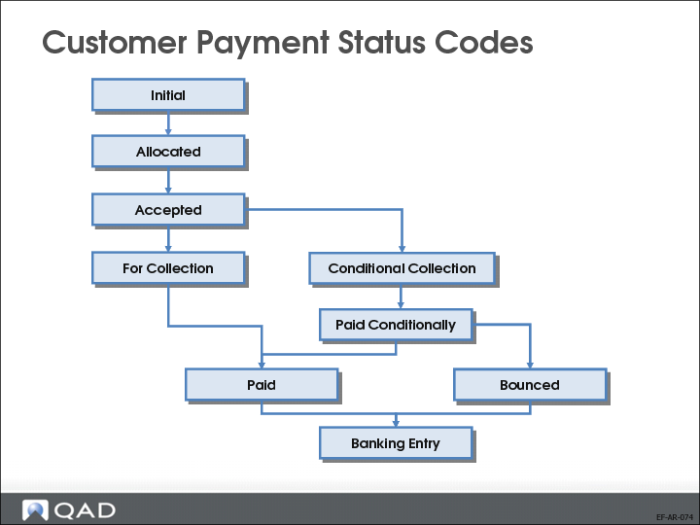
Payment processing is controlled by payment status codes. Different payment instruments follow different status sequences.The number of statuses you need depends on your particular implementation. At a minimum, you must have two statuses: Paid and Bounced. Typically, you also use a For Collection status for payments sent to the bank. The Initial status is used if you want to do an initial payment registration.
You can define an account for each status through which the payment is processed, or use one GL account to record the transitions. For example, if you are processing a draft through the Initial, Allocated, Accepted, For Collection, and Paid statuses, you can define a GL account of type Customer Payment for each status. This approach supports detailed reporting requirements.
Each status transition usually generates a posting, which updates the account associated with the status and bank or payment accounts. The posting information, including account and daybook details, is contained in the payment status definition.
Note also that you cannot undo a Paid document. You must reopen the invoice manually using Open Item Adjustment.
Introduction to Self Billing
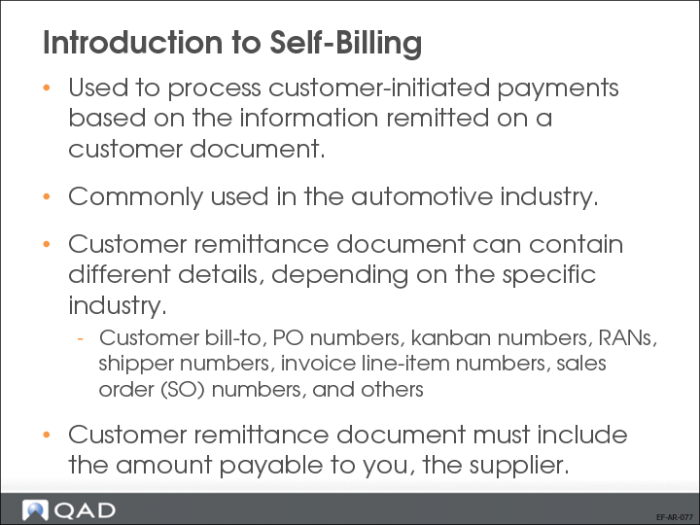
Use the Self-Billing module to process customer-initiated payments by applying payment to invoices based on line-item shipper details, including:
• Customer details
• Purchase order (PO) number
• Kanban number
• Release authorization number (RAN)
• Evaluated receipt settlement (ERS) payment references
In the automotive industry, suppliers often do not send invoices to their customers. Instead, the customer remits a self-bill. This document details shipments received and amount due to the supplier for these shipments. The amount also reflects any deductions for defective or damaged parts, and any other pertinent credits due. This document is called a self-bill because the customer decides the payable amount instead of relying on an invoice from the supplier.
Collections
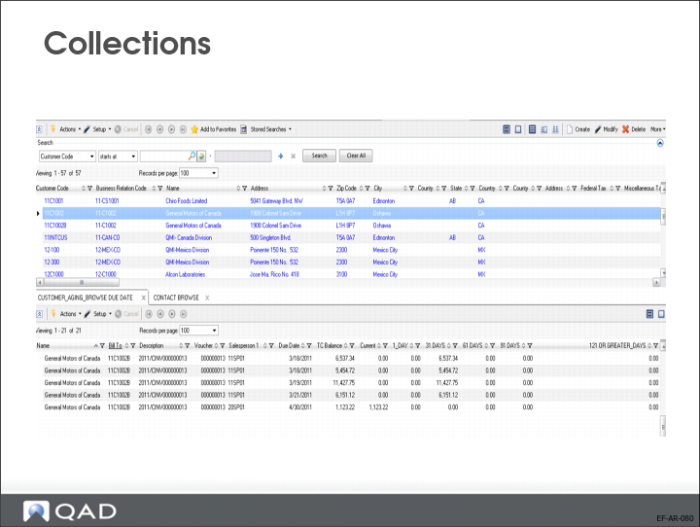
To help you browse and maintain related item, site, sales, location, and customer data, you can define collections of related browse and maintenance programs using Browse Collection Maintenance.
In a browse collection, a main browse drives the fields selected in the other browses and programs. The QAD .NET UI displays the other browses and programs in the lower part of a horizontal split-screen, with the main browse located in the upper part.