Hands On Exercise: AR Processing
In this exercise, you will learn to create, post and pay customer invoices based on sales orders.
1 Use the following data throughout the exercise where it does not default.
|
Field
|
Value
|
|
Entity:
|
10USACO
|
|
Site:
|
10-100
|
|
Location:
|
010
|
|
Output:
|
PAGE
|
|
All other fields:
|
Choose any from the drop-down list when necessary
|
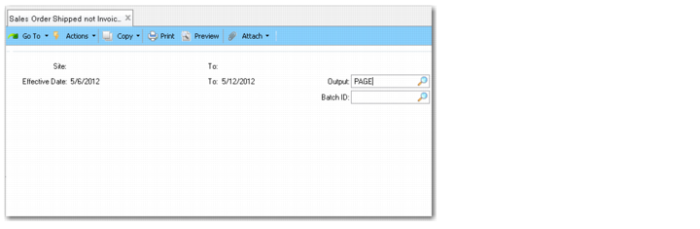
2 Run Sales Order Shipped Not Invoiced (7.15.20) for the date range 5/6/12 to 5/12/12.
Sales Order Shipped Not Invoiced
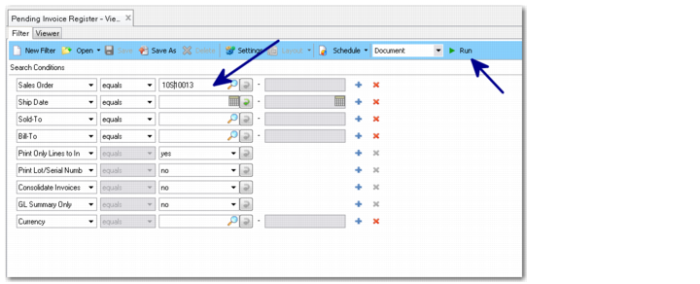
3 Run Pending Invoice Register (7.13.2) for sales order 10S10013. Click Next twice to run the report. Note the item number for later: _______________________
Pending Invoice Register
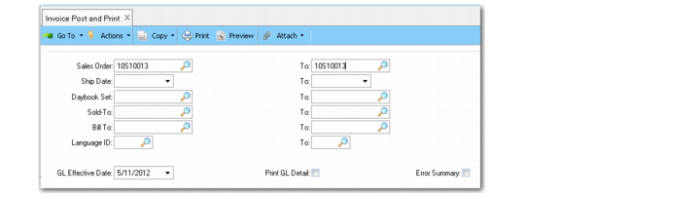
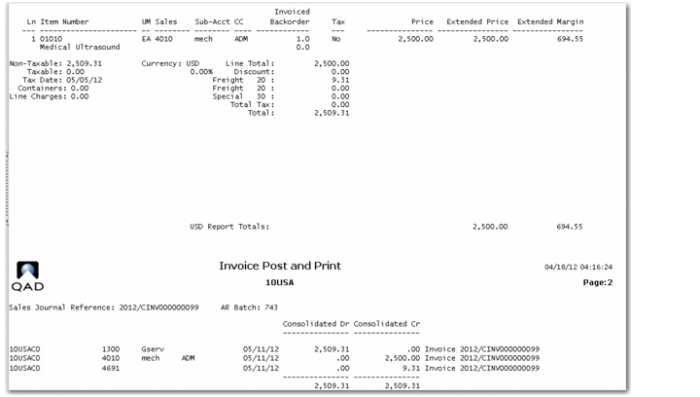
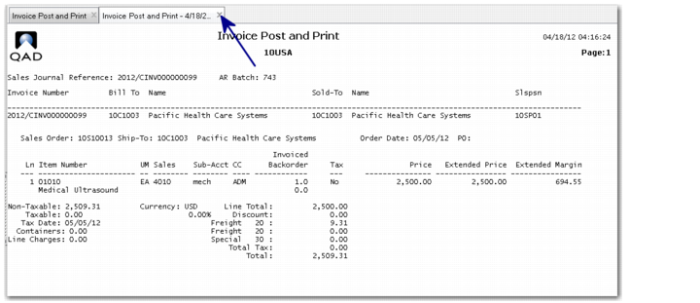
4 Use Invoice Post and Print (7.13.4) to post and print the customer invoice.
a Enter the sales order number (10S10013).
Invoice Post and Print
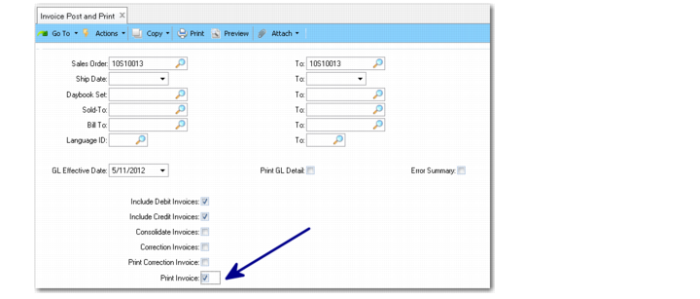
b Select the Print Invoice field.
Invoice Post and Print, Print Invoice Field
c Click Next until the GL transactions are displayed.
Invoice Post and Print, GL Transactions
d Close the GL transactions window.
Invoice Post and Print, GL Transactions
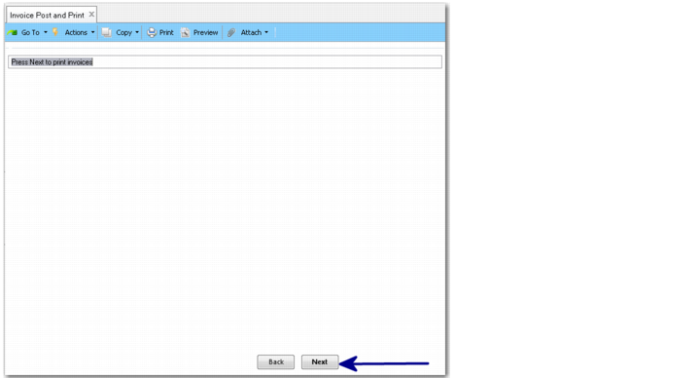
e Click Next again to print the invoice.
Invoice Post and Print
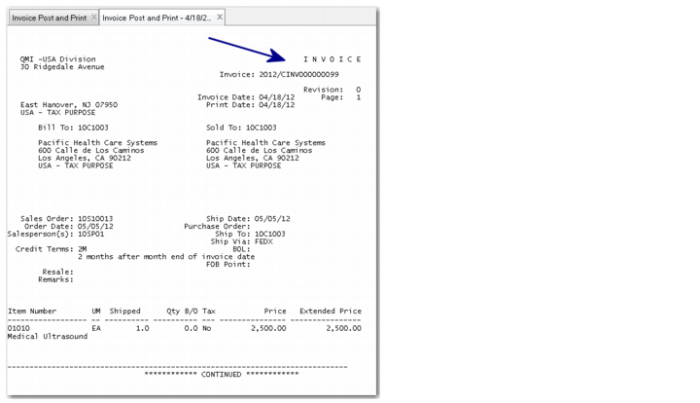
f Note the invoice number for later: _______________________
Printed Invoice
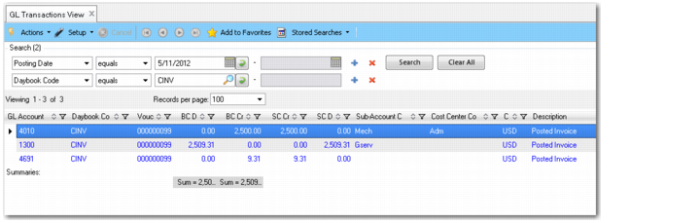
5 Go to the GL Transactions View (25.15.2.1).
GL Transactions View
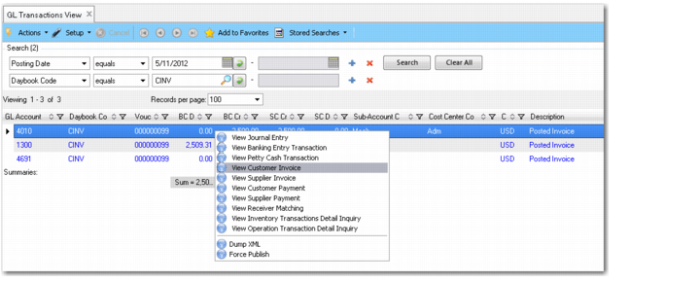
6 Select the relevant customer invoice transaction. Right-click and select View Customer Invoice.
GL Transactions View, Right-Click Menu
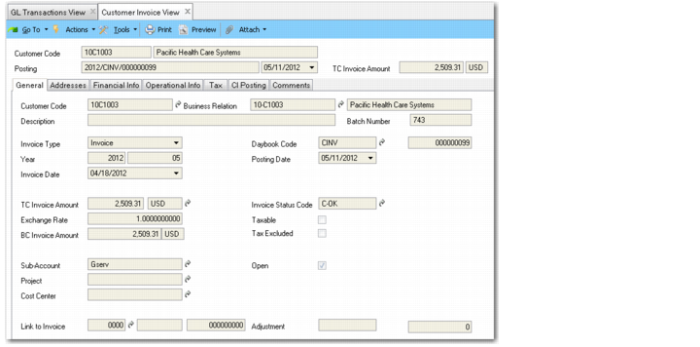
7 Close the customer invoice.
Customer Invoice View
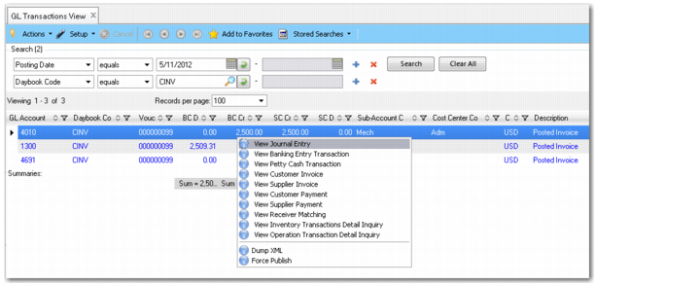
8 In GL Transactions View (25.15.2.1), right-click the GL transaction and select View Journal Entry.
GL Transactions View, Right-Click Menu
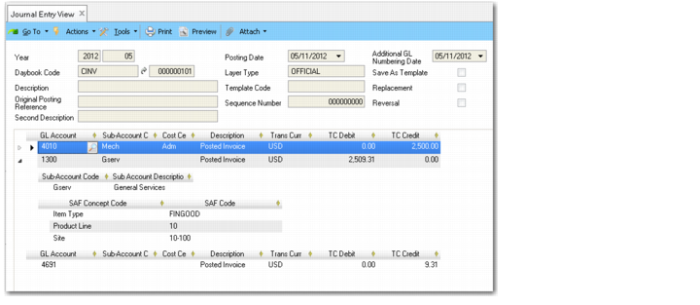
9 Review the SAF details and confirm that the system used the correct SAF codes.
Journal Entry View
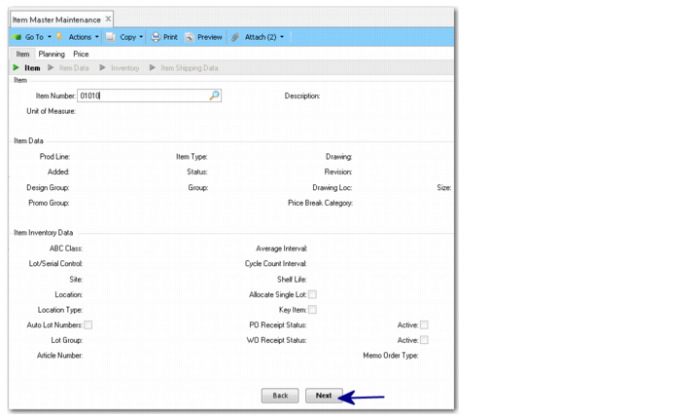
a Use Item Master Maintenance (1.4.1) and enter the item number that you noted in Step 3.
Item Master Maintenance
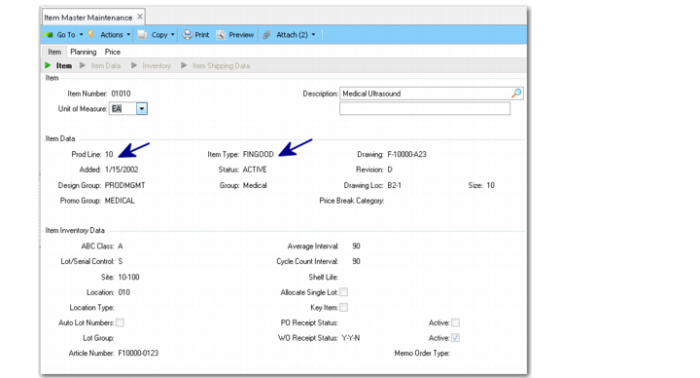
b Click Next to see the product line and item type.
Item Master Maintenance
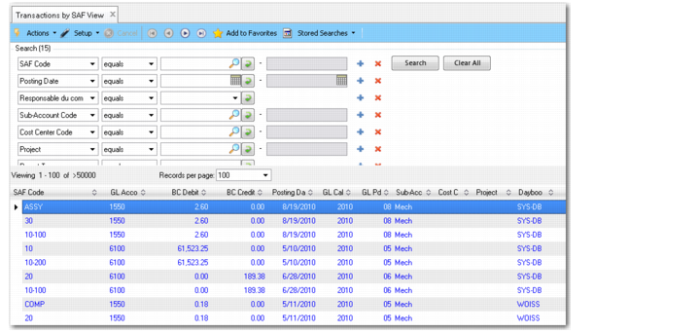
c Open the menu Transactions by SAF View (25.15.4.4).
Transactions by SAF View
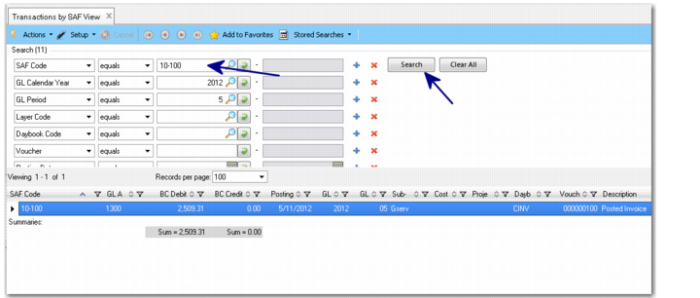
d Specify the site code as the SAF code, and click the Search button.
Transactions by SAF View, Search
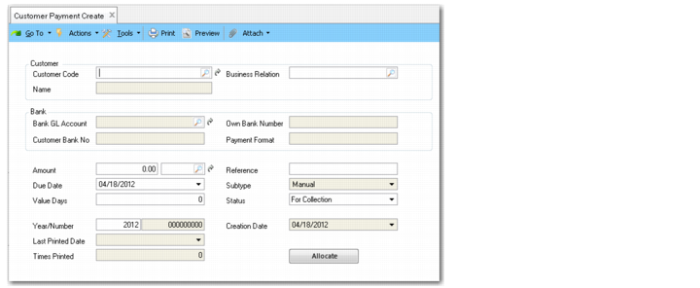
10 Use Customer Payment Create (27.6.4.1) to record the invoice payment.
Customer Payment Create
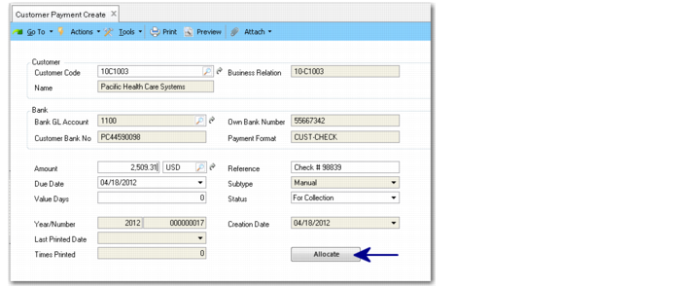
Field | Value |
Customer: | 10C1003 |
Amount: | Enter the full amount of the invoice you printed above. |
Reference: | Enter a random check number. |
Status: | Paid |
a Click Allocate.
Customer Payment Create, Allocate
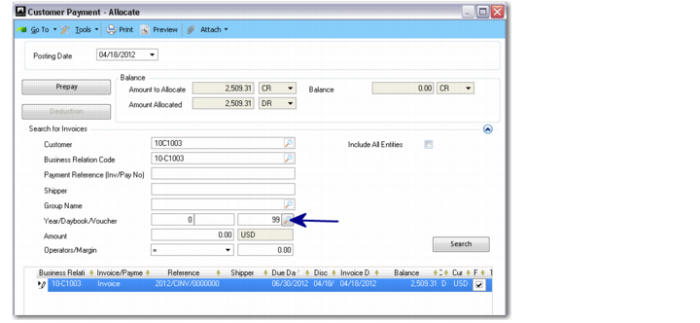
b Verify the search criteria and click Search. For example, enter Voucher Number = 99.
Customer Payment - Allocate
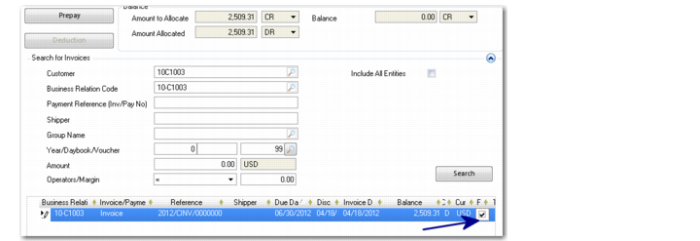
c Select the Full field on the invoice detail line to record a payment for the full invoice amount.
Customer Payment - Allocate
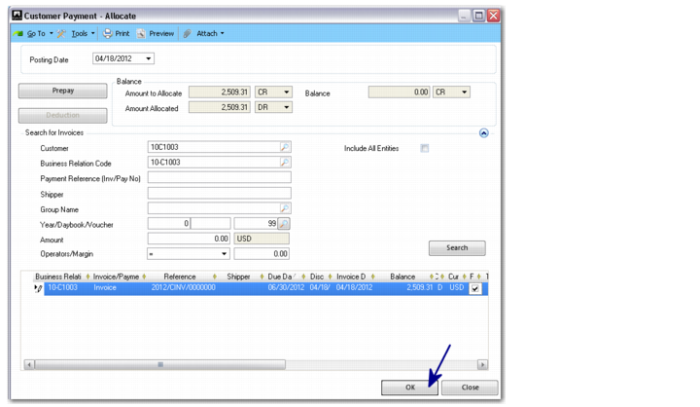
d Click OK and then Save.
Customer Payment - Allocate
11 Open Customer Activity Dashboard (27.18.1).
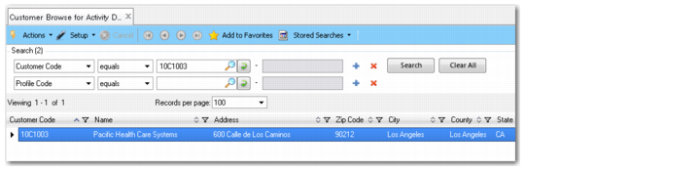
Customer Browse for Activity Dashboard
a Enter the customer code on the browse and click Search.
b Double-click the customer to launch the dashboard for that customer.
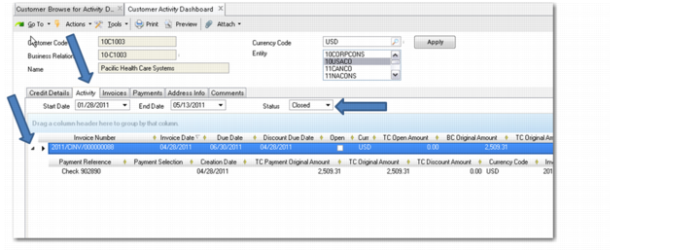
c On the Activity tab, select the Closed status to review closed items (paid invoices).
Customer Activity Dashboard