Hands On Exercise: Report Usage Customization
In this exercise, familiarize yourself with the customization options available to you.
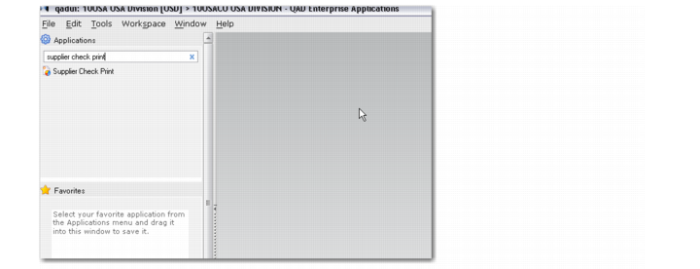
1 In the menu search, type “Supplier Check Print”.
Menu Search
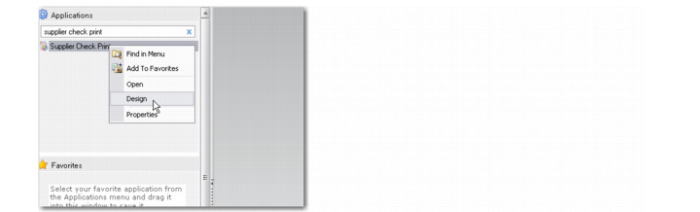
2 Right-click the menu and select Design.
Right-Click Menu
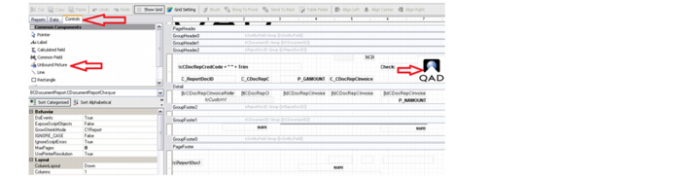
3 Select the Controls tab.
Supplier Check Print, Design
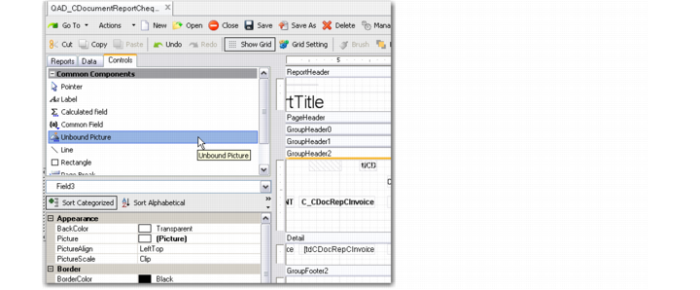
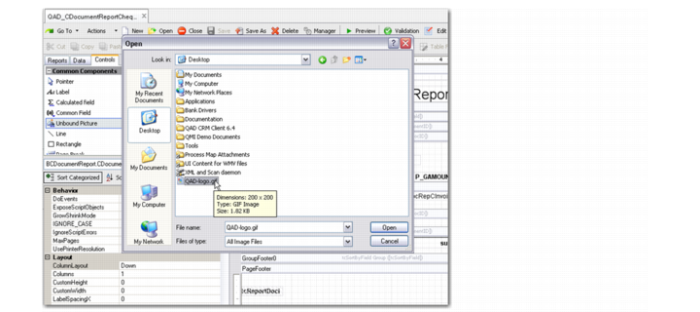
4 Select Unbound Picture under the Controls tab.
Controls Tab
A window opens.
5 Select the QAD icon on your desktop.
Unbound Picture, Open Window
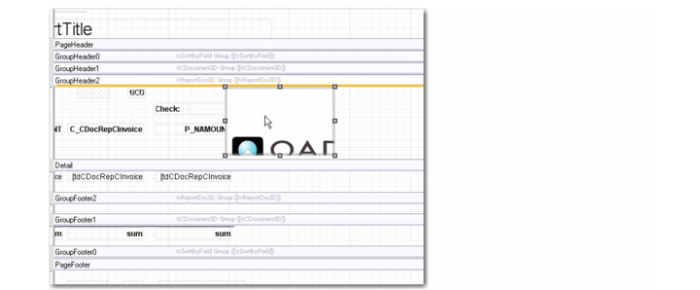
6 Insert the icon under Group Header 2 on the right side of the report, as displayed in the screenshot.
Inserted Graphic
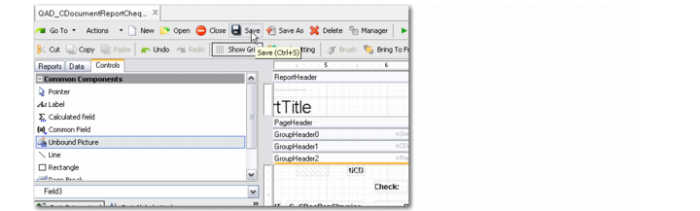
7 Click Save.
Save
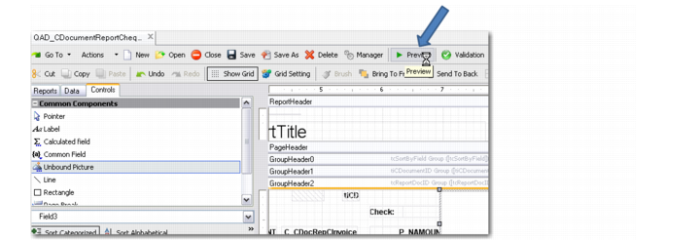
8 Click Preview.
Preview
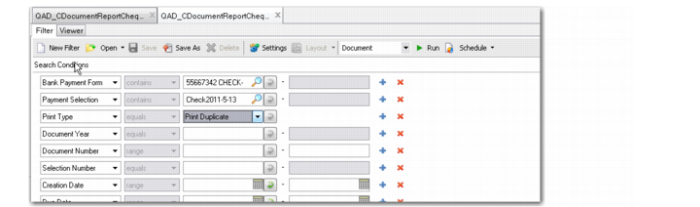
9 Use the report filters to print your check.
Report Filters
Field | Value |
Bank Format: | 55667342 CHECK-AP #100 |
Payment Selection: | Type “Check2011-5-13” or use the look-up to select this value |
Print Type: | Select Print Duplicate from the drop down |
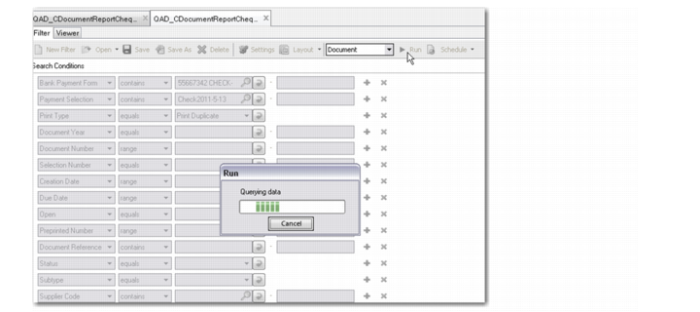
10 Click Run.
Running Report
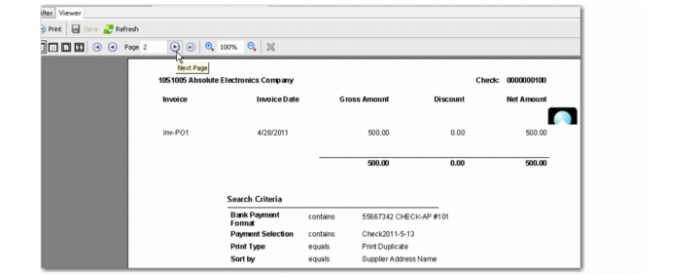
11 Go to page 2 of the report to view the changes that you made.
Supplier Check Print Report, Page 2