Miscellaneous Functions
• Used to delete or archive forecast records or criteria templates into a file
• Run Detail Forecast Delete/Archive (22.7.23) twice
• First with Delete set to No to review the record
• Then run again with Delete Yes
• If Delete and Archive are Yes, deleted data is copied to an ASCII file
• The file can be reloaded using Archive Reload File
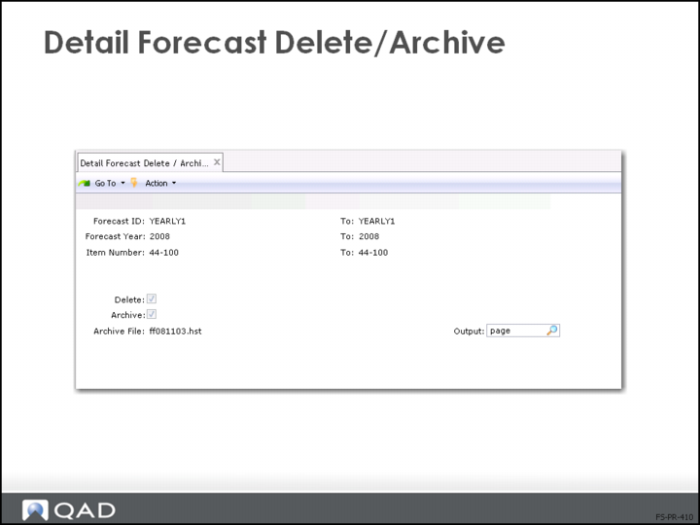
Detail Forecast Delete/Archive
• With Delete = Yes, forecast records satisfying the selection criteria are deleted from the database
• When Archive is also set to Yes, deleted data is stored in a file name ffYYMMDD.hst
• The ff prefix indicates that this file is a simulated forecast record and YYMMDD is the date you ran it
Delete/Archive
• If the file exists, the archived record is appended to the existing file
• You cannot recover a deleted forecast record. Archived files can be retrieved using Archive Reload File
• Keep record of the contents of the archive file—there is no record within the file
• Control this function with a password
Exercise: Create Sales History
Instruction: In this exercise, you create a sales forecast manually and upload it to the Master Production Schedule Forecast for processing by MRP. Sales forecasts are typically made for a month; MPS is typically made for a week.
1 Using Detail Forecast Maintenance (22.7.7):
a Enter the current year as Forecast ID and forecast year, and enter Item Number 01010.
b Click Next. In the column Original Forecast, there is no data, as there is no sales history from which to work.
c Click Next until cursor is in the January field of Adjusted Forecast.
2 Enter a forecast of 100 for January – March, 150 for April – June, 200 for July – September, and 250 for October – December.
3 Using Simulation to Summarized Fcst (22.7.13), autospread the monthly sales forecast to the weekly Master Schedule.
a Set Forecast ID to the current year. This setting finds the current Adjusted Forecast.
b Leave the Loading Method set at the default of 1, which is autospread.
c Click Next and direct output to page to view the result. The system has spread the monthly forecast into weekly buckets.
d If you are happy with the result, run Simulation to Summarized Fcst again with the Update box checked to upload the Simulated Forecast to Forecast Maintenance.
4 Using Forecast Maintenance (22.1) for Item 01010, verify that the forecast has been uploaded for the current year. Here the weekly plan can be further modified or used directly to run MRP.