Review Results
Before updating inventory balances review the following:
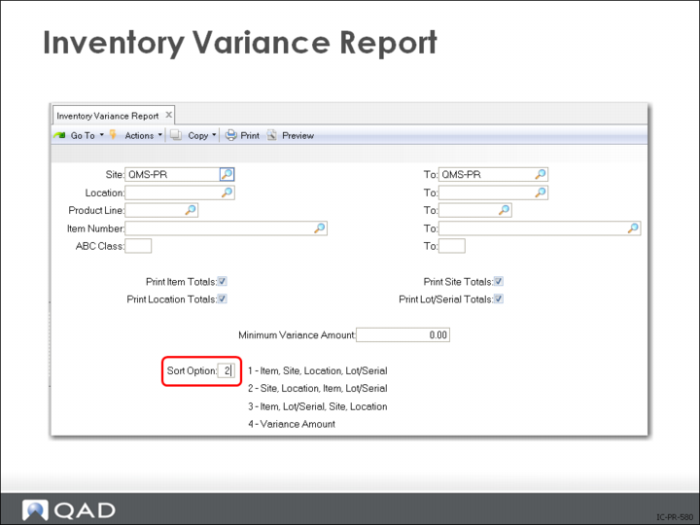
• Inventory Variance Report (3.16.18), which flags out of tolerance counts
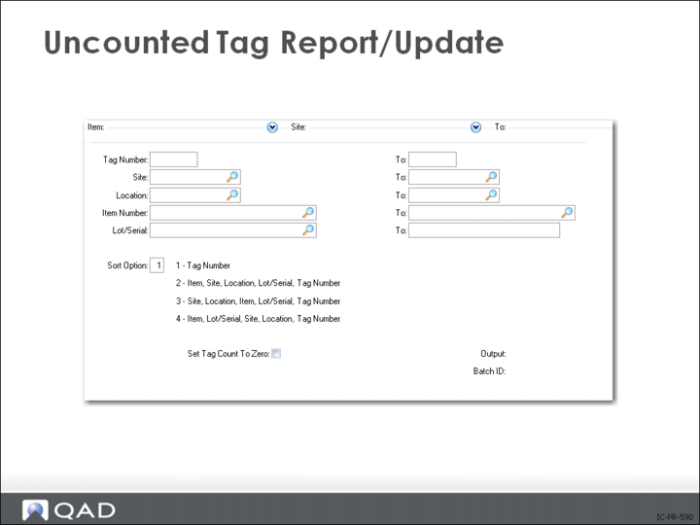
• Uncounted Tag Report/Update (3.16.15), which reviews any tags that have not had counts entered for them
• Tag Void Status Update (3.16.7)
• Uncounted tags should have a count entered or be voided
• The physical tag should be physically destroyed if voided
For items replaced by bulk tags, enter a count of zero to prevent the system from recording a double balance when the bulk tag count is entered.
Void/Zero Count Unused Tags
Make sure all item and bulk tags are accounted for after completing the physical inventory count.
Identify any tags not counted or voided using Uncounted Tag Report/Update (3.16.15). This report only shows tags that have not been voided or set to zero.
You may have leftover item tags either because the items were not found or they were counted using bulk tags. These cannot be voided. You need to enter a quantity of zero for the item tag using Uncounted Tag Report/Update (3.16.15) with the Set Tag Count to Zero option set to Yes.
Any bulk tags that you are not going to use must be entered as void. Do this using Tag Void Status Update (3.16.7). Only bulk tags with a void status can be deleted.
Tag Recount Entry
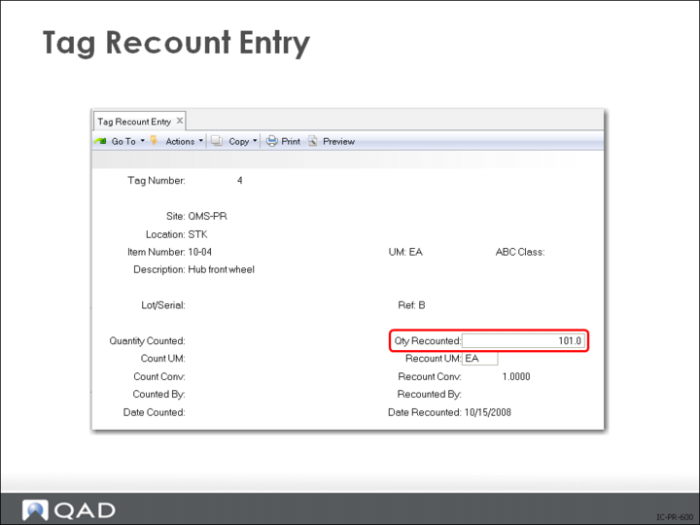
Once you enter the initial tag count, it can only be changed using Tag Recount Entry. You can change the count as many times as you like, until Inventory Balance Update is run.
• Enter item tags created in Item Tag Create (3.16.1), then enter Qty Counted
• For bulk tags, enter the tag number and Site and Location
Inventory Balance Update
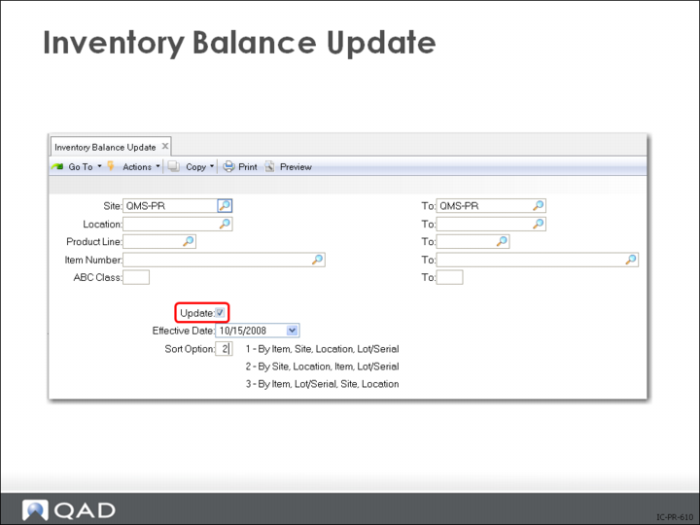
Once all bulk and item tags have been accounted for, update the actual inventory balances. Item quantity on-hand is updated with the difference between the frozen quantity and the count quantity.
Important: This is a critical step. Performing this function updates on-hand inventory balances. Be sure all counts:
• Are correct as of the “freeze” date
• Include any inventory transactions that occurred after freezing the inventory balances
Exercise: Physical Inventory
Instructions: In this exercise, you will practice all of the steps involved in a physical inventory count.
Important: The data used in these exercises may not be the same as the data shown in the screen captures in this lesson.
1 Use Inventory Balance Freeze (3.16.4) to freeze the inventory balances for site 10-100. Leave the screen blank for all items and press Go. Note that you can do this before or after you print tags.
2 Use Item Tag Create (3.16.1) to create count tags in site 10-100 for the items in product line 1000 for item numbers 60001 through 60006. Set the Include Zero Quantity field to Yes.
Starting Tag Number is a system-maintained field that does not need to be modified.
Use Bulk Tag Create (3.16.2) to create two bulk tags.
3 Use Tag Print (3.16.6) to print the tags. Notice the sequence in which the tags print.
4 Enter the following counts using the appropriate tag numbers:
Item | Quantity | Location |
60001 | 125 | 020 |
60002 | 100 | 020 |
60003 | 225 | 020 |
60005 | 200 | 020 |
60006 | 200 | 020 |
Use Tag Count Entry (3.16.11)
5 During the course of the physical inventory, you find 100 Probe units (50001) in a box at site 10-100, location 010. Use a bulk tag to record the count for this new item location.
Use Tag Count Entry (3.16.11)
6 Use Inventory Variance Report (3.16.18) to print the Inventory Variance Report for site 10-100. Identify items to be recounted.
7 Enter recounts for the items out of tolerance on the first entry. Date Recounted = today's date.
Use Tag Recount Entry (3.16.12)
8 Use Inventory Balance Update (3.16.21) to update inventory balances for the items counted. You must specify Yes in the Update Inventory field.
9 Use Stock Availability Browse (3.17) to review the new inventory balances for items in product line 1000. The inventory quantity on hand will be updated to the count amount.
10 Scroll through the transactions created by the physical inventory update.
Use Transactions Detail Inquiry (3.21.1)