Analyze Obsolete Inventory
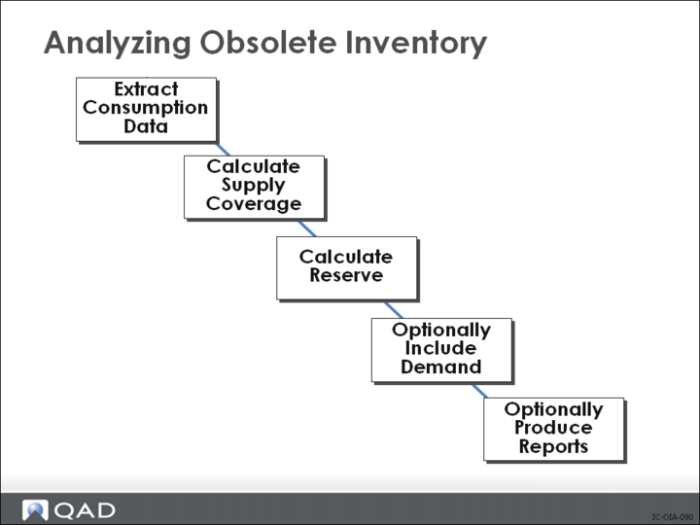
After all obsolete inventory controls are set and you define inventory types and depreciation rates, you can analyze data.
Because of the way you group items, some items may overlap inventory types. When the system calculates obsolete inventory values, it resolves the conflict of overlapping inventory types within the same site based on the action you specify in Obsolete Inventory Control. If you specify that the system not analyze obsolete inventory data when it encounters conflicts, it does not, but it does present conflicting inventory type data.
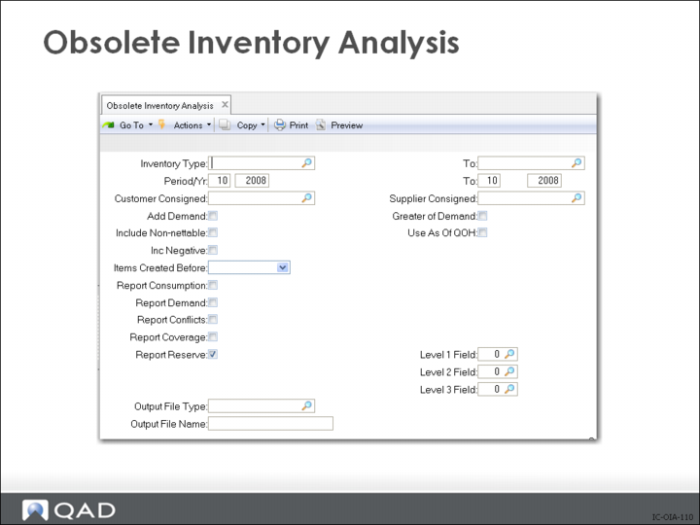
In the report setup—in addition to the usual range of report values that specify what is analyzed— you select whether to report Demand, Conflicts, Coverage, and Reserves.
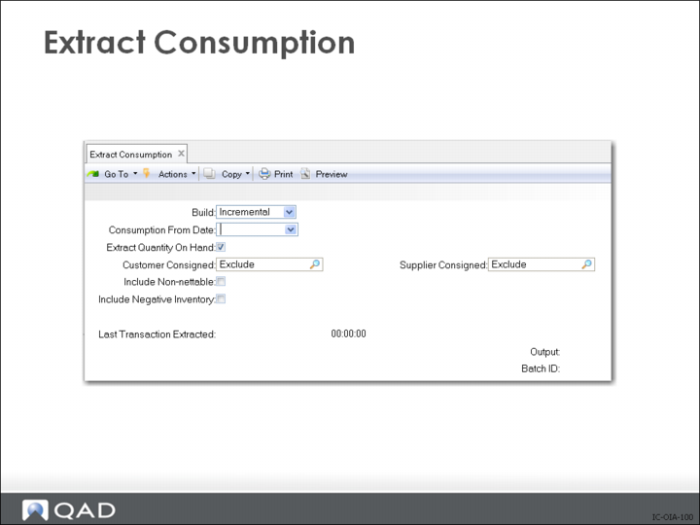
Extract Consumption
Build
Indicate the method you want this program to use to extract consumption data.
Initial
Extract all data starting at the date you specify in Consumption From Date up to the current date. The system collects transaction data and builds consumption data by item, site, year, and period.
Incremental
Extract all transaction data since the previous extraction. The system stores and displays in Last Transaction Extracted in this program and in Obsolete Inventory Control. The system extracts every transaction from the date in Last Transaction Extracted up to the time you initiate the extraction. The system then overwrites Last Transaction Extracted.
Consumption From Date.
Enter the date for an initial build of consumption data. The system extracts consumption data from this date up to today's date. The system uses the GL calendar to convert transaction dates to a year and period.
Extract Quantity on Hand.
Indicate if the system extracts Quantity on Hand (QOH) balances for initial and incremental builds.
• No: The system does not extract the QOH balance.
• Yes: The system extracts the QOH balance as of the extraction date for both initial and incremental builds.
Customer Consigned, Supplier Consigned.
Specify whether the system extracts customer or supplier consignments for initial and incremental builds.
• Exclude: Exclude customer or supplier consignment inventory.
• Include: Include customer or supplier consignment inventory.
Only: Only customer or supplier consignment inventory.
Include Non-nettable Inventory.
Indicate whether to include or exclude non-nettable inventory when calculating inventory supply usage for the quantity on hand for the items in the inventory type you specified.
• No: Exclude non-nettable inventory when calculating supply usage.
• Yes: Include non-nettable inventory when calculating supply usage.
Include Negative Inventory
Indicate whether the system includes negative quantity on hand (QOH) when calculating consumption.
• No: The system does not use negative QOH when calculating consumption.
• Yes: The system uses negative QOH when calculating consumption. The system displays items with negative QOH on coverage and reserve reports. Coverage periods and reserve amounts display as 0 (zero), not negative numbers.
Last Transaction Extracted.
This field is display only and lists the system date and time of the last inventory transaction the system extracted. This field also displays in Obsolete Inventory Control.
Running the Analysis
After all obsolete inventory controls are set and you define inventory types and depreciation rates, you can analyze data.
Because of the way you group items, some items may overlap inventory types. When the system calculates obsolete inventory values, it resolves the conflict of overlapping inventory types within the same site based on the action you specify in Obsolete Inventory Control. If you specify that the system not analyze obsolete inventory data when it encounters conflicts, it does not, but it does present conflicting inventory type data.
In the report setup besides the usual range of report values that specify what is analyzed you select whether to report; Demand, Conflicts, Coverage, and or Reserves.