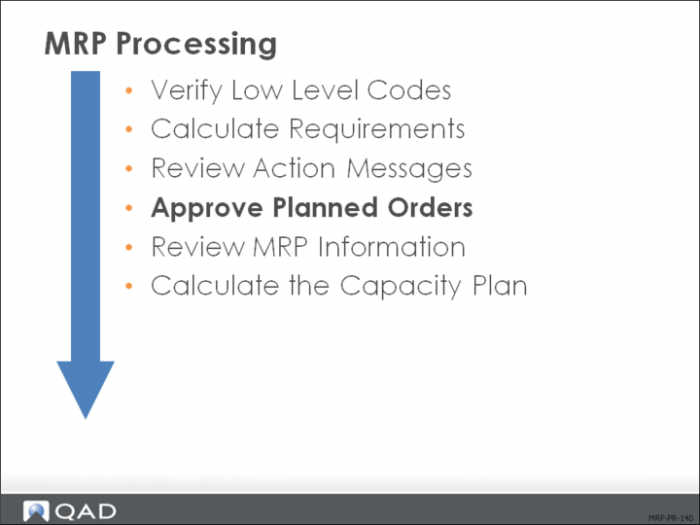
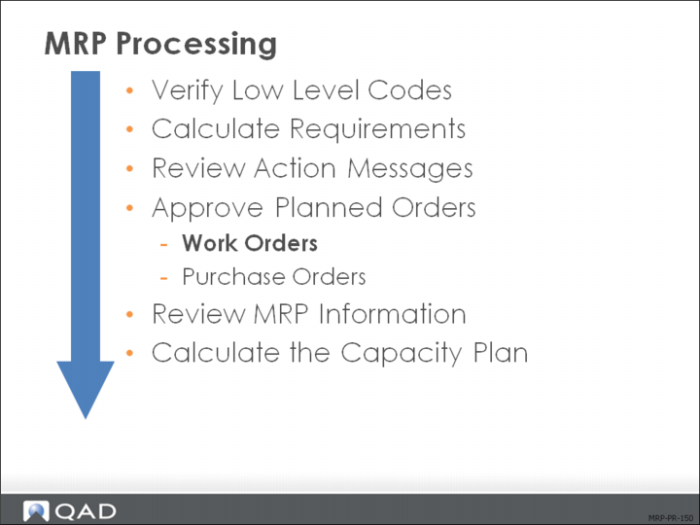
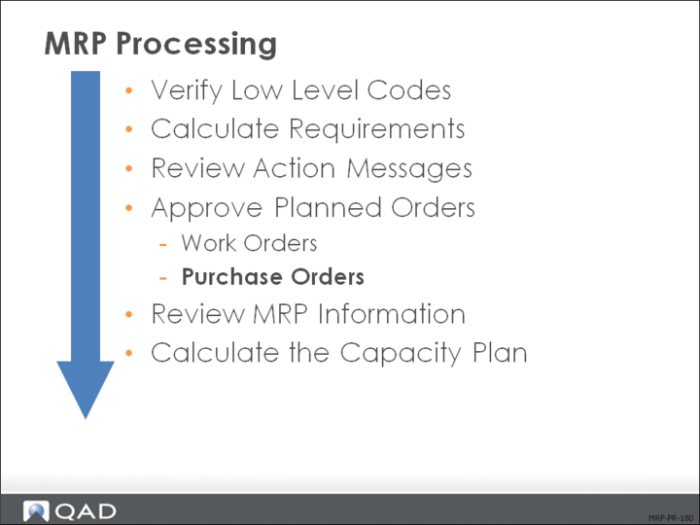
Approve Planned Orders
MRP produces orders based on demand. The status of these orders is planned. They can be for manufactured and purchased items and work orders:
• You release the orders for manufactured items as work orders
• You release the orders for purchased parts as requisitions
Subsequent MRP runs can change planned orders. To move these orders out of the control of MRP, you approve them.
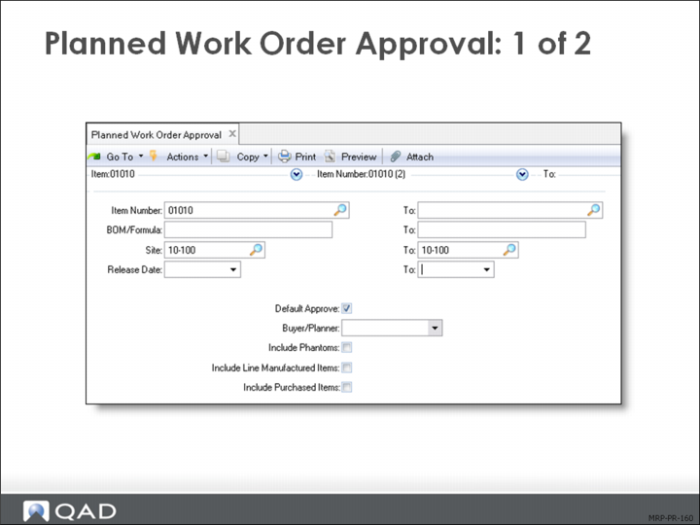
Planned Work Order Approval
Planned Work Order Approval (23.10) approves the MRP plan, generating a firm order for the amount of each planned order, changing the status from P to F. After this step, items are ready for release. The new status prevents MRP from changing the order dates and quantities. Select orders for approval with the criteria displayed.
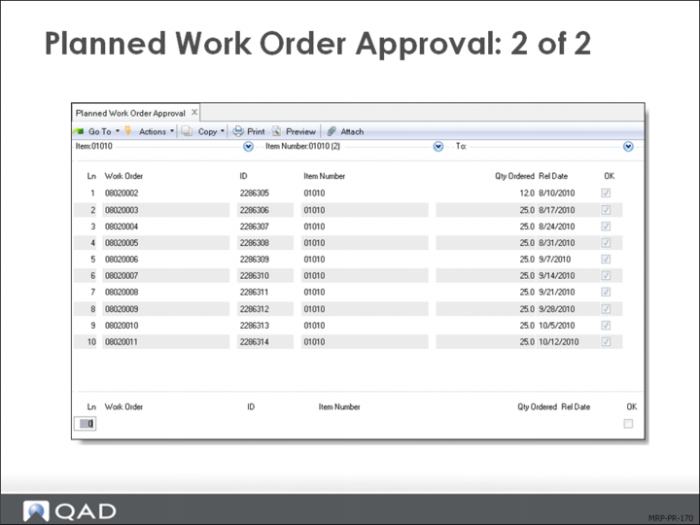
The screen displays the relevant work orders in the top half. In the bottom, you select orders by line number for processing:
Field Definitions
The key fields on the screen are described here.
Ln
Enter the line number of the work order, shown in the top half of the screen.
Work Order
The MRP-assigned number.
ID / Item Number / Qty Ordered / Release
Display-only fields.
OK
• Yes to release the order, place a check mark in the box by cursor clicking in the box.
• No to prevent its release.
Is all information correct?
• Yes = Process
• No = Correct the data
• Cancel = Cancel the function
Discussed in Training Guide: Work Orders
Planned Purchase Order Approval
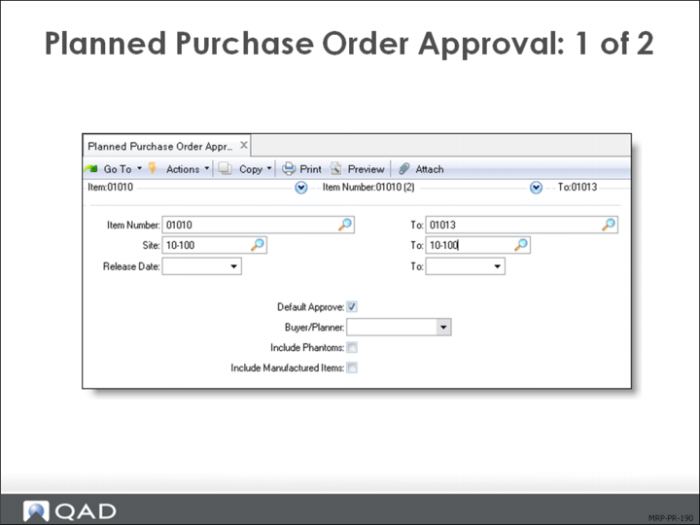
Planned Purchase Order Approval (23.11) approves the MRP plan, generating purchase requisitions for the amount of each planned order. From here, the requisitions are ready to print. This action moves the purchase orders out of the MRP module and into the purchasing module.
On the first screen, select the planned orders to approve, usually for a range of items and release dates. To approve the entire group, set Default Approve to Yes.
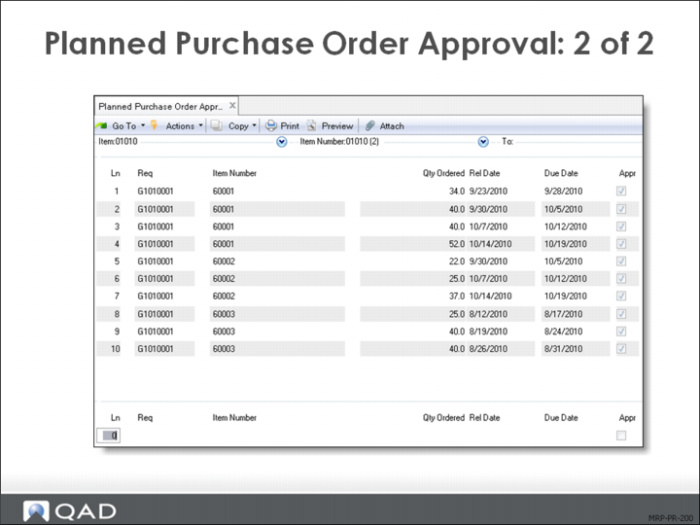
This screen displays outstanding MRP-generated purchase requisitions and enables you to approve them. Enter the line number in the indicated field to access the appropriate data.