Review MRP Information
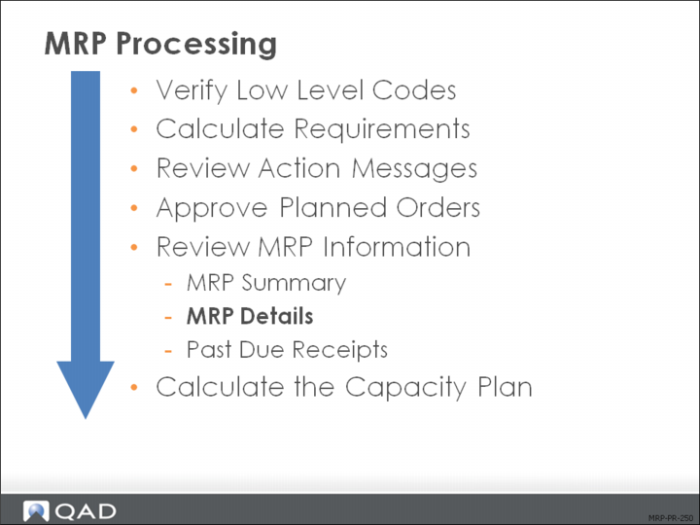
This section covers:
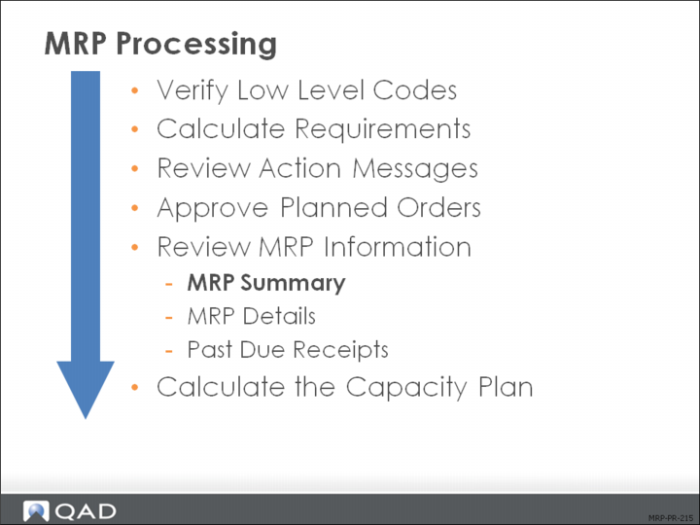
• MRP Summary
• MRP Details
• Past Due Receipts
MRP Summary
MRP Summary Inquiry
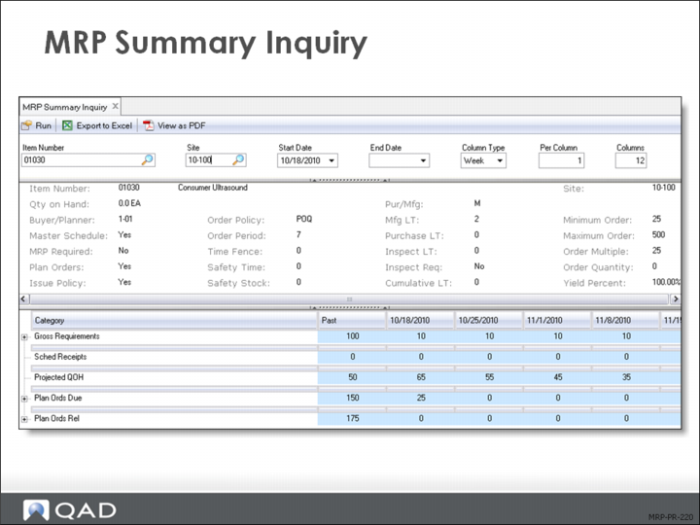
MRP Summary Inquiry (23.13) gives you a brief view of the MRP outlook for specified date buckets.
The top portion of the MRP Summary Inquiry screen shows the item planning data stored in the item master along with the current quantity on hand.
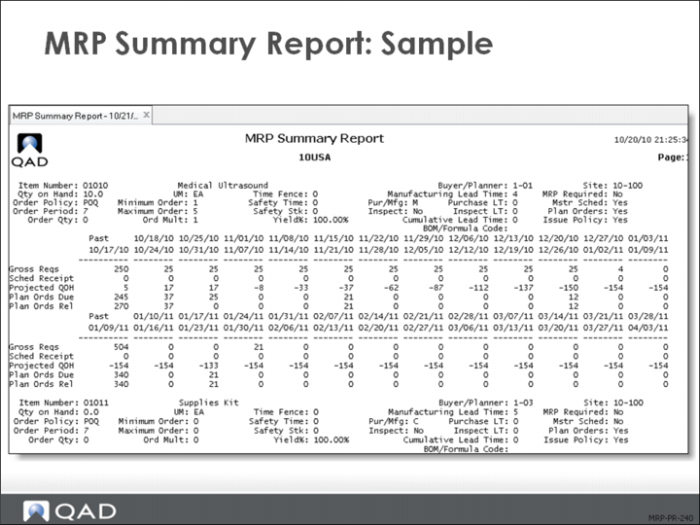
The MRP Summary Inquiry screen layout follows APICS standards. The top row shows the Gross Reqs (Gross Requirements) for the period. The calculation of gross requirements was covered in an earlier section.
The time buckets are user defined at the selection screen for the summary inquiry. You can specify the periods in days, weeks, months, or General Ledger calendar periods. The display defaults to weeks. In addition, you can specify how many periods to display in each vertical column. For example, selecting months and two periods per bucket displays a year of data in a single row.
The second line shows Sched Receipt (Scheduled Receipts). Scheduled Receipts are released orders, either purchase or work orders due to be received in the period the quantity appears in.
The third line Projected QOH (Quantity on Hand) is a calculated value based on the current quantity on hand, plus the scheduled receipts, less the gross requirement.
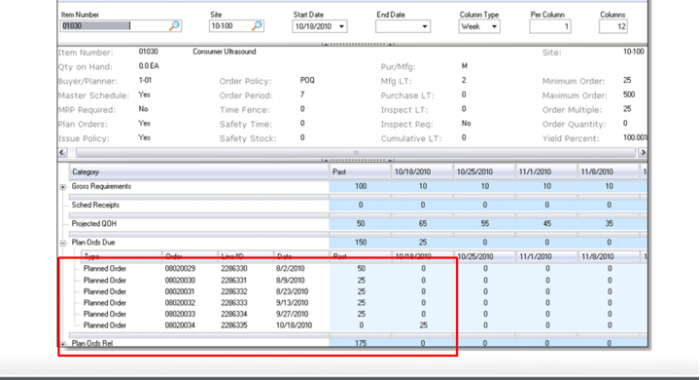
The fourth line Plan Ords Due (Planned Orders Due) is the quantity of items on MRP-planned, not--yet-released orders intended for receipt in the period.
The last line, Plan Ords Rel (Planned Orders to Be Released) is the quantity of items on planned, not-yet-released orders in the period.
Once an order that appears on the Plan Ords Rel line is release, it becomes a Scheduled Receipt.
Note: Drill down detail shown on the screen.
MRP Summary Report
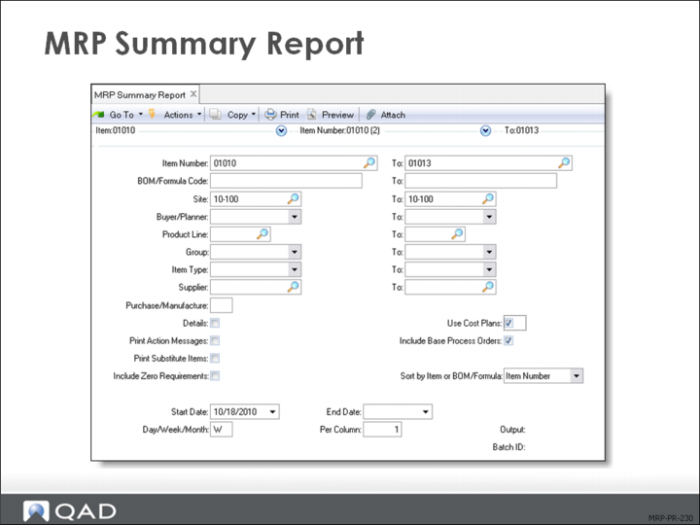
MRP Summary Report (23.14) gives you summary information on MRP for specified date buckets. Information appears in columns, with one column per time period. Activity before the start date appears in the first column under the label Past.
Select the data according to the criteria displayed.
Print Detail
Allows to print order details following the summary. Useful to help resolve shortage situations. This function creates a report that is both summary and detail format.
Use Cost Plans
Allows you to print a summary of production costs for each period. Normally production costs are based on the GL cost of the item, but if a cost plan is in place, costs are based on these planned future costs.
Costs plans are entered in the Cost Management module and they allow you to project future cost changes. This function is useful for commodities or seasonal items.
Print Action Messages
Allows you to print action messages following the summary report. Useful to help resolve shortage situations.
Day / Week / Month
Indicates the length of each column period:
• D for Day
• W for Week
• M for Month (requires that you set the Per Column field to 1)
• P for GL calendar period (works only if you are using the General Ledger module)
Sample MRP Summary Report
The summary report shows the same information as the summary inquiry.
MRP Details
MRP Detail Inquiry
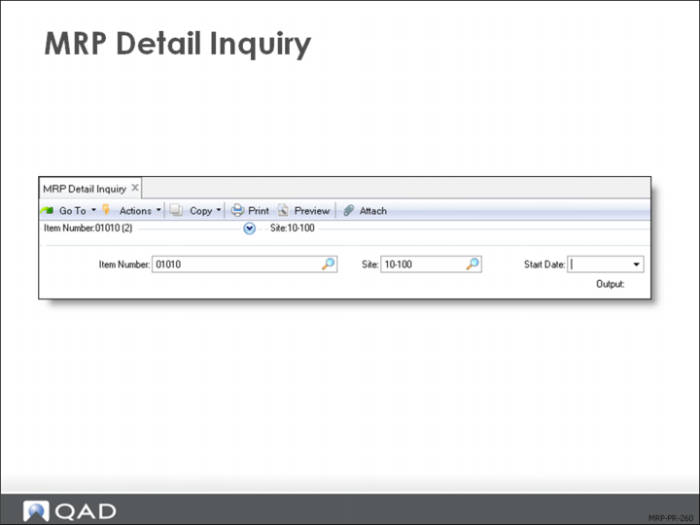
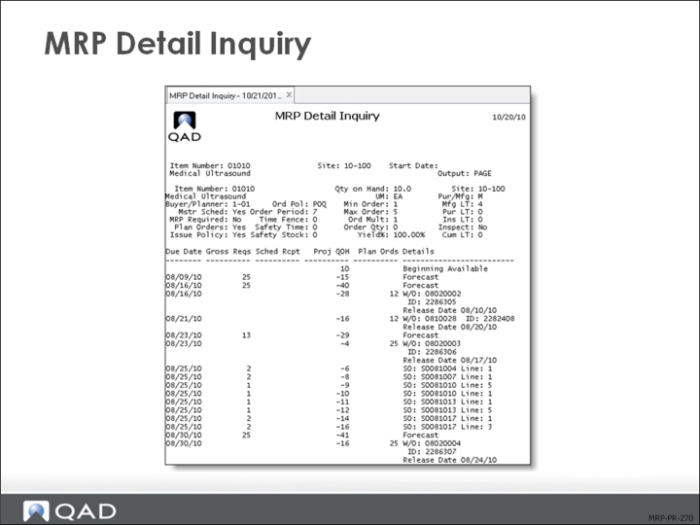
MRP Detail Inquiry (23.16) gives you a detailed look at MRP for specified date buckets. Buyer/Planners use this inquiry often.
Sample MRP Detail Inquiry
The top of the Detail Inquiry screen shows the item planning data and current quantity on hand.
The body of the inquiry displays, in date order, all the transactions for the item. Only dates that have transactions are displayed. The second column is the gross requirement. The third column is the projected quantity on hand based on these transactions. The fourth column is the plan order quantity and the last column is the details of that planned order.
In the example screen, we see Sales Orders (SO) and forecasts creating gross requirements and planned work orders (WO) to satisfy that demand. Note the sales order number, line item, and work order numbers are given as part of the detail.