Scheduling by Release Versus Due Date Section
Approaches to Production Scheduling
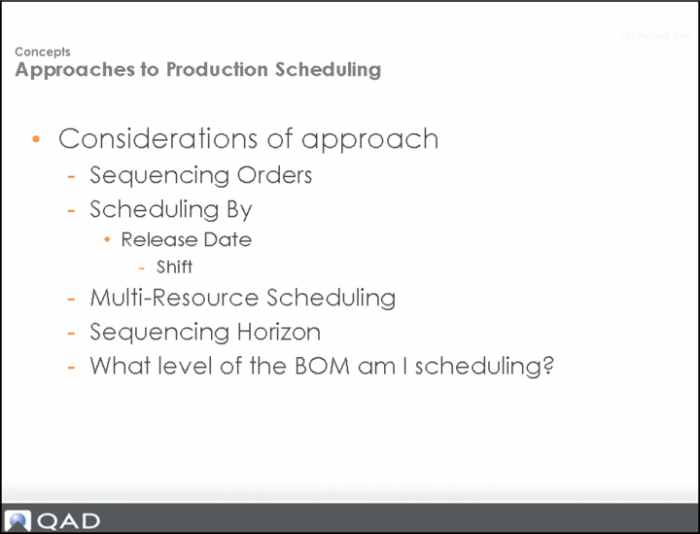
Before you schedule with the PSW, you should consider:
• Sequence orders
Which orders are currently sequenced and released to the shop floor - what is their current status? Before scheduling the next shift or the next day's production, knowing production's current progress to the schedule is key when factoring what can be scheduled for the next shift/day: Are there orders that should be released and sequenced over the next x time period?
• Schedule by release date and shift
In PSW, you schedule by release date, not due date.
• Multi-resource scheduling
Create and maintain a production schedule for production lines.
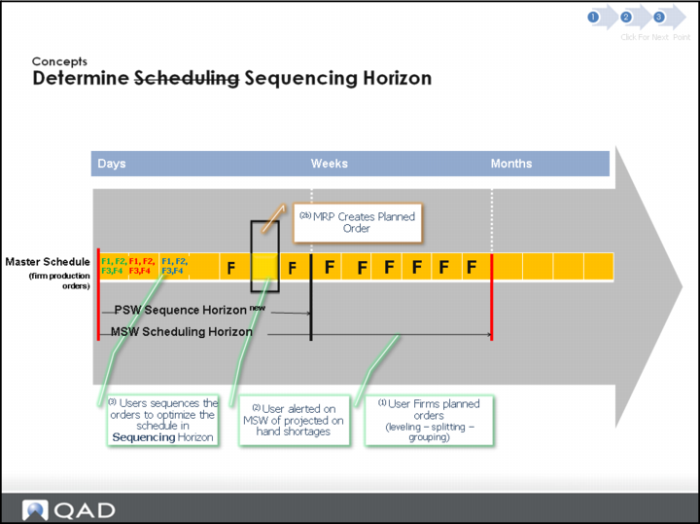
• Sequence horizon
The PSW horizon setting is based on calendar days, not the shop calendar, and always shows past due released orders. For manageability, the PSW should contain a much smaller data set.
BOM level
Consider the BOM level for which you schedule items. You can use CAC features to check component and parent item availability, too.
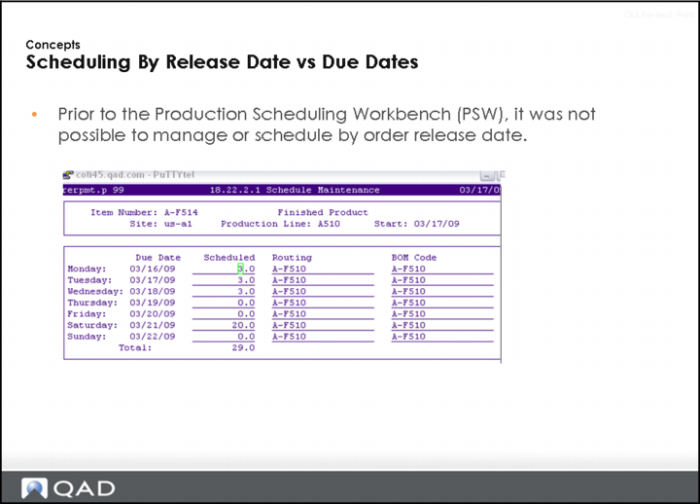
Scheduling by Release Date Versus Due Dates
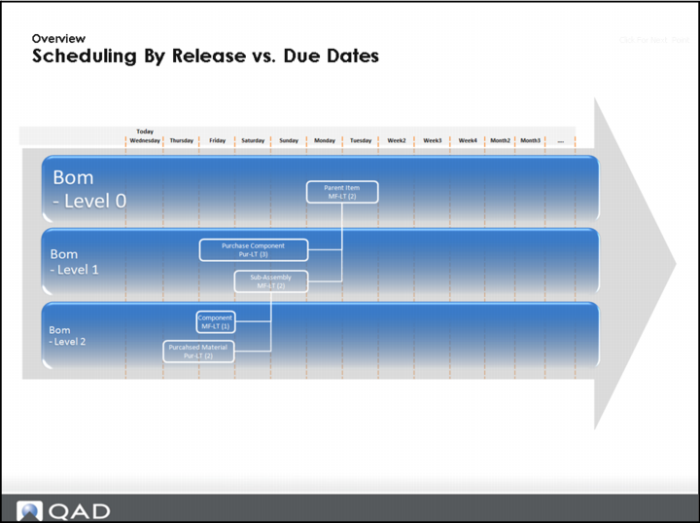
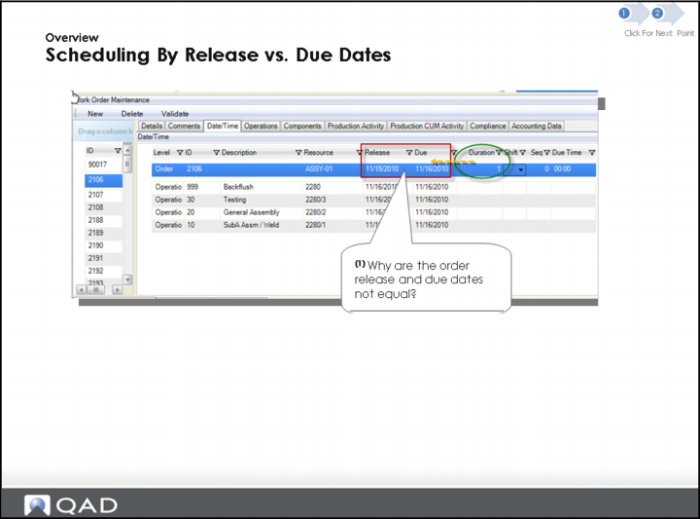
The release date is the date the production order is scheduled to be released to production. Release dates also determine the date components are required. Normally components are picked when an order is released.
The due date is the date this order is due to be completed. The due date defaults to today’s date plus the manufacturing lead time for the item. This is the date you plan to have product available for shipment to the customer or issue to another manufacturing order. All MRP plans are based on this due date.
When you create an order in Work Order Maintenance, the due date is calculated from the release date.
Knowing the Difference in Dates
Why is it important to know the difference in release dates and due dates?
The answer is that knowing the difference:
• Impacts your demand requirements for the lower level materials to ensure they are available when you need them.
• Provides for a buffer between the time you start the job and when you complete it.
Scheduling By Release Versus Due Dates: BOM Levels
Knowing the Difference in Dates
Why is it important to know the difference in release dates and due dates?
The answer is that knowing the difference:
• Impacts your demand requirements for the lower level materials to ensure they are available when you need them.
• Provides for a buffer between the time you start the job and when you complete it.
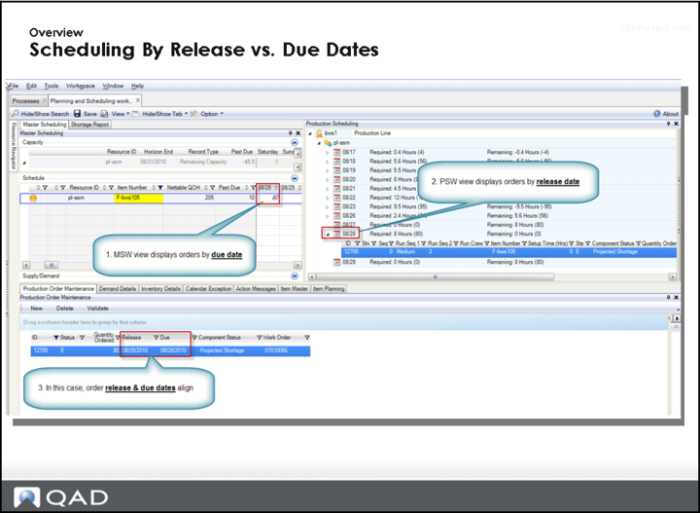
Scheduling by Release Versus Due Date: Example
1 MSW displays orders by due date.
2 PSW displays orders by release date.
3 For the example above, release aa nd due dates align.
When a Scheduler creates the production schedule, typically for the next 24-48hrs, the schedule context is Production Order release date, not due date. In some cases, the Production Order release/due date are the same, and in other cases they may be 1-60 days different. For most companies, a production order is completed on the same day it starts and generally never extends beyond a full 24 hrs.
Scheduling by Release Versus Due Dates: Calculations
Order Release Date is calculated based off the order duration.
If the order duration is > 0, then the order release & due dates will be different
Question: Where does order duration come from? It:
• Defaults from item MF-LT
• Is manually adjusted by user
• Is a calculated value (available in 2011 release)
The duration of a specific operation—the time between its start date and due date—is determined by the setup, run, and subcontract times for the operation.
Duration is calculated only at the order level and takes into account working and non-working days in its calculation.
Define Sequencing Horizon Section
Determine Sequencing Horizon
Use the PSW to set a smaller schedule in an attempt to optimize production on the shop floor. You focus on sequencing the orders by attribute.
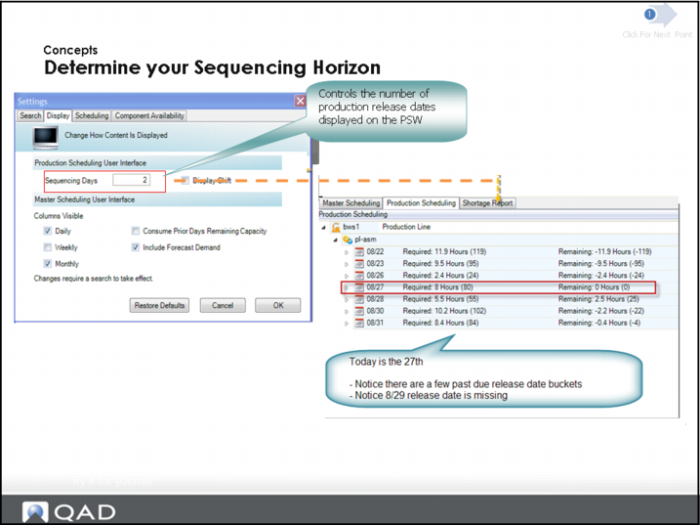
The sequence horizon determines the number of sequencing buckets that show in the PSW. If the horizon is three days, for example, then you see today plus two more days in the PSW. Past due orders always display in the Sequence Grid even if they are not within the current sequencing horizon.
Determine Your Sequencing Horizon
Question: Does Sequence Days (horizon) represent Calendar or Working Days?
See User Guide: Planning and Scheduling Workbenches for the answer.
Question: How is display of release dates impacted by Calendar Exceptions versus Non-Working Days?
Try it for yourself.
Production Order Scheduling
The subjects listed above are discussed in the following topics.
Schedule By Release Date Section
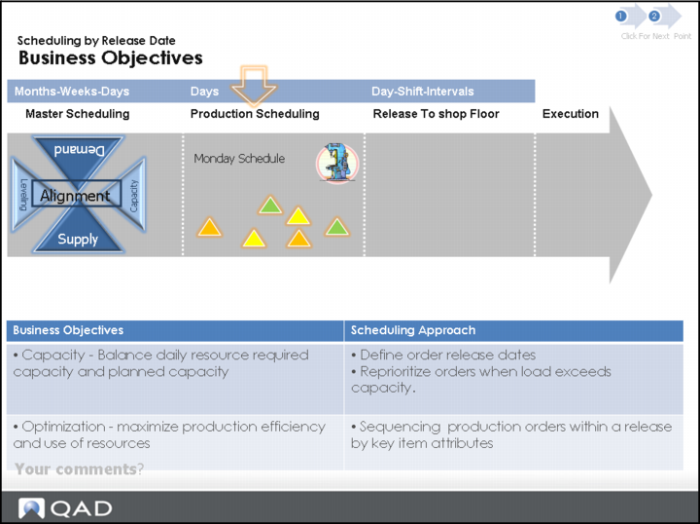
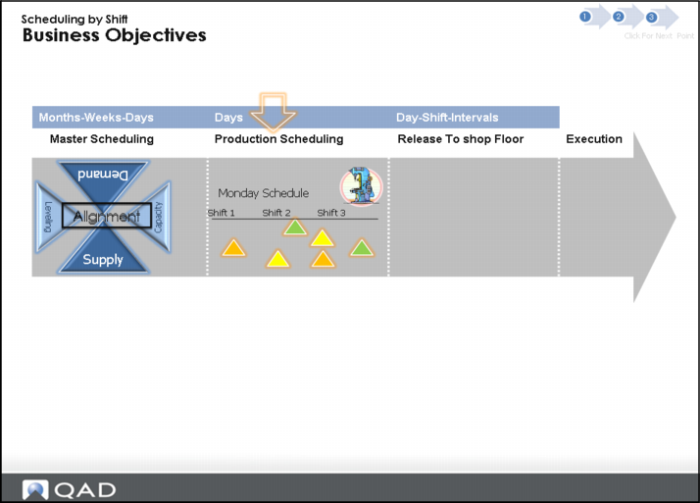
Business Objectives
The following depicts business objectives and the approach to meeting the objective:
Business Objective and Approach
Business Objective | Business Approach |
Balance daily production line required capacity and planned capacity. | Define order release dates. Reprioritize orders when load exceeds capacity. |
Maximize (optimize) production efficiency and use of resources | Sequencing production orders within a release by key item attributes |
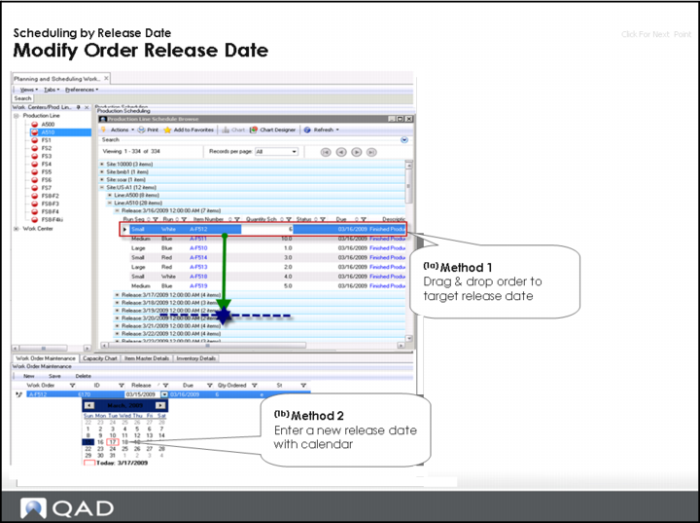
Modify Order Release Date
Modify the order release date in two ways in PSW:
1 Drag the order to a new release date within the Sequence Grid.
2 Retrieve the production order in Production Order Maintenance within PSW, then enter a new release date using the pull-down calendar.
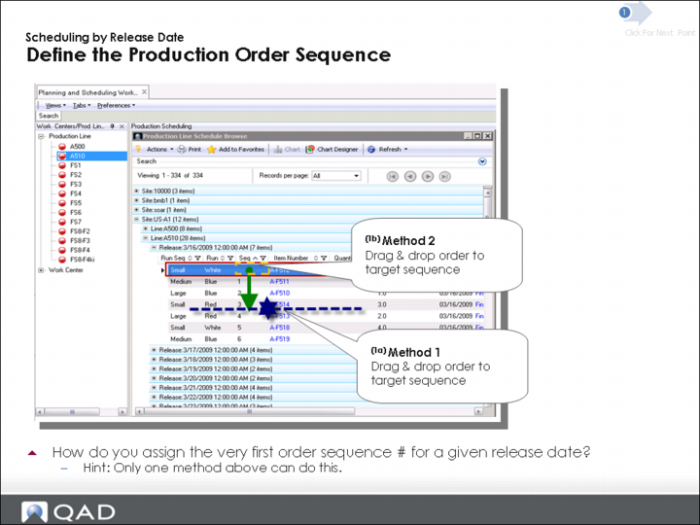
Define the Production Order Sequence
Question: How do you assign the very first order sequence number for a given release date?
Hint: Only one method above can do this.
You sequence production orders in PSW by dragging and dropping single or multiple orders after a sequenced job. Once you drop the orders, the system assigns the sequence number to the order(s) as greater than the prior sequenced numbers. Shift numbers are also automatically assigned if an order is dropped on a particular shift.
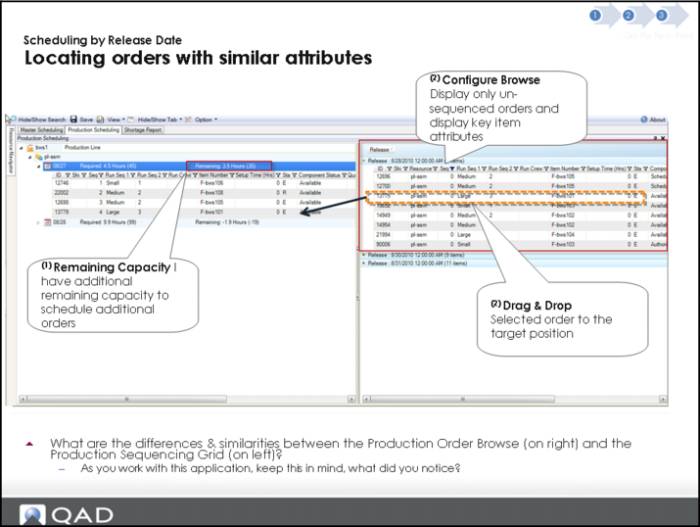
Locating Orders with Similar Attributes
1) Remaining capacity: I have additional remaining capacity to schedule additional.
2) Configure browse: Display only un-sequenced orders and display key item attributes.
2) Drag and drop: To move the selected order to the target position.
Question: What are the differences and similarities between the Production Order Browse (on right) and the Production Sequencing Grid (on left)?
As you work with this application, keep this in mind, what did you notice?
Hands-On Lesson Section
Exercise 1: Sequencing Production Orders within a Release Date
Important: For the following exercises:
• Do NOT save any of your changes.
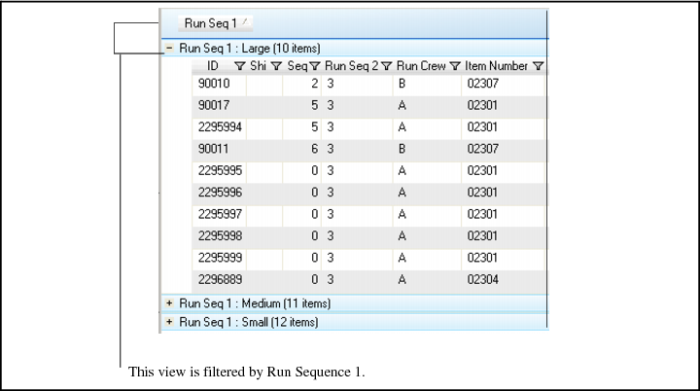
• Ensure your training data was refreshed today. If you just completed training today from the previous PSW chapter 4, you do not need to update your data. You should have saved views that were saved by Run Sequence 1. If you have not done this, go back and create the view from the previous exercise in this chapter. It should look like the following:
View Filtered by Run Sequence 1
Retrieve Scheduling Data
1 Enter selection criteria Site equals 10-202.
2 Enter Resource equals ASSY-01.
3 Click search.
4 In the Navigator Panel, click on Production Line ASSY-01.
5 Minimize the search panel.
6 Select your saved view from the PSW training.
Sequence Firm Production Orders by Key Item Attributes
In prior chapters of this training guide, you created a master production schedule that may have spanned several days, weeks, or months. To prepare the production schedule for today's production, you define the specific sequence that each production runs in order to optimize labor and machine utilization. In this exercise, you sequence firm production orders by key item attributes.
To do this, you use the Sequence Grid to drag and drop the orders into the optimal sequence using the Run Seq 1 item attribute column as the primary sequencing reference.
1 In the Sequence Grid, expand the Release Date for <today>.
Several production order records display.
• Question: A production order record is already sequenced; what is the order ID, item number and Run Seq 1 attribute of this order?
2 Using the mouse, click on order 90005; then, drag and drop it on top of order 90003.
The system assigns order ID 90005 as Seq number 2.
• Question: Why did we choose order 90005 to run after or with order 90003?
• Hint: The answer has something to do with the Run Seq 1 item attribute.
3 Multi-select both production order records with the Run Seq 1 item attribute of Medium. To multi-select, use the CTRL key in combination with the mouse left button.
Both the orders with the medium Run Seq 1 attribute should now be sequenced after the Run Seq 1 small orders.
4 Now sequence the two remaining orders with the Large Run Seq 1 Attribute and sequence them after the Medium Run Seq 1 attribute orders.
All orders are now sequenced.
Use the Sequence Grid to Locate Future Orders
Continuing from the prior step, you notice that you have additional capacity available to schedule additional orders for <today>. If you ignore the prior orders that were not completed yesterday, the system depicts that you have approximately (1.9) hours remaining capacity for <today> or in other words, you can schedule approximately (19) more parts.
For this exercise, you find additional orders that can be scheduled today in which the future orders have matching item attributes to the orders currently scheduled for today. You use the Sequence Grid to locate future orders to move up.
1 In the Sequence Grid, expand the Release Date for <tomorrow>.
The system displays several orders with release date of <tomorrow>.
2 In the Sequence Grid for <tomorrow>, select order 90008; then, drag and drop it to the correct sequence location for <today>.
Order 90008 should have sequence # (3) (4) or (5) if you put it in the correct location.
Remaining capacity should now = (.9 hours).
• You should have sequenced the order 90008 with the orders that shared the common attribute of Medium.
• Question: What is the remaining number of parts you can schedule for <today>?
Use Production Order Browse to Locate and Move Up Future Orders
Now try using Production Order Browse to locate future orders to move up.
1 Open and expand Production Order Browse.
The system displays records grouped by Run Seq 1 item attribute code.
If the data does not display by Run Seq 1 item attribute code, then you did not complete a prior step as expected. To correct this, group your data by the Run Seq 1 column in Production Order Browse.
2 In Production Order Browse, apply a filter to the SEQ column by selecting the SEQ column Filter value of 0 (zero).
Production Order Browse now only displays unsequenced production orders.
• The concept is to use Production Order Browse to find unsequenced production orders to add to <today's> production schedule. Typically, you do not want to consider orders that are already sequenced.
• This method is the primary use case/method expected in using the PSW for locating firmed production orders that require sequencing.
3 In Production Order Browse, expand the Run Seq 1 grouping of the Small attribute.
The system displays all unsequence orders with the Small attribute.
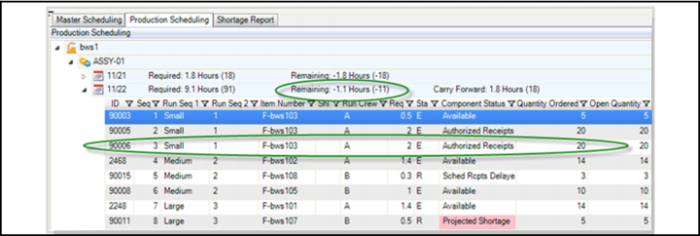
4 In Production Order Browse, select 90006 and drag and drop it onto the Sequence Grid on order 90005.
Order 90006 is sequenced, and remaining capacity is now negative.
• Question: Why is remaining capacity now negative? By how much?
5 Important: Do not save your changes.
The following figure is confirmation of the last step if all steps were done correctly.
PSW Results
Manually Sequence an Order for Tomorrow
The orders are sequenced for <tomorrow's> release date; however, the first production order needs to be manually sequenced. In this exercise, you manually enter the seq value of 1 for the first production order record.
1 In the Sequence Grid, expand the Release Date for <tomorrow>.
The system displays several orders with release date of <tomorrow>.
• Notice that no orders are sequenced.
2 In the Sequence Grid, select any production order; then, drag and drop it on another order within the same release date of <tomorrow>.
There should be no change to the order sequence.
• Question: The system did not assign a sequence to the order you dragged and dropped because it did not know what your intention was. So how then do you sequence the first production order?
• Hint: See the next step.
3 For the last production order record displayed, in the SEQ column, enter 1(one).
The system assigns the order sequence 1.
Note: You must always manually assign the first sequence number for the first order you wish to sequence for each release date/shift.
4 Select another unsequenced production order record and drag and drop it on top of the sequenced production order record.
The system assigns a sequence order of 2.
Note: The point of this exercise is to demonstrate that you must manually assign the first sequence number to the first record, and from that point forward, you can use drag and drop for further sequencing.
5 In Search Panel, run a search.
6 Important: Do NOT save your changes.
Questions
1 In the PSW, when you determine which orders are currently sequenced and released to the shop floor, list two things you should know about the orders first.
2 True or False. In PSW, you schedule by due date, not release date.
3 True or False. The PSW Sequencing horizon considers non-working days and holidays.
4 True or False. The PSW always shows past due released orders.
5 Why should the PSW Sequencing Grid contain a much smaller data set?
Answers
1 You should know:
• What can you do to minimize setup, such as what can you combine to minimize the setup.
• How many setups you have and what is the impact of the setups.
• The current status of the orders.
• If there orders that should be released and sequenced over the next x time period.
2 False. You schedule by release date.
3 True. It is based on calendar days.
4 True. The PSW always shows past due release orders.
5 The horizon is smaller and therefore, easier to manage.
Schedule By Shift Section
Business Objectives