Release Orders to Production
In Learning Central, the following training course corresponds to this chapter:
Planning and Scheduling Workbenches: 5. Releasing to the Shop Floor - Functional Detail - 2011 Launch, code PLM11-1230
Play the video within the course with this chapter. The video informs you when to stop the video and take the hands-on lesson.
Overview
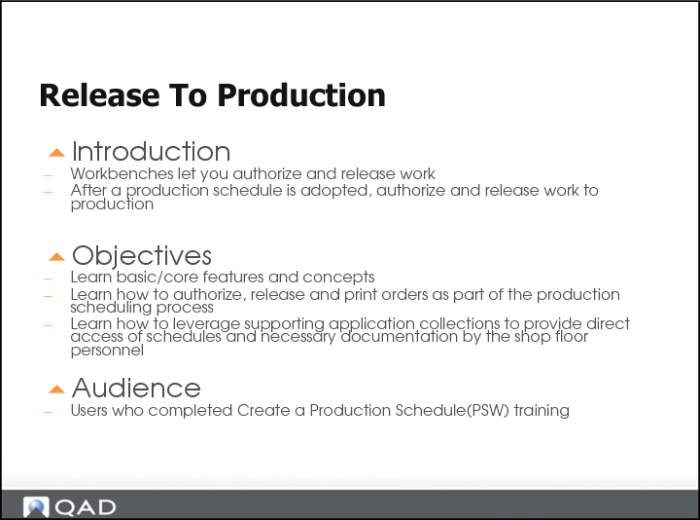
Now that you have learned how to create a production schedule, you are ready to learn how to release orders to production. There is no need to use tools outside of the QAD Planning and Scheduling Workbenches to do this.
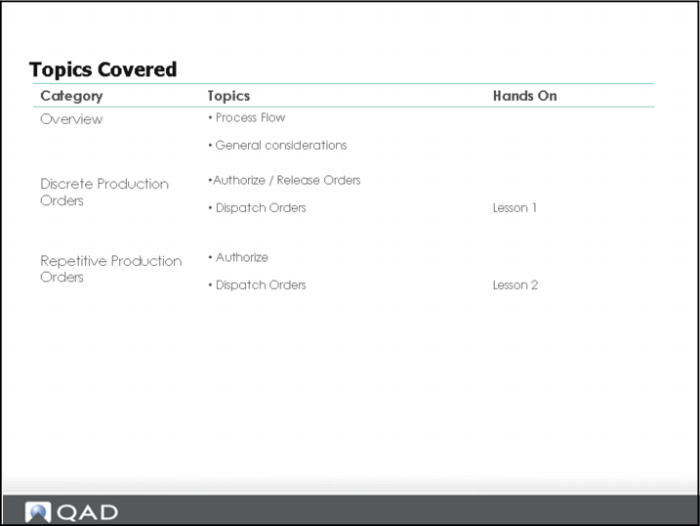
Topics Covered
Overview Section
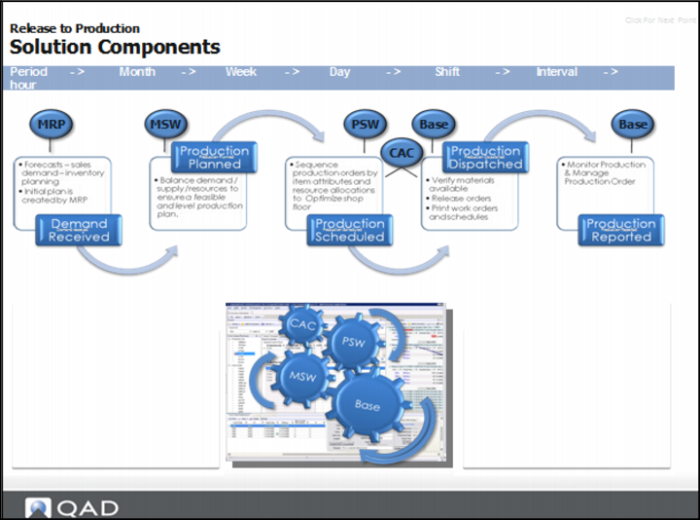
Solution Components
In the production process flow, you must authorize and release orders for discrete and repetitive processes. This chapter focuses on the two authorization processes.
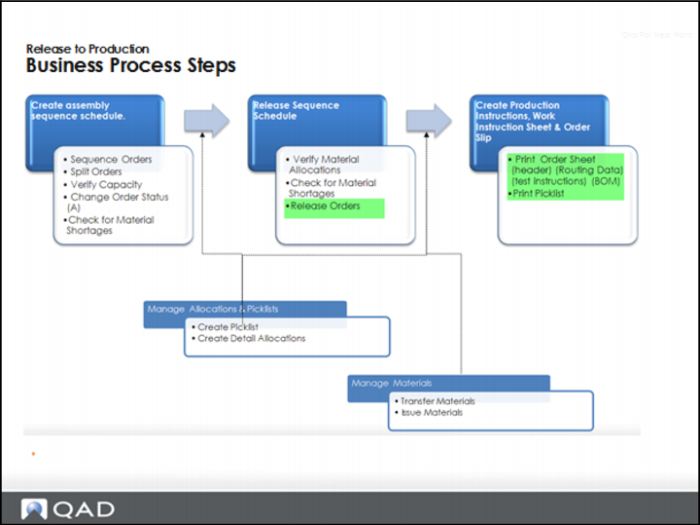
Business Process Steps
1 Create assembly sequence schedule:
• Sequence or split orders
• Verify capacity
• Change order status to A(pproved)
• Check for material shortages
2 Release sequence schedule.
• Verify material allocations
• Check for material shortages
• Release orders (this chapter)
3 Create production instructions, work instruction sheet and order slip (this chapter)
• Print order sheet (this chapter)
• Print picklist (this chapter)
4 Manage allocations and picklists
5 Manage materials
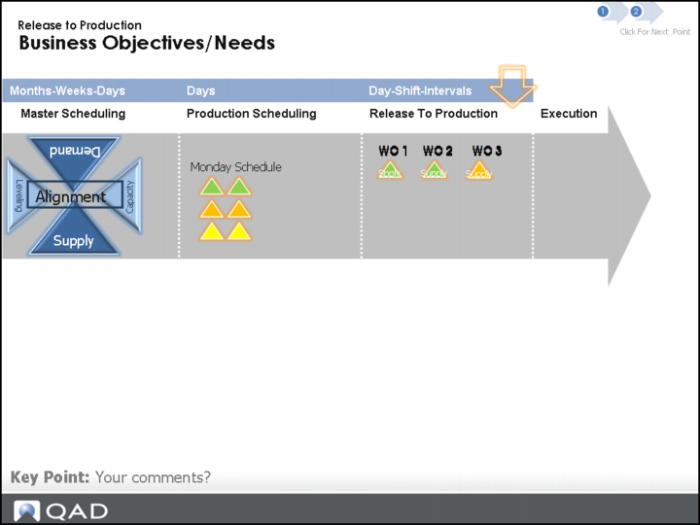
Business Objectives/Needs
Business Objective
• Provide production with timely and accurate production schedules.
• Provide production with timely shop floor paperwork, if required.
Business Need/Approach
• Release production orders and schedules to production efficiently.
• Production to access schedules and production orders details directly – self service.
Authorizing and Releasing Production Orders: Approach
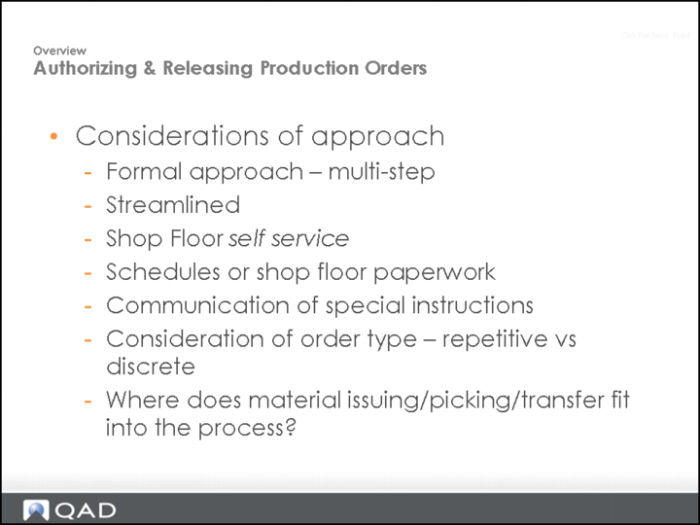
You should consider whether you require a formal or non-formal approach to authorizing; that is, do you need to authorize, then release, then print, or just print?
For formal authorization, you may also have to include shop floor paperwork, such as BOM data, routings, and so on.
Or your company may require that you include special instructions, for example, packing instructions.
Authorize Release to Production Section
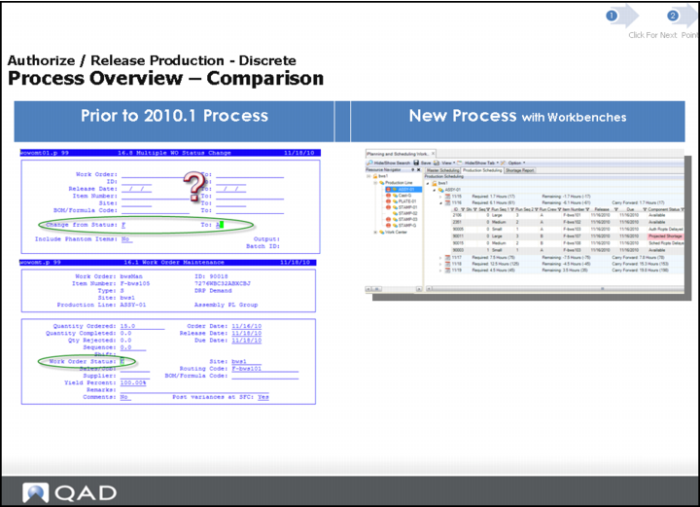
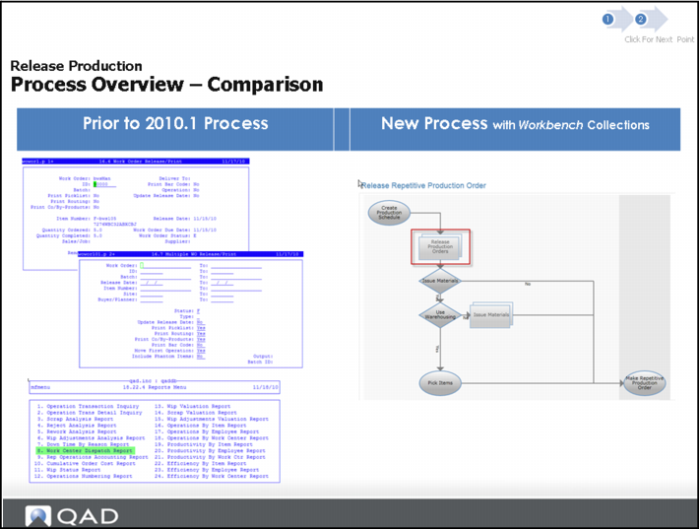
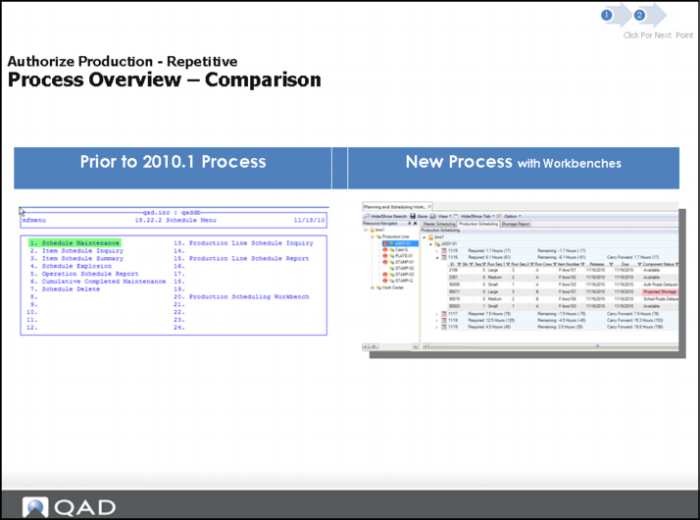
Process Overview: Comparison
Prior to 2010.1 Process
Identifying discrete orders to authorize was a tedious and error-prone process.
New Process with Workbenches
The new process includes orders that are not authorized, released and printed and that can be clearly be seen in the workbenches.
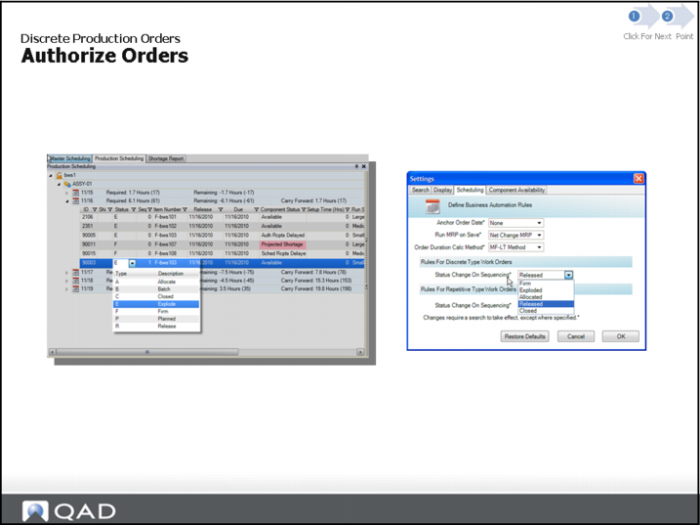
Discrete Production Orders: Authorize Orders
Business Scenario:
You have firmed (scheduled) production orders over a period of days, weeks and months, which of those orders are ready to be authorized/released to the shop floor?
Solution Approach:
Manual (select new order status)
Business event triggers (sequencing)
Authorize Orders (Continued)
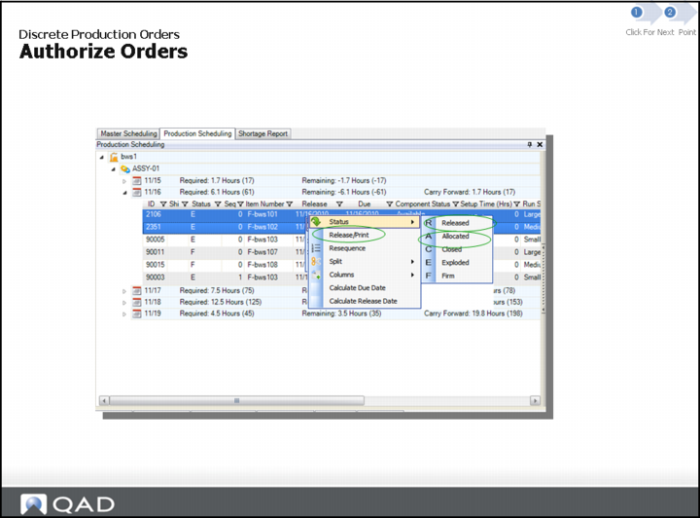
The workbench lest you perform a multi-order update, within the context panel. Upon a save, the system:
1. Creates detail allocations for BOM components
2. Flags orders for printing.
Dispatch Orders Section
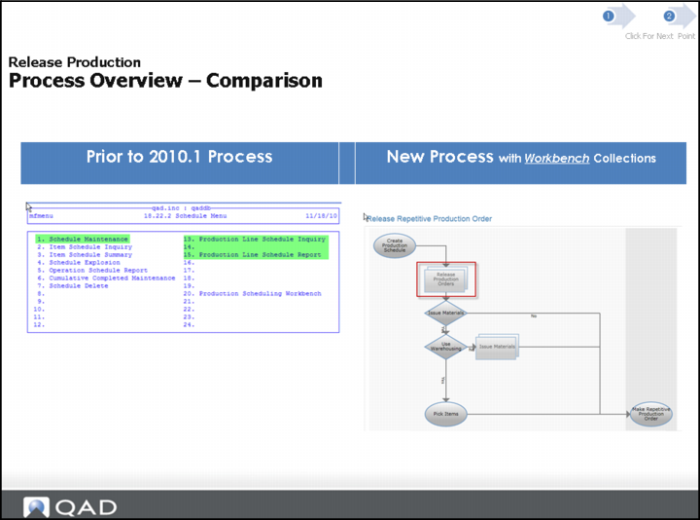
Process Overview: Comparison
Process Prior to QAD EA 2010.1
Production order print programs difficult to use, print one at a time – tedious, or print a range - little control of results.
Production relied on the scheduler to provide timely updates and prioritization of production orders.
Process complex to a point relied on the scheduler to perform this work.
New Process with Workbenches
New production order print program simplifies the printing process.
Production floor can now access the most current schedule real-time.
New Release To Production collections makes it possible for the shop floor to issue materials and print the necessary paperwork.
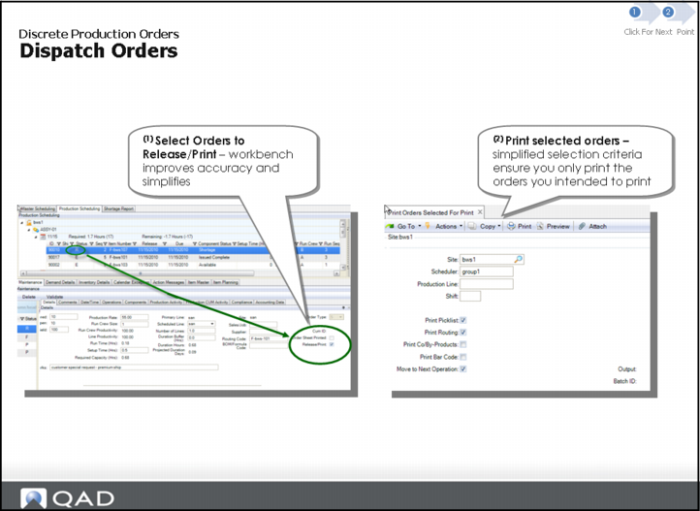
Dispatch Orders
Business Scenario: Print production schedules and shop floor paper work designated production line or work center
Solution Approach: Production Scheduler performs the tasks using Planning and Scheduling Workbench.
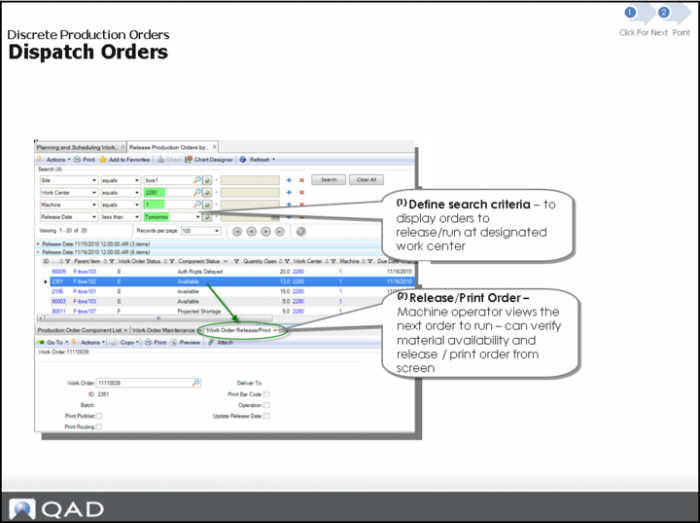
Dispatch Orders (Continued)
Solution Approach: Shop floor personnel performs the task (self-service) using Release Production Orders by Work Center Collection.
Hands-On Lesson Section
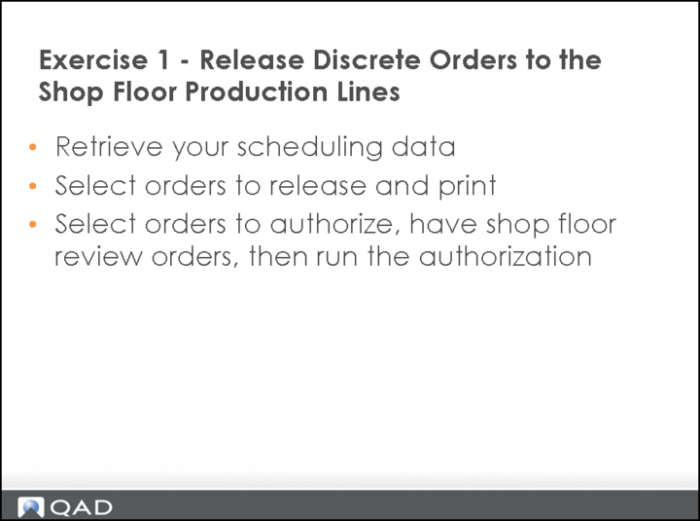
Exercise 1: Release Discrete Orders to the Shop Floor
In the following exercises, you learn the process and steps to release production orders to the shop floor using the workbenches for discrete production orders on production lines.
Important: Do NOT save your scheduling changes from prior lessons. Ensure your training data was refreshed today. The exercises are not dependent on any prior exercises.
Retrieve your Scheduling Data
1 Select Toolbar Options, Preferences, Restore Defaults on each Tab (Search, Display, Scheduling),
There is no immediate impact until you run a new search.
2 In the Search Panel, enter selection criteria Site equals 10-202.
3 Enter Resource Equals ASSY-01.
4 Click Search.
You may be prompted to save.
5 Important: Do NOT save.
6 In the Navigator Panel, click Production Line.
Select Orders to Release and Print
Production line ASSY-01 has a mix of repetitive and discrete items produced. As a scheduler, you need to release discrete production orders daily. You use the PSW to select orders to release/print and then use the Print Selected Orders for Print to print the orders.
1 In the PSW Sequence Grid, review the production orders scheduled <today>.
2 Sequence all orders for the release date from Small to Large.
3 Select order 90011 for item 02307 and right-click on your mouse, selecting Release/Print.
The system changes the order status to R(elease) and release/print is checked on the production order.
• Questions: Where can you find the indicator/field that shows the order is selected for print? Has the order sheet been printed before? How do you know?
4 Important: Save your changes.
5 In the .NET Menu Search Panel, type Print Orders Selected for Print; then, open the Print Orders Selected For Print program.
6 In Print Orders Selected For Print, select Production Line = ASSY-01; then set the output set to page.
The system prints order 90011, picklist, routing, and so on.
• The Print Orders Select For Print program was specifically designed to simplify the print process, letting you print orders that you selected for print from the workbenches.
7 Print the order again using the same criteria in the previous step.
The system does not print the order.
• The system ensures that orders are not printed accidentally. The system tracks if a production order has been printed.
• Question: How could you re-print this order?
8 On the workbenches, run a Search to update your data. There is no need to change the selection criteria.
9 In the PSW Sequence Grid, select order 90011 for item 02307.
• Question: How can you tell if the order has been printed?
• Hint: Review Production Order Maintenance Detail panel for information.
Select Orders to Authorize, Have Shop Floor Review Orders, then Run the Authorization
Since you release discrete production orders daily, you are now ready to use the PSW to select orders to authorize, and let the shop floor review the orders through the Release Production Orders by Production Line browse collection. You use the browse collection to print the authorized orders.
1 Select order 90015 for item 02308; then, right-click on your mouse to select STATUS A.
The system changes order status to A(llocated).
2 Important: Save your changes.
3 In the Menu Search Panel, type Release Production; then, open the Release Production Orders By Production Line program.
Note: If you receive an error message when opening the browse, this may be a defect.
4 Enter selection criteria site equals 10-202 and production line equals assy-01.
5 Run the search.
The system displays planned, firmed, authorized, released and WIP orders.
• This is the information a production line supervisor/operator views.
6 Review order 90011 and 90015.
Order 90015 displays as authorized (allocated/released) and order 90011 displays as released.
The line operator is now ready to work on 90015.
7 As the operator, release/print the production order by selecting order 90011.
8 Select the supporting tab Work Order Release/Print and print the selected production order.
The system prints the order.
Note: You may notice that the system is not defaulting the expected order ID, 90011; this is a limitation of QAD EA browse collections. Alternately, you can use Work Order Maintenance (16.1) to change the order status and release the order.
9 Enter order 90015 in Work Order Release/Print field.
Note: You should only have to do this when multiple production orders exist that have the same production order number.
10 Run Search to refresh the browse to view the new order status of R(eleased).
Questions
1 True or False. When you sequence a production order, you can change the status to A or R.
2 Which of the following occur upon a save after a multi-order update:
a The system creates detail allocations for BOM components.
b The system notifies you of BOM component allocations through .NET UI notifications.
c The system flags orders for printing.
d The system automatically prints the orders and notifies you of the printer location.
3 What .NET UI feature makes it possible for the shop floor to issue materials and print the necessary paperwork?
4 What benefits does the new browse collection provide to the shop floor personnel?
Answers
1 True. You can change the status to A or R.
2 A and C.
3 The Release to Production Orders by Work Centers browse collection.
4 Shop floor personnel can use Release Production Order by Work Centers browse collection themselves to check component availability, then release and print orders.
Authorize Production Section
Authorize Production: Repetitive Process
Process Prior to QAD EA 2010.1
No direct method to control what the next job (sequence) the floor will work on.
New Process
Sequencing the production orders or assigning the orders to shifts provides more control.
Authorize Orders
Repetitive Business Scenario
You have firmed (scheduled) production orders over a period of days, weeks and months, which of those orders are ready to be authorized/released to the shop floor?
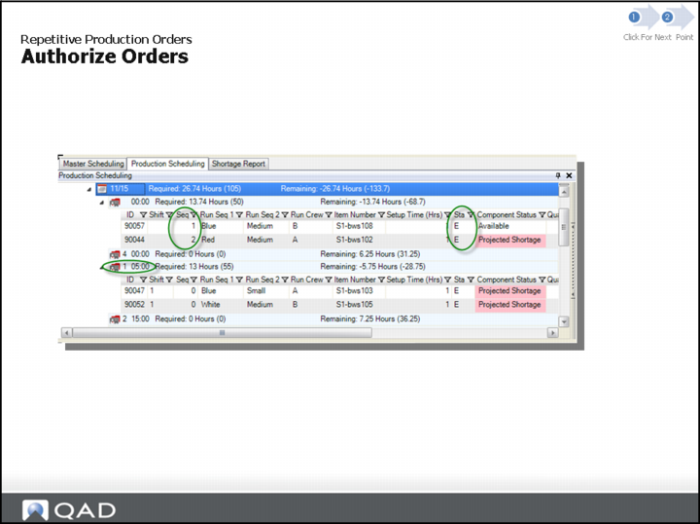
Solution Approach: Use order attributes to signify authorization for repetitive order types:
• Sequenced orders
• Orders assigned to shifts
• Order status E
Dispatch Orders Section
Process Overview: Comparison
Process Prior to QAD EA 2010.1
Production relied on the scheduler to provide timely updates of production schedule
New Process
Production floor can now access the most current schedule real-time.
Repetitive Production Orders: Dispatch Orders
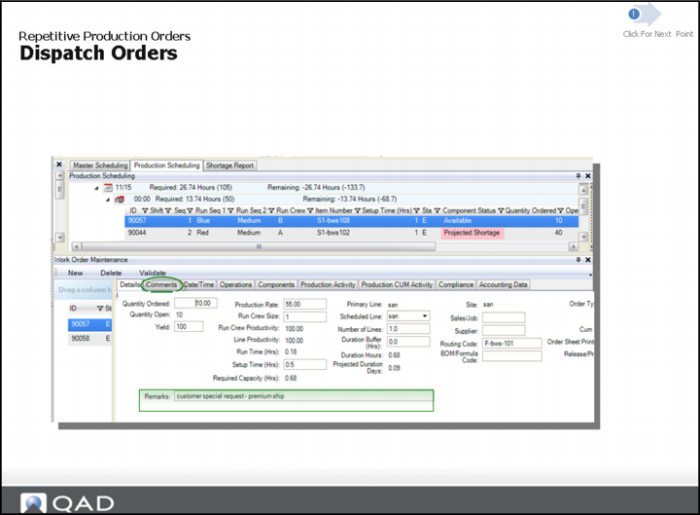
Business Scenario: Communicate special work instructions to production.
Solution Approach: Enter Remarks or Comments on order.
Dispatch Orders (Continued)
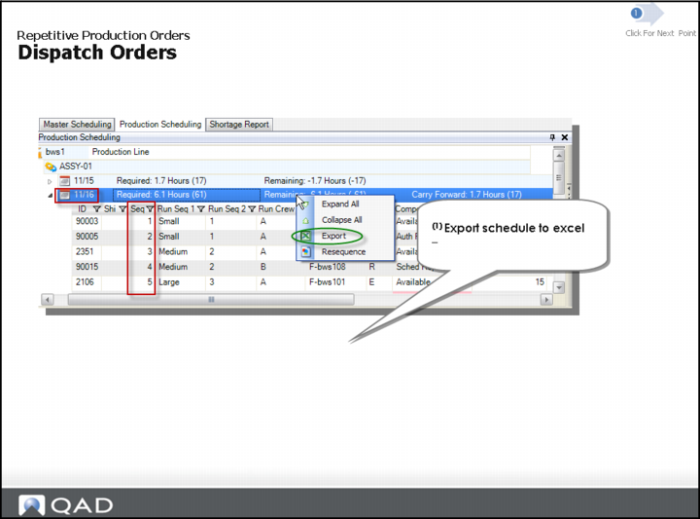
Business Scenario: Print production schedules for designated production lines
Solution Approach, Continued: Production Scheduler performs the task using Planning and Scheduling Workbenches
Exporting to Excel and printing the data in the spreadsheet is the most basic method to instructions to the shop floor.
Dispatch Orders: Solution
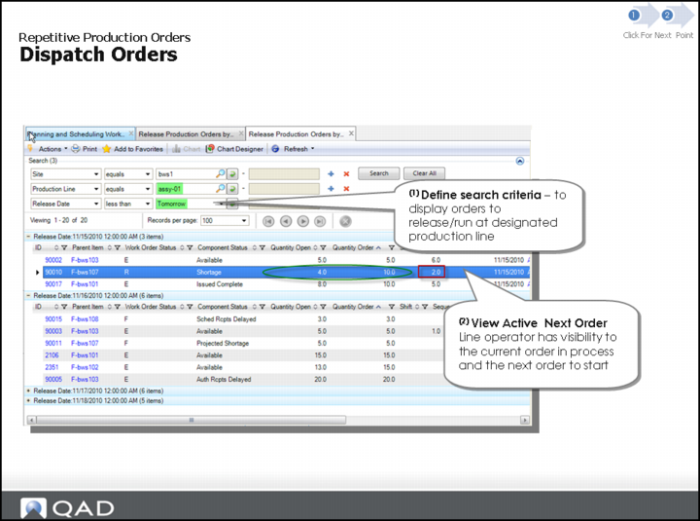
Solution Approach Continued: Shop floor personnel (self-service) using Release Production Orders by Production Line collection.
Hands-On Lesson Section
Exercise 2: Release Repetitive Orders to the Shop Floor
In the following topics, you learn the process and steps to release production orders to the shop floor using the workbenches for repetitive production orders on production lines. The exercises are a continuation from the first exercise in this chapter.
Note: Repetitive orders do not have to be released and printed; however, discrete orders do have to be printed.
Retrieve your Scheduling Data
1 In the Search Panel, enter selection criteria Site equals 10-202.
2 Enter Resource Equals ASSY-01.
3 Click search.
4 In the Navigator Panel, click on Production Line.
Generate the Production Schedule
Production Line ASSY-01 has a mix of repetitive and discrete items produced. As a scheduler, you need to release discrete production orders daily. You use the PSW to generate the production schedule.
1 In the PSW Sequence Grid, review the production orders scheduled <today>.
2 Right-click the mouse on the PSW Sequence Grid Release Date row for <today> and select the Excel Export option.
The system sends the schedule to Excel.
• Notice that the entire PSW view was exported to the spreadsheet, not just a single release date.
3 Review and manipulate the spreadsheet until satisfied.
Note: A scheduler may delete future release dates that they do not want to publish to the shop floor. A scheduler may delete/hide columns they do not want the shop floor to see; they can also use a Macro to automate this process.
Review Released Orders to Determine the Next Production Order for Work
For production Line ASSY-01, you can have the shop floor access the scheduler directly by themselves instead of exporting the data to excel. You can let the shop floor review the Release Production Orders by Production Line browse collection in QAD EE to determine the next production order upon which to work.
1 In the Menu Search Panel, type Release Production and open the Release Production Orders By Production Line program.
2 Enter selection criteria site equals 10-202.
3 Enter production line equals ASSY-01.
4 Run the search.
The system displays planned, allocated, authorized, released and orders in production.
• This is the information a production line supervisor/ operator would view
5 Group the data by Release Date and expand the schedule for <today>.
• Notice that the production orders are sequenced. Some orders may have the status or A or R, but the majority have the order status of E(xploded). The E orders are the repetitive orders.
6 Sort the Sequence column ascending.
The system displays all orders in sequence of 0-6.
• Questions: Why is there an order with 0 sequence? What do you notice about the quantity open of this order?
• The production line operator would use this browse information to communicate the next order to produce.
Questions
1 In the process prior to QAD EA 2010.1 method of sequencing without the workbenches, what was the biggest problem for schedulers?
2 What is one of the two ways to communicate special instructions to the shop floor using the workbenches?
3 Name two benefits the browse collections provide when dispatching repetitive orders.
Answers
1 No direct method to control the next job upon which the floor would work.
2 Use Comments or Remarks to enter instructions.
3 You can define search criteria to display orders to release or run at a production line. You have visibility to the next order to start.
Other Related Topics Section
Other Related Topics