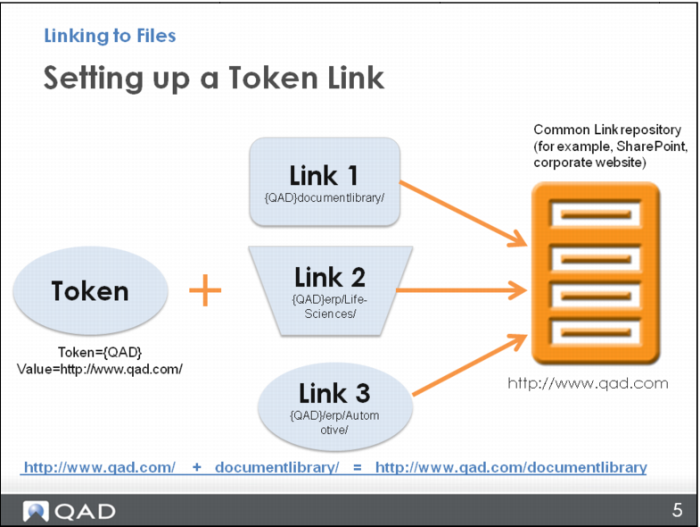
Setting up a Token Link
Next, you create a “token” link to the server so you no longer have to type in the server address each time you want to link to something. Instead, you can simply type in the token and the file name. This provides a nice shortcut for you, but it is also important for another reason.
If the server is ever replaced or the file structure changed, you only have to change this one token link to have everything else redirected. Without this token, if the server changes, you have to update every link you have created on all the separate nodes.
For example, consider the server for
www.qad.com. That is the location of the files to link to for the Document Library and the pages for Life Sciences and Automotive. The upcoming demo shows you how to create the token link for qad.com and then to make links on some nodes in the Document Library, and the other pages, beginning with the token.
If that server is replaced (for example, with
http://www.qad2.com), or if the file structure changes (for example, to
http://www.qad.com/erp/processmaplinks), only the token has to be adjusted and all the filenames within the links will still be valid.