Browses
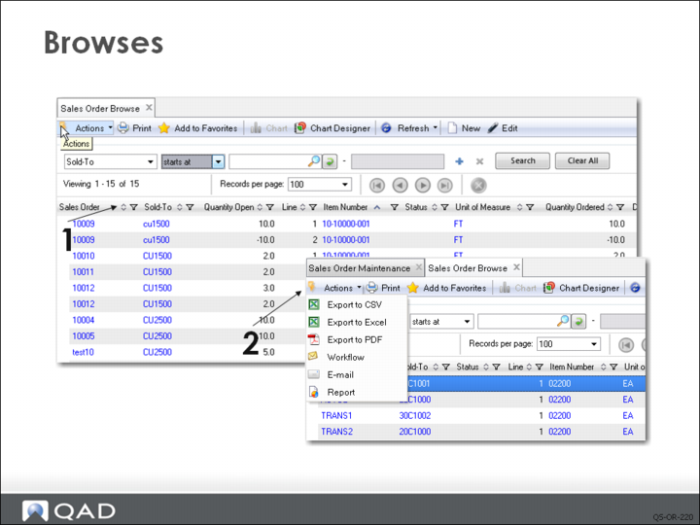
Browses are inquiry programs with advanced features such as filtering, sorting, and printing. The system supports several types of browses. Complex browses, such as the one in this slide—sometimes called power browses—are listed on the menu. They can also be used as drilldown browses within programs.
Power browses provide tools (2 in the slide) that let you display browse data in graphical form such as pie charts and bar charts, export data to .CSV or Excel for further processing, generate and e-mail a PDF or report, or include the output in a workflow.
Navigation features (1) of browses include:
• Click Clear All to clear browse results.
• Use the navigation buttons to move through the records. The buttons from left to right move to the first set, previous set, next set, last set.
• Use the Records per page drop-down to determine how many records display at one time in the browse. The default value can be set using the Rows Per Page setting in Tools|Options.
• Drag columns by their headings to rearrange the display or click any column heading to sort in ascending order; click again to sort in descending order.
• Blue underlined text indicates values for which you can drill-down. Right-click any value to display associated links: either a more detailed browse, a related program, or an external Web page.
Filters and Operators
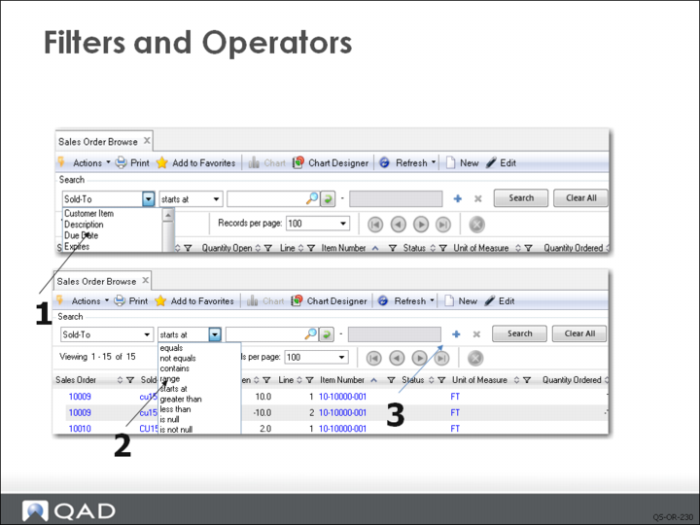
1 The search fields display with a default configuration but you can also define and save your own.
2 The various search operators include equals, not equals, contains, range, starts at, greater than, less than, is null, and is not null. When an equal sign is displayed next to the field, you enter an exact matching value.
3 To refine your search further, click the plus (+) icon to add another search row. You can add as many rows as needed, each with different search values and operators. If you choose the range search operator, the second search box is enabled for the ending value of the range.