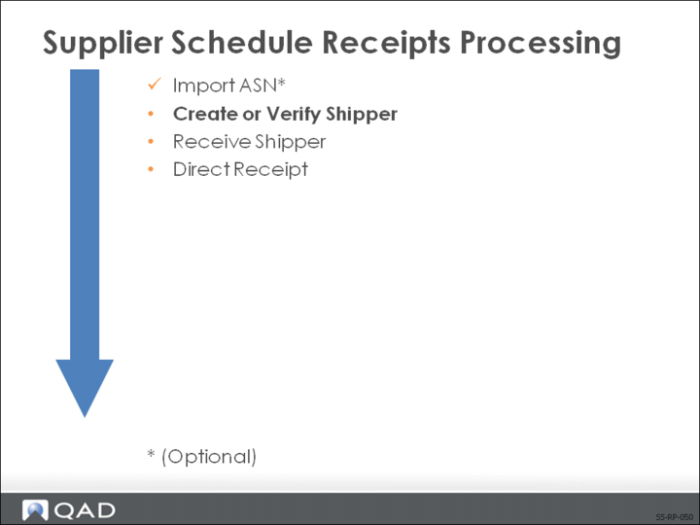
Create or Verify Shipper
You can create a shipper using the documentation accompanying the shipment. A shipper itemizes the items and quantities in the shipment. Sometimes you also need to track the shipping containers.
You can receive container information electronically as part of an ASN or the information may arrive with the shipment and be entered manually. Container information may also be scanned into the system from bar code readings of shipping labels.
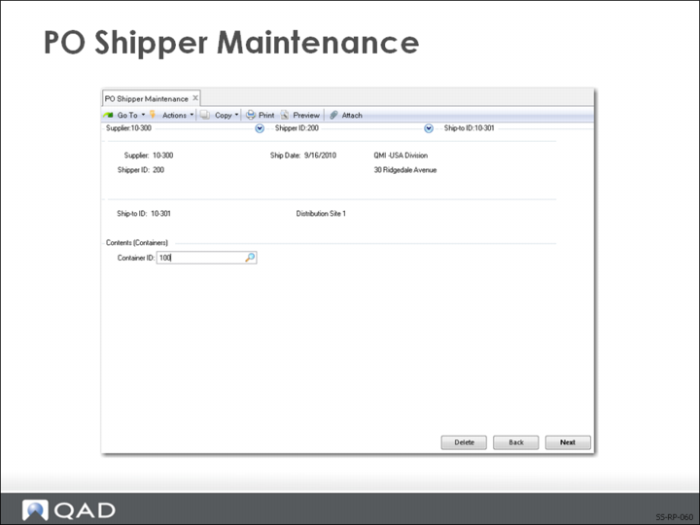
PO Shipper Maintenance
Use PO Shipper Maintenance (5.5.5.5) to create a new shipper, to modify, or simply to view an existing shipper. If using ASNs, you can use PO Shipper Maintenance to see and verify the shipment details before you receive and confirm it.
Note: You can modify a shipper that has been confirmed. However, you cannot reconfirm modified shippers.
Header Frames
You identify the shipper by entering the supplier code, a shipper ID, and a ship date. The shipper ID can come from:
• ASN already in the system
• Bar code reading of a shipping label
• Entering the number from the receiving document (picklist)
In the second header frame you enter the site where the shipment is being delivered in the Ship-To field.
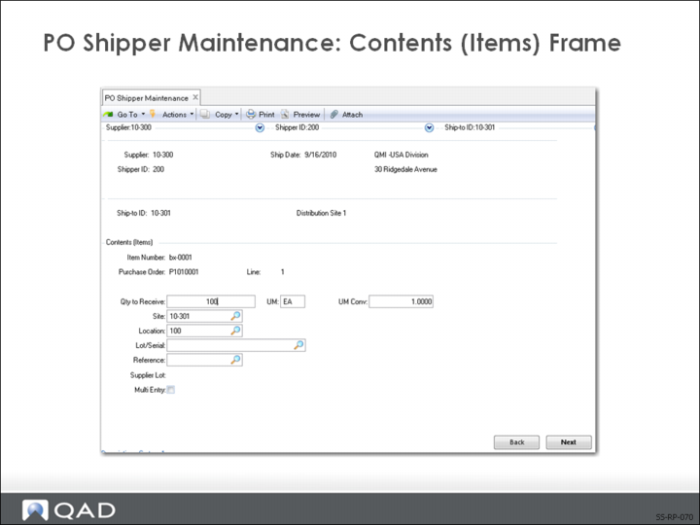
Contents (Items) Frame
If you are tracking the shipping containers, enter the container ID.
In this frame you register/record the items that are packed into the shipper or containers.
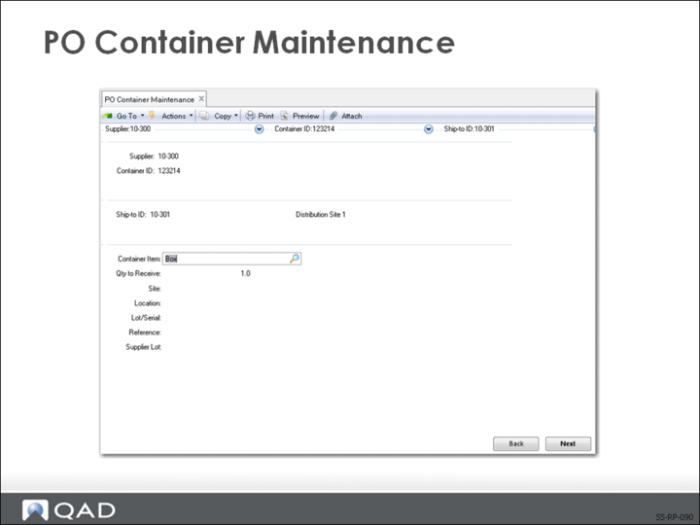
PO Container Maintenance
Use PO Container Maintenance (5.5.5.4) to link items to containers used by your supplier to ship the items. Containers are not a required part of a shipper, but there are times when you need to keep track of them, if the container has a significant value, for example, or if it needs to be returned. You can also use PO Container Maintenance to modify container item quantities (for example, if the actual shipment does not match the shipper).
Note: Usually containers are not a concern with supplier schedules.
You can receive container information:
• Electronically as part of an ASN
• Along with the shipment (for example, a packing list) to be entered manually
• From bar code readings of shipping labels
Note: To return containers that have been received to a shipper, use Issues – Unplanned (3.7).
In the first frame you identify the supplier and assign a container ID. You can have the system assign a container ID or you can enter one.
The container you are identifying at this point is the parent container, the container holding the shipped items. In some cases this can also include other containers.
In the next frame you identify the ship-to location: the location where the container is being delivered. In the last frame you enter the container item information.