Exercise 3: Work Order Processing
1 Create a work order for 1 each of the 01020 at site 10-100 using Work Order Maintenance (16.1). Let the system assign the WO number and ID, set the status to R and accept other values at default.
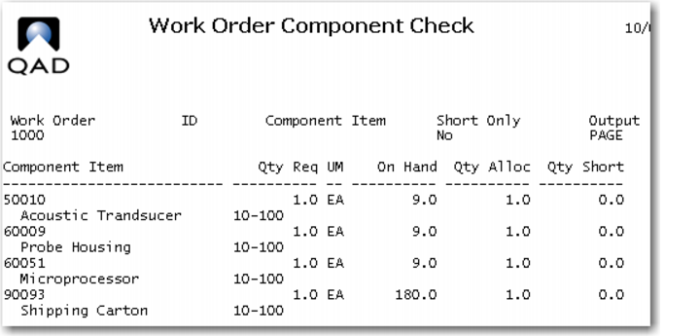
2 Use Work Order Component Check (16.5) to verify inventory of needed components. You should have enough.
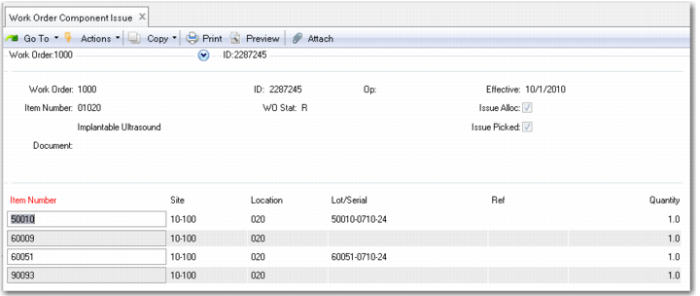
3 Use Work Order Component Issue (16.10) to issue the material to the work order. Check both Issue Allocated and Issue Picked to make it easy. When prompted to “Display Items Being Issued” click yes. Your screen should look like this.
Even though you have turned off serial/lot control if the inventory record has a value it will be included with the transaction.
4 Review the transaction detail records for the component issue, use (3.21.1). What transactions do you see and what accounts have been affected? You will have four ISS-WO transactions, one for each component. Each will have a credit to inventory (1500) and a debit to WIP (1550) for the GL Standard cost of the item.
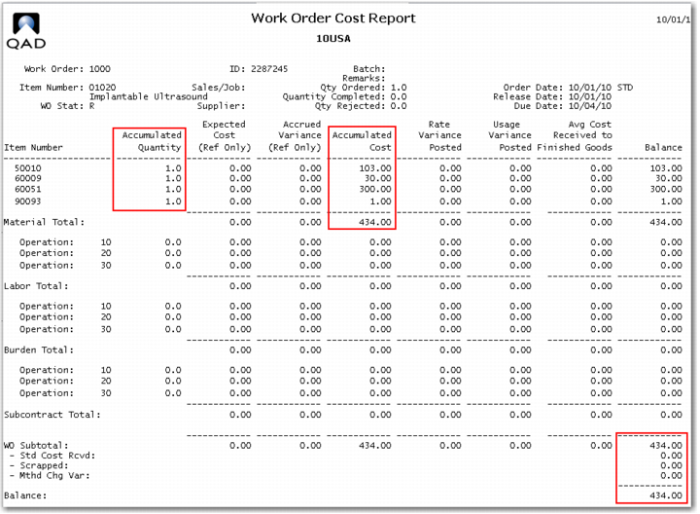
5 Review the work order cost report for your work order, use (16.3.4).
This report is based on the work order bill and route captured at time of release (or explosion). It is setup with all the components and operations. The accumulated cost and total cost at this time is the component value only.
6 Use work order receipt, (16.11) to receive your work order, for a quantity of one, site and location should default to 10-100 and 010, be sure to check the Close box.
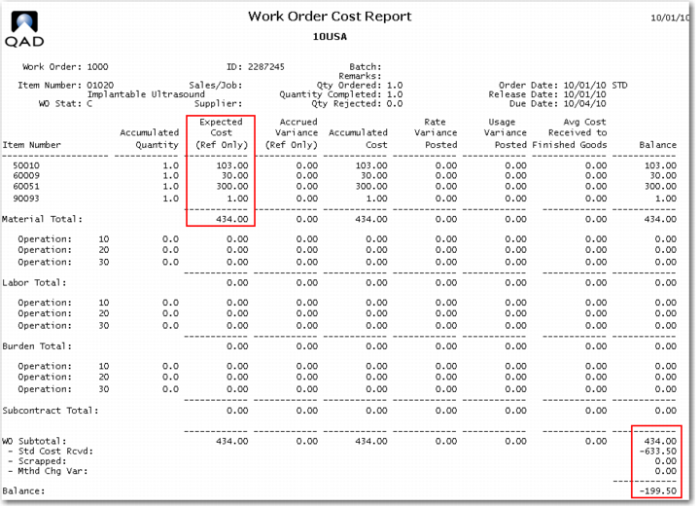
Run the work order cost report again. What are the differences, and can you explain them?
The system has added values to the Expected Cost column and the “Standard Cost Received” and calculated a balance. No labor was reported through shop floor control and closing the work order does not book labor and burden at standard. The stand cost received is the GL Standard for item 01020. The -199.50 looks like a favorable variance.
7 Review the current cost for the 01020 using (1.4.9). What has happened? The current cost has been updated to the 434.00 reflected by this work order cost.
8 Use Unposted Transaction Inquiry (25.13.13) and put WO in the Reference ID field to limit the inquiry to work order transactions. Are there any? No there are not.
9 Run work order accounting close, use 16.21, what has happened?
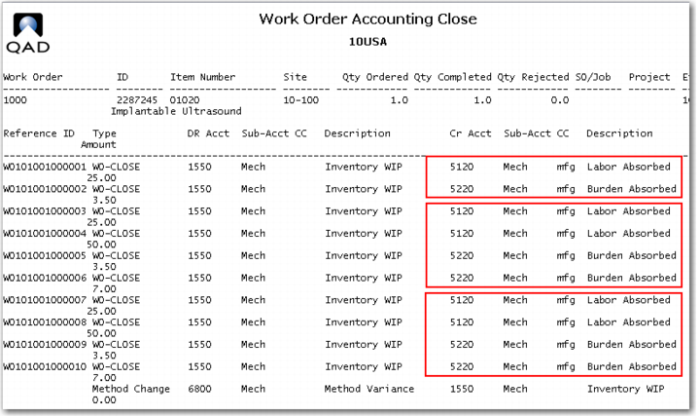
Review the report of the work order accounting close.
Running work order accounting close has booked labor and burden at GL Standard. As there are only three operations, can you explain why there are five sets of labor/burden transactions? Note the method change variance is always calculated but here is zero.
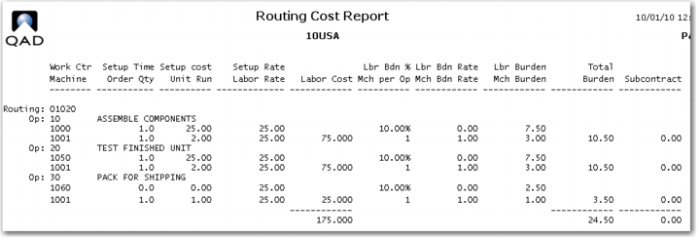
Review the operation cost report for the 01020, this should help you figure out what how the transactions are being booked.
Do you see that the transaction have been created in the reverse order of the operations, such that the first pair of debits to WIP (1550) are 25.00 and 3.50. This is the labor/burden cost of operation 30. The next set of debits are two for labor of 25.00 and 50.00, this is the setup charge and labor charge, respectively, for operation 20. The last set is the labor and burden for operation 10. As labor rates and setup rates are often different the system always books then separately.
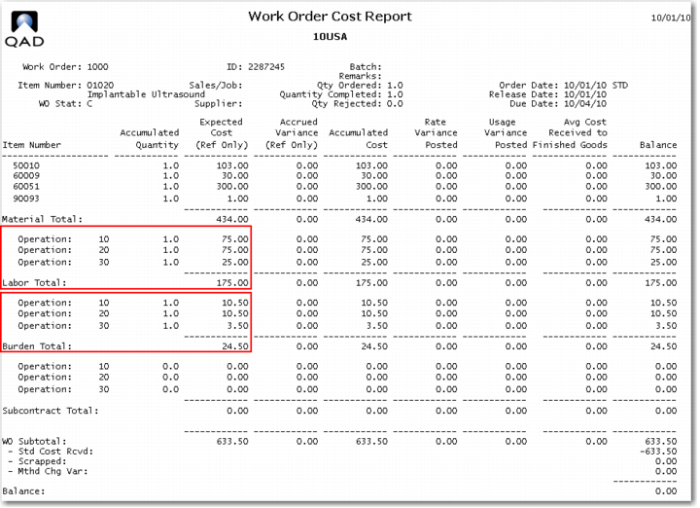
10 Run the work order cost report again and see that the labor and burden at standard are now shown for each operation. The WO Subtotal is now 633.50 which is exactly the same as the GL standard cost received into inventory. The balance is now zero indicating the work order was processed exactly on standard.
11 Review the current cost of the 01020 using (1.4.9). What has happened? The current cost was updated at work order close, and has now been updated again at work order accounting close. As the work order closed at standard the current cost now equals the GL cost.
12 Review the operations accounting report (16.20.13.10) for a different view of the transactions generated by the work order accounting close.
13 Review the unposted transaction inquiry (25.13.13). These transactions will post to the GL the next time Operational Transaction Post is run. This inquiry/report gives you an opportunity to review the transactions before posting.
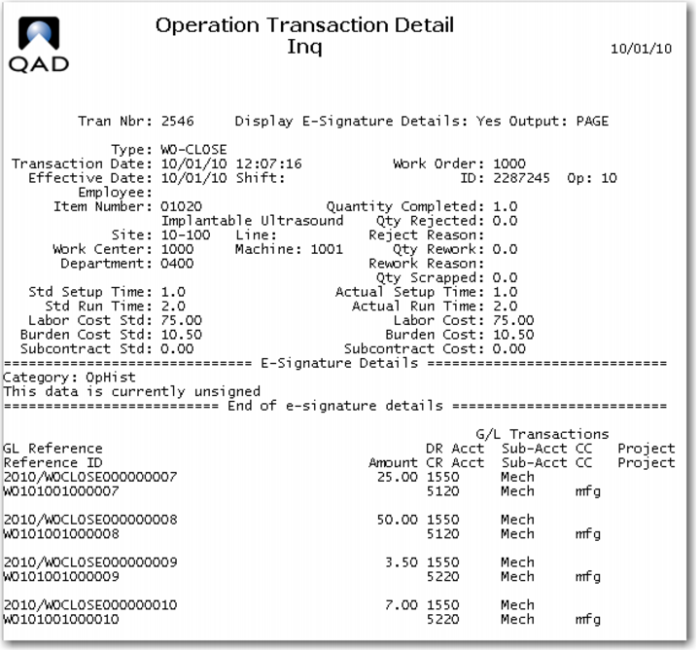
14 Review the Operation Transaction Detail Inquiry (16.20). This inquiry gives the details for shop floor transaction, much like the inventory transaction detail provides for inventory transactions. You will see three transactions, one for each operation, each with several sets of debits and credits. Notice that the type is WO-CLOSE. This is the complete detail of the transaction shown on the work order accounting close report.