Work Orders
>
Exercise 7: Work Order Labor Transactions
Exercise 7: Work Order Labor Transactions
In his exercise you will process a work order to see the affect of non-standard labor rates and non-standard labor usage. You will see both labor and burden variances calculated. You will see a subcontract variance and will learn how to read the work order cost report.
1 Use Item Planning Maintenance (1.4.7) for the 50010, set the order quantity to one (1). Verify the yield is 100%.
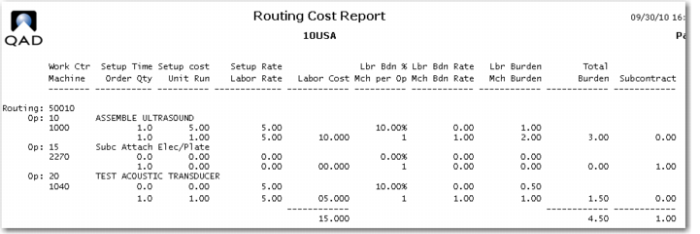
2 Review the route for the 50010 Acoustic Transducer use the Routing Cost Report (14.13.14) as this shows costs as well as operation times. This will verify your setup steps from an earlier exercise.
You see that the setup time and run time for operation 10 are both one hour at a rate of 5.00/hour. Operation 15 is a subcontract operation with a cost of 1.00, and operation 20 has no setup and run time of 1 hour at a rate of 5.00/hour.
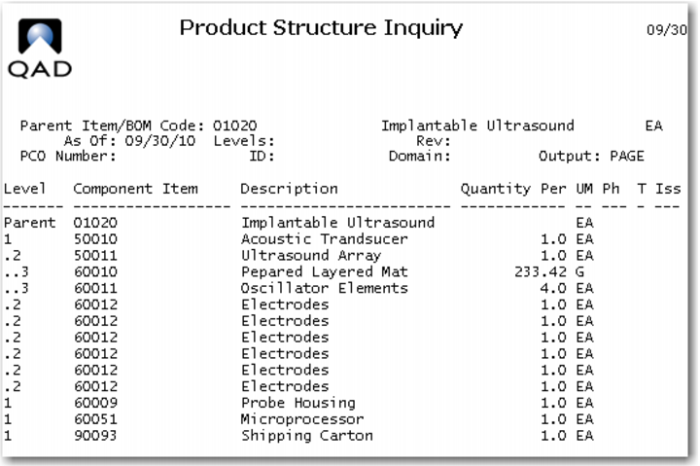
3 Use Product Structure Inquiry (13.6) to review the components; set the level option to one.
4 Use Product Structure Cost report to verify the total GL standard 14.5coat of the 50010 is 96.75.
5 Use Actual Pay Rate Maintenance (14.13.21) to verify employee 10-EMP02 has a rate of pay of 5.00.
6 Verify work center 1000, and 1040 each have machine burden rate of 1.00/hour, both setup and run labor of 5.00/hour and labor burden of 10% and no labor burden rate.
7 Create a work order for one 50010 at site 10-100, set its status at R. Use work order component check 16.5, you are probably short the 50011 Ultrasound Array. Use Receipts Unplanned (3.9) to receive 10 each of the 50011.
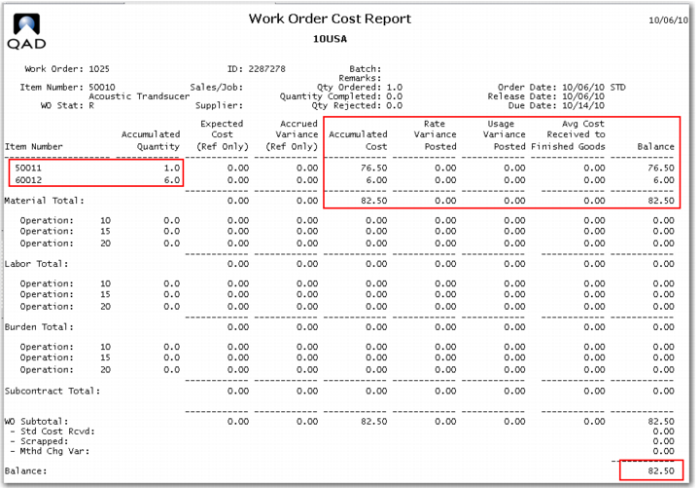
8 Issue the components to the work order, check issue allocated for easy one click issues. Review the Work Order Cost Report (16.3.4); you should see only the material cost of 82.50.
9 Use Labor Feedback by Work Order (16.20.1) for your work order at operation 10, and employee 10-EMP02. For operation 10 report one unit complete, charge one hour setup and 1.5 hours run time. The box Move Next Operation, should default to checked, if not check it. This will move the work order to the subcontract operation.
Note: The training system has the default time indicator set to hours and minutes. You can change it to decimal hours by changing the time indicator in Shop Floor Control (16.20.24).
Note: Labor feedback has electronic signatures enabled. Use user ID qmi (or whatever you used to log onto the training database), and for Reason Code use active employee.
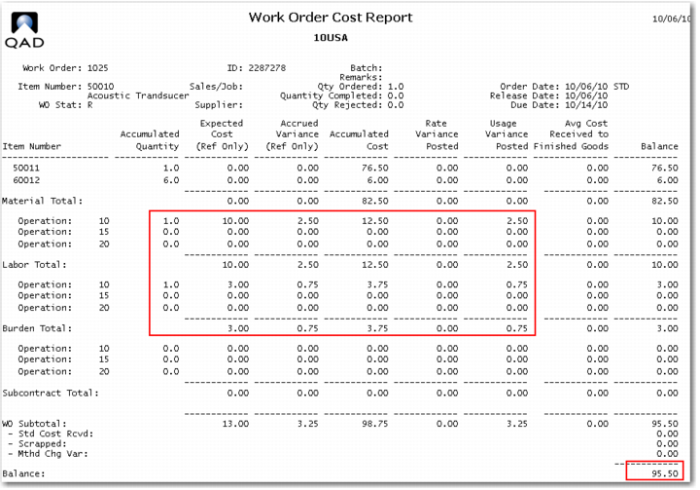
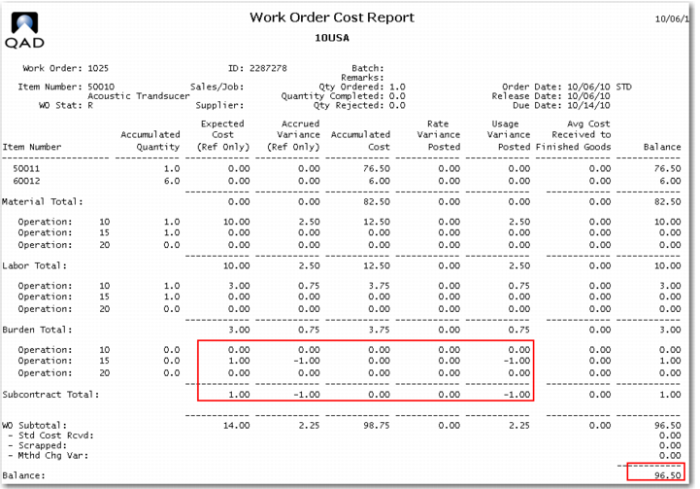
Review the work order cost report.
You see the expected cost, for labor and burden at operation 10 and the accrued usage variance for both as a result of charging an extra half hour run labor at the operation.
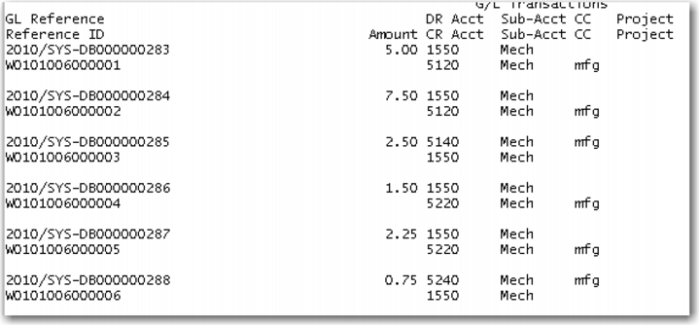
Use Operation Transaction Detail Inquiry (16.20.13.9) to see how these labor charges have been booked.
Account 1550 is the WIP account 5120 is Labor absorbed, 5140 is labor usage variance and 5240 is burden usage variance.
10 Use Labor Feedback by Work Order (16.20.1) for your work order at operation 15, and employee 10-EMP02. For operation 15 report one unit complete, and charge no time; this is an outside process. The box Move Next Operation should default to checked; if not, check it. This will move the work order to operation 20.
11 Review the work order cost report. You should see the subcontract cost at operation 15 of 1.00 and a variance of -1.0. Because you do not have a PO and PO receipt to cover the vended operation the system thinks you got the operation for free. Note the standard cost of the operation has been added to the total.
Use Operation Transaction Detail Inquiry (16.20.13.9) to see how these charges have been booked. Account 5440 is subcontract usage variance.
12 Employee 10-EMP02 has been given a pay increase. Use Actual Pay Rate Maintenance (14.13.21) to change the employees pay rate to 7.50.
13 Use Labor Feedback by Work Order (16.20.1) for your work order at operation 20, and employee 10-EMP02. For operation 20, report one unit complete, and charge one hour run time. The box Move Next Operation should default to unchecked as there are no more operations. If it is checked, uncheck it.
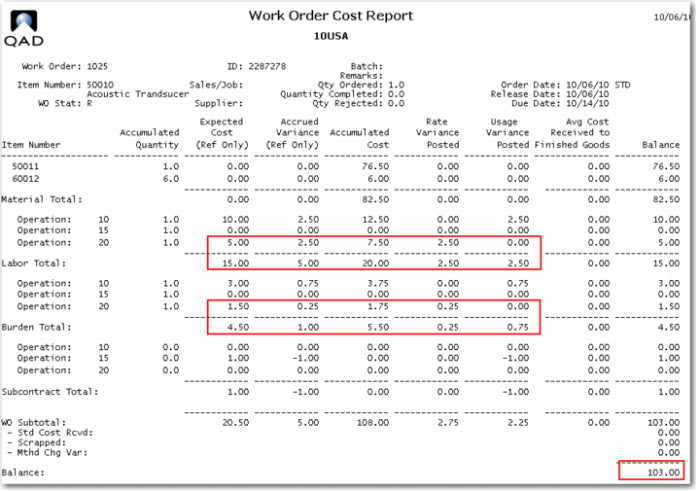
14 Review the work order cost report. You should see the labor and burden costs for operation 20.
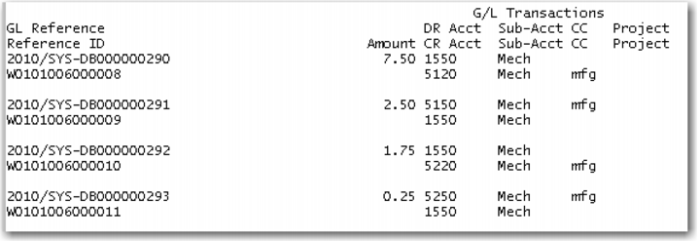
You now see a rate variance as the actual pay rate is greater than the standard. You also see the corresponding burden variances.
Account 5150 is labor rate variance and 5250 is burden rate variance.
15 Receive and close the work order.
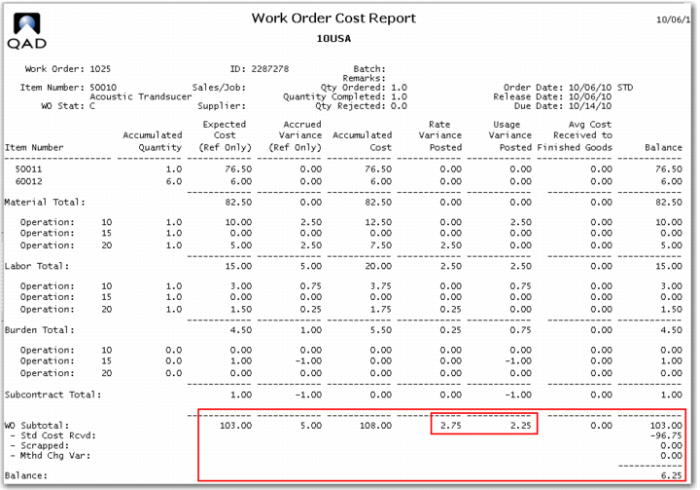
Review the work order cost report.
The work order status is now C, closed. You have received the GL standard credit to WIP of 96.75 and the debit to inventory in the same amount. The 6.25 is the total of rate and usage variances and will book to the respective variance accounts. The 1.00 is still in the work center record and will be written to the cost of production account.
The work order close does not create any operation transactions. It does create inventory transactions as seen in Transaction Detail Inquiry 3.21.1. The debit to inventory and credit to WIP.
16 For purposes of this exercise only employee 10-EMP02 has had their pay increase rescinded. Use Actual Pay Rate Maintenance (14.13.21) to change the employees pay rate back to 5.00.
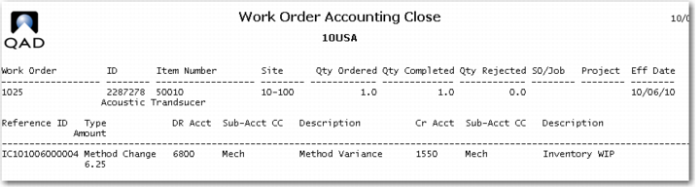
17 Run Work Order Accounting Close for your order. Review the report of this transaction.
You see the 6.25 total in variances have been credited to WIP and debited to method change variance 6800.
18 Use Item Cost Maintenance (1.4.9); compare the GL cost with the current cost. What has happened? Based on the control setting the current cost has been updated to reflect the actual costs of the order just closed.
This completes the work order process. You have seen labor usage and rate variances and the corresponding burden variances. The subcontract variance is a usage variance due to the lack of a purchase order to cover the cost and receipt of the item. Had there been a PO that charged a different price than the 1.00 standard you would have seen a purchase price variance (PPV). If, for example, the vendor had damaged the piece beyond repair (or somehow returned more than you sent) you would see a subcontract usage variance.