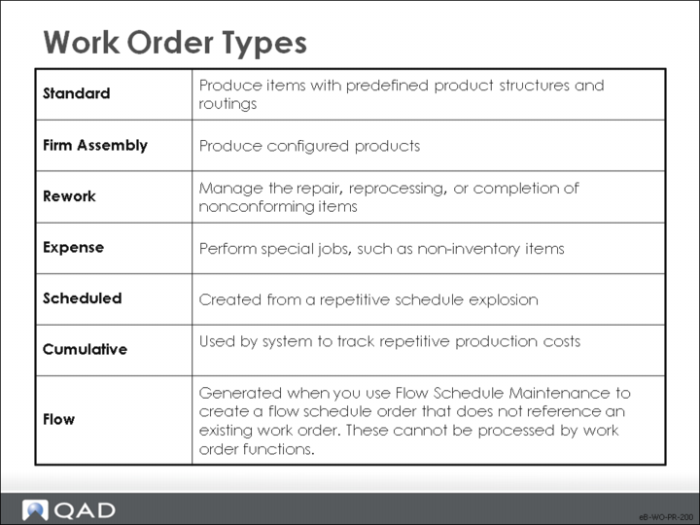
Work Order Types
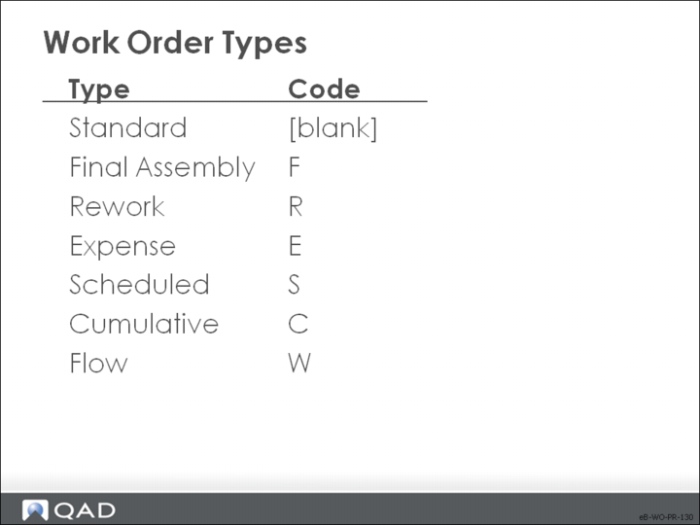
This section looks at all six types of work orders, even though some of them are covered in more detail in other training courses.
Standard
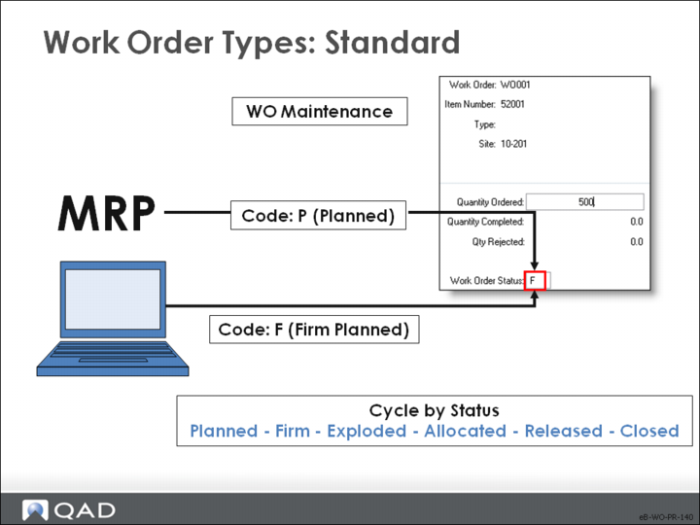
Standard work orders are used to produce items having predefined bills and routings.
If the work order is created manually, the default status is Firm.
If MRP generates the work order, the default status is Planned.
Final Assembly
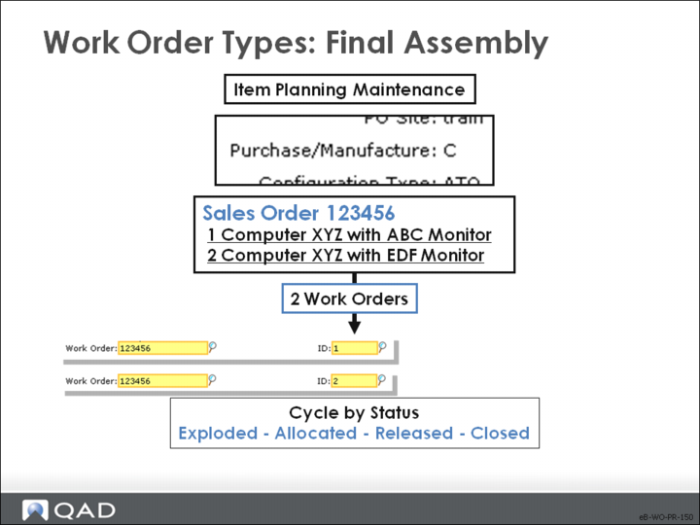
Final assembly (FAS) orders are used to manufacture configured products.
Configured products have a Pur/Mfg code of C.
FAS orders are generated when a sales order for a configured product is released to manufacturing using Sales Order Release to Work Order.
FAS orders use the standard item routing, but the BOMs contain only the items specified in the sales order configuration.
Release and process FAS orders the same as regular work orders.
Rework
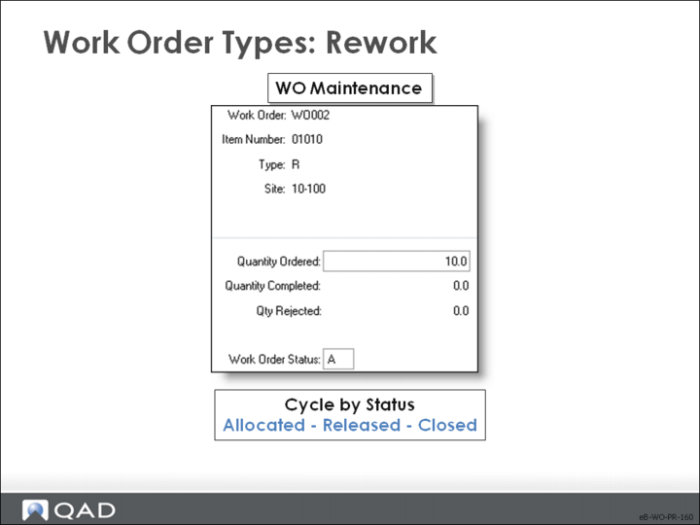
Use rework orders to manage repair, reprocessing, or completion of non-conforming items.
Rework orders have the parent item as the only component, and no routing.
In Work Order Maintenance, set the WIP account/cost center and project to an appropriate expense account for posting rework costs.
You can modify the bill and routing by adding components and operations before release; use Work Order Component Issue or directly modify the bill using Work Order Bill Maintenance to add items.
If rework activity is a common procedure, consider establishing a rework routing in Routing Maintenance and attaching it in Work Order Maintenance, or create one in Work Order Routing Maintenance.
If you are using the Service/Support Management module to receive items from customers and rework them, you can establish default service routings in Service Item Maintenance.
Note: The cost of rework components and labor is posted to variance accounts.
Expense
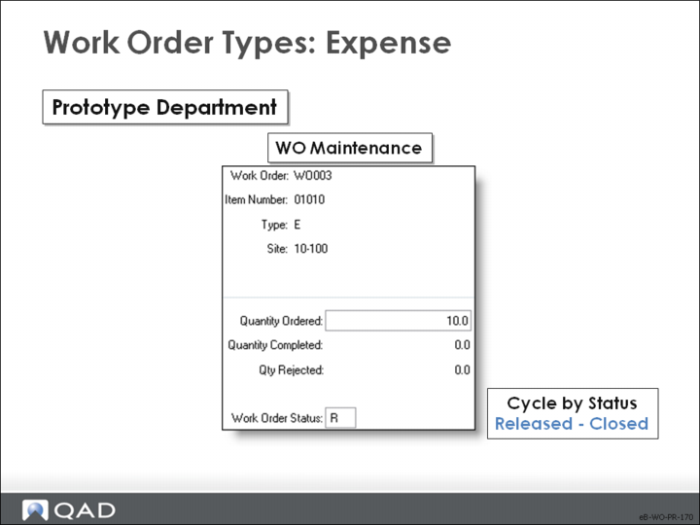
Use expense work orders for non-inventory jobs, such as engineering prototypes, repairing fixed assets, or design projects.
Note: Define a separate site, item code, and product line for expense orders to keep planning and manufacturing separate from regular manufacturing.
To separate cost accounting, specify an expense account rather than the default WIP account. Or use the Project field to track expenses in the GL.
Expense work orders have no bill or routing, but you can attach these items manually as needed.
If you process expense work orders frequently, streamline the process by:
1 Creating a product line with account numbers for this type of work.
2 Creating an item of type E to use for expense orders.
Define a blank order quantity to prevent planning functions from treating it like a normal item.
3 Creating a status code that restricts all inventory transactions and assign it to the item.
Note: The cost of expense components and labor is posted to variance accounts.
Cumulative
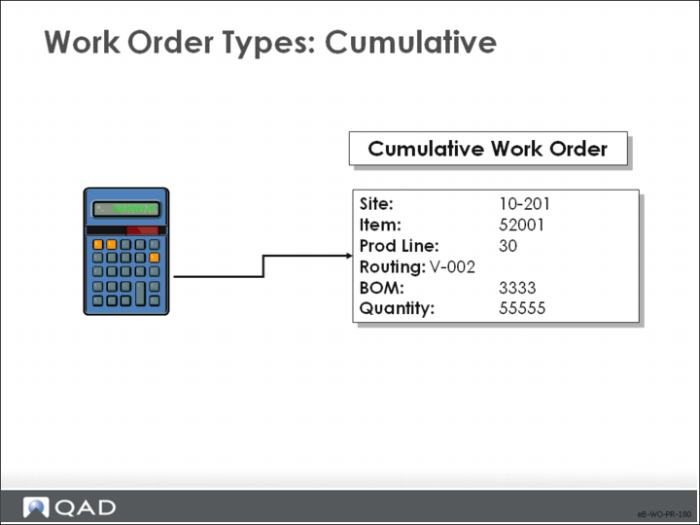
The system generates cumulative orders to track repetitive production costs. They cannot be processed using work order functions.
• The system keeps a running total for each combination of items, sites, production lines, product structures, and routings using a cumulative order
• The cumulative order tracks costs and quantities for work-in-process (WIP) for repetitive production
• A cumulative order is created for a profile that defines the site, item number, production line, routing code, BOM/formula code for the order, and start and end effective dates
Scheduled
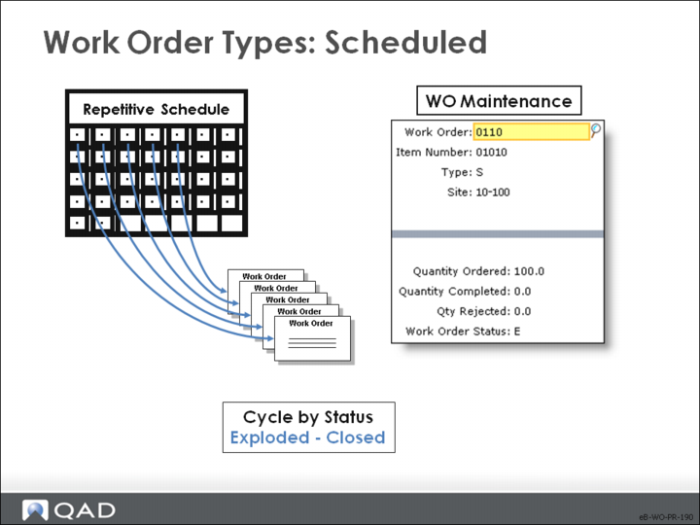
The system generates scheduled work orders when repetitive schedules are entered.
• A scheduled work order cannot be processed as a standard work order unless you change its status to Allocated or Released
• Changing a scheduled order to a regular order automatically updates the repetitive schedule to exclude it; however, the work order type remains Scheduled
Conclusion
The diagram shows all work order types.