Approving Planned Orders
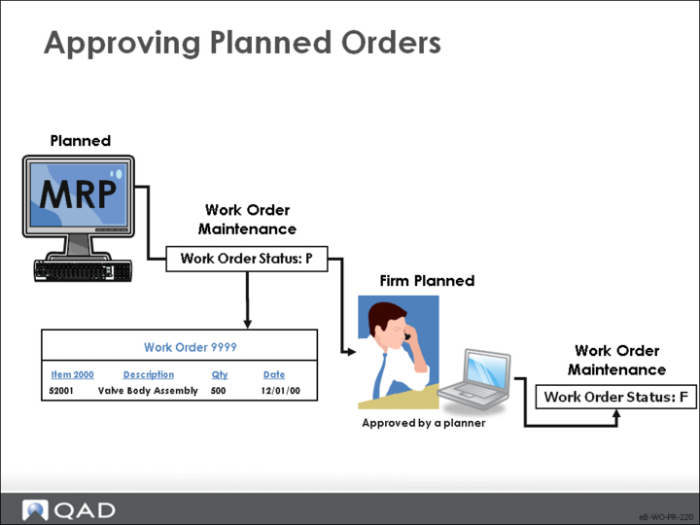
Approving planned orders changes the status from P to F. This means that MRP can no longer replan the orders, although it does generate action messages relative to them.
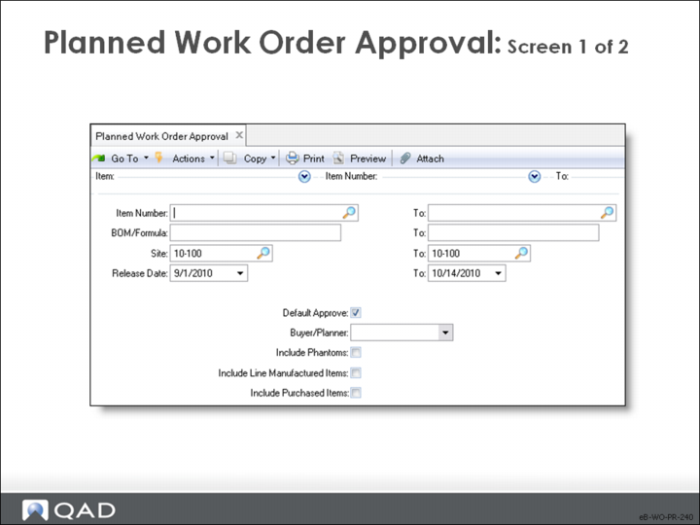
Planned Work Order Approval: Screen 1 of 2
Planned Work Order Approval approves the MRP plan, generating a firm planned work order for the amount of each planned order.
Note: To create a routing for the firm planned order, run CRP or Multiple WO Status Change.
• MRP cannot change firm planned, approved orders; it generates action messages instead
• If an order is approved mistakenly, delete it. MRP recreates it the next run time
• If you do not plan to act on a planned order, delete it, particularly if MRP is not running soon.
• QAD Enterprise Applications assumes that you intend to act on planned orders. These orders are included on Master Schedule reports as Scheduled Receipts and Scheduled Receipts are included in Available to Promise
• Assign security to this function to control access
Field Definitions
Item Number / BOM/Formula / Site / Release Date
Select the work orders by the listed criteria
Default Approve
Indicates whether all planned orders are marked approved.
• Yes marks all of the selected planned orders as approved. Normally these orders are planned orders for manufactured items with a Pur/Mfg code of blank or M; however, orders for purchased items can also be included
• No indicates that planned orders require manual approval. The approved field defaults to No on each planned order and is changed to Yes manually
Note: If most of the planned orders are approved, it is faster to set Default Approve to Yes. You then manually change the approved field to No on the few orders that you do not want to approve.
Buyer/Planner
An optional code identifying the person responsible for planning and ordering this item
• Defaults from Item Planning Maintenance
• Validated against predefined values entered in Generalized Codes Maintenance, if any
• It is possible to filter several reports and inquiries with the buyer code, in particular Action Messages and Past Due Receipts
• The buyer/planner runs certain MRP/DRP and planned order approvals.
Note: The value entered in Item Master Maintenance is used as the default for all sites. It can be changed manually for any site.
Include Phantoms
Specifies whether to approve orders for phantom items
• Since phantom items are not normally manufactured or stocked, this field is normally left at No
Include Purchased Items
Indicates whether to include planned orders for purchased items
• If this field is set to Yes, then planned orders for purchased items (Pur/Mfg code is P) are displayed and can be approved as work orders
• This choice is useful when you have items that you usually purchase from outside suppliers, but can also manufacture in-house
• When a planned order is created for the item, you have the choice of approving a purchase or work order
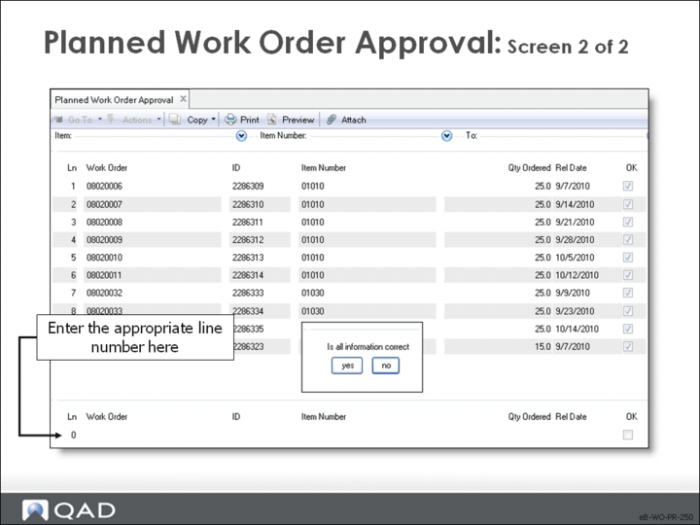
Planned Work Order Approval: Screen 2 of 2
The screen displays the relevant work orders in the top half. In the bottom, you select orders by line number for processing. All orders are pre-approved because the default approve box was checked on the input selection screen.
Ln
Enter the line number of the work order, shown in the top half of the screen
Work Order
MRP assigns the number.
• You can change this number, to match it up to the sales order, for example
ID / Item Number / Qty Ordered / Release
Display-only fields
OK
• Yes to release the order
• No to prevent its release
Is all information correct?
• Yes: Process
• No: Correct the data
• Cancel: Cancel the function