Releasing Single Work Orders
You can release work orders individually or in groups. Both functions print picklists of required component items and route sheets listing operations.
Work Order Release/Print
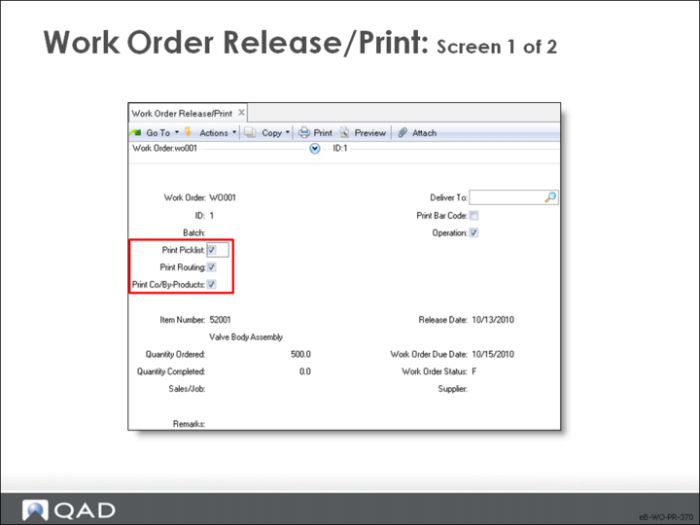
Use Work Order Release/Print (16.6) to release individual work orders.
Note: In Enterprise Edition, an enhanced .NET UI version of this program is found at menu 16.30.
Work Order / ID
Enter the number and ID
Print Picklist
Enter Yes to print the picklist; No to skip printing
Print Routing
Enter Yes to print the picklist; No to skip printing.
Print Co/By-Products
Enter Yes to print the co/by-product work order list; No to skip printing.
Deliver To
An optional code identifying the person or place where this work order is delivered that appears at the top of the picklist and the routing
Print Bar Code
Assuming your printer is set up to print bar codes, this field specifies whether to print bar codes. Enter Yes to print work order ID and the operation number in bar code format in the routing section of the picklist, with the alphabetic code beside it. Enter No to print the alphabetic code only.
Operation
Yes: Upon release, the work order’s first operation is automatically set to Queue, indicating it is waiting to be started. No: The operation status is left blank; you can then change it manually
This setting is typically to Yes, but sometimes this choice is not appropriate. If a lengthy picking effort is required, the work order is typically not ready as soon as it is released. In that case, set this field to No, then use Operation Move Transaction to change the status to Queue.
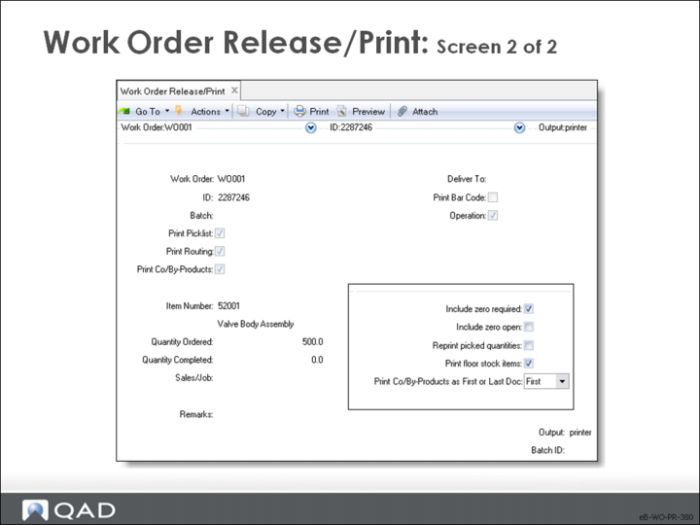
These fields relate to the items to print on the picklist.
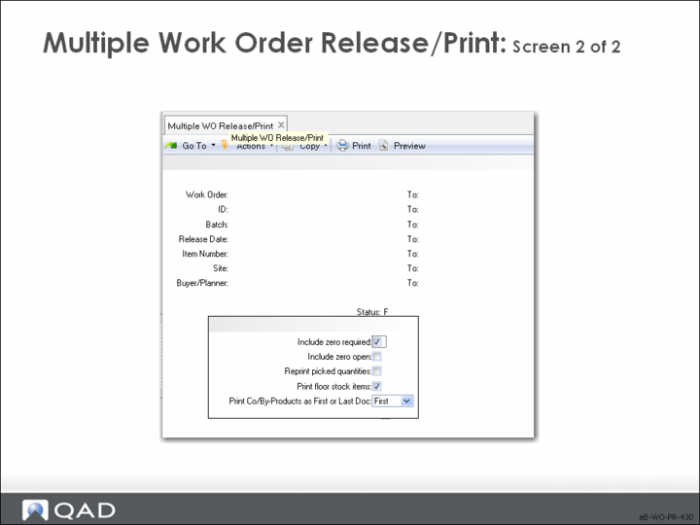
Include zero required
• No: Print only items with non-zero quantity required
• Yes: Print all components, including those components with zero quantity required; for example: memo or expense items, tools, or documents
You can add items that have no quantity required through either Work Order Bill Maintenance or Work Order Component Issue
Include zero open
• Yes: Print all components, including those components with zero quantity open. These components are items that have already been issued to the work order. Use this option to reprint a picklist after component items have already been issued to the work order
• No: Print only component items with non-zero quantity open
Reprint picked quantities
• Yes: Print all components, including the ones that have already been picked — quantity required equals quantity picked. Use this option to reprint a picklist
• No: Only component item quantity that has not been picked is printed — quantity required is greater than quantity picked
Print floor stock items
• Yes: Print floor stock items on a separate page from other component items
• No: Do not print floor stock is on the picklist
• Floor stock items are items with Issue Policy set to No
Print Co/By-Products as first or last document
Allows you to print the Co-Product/By-Product work order report as the first or the last document when Print Picklist and/or Print Routing are set to Yes. The default is First
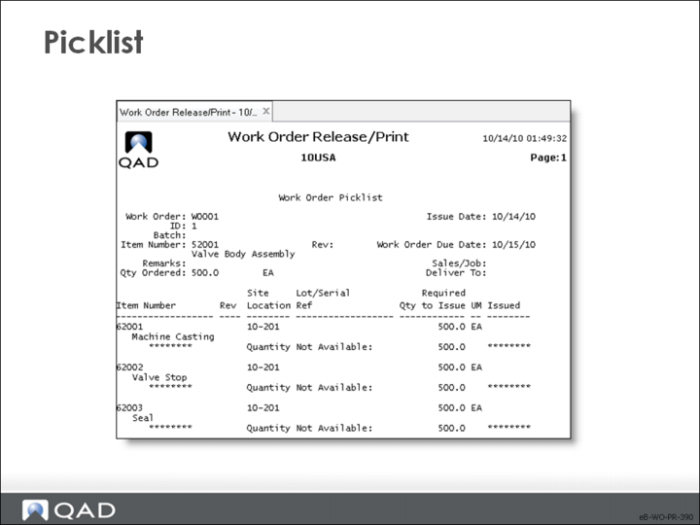
Picklist
The picklist lists the Component Items, the Quantity to Issue and the Site, Location, Lot/Serial, and Ref numbers to issue.
The quantity printed on the picklist updates the Qty Picked on the work order bill. If this quantity was previously allocated, Qty Allocated is reset to zero. The allocations recorded in the Inventory Master (in_mstr) and Detail (ld_det) are not relieved. If the components were not previously detail allocated, they are now.
Note: The picklist does not print when it includes a key item that is not available.
Routing
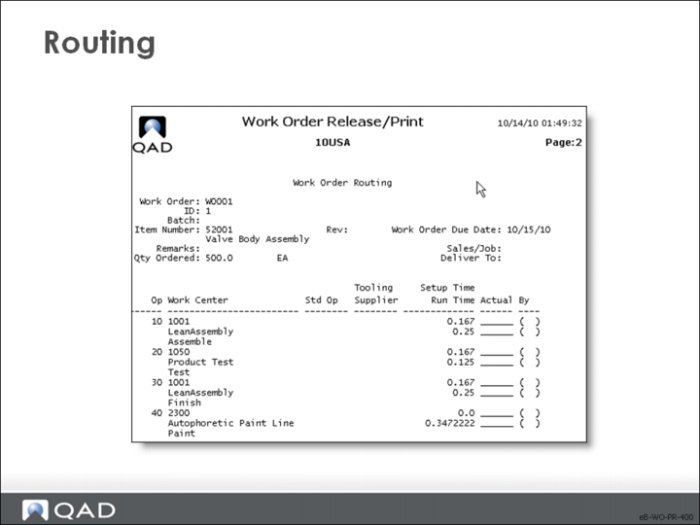
Route sheets list the work order information and operation information. They travel with the work order to identify the job and provide instructions.
The route sheet prints each operation along with the standard run time. Space is left for the operator to write in the actual time they spent on this operation. This space can be used for entering labor feedback in Shop Floor Control.
Comment information, if any, also prints on the route sheet.
Releasing Multiple Work Orders
We now look at the method for releasing multiple work orders at the same time.
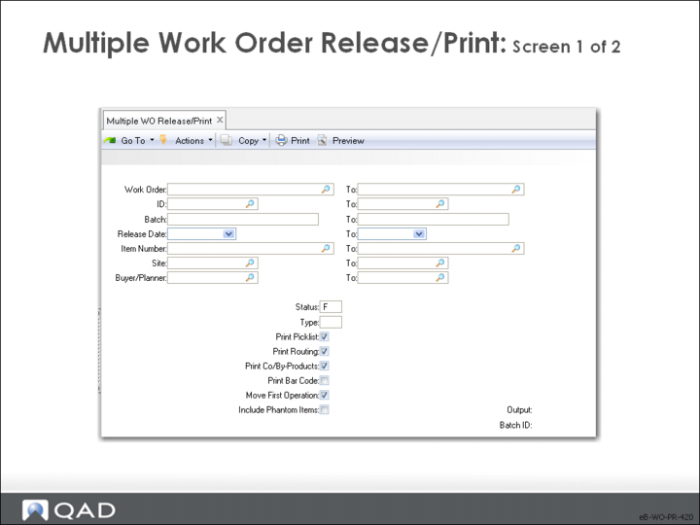
Multiple Work Order Release/Print
Use this function to release multiple work orders.
Note: This process can take a long time; running it in batch mode is advised.
Work Order / ID / Batch / Release Date / Item Number / Buyer/Planner
Fill in the data to select the work orders for release. Leaving all fields blank selects all appropriate work orders
The remaining fields are identical to those fields already covered in the discussion of Work Order Release/Print. For Routable orders (status B) use 16.7 to release them, not 16.6.
These fields are the same as those fields covered in Work Order Release/Print.
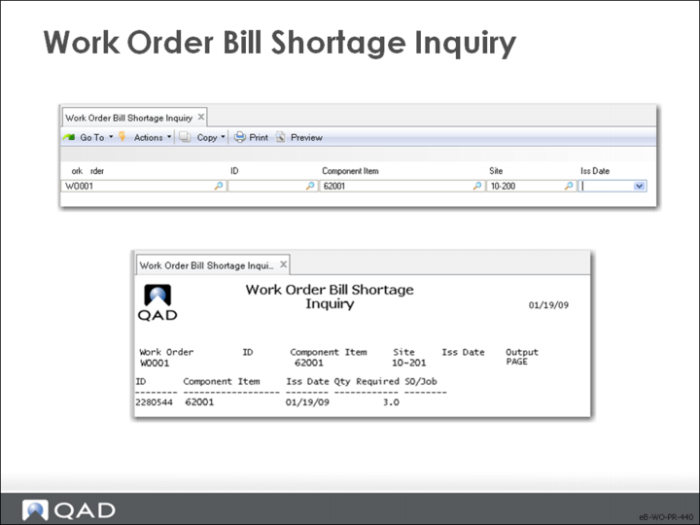
Work Order Bill Shortage Inquiry
Even if you check for potential shortages before an order is released, quality problems and inaccurate inventory balances can result in a shortage of components at the time of the work order component issue. You can monitor these shortages after release using Work Order Bill Shortage Inquiry.
• You can select the output based on work order number and ID, component, and issue date
Work Order Dispatch Report
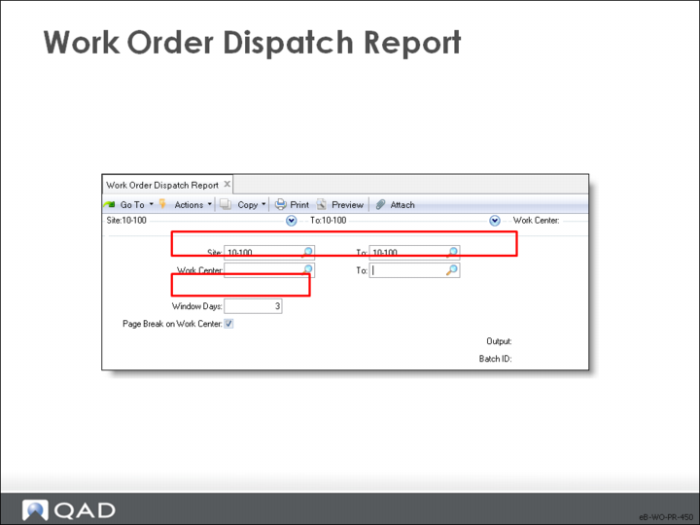
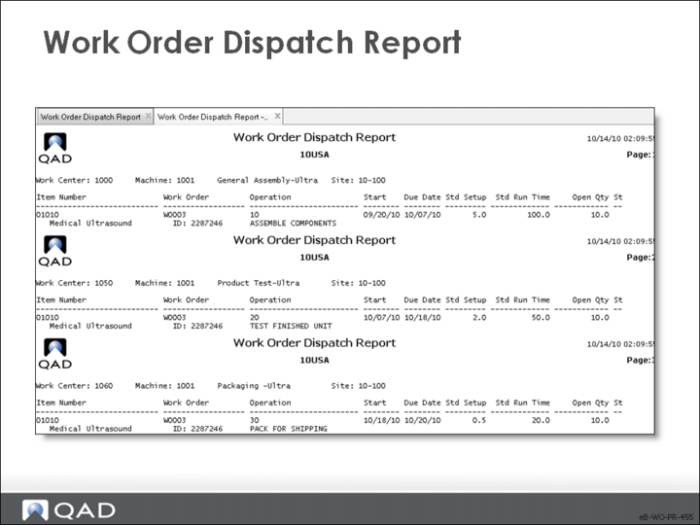
The Work Order Dispatch Report displays the operations scheduled at a work center, sorted by start date. The report includes the item being built, the work order that authorizes the work, standard setup and run times, and the open quantity on the order at that work center.
Use this report to provide work visibility for a specified number of days indicated in the Window Days field. Also use it as a measurement tool for comparing production progress with production plans.
Note: To make full use of this report for prioritizing work, use Shop Floor Control to report completions of quantities ordered.