Modifying Work Order Status
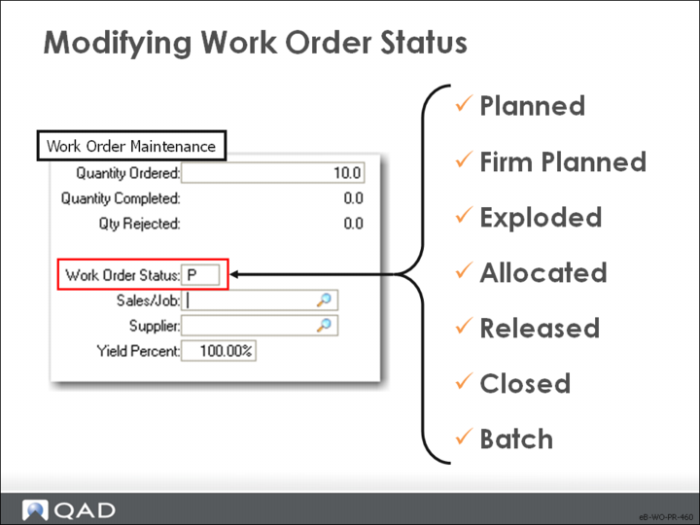
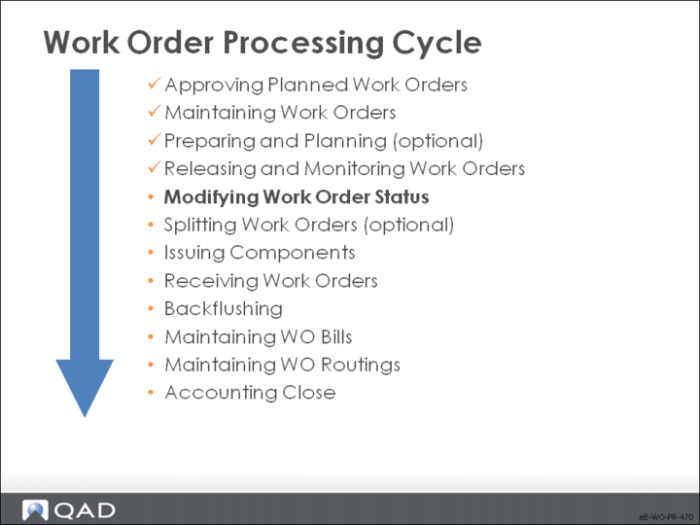
As work orders move through the system, their status changes. Next, we look at how you modify work order status.
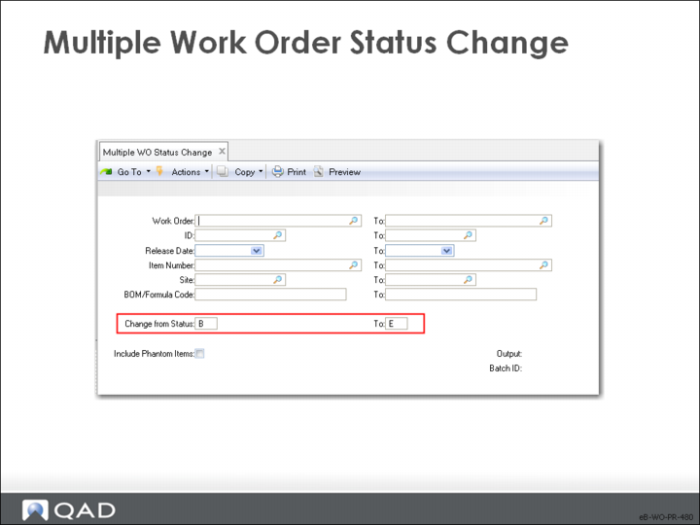
Multiple Work Order Status Change
Status indicates where the work order is in the manufacturing process. Multiple WO Status Change changes the status of the work orders you specify. You can change the status of individual work orders in Work Order Maintenance. The most common use of this function is to change batch input firm planned orders to exploded.
The normal status progression is: Planned or Batch Input Firm Planned, Firm Planned, Exploded, Allocated, Released, Closed. Each step is cumulative — any skipped step is done automatically
You can change the status for the following types of work orders
• Standard (type blank)
• Rework (type R)
• Final Assembly (type F)
Permitted changes are:
• From Status B to F – Explodes the work order bill and routing, generating component demands
• From Status P to F – Re-explodes the work order bill and routing
• From Status P, B, or F to E – Explodes the component bill and routing, shields orders from engineering changes, and schedules operations
• From Status P, B, F, or E to A – Verifies that the bill and routing are exploded, makes general allocations for all components
• From any Status to C – Closes the work order, no additional materials issued or received, labor can still be reported
Note: Regression is allowed; released orders could be changed back to status A
Assign security to control access to this program.
Note: This process can take a long time. Submitting it in batch mode is advisable.
Work Order / ID / Release Date / Item Number / BOM/Formula
Select the work orders through all or some of these criteria. Leaving all fields blank selects all work orders
Change from Status
The status of work orders this function changes. The default is B
To
The new status this function assigns to these work orders. The default is E
Include Phantom Items
Indicates if this function considers work orders for phantom items.