Issuing Components
Work order operations begin when you release orders and issue components.
With Work Order Component Issue, you issue inventory when the work order goes out to the shop floor. Another option is to issue the inventory after the work is done, which we will cover in backflushing.
Work Order Component Issue
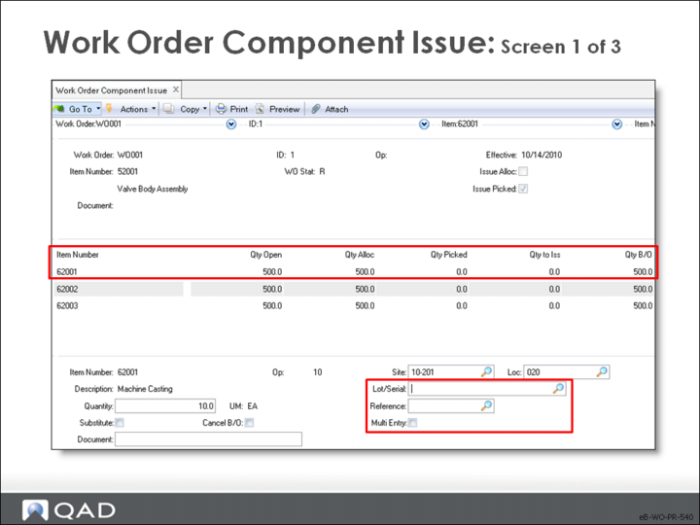
Use this function to issue components to work orders. When materials are issued from stockroom to manufacturing, a Work Order Component Issue records this action—decreasing inventory costs and quantities and increasing work in process (WIP).
Work Order / ID
Enter work order number and ID
Op
Enter an operation number to view only the components required at that operation; leave blank to view all components
Effective
The general ledger effective date associated with this inventory transaction; the default is the system date
The effective date determines when the general ledger transaction this transaction creates affects general ledger balances: a work order does not increase the balance in the general ledger inventory account until this effective date. Inventory quantity on hand is affected immediately upon processing the component issue, regardless of the effective date
Issue Alloc / Issue Picked
Indicates whether to issue allocated or picked inventory
• Issue Allocated and Issue Picked determine which inventory to issue for each component item, greatly speeding up the entry of work order issues
• To issue picked components, set Issue Picked to Yes, review that the issue quantities are correct and process the issue
• To issue allocated components, set Issue Allocated to Yes, review that the issue quantities are correct and process the issue
• If some components have been picked and some are still allocated, set both fields to Yes
The bottom half of the screen appears, allowing you to enter item-specific data.
Item Number
Enter the item number to issue
• Normally components used only include items called for in the standard bill, but you can enter any valid item here
• This option allows you to record unplanned issues
• Use this field to enter substitute items as designated in the product structure
Op
The operation where this item is used
• The normal operation number appears automatically
• The bill of materials attached to each work order identifies each component by operation as well as item number
• If you enter an operation (or an item) that is not defined on the work order bill, the transaction is treated like an unplanned issue: the components are issued to the work order, but component requirements are not decreased, even if the component is on the bill. An item issued in this way displays as a new line in the issue screen
• If you are issuing a substitute item, the operation must match the operation on the original component
• Issuing components at a different operation than the one on the work order bill allows you to perform unplanned issues; for example, damaged components can be replaced at a later operation
Quantity
The total quantity processed on this inventory transaction. This number is the quantity taken out of stock
Substitute
Indicates if a substitute item should be entered for this component. Issuing an allowable substitute decreases the requirement for the preferred component
Cancel B/O
Indicates if the remaining component quantity required is placed on backorder or canceled
• No: Any remaining quantity required for a component remains open on backorder for later issuance to the work order
• Yes: Cancel this component requirement. The quantity remaining is not issued later; the quantity required is set to zero and MRP is notified of the decreased requirement
• Since the quantity required for a component includes allowance for scrap, there are possible situations when less than was called for is issued. In this case, cancel the backorder
• When a substitute item is issued, the requirement for the original component is automatically canceled
• If a different component is used that is not an approved substitute, manually set the backorder quantity to zero for the original item
Site
The site where this inventory transaction was processed. Use Multi Entry to enter more than one site on an inventory transaction
Loc
The location code associated with this inventory transaction. Use Multi Entry to enter more than one location on an inventory transaction
Lot/Serial
The lot/serial number associated with this inventory quantity
• Use Multi Entry to enter more than one lot/serial number on a transaction
• Each item can optionally be defined as Lot or Serial number controlled, which determines whether a lot or serial number is entered on each inventory transaction
Ref
Lot reference, with site, location, and lot/serial number, specifically identifies inventory quantities
• Lot reference can be the production lot of the item or it can be a location reference such as a skid, roll, or pallet number
• Use Multi Entry to enter more than one lot reference on an inventory transaction
Multi Entry
Indicates whether this inventory transaction references multiple sites and locations, or multiple lot/serial numbers or lot reference numbers
• No: This inventory transaction is processed using the site, location, lot/serial, and lot reference on this screen
• Yes: The multi-entry screen appears, allowing you to enter multiple lines for this inventory transaction
Display items being issued
This prompt appears here only if you have selected No for Multi Entry
• Yes: Display the items for verification
• No: Issue the items without displaying them
• Cancel: Return to the entry screen
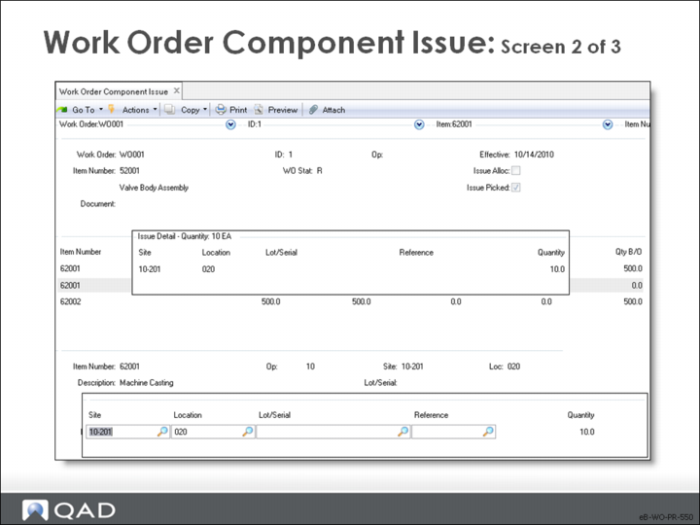
Multi-Entry Screen
The screen appears if you request multi-entry for Site, Location, or Lot/Serial processing.
• On each line you enter a site, location, lot/serial, lot reference number, and quantity
• The open quantity on the order updates to the total entered in the multi-entry screen
• An individual transaction history record is created for each transaction line
• The total of all lines is used to update the inventory balance
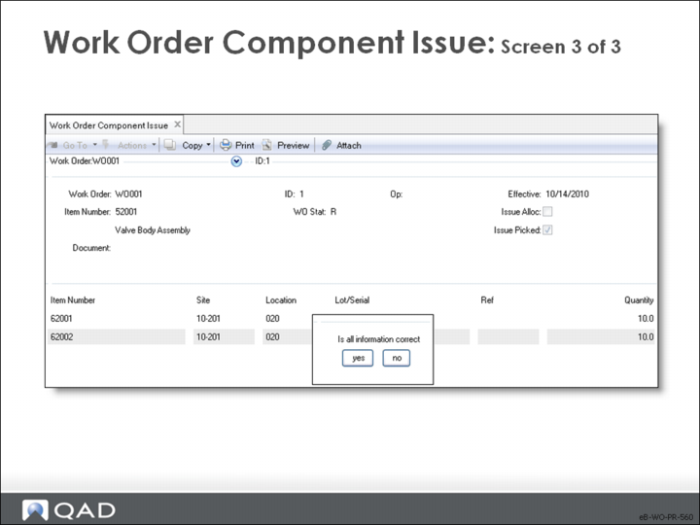
• As you complete the issues, a pop-up window asks:
Display items being issued
• Yes: Display the items for verification
• No: Issue the items without displaying them
• Cancel: Return to the entry screen
Issues
Is all information correct?
• Yes: Issue the items
• No: Return to the entry screen for corrections
• Cancel: Do not issue the items