Work Order Receipt
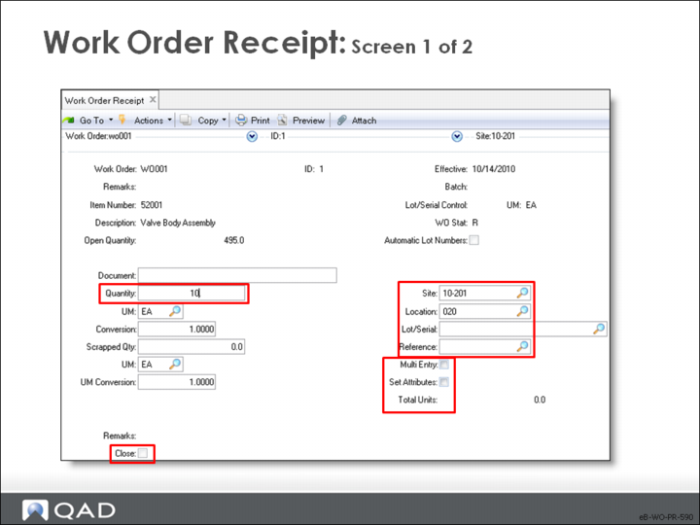
When a work order is completed on the shop floor, the items are typically sent to the stockroom. Use Work Order Receipt to receive items and close the order.
Work Order / ID
Enter the work order and ID numbers
Batch / Remarks / Item Number / L/S / UM / Description / Status / Open Qty / Auto Lot Numbers
Display-only fields
Quantity
The total quantity to receive against this work order. The quantity received is added into inventory at the specified site and location
UM / Conversion
These two fields define and relate the received unit of measure and the inventory unit of measure.
• The unit of measure of the inventory transaction quantity
• If you enter a UM other than the item unit of measure, the system accesses the appropriate conversion factor. For example, the item can be held in inventory in the unit of measure EA, but sold or purchased in a CS of 25. When you enter CS, the system displays a UM Conversion of 25 and adjusts the cost and inventory quantity automatically
• If the alternate UM has not been predefined in Unit of Measure Maintenance, a warning displays and the UM Conversion remains at 1.0000 so you can adjust it manually
Scrapped Qty
The number of items rejected on this work order. Reject quantity appears on work order history and cost reports. The total GL cost of the rejected items posts to the scrap account found on the product line of the parent item
UM / Conversion
The unit of measure and conversion fields play the same role here as for the items received
Site
The site where this work order quantity is received
Location
The location code associated with this inventory transaction. Use Multi Entry to enter more than one location
Lot/Serial
The lot/serial number associated with this received inventory quantity. Use Multi Entry to enter more than one lot/serial number
Ref
Lot reference, with site, location, and lot/serial number, specifically identifies inventory quantities
• Lot reference can be the production lot of the item or it can be a location reference such as a skid, roll, or pallet number
• Use Multi Entry to enter more than one lot reference on an inventory transaction
Multi Entry
Indicates whether this inventory transaction references multiple sites and locations, or multiple lot/serial numbers or lot reference numbers
• No: Process this inventory transaction using only the site, location, lot/serial, and lot reference entered on this screen
• Yes: Display another entry screen to enter multiple lines for this inventory transaction
Set Attributes
Indicates whether to accept the default inventory attributes
• No: Receive the items into the inventory location specified and assign the default inventory attributes
• Yes: Display a pop-up window for entry of the Inventory Status, as well as Assay %, Grade, Expire Date, and the Active settings
Remarks
Brief remarks associated with this transaction. This field is for reference only and appears on some reports and inquiries
Effective
The general ledger effective date associated with this inventory transaction; the default is the system date
• The effective date determines when the general ledger transaction this transaction creates affects general ledger balances: a work order does not increase the balance in the general ledger inventory account until this effective date
• Inventory quantity on hand is affected immediately upon processing the receipt, regardless of the effective date
• The date of the transaction can differ from the Effective Date. At period end, these dates are often different: if the period ends on Friday but you are still processing receipts on Monday, you can set the effective date to Friday, but the entered date is Monday
Close
Indicates if the work order status should be set to C for Closed
• It is not necessary to use all of the status codes on each work order; some companies go directly from B to R to C
• It is necessary to close work orders to reconcile WIP with the Accounting Close function
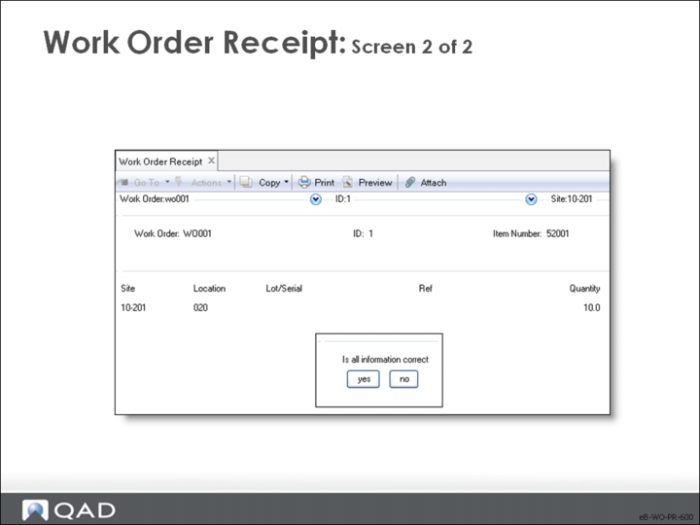
Display item and lot/serial detail
Yes display the detail screen; No skips the display
Is all information correct?
• Yes: Process the transaction
• No: Return to the entry screen