Work Order Receipt Backflush
This function combines issue and receipt, making for fast turnaround.
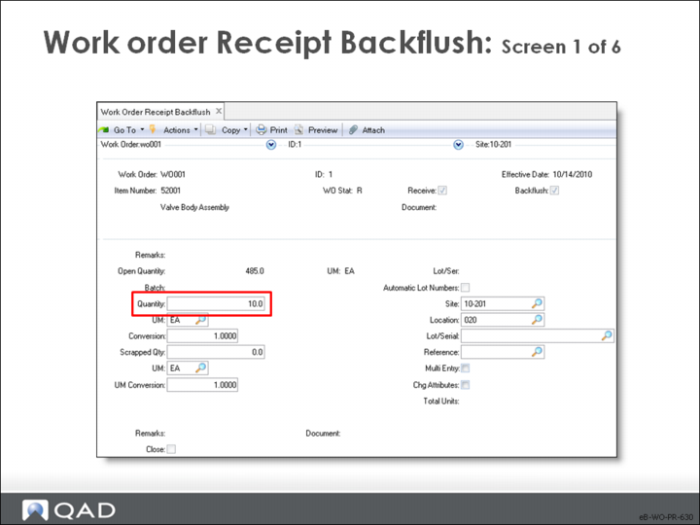
Work Order / ID
Enter the work order and ID numbers
Effective
The general ledger effective date associated with this inventory transaction; the default is the system date
• The effective date determines when the general ledger transaction this transaction creates affects general ledger balances: a work order does not increase the balance in the general ledger inventory account until this effective date
• Inventory quantity on hand is affected immediately upon processing the receipt, regardless of the effective date
Receive
Indicates whether finished products are received into inventory
• Yes: The system prompts you to enter a receipt quantity and receives this quantity into stock
• No: Backflush component items without receiving any finished products into inventory
• This option is useful when you have a long lead time but still want to backflush components
Backflush
Indicates whether to backflush components from inventory. Component items can be issued individually to a work order using Work Order Component Issue or they can be backflushed from stock. A backflush simply issues items from stock automatically based on their standard component quantity per
• Yes: The system prompts you to enter the backflush (receipt) quantity
Quantity
The total quantity to backflush
UM / Conversion
These two fields define and relate the backflush unit of measure and the inventory unit of measure.
Scrapped Qty
The number of items scrapped on this work order
UM / Conversion
The unit of measure and conversion fields play the same role here as for the items backflushed
Site
The site where this work order quantity is received
Location
The location code associated with this inventory transaction; use Multi Entry mode to enter more than one location on an inventory transaction
Lot/Serial
The lot/serial number associated with this inventory quantity; use Multi Entry mode to enter more than one lot/serial number on a transaction
Ref
Lot reference, with site, location, and lot/serial number, specifically identifies inventory quantities
• Lot reference can be the production lot of the item or it can be a location reference such as a skid, roll, or pallet number
• Use Multi Entry mode to enter more than one lot reference on an inventory transaction
Multi Entry
Indicates whether this inventory transaction references multiple sites and locations, or multiple lot/serial numbers or lot reference numbers
• No: This inventory transaction is processed using the site, location, lot/serial, and lot reference entered on this screen
• Yes: Another entry screen is displayed, allowing you to enter multiple lines for this inventory transaction
Chg Attributes
Indicates whether to accept the default inventory attributes
• No: Receive the items into the inventory location specified and assign the default inventory attributes
• Yes: A pop-up window appears, prompting you to enter the Inventory Status, as well as Assay %, Grade, Expire Date, and the Active settings
Remarks
Any remarks associated with this transaction, such as source or reason; this field is for reference only and appears on some reports and inquiries
Close
Indicates whether to set the work order status C for Closed
Effective
The general ledger effective date associated with this inventory transaction; the default is the system date
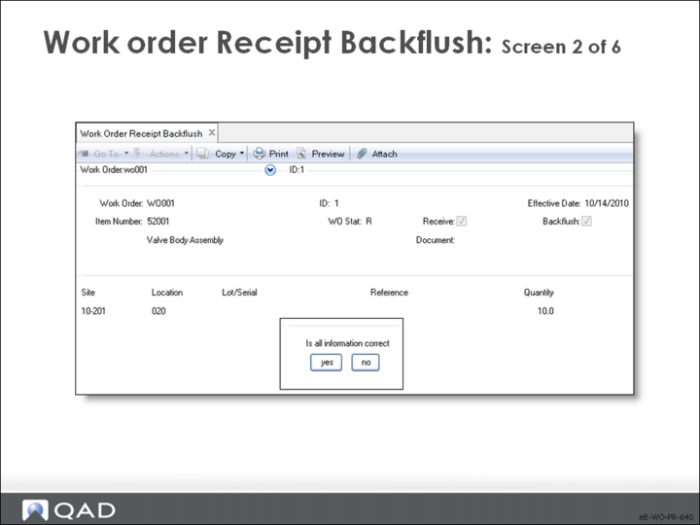
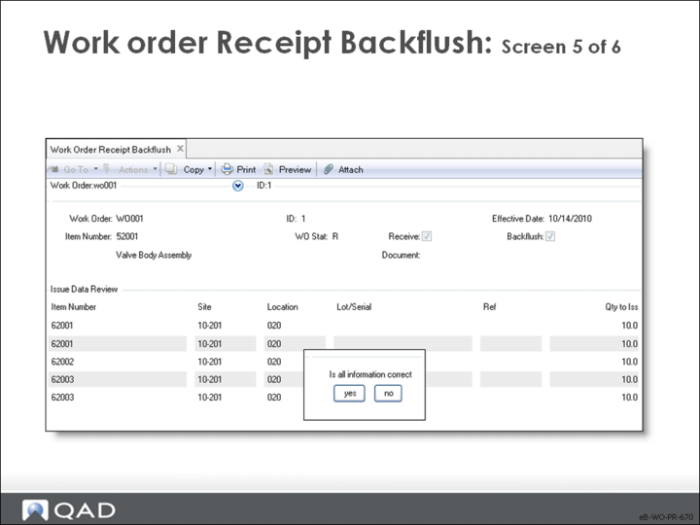
Display item and lot/serial detail
• Click Yes to display detail lines
• Click No to accept the data for processing
Is all information correct?
• Yes: Advance to the next screen
• No or Cancel: Return to the entry screen
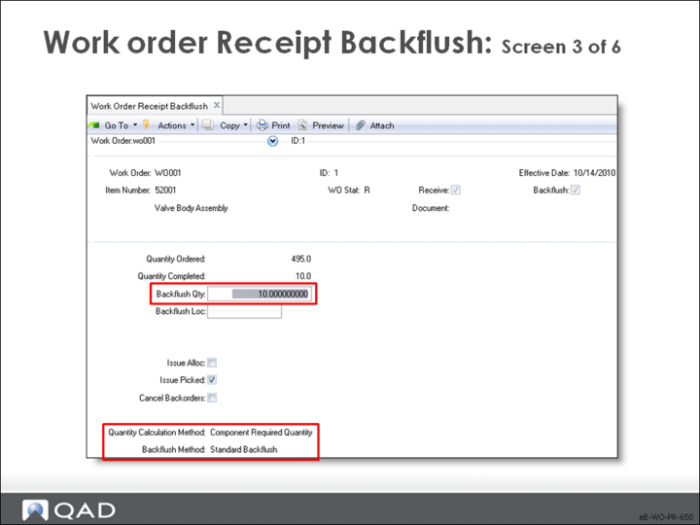
Backflush Qty
The quantity to use when backflushing components from inventory; the default is the quantity ordered, entered on the first screen
Normally components are backflushed from inventory using the component quantity per multiplied by the receipt quantity. In the Component Issue frame that follows, you can modify the issue information that the system calculates
Issue Alloc
Indicates whether to issue allocated inventory
Issue Picked
Indicates whether to issue picked inventory
Cancel B/O
The setting entered here is used as the default for each component item issued
• No: Any remaining quantity required for a component remains open (on backorder) for future issuance to the work order
• Yes: Cancel this component requirement. The quantity remaining is not issued later; the quantity required is set to zero and MRP is notified of the decreased requirement
Note: Set this field to Yes ONLY on the final Work Order Receipt Backflush. Using it on interim receipt backflushes causes variation in the calculation of the final receipt backflush component issue quantities.
Quantity Calculation Method
Select the calculation method used to determine the Quantity to Issue for all components. You can adjust each issue quantity on a line-by-line basis in the detail screen; the default is Component Required Quantity
• Other valid choices are Work Order Bill Qty Per and Phantoms First
• The Quantity Calculation Method works with Backflush Method
Backflush Method
Defines whether to use the backflush quantity entered, or to include prior issues and receipts against this order; the default is Standard Backflush
• The other choice is net of prior issues and receipts
• Quantity Calculation Method works with Backflush Method
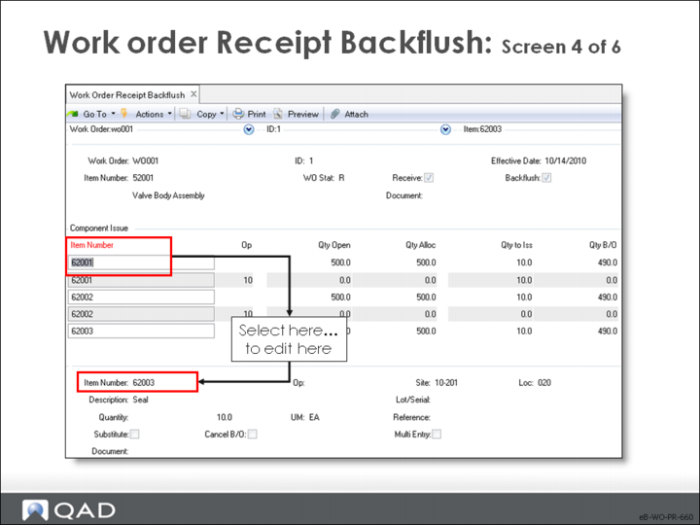
This screen allows you to approve the entire work order or to correct individual item quantities. You select the items in the top half and correct them in the bottom of the screen.
Item Number
Select the item to change its quantity or operation
Op
Select the operation number
Quantity
Enter quantity to backflush
Substitute
Indicates if a substitute item is being entered for this component
Cancel B/O
Indicates if any remaining component quantity required is placed on backorder or canceled
Site
The site where this work order quantity is received
Loc
The location code associated with this inventory transaction; use Multi Entry to enter more than one location on an inventory transaction
Lot/Serial
The lot/serial number associated with this inventory quantity; use Multi Entry to enter more than one lot/serial number on a transaction
Ref
The lot reference associated with this inventory transaction; use Multi Entry to enter more than one lot reference on an inventory transaction
Multi Entry
Indicates whether this inventory transaction references multiple sites and locations, or multiple lot/serial numbers or lot reference numbers
• No: This inventory transaction is processed using the site, location, lot/serial, and lot reference entered on this screen
• Yes: Another entry screen is displayed, allowing you to enter multiple lines for this inventory transaction
Display items being issued
• Yes: Display the items
• No: Do not display the items
Is all information correct?
• Yes: Proceed to next screen
• No: Return to entry screen
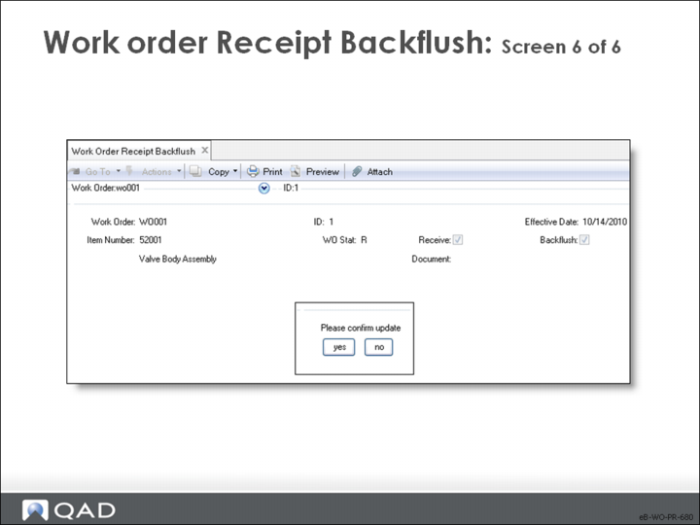
Please confirm update
• Yes: Update the transaction
• No: Cancel the update