Maintaining WO Bills
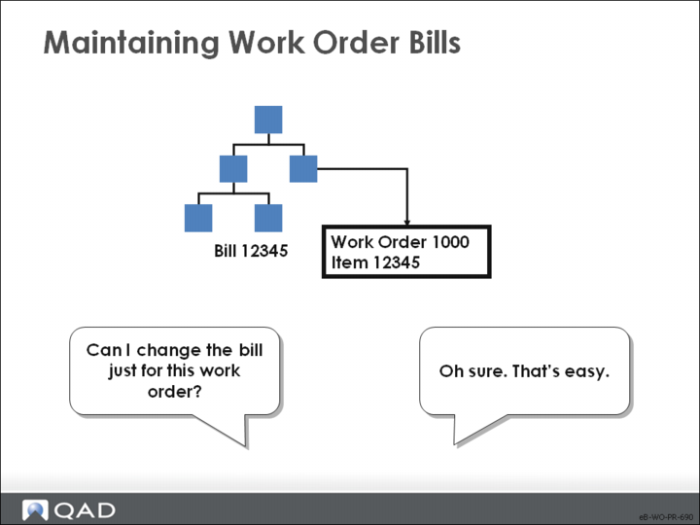
Every work order has a bill or product structure associated with it. This structure is normally the structure created for the item produced. You can customize the structure on a work-order-by-work-order basis.
Work Order Bill Maintenance
Work order bills — that list components required for a work order — start as the standard bill for that item-site but can be changed manually. Work order bills control component picking and issuing, and provide standards against which variances are calculated. This function enables you to modify the work order’s bill.
• Status codes reflect work order bill changes during the manufacturing process
• Planned – MRP plans component requirements based on the standard bill for the item-site
• Firm Planned – An alternate bill for MRP to use can be specified
• Exploded – The system makes a copy of the bill specified on the work order and this copy is the one you can modify
• This copy is unaffected by changes to the standard bill
• As components are issued to this work order, using either Work Order Component Issue or Work Order Receipt Backflush, the Qty Issued is updated in the work order bill
Note: Some work orders start out with a different work order bill. Rework orders have only one billed item, the item being reworked. Expense orders have no bill. Final Assembly orders use work order bills equal to the sales order bills. If the sales order configuration is changed, make the same changes to the work order bill.
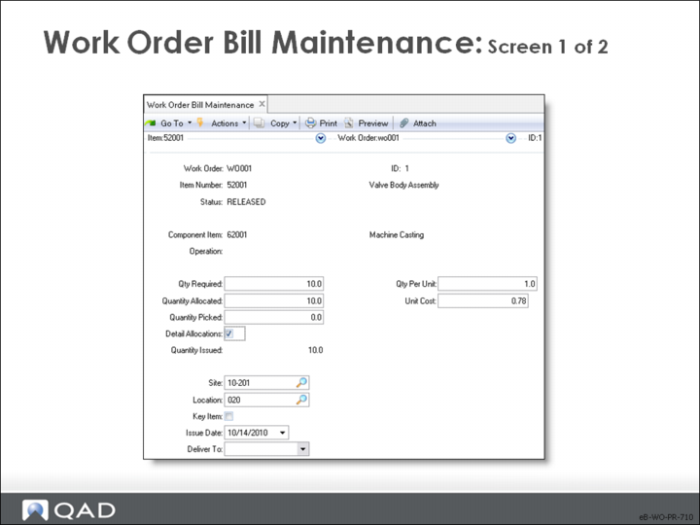
Work Order / ID
The work order and ID numbers
Component Item / Operation
The component item number and the operation number
Qty Required
The quantity of this component item, including expected scrap, you expect to use to complete this work order
• When the work order bill is exploded, quantity required is set to the standard component quantity per multiplied by the work order quantity, then adjusted upward to account for any scrap percentage on the bill
• To use more or less of this item, modify the quantity required on the work order bill so that work order variances calculate correctly
Qty Allocated
The quantity allocated to this work order; this quantity cannot be greater than the quantity required
Qty Picked
The quantity printed on a picklist for this component. If component quantities are increased or if new components are added to the work order bill, another picklist can be printed listing only these quantities
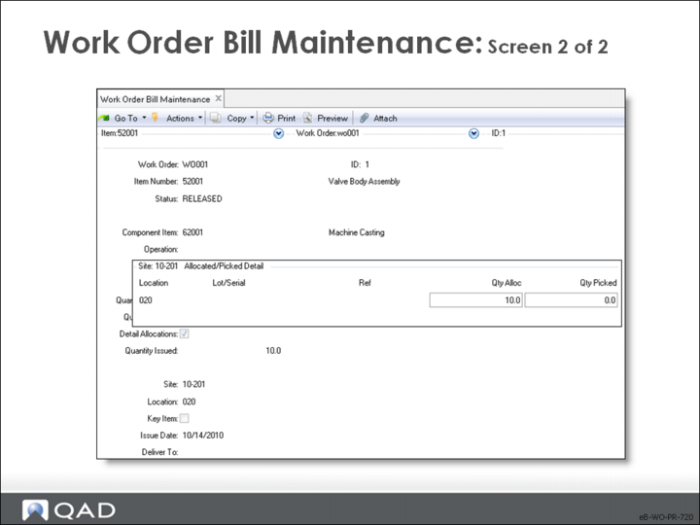
Detail Allocations
Specifies if detail allocations are made for this component item
• Use detail allocations to assign specific inventory lot/serial numbers and locations to the order
• Yes: Detail allocations are made for this component. The next screen prompts you to enter the location, lot/serial, and lot reference numbers to use on this order
• No: General allocations are sufficient
Qty Per Unit
The quantity of this component item called for in the standard bill of material. When components are issued to a work order, material costs are posted to WIP as the quantity issued multiplied by the GL cost
Unit Cost
The total GL cost of this component item when the work order was exploded. This cost is used for calculating material rate variances