Changing Family Plans
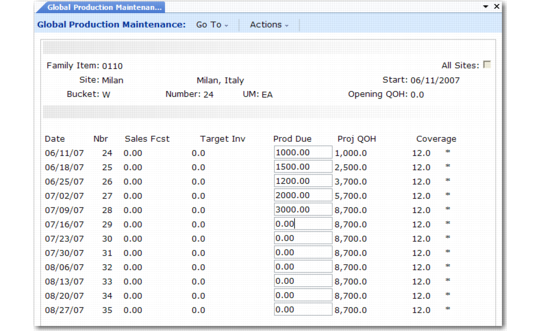
Use Global Production Maintenance (33.7.3) to view the plan and change production due quantities. You can also delete a family plan, either for an entire year, or for only specific periods within the year—for example, if an item becomes obsolete.
You can manipulate the plan at either the global or site levels. Except for sales forecasts, calculations of global and site quantities are the same.
Display item information either by calendar week or by GL period. If you normally plan in weeks, do not change production quantities in period view. If you do, the system permanently reassigns all weekly quantities to the first week of the period.
To delete a plan for an entire year, select the plan and press Delete. To delete a plan for part of the year, reset the production due quantities to zero for the affected period.
This program updates only the planning database. Other databases do not have to be connected.
Global Production Maintenance (33.7.3)
Family Item
Enter the number of a top-level family item. You cannot change subfamily quantities in this screen.
All Sites
Enter Yes to display the global production due quantity for this family item. Enter No to display the quantity for one site.
Site
Enter the marketing site code. You can access this field only if All Sites is Yes.
Start
Enter the start date for the first calendar week or financial period. The default start date is the system date. If the date you enter is not the Monday of the week or the first day of the period, the system changes it.
Bucket
Enter W to group item quantities into calendar weeks that start on Mondays. Enter P to group quantities into financial periods with a start date that is the first day of the period.
Nbr
Enter the number of the first calendar week or financial period to display. If you enter a bucket number instead of a start date, the system fills in the start date for you. The system also changes the start date to the first day of this week or period if this day is not already the start date.
UM
Enter the unit of measure for viewing and changing item quantities. The default unit of measure is the one from the item master record.
Opening QOH
The screen displays the total opening on-hand inventory balance for all end items in the family. However, the system does not use this to calculate production due quantities.
Sales Fcst
Global sales forecast is the family forecast for all marketing sites in the family hierarchy. Site sales forecast is the family forecast for one marketing site. If you consolidated the plan using the Roll Up End Items option, family forecasts were calculated from forecasts for the end items in the family.
Target Inv
Target inventory level is the desired level of coverage specified by the family’s average weeks-of-coverage factor. This quantity will be either this week’s forecast, if the coverage factor is zero, or the total forecast for the number of upcoming weeks specified by the average coverage factor.
Prod Due
The screen displays the family item’s projected production demand. The formula is:
(Sales Forecast + Target Inventory) – Previous Week’s Projected QOH
For family items, previous projected QOH is zero for the first week, and production due is gross (not netted against on-hand inventory). When you change global production due (All Sites is Yes), the system recalculates global projected quantity on hand and weeks of coverage. It also distributes the effects of the change proportionately to all marketing sites.
Proj QOH
Initially, projected quantity on hand equals the target inventory level. When you change production due, the system recalculates it as:
(Previous Week’s Projected QOH + Production Due) – Sales Forecast
For the first week, the projected QOH is the opening QOH.
Coverage
Initially, projected weeks of coverage is the item’s average weeks-of-coverage factor. When you change production due, the system recalculates this, using the item’s minimum and maximum coverage factors to project inventory shortages (–) and surpluses (+) relative to the average weeks of coverage. An asterisk (*) indicates that projected coverage satisfies the maximum coverage requirement specified in Operations Plan Control (33.1.24).
Use two programs to review family plans:
• Global Production Inquiry (33.7.4) shows the global or site plan for the specified family item. To review the global plan, leave site blank. You can select the starting week or period and unit of measure to view quantities.
• Global Production Report (33.7.5) is similar, but you can select ranges of family items, sites, and effective years.
Note: An enhanced .NET UI version of this report is available on menu 33.7.29.