Creating Distribution Orders
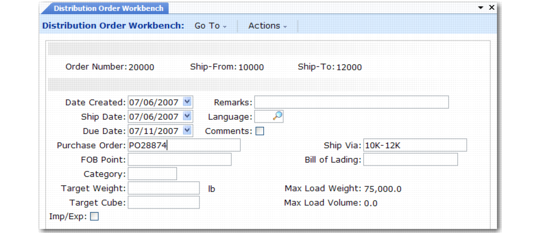
When you click Next, the system creates a distribution order to satisfy the requests. An order created in the workbench is the same as one created in Distribution Order Maintenance (12.17.14), except that you can further limit automatic selection.
Distribution Order Workbench (12.17.13)
Ship Date
This defaults to the earliest ship date listed on any of the selected requests.
Purchase Order
Use this field to reference an external purchase order.
Ship Via
Further limits the requests to those that have the shipping method specified. This field defaults to the value of the transport ID used to select the requests.
Target Weight
The system stops selecting requests when the stated target weight or target cubic measure is reached, based on summing order ship weights. The target value defaults from the maximum weight defined for that transport ID.
Target Cube
The system stops selecting requests when either this cubic measure or the target weight is reached.
Confirming Selected Requests
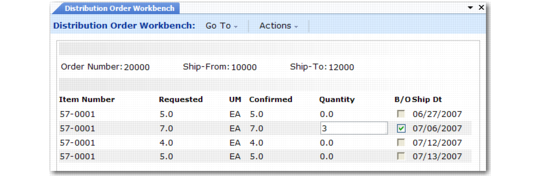
The system selects from the list all requests for an item until available inventory for the item is exhausted, the maximum shipping weight or size are reached, or all requests are filled. Next, it displays all selected requests and shows the total weight and space for the items. You can edit this list, which is used for picking and shipping.
Distribution Order Workbench (12.17.13)
Once you have confirmed them, the requests are closed. The system ships partial requests by back-ordering the difference between the request and confirmation quantities.
The item number is not shown until this point, because it is assumed that any items needed by the transport mode selected will be shipped. You can control the kinds of items attached to a distribution order by defining a different transportation mode for each item shipped.
Distribution Order Workbench (12.17.13)
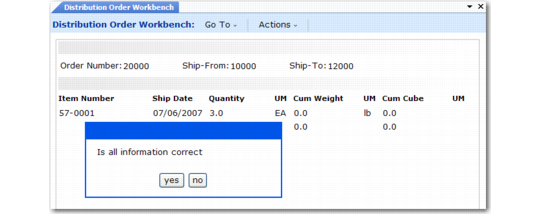
When the requests are selected, the total is shown and you are prompted to confirm. Once confirmed, you can edit the order, but automatic selection is not rerun.