Confirming Shippers
Use DO Pre-Shipper/Shipper Confirm (12.19.13) to:
• Record individual shipments of orders.
• Convert DO pre-shippers into shippers.
• Confirm movement of goods within the sites associated with shipper documents.
You can export a confirmed shipper as an advance ship notice (ASN) to inform the receiving site that an order has been shipped. Export ASNs using EDI eCommerce.
See User Guide: QAD EDI eCommerce.
DO Pre-Shipper/Shipper Confirm (12.19.13)
When you confirm a pre-shipper, the system converts it to a shipper before the confirmation process occurs. The shipper number is assigned based on the NRM sequence ID from the shipping group of the shipment or from DO Container/Shipper Control.
If the NRM sequence is an internal sequence, the system generates and displays the shipper number. If the sequence is external, the system prompts you for an entry and validates the results. The system propagates the new shipper numbers to all records linked to the converted pre‑shippers, including containers, line items, and carrier detail records.
The following applies when confirming pre-shippers or shippers:
• Canceled shipments (Status is X) cannot be confirmed.
• To select a shipper for confirmation, you must have access, as defined in Inventory Movement Code Security.
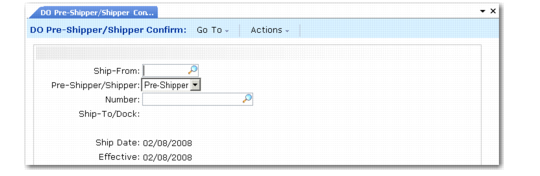
Selecting Confirmation Options
The following fields define the shipment selection and the dates the system uses to apply the shipment transactions.
Ship-From
The site code of the site from which the shipment originates.
Pre-Shipper/Shipper
Enter Pre-Shipper or Shipper, depending on the shipping document type you want to confirm.
Number
Enter the identifying number for the pre-shipper/shipper you are confirming. You can only specify distribution order shippers for confirmation. The system determines the source of demand for a shipper by checking the transaction type of the assigned inventory movement code.
Ship-To ID
Enter the ship-to address code assigned to the selected shipping document.
Ship Date
The system displays the last date a shipment was processed for the order underlying this shipping document. The default is the system date.
Effective Date
The date of this shipment. The default is the system date. The effective date determines the date of the GL transaction to inventory. The effective date has no effect on the inventory balance update, which is updated immediately.
Managing Shipments at Period End
While the ship date and effective date are usually the same, you can assign shipment effective dates that occur earlier or later than the actual date of the shipment, provided that the entered effective date falls in an open GL period.
For example, if the accounting period ends on a Friday, but you cannot get all of the shipping activity entered into the system until Monday, you can leave the GL period open and process the remaining shipment documents with Friday’s date as the effective date.
Entering Reference Data
Optionally, you can use the second frame to enter reference data associated with the pre-shipper/shipper, including an identifier for the carrier’s vehicle, the time of the shipment, and the arrival date and time.
DO Pre-Shipper/
Shipper Confirm, Reference Data Frame
Once you enter reference data, the system may display a field to recalculate the freight charges. Enter Yes to indicate that the system should recalculate freight charges for all distribution orders attached to the shipper being processed. Otherwise, enter No. When you enter Yes, any previous, manually entered freight charges will be recalculated.