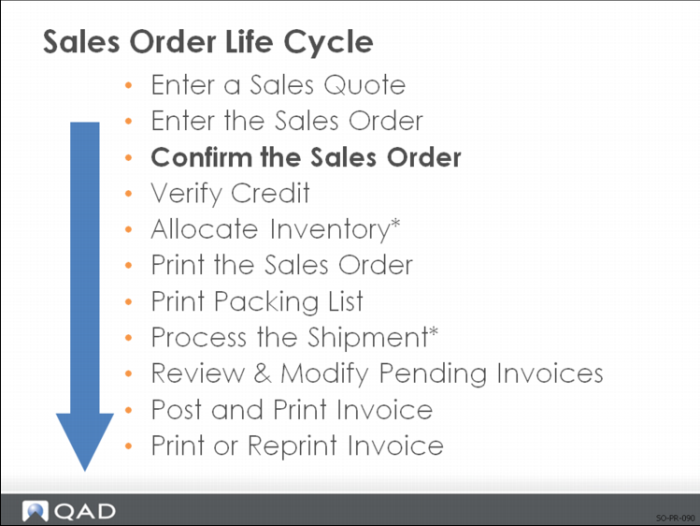
Confirm the Sales Order
As used in the Header section:
• Yes: order is considered a firm order. A confirmed order can then be allocated, consume forecast, and create demand for MRP.
• No: Order is not firm. An unconfirmed order cannot be allocated and cannot be seen by MRP. A separate confirmation step is required.
As used in the Line Item section:
• Yes indicates that the line item is firm
• No indicates that the item is not firm
Note: When you release a sales quote to a sales order, the Confirmed fields are set to Yes in the header section and the line item section. You cannot modify these fields. When you create a sales order, the Confirm field on the header defaults from the value of Confirmed Orders in Sales Order Control, but you can modify it. The header value sets the default for each line.
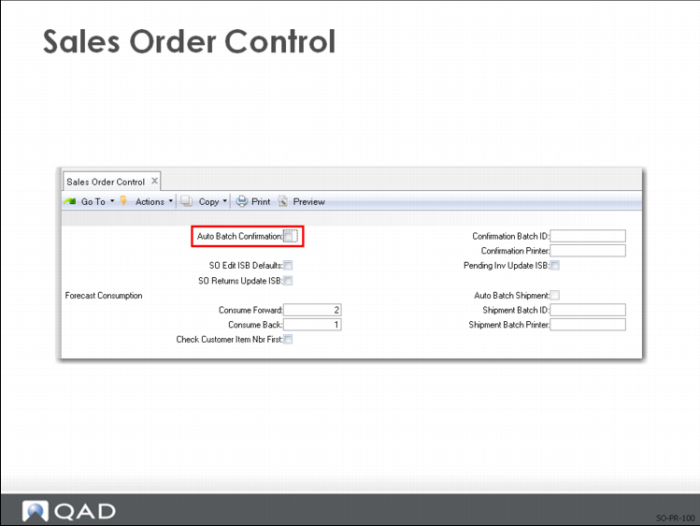
Sales Order Control
To confirm an order by batch mode, set the Auto Batch Confirmation field to Yes in Sales Order Control. With this field set to Yes, you can confirm through batch processing any unconfirmed Sales Order detail lines you enter. Batch processing of these lines improves performance, particularly at a multi-database environment across a network
When this field is Yes, after all sales order data is entered and any unconfirmed detail lines exist, a popup window appears to inquire about Auto Batch Processing. If you specify Yes and supply a valid batch and printer ID, the system submits a job to that batch queue to confirm all lines for that sales order based on Sales Order Confirmation
In Batch ID Maintenance, set the Permanent field of the specified batch queue to No to ensures that entries to that queue are deleted when processed.
Note: An important side effect of setting the Permanent field to No is that if the system goes down during processing, the order remains unconfirmed. In this case, you cannot receive such notification until you try to ship the order. The cause of remaining the order unconfirmed in this case is that the batch processor first deletes the entry if it is not marked as permanent before processing the job.
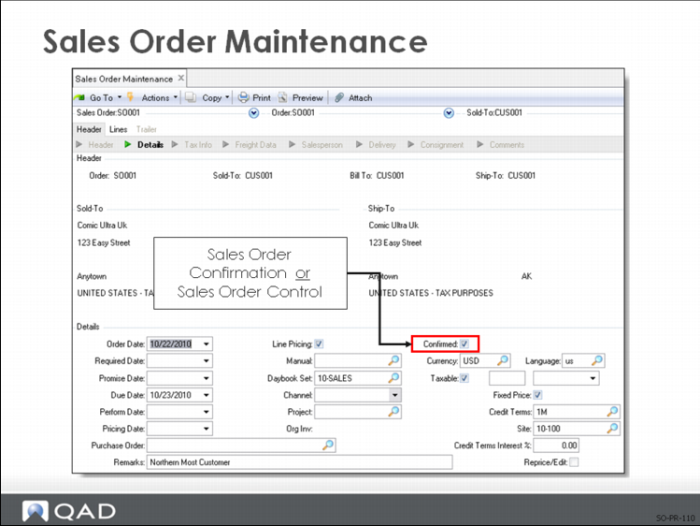
Sales Order Maintenance
Confirmed
• Indicates if the order is to be considered as confirmed
• An order can be marked unconfirmed but have some line items marked confirmed
Example: An example of an unconfirmed order is one that is taken over the phone. You enter it into the system, but wait to get the hard copy purchase order before you ship it.
Note: In a high volume order entry environment, you can choose to enter all orders as unconfirmed and confirm them later in batch. It simplifies the process of order entry. But order promising becomes more difficult because allocations do not take place until the order is confirmed.
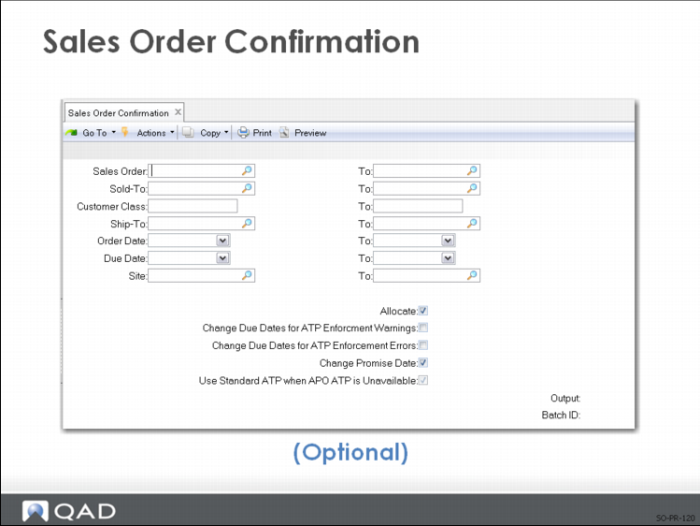
Sales Order Confirmation
To confirm an order
• Run Sales Order Confirmation OR
• Confirm by batch mode by setting the Auto Batch Confirmation field to Yes in Sales Order Control