Sales Order Control
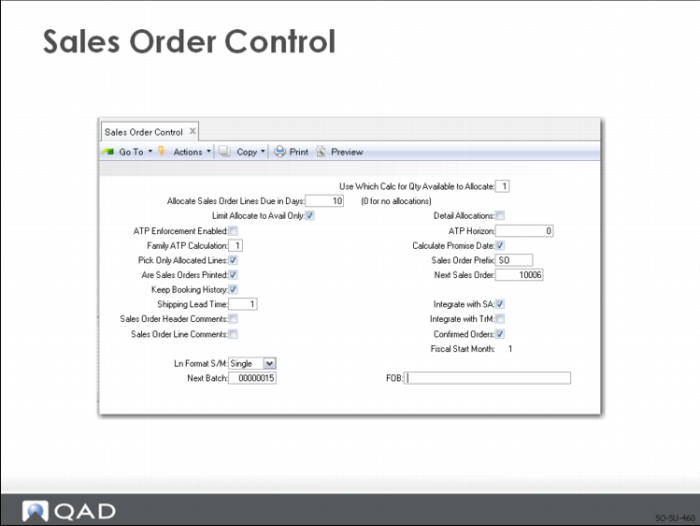
Sales Order Control contains the basic parameters that determine how the system processes sales orders. Additional financial setup parameters are established in Sales Order Accounting Control.
Sales Order Control
Note: Sales Order Control has three screens. Clicking Next advances to the next screen.
Qty Available to Allocate
Controls how the system determines the number of items available to allocate. The calculation is the same for all items and sites:
• 1 calculates the quantity available for a new order (including released work orders) by subtracting the quantity already allocated to other orders (determined by the number in the Allocate Sales Order lines due in Days field)
• 2, 3, and 4 are not time-sensitive and allocate all quantities demanded against the total demand in the system, including MRP
Allocate Sales Order Lines due in Days
Determines the allocation window for sales orders. 0 indicates no allocations. The system only attempts to allocate order lines with a due date within the range defined by this field. For orders due outside the range, Quantity Allocated defaults to 0 regardless of available quantity
Limit Allocations to Avail to Allocate
Determines how the system handles shortage situations:
• No: Quantity Allocated defaults to Quantity Ordered even if a sufficient quantity to allocate does not exist
• Yes: Quantity Allocated never exceeds the quantity available
If there is no quantity available to allocate, Quantity Allocated defaults to 0
Detail Allocations
Specifies whether detail allocations are made during order entry. Detail allocations function to assign specific inventory lot/serial numbers and locations to be shipped on an order.
• Yes: Detail allocations are made during Sales Order Maintenance
• No: Detail allocations are not normally entered on the order
The default value displays and can be changed on each line item
Note: The system automatically generates detail allocations when sales order, distribution order, or RMA packing lists and work order picklists print.
ATP Enforcement Enabled
Enter Yes to activate ATP calculation functions for order line-item processing.
ATP Horizon
Enter the number of days from the current system date that the system should consider when determining ATP.
Family ATP Calculation
If you use ATP for family items, review field help for which formula to use.
Calculate Promise Date
Enter Yes to calculate the promise date automatically for order-line items. When this field is Yes and you have set up delivery times in Delivery Transit Time Maintenance, the system calculates promise dates.
Note: Entering a promise date manually in the order header frame prevents the system from calculating a promise date for order lines when you enter the lines. However, if you subsequently modify the due date on a line, the system recalculates the promise date when this field is Yes.
Pick Only Allocated Lines
Specifies whether only lines with allocated quantities should print from the Sales Order Packing List function:
• Yes: Only line items with a non-zero quantity allocated are printed. This is normally set to Yes when allocations are being used. This enables the sales desk, not the shipping clerk, to control shipments since only allocated quantities print on the packing list, which tells the shipping department what to ship. This process requires that you use packing lists to communicate shipping priorities.
• No: All lines with a non-zero open quantity are printed, regardless of the quantity allocated
Packing lists for sales orders, service engineer orders, and RMA issue lines can be printed using Sales Order Packing List. A number of other fields affect how allocations occur:
• Qty Available to Allocate
• Limit Allocations to Avail to Allocate
• Allocate Sales Order Lines Due in Days
Note: If you do not use packing lists, you can choose not to use allocations. Allocations can be turned off by setting Allocate SO Lines due in Days to zero, Limit Alloc to Avail to Allocate to No, and Pick Only Allocated Lines to No. For RMAs, Allocate Days must be set to zero in RMA/RTS Control and for SEOs, Allocate SEO Lines Due in Days must be set to zero in Engineer Order Control.
Are Sales Orders Printed
Indicates whether confirmed orders are normally printed. Yes does not prevent sales orders from being printed but sets the default for a new sales order. Sales Order Print only prints sales orders with the print field set to Yes
Keep Booking History
Indicates whether booking history is maintained. When it is set to Yes, the system keeps an audit trail of all incoming sales orders, including new orders added or existing orders changed. A record is kept in transaction history and identified as type ORD-SO with the item, order quantity, price, cost, date, userid, and other information. You can review this information using booking inquiries and reports
Detailed transaction history can be reviewed using Transactions Detail Inquiry (3.2.1.1)
Example: With booking history, a transaction history record is kept for all additions and changes. If you enter a line item with a quantity of 100 but you meant to enter a quantity of 10, the system tracks the booking for the initial quantity of 100. When you correct the mistake, the system creates two more booking history entries, one for -100 and another for the correct quantity of 10. Therefore, you may end up with many booking history records
Important: Examine the booking history reports available and decide whether you really plan to use them before you consume space with booking history.
Shipping Lead Time
The usual number of calendar days elapsing between the date the order is entered and the date it is scheduled to ship to the customer location. If orders are shipped immediately, this field can be left as zero
• When you first enter an order, the due date defaults to the system date plus the shipping lead time, indicating the normal quoted shipping date. The operator can manually change the sales order due date. It is useful for ensuring that promised delivery dates are reasonable
Sales Order Header Comments
Indicates whether comments are normally entered on each sales order header. Information associated with the header of an order usually applies to the entire order and prints at the top of the order
This setting does not control whether comments can be entered, but determines the default that displays whenever you enter an order
Sales Order Line Comments
Indicates whether comments are normally entered on each order line. Information associated with the line of an order usually applies to a specific line item and prints following that line
Ln Format S/M
The default method for entering sales order and invoice line items. Values must be S or M:
• Single: You can display and maintain detailed information for each line item. The default is Single
• Multi: You can enter basic information such as item, quantity, and price for up to 12 lines on a single screen. Dates, site, location, tax status, and GL accounts simply default
You can change the method at any time during order entry, and flip back and forth between single and multiple line format
Note: When you first implement QAD Enterprise Applications, use single-line entry mode. It requires only one additional keystroke per line and gives you much more functionality.
Next Batch:
Specify the next batch number to be assigned when you run Invoice Post and Print. When assigning a batch number, the system uses the current value, then increments the field by one.
When you post invoices, the system associates the batch number with all the invoices posted at the same time. The customer invoice record includes the batch for reference and it can be used for searches and reporting.
Sales Order Prefix, Next Sales Order
Establishes identifiers for Sales Orders and Invoices. The system updates Next Sales Order as orders are created
Integrate with AR, SA, TrM
Determines the relationship with these modules. Set to Yes to integrate with Accounts Receivable, Sales Analysis, and Trade Management
Note: Forecast Simulation requires two years of sales history in Sales Analysis.
Confirmed Orders
Indicates whether orders are normally entered as confirmed and determines the default when a new sales order is entered, but it can be changed
• Yes: Sales orders are normally entered as confirmed orders
• No: They are not confirmed when entered, but require a separate confirmation step
Confirmed orders are allocated, consume forecast, and create demands for material planning. Unconfirmed orders do not. They are not considered firm orders until a separate Sales Order Confirmation function is processed.
Note: In a high volume order entry environment, you can choose to enter all orders as unconfirmed and confirm them later in batch. It allows orders to be entered quickly with less processing during order entry. But order promising will be more difficult because allocations do not take place until the order is confirmed.
Fiscal Start Month
Values can be 1 through 12. The default is 1. Indicates the fiscal start month for Sales Analysis. Reports and inquiries print monthly sales history starting with this fiscal month
Example: If the fiscal start month is set to 7, Sales Analysis reports start in July and show 12 months of history
Sales Analysis history is maintained in 12 monthly time buckets. These do not correspond to your General Ledger fiscal calendar periods; they are always calendar months. Sales history is posted to a month based on the invoice date
F.O.B.
Is the default Free On Board (FOB) terms on sales orders, pending invoices, and RMAs. Validated against predefined values entered in Generalized Codes Maintenance, if any. It can be changed manually during order entry
FOB prints on formal documents, such as sales orders, invoices, packing lists, and RMAs and identifies the terms of a shipment, including when ownership of the goods transfers from the seller to the buyer. For example, FOB Destination means title passes to the buyer at delivery
Some companies use FOB to identify who pays the transportation charges. For example, FOB Destination – Collect means the same as above, except the buyer pays transportation charges
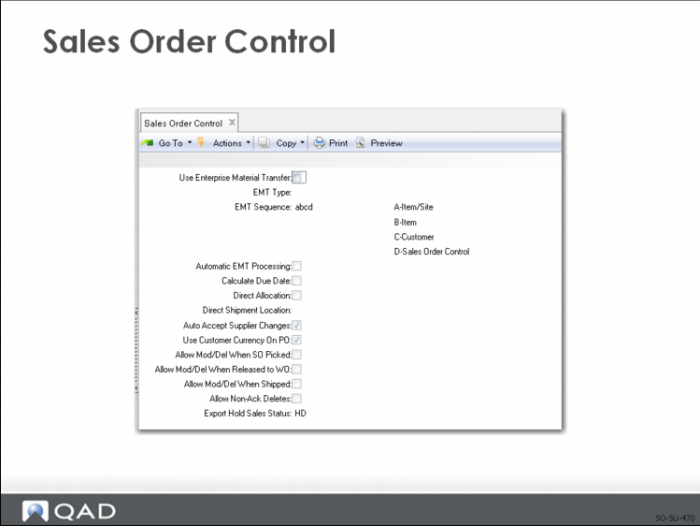
The second Sales Order Control screen is used for EMT processing, which is not covered in this class.
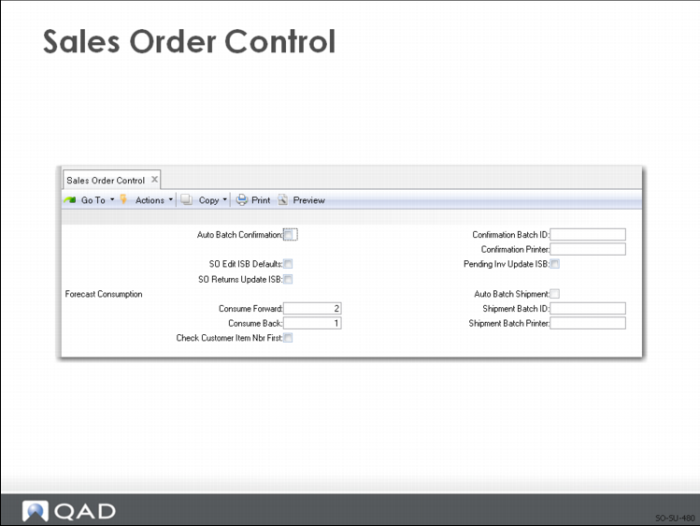
Auto Batch Confirmation
Specify whether to confirm a sales order in batch immediately after entry. With this field set to Yes, you can confirm, through batch processing, any unconfirmed Sales Order detail lines you enter. Batch processing of these lines improves performance, particularly at a multi-database environment across a network.
Confirmation Batch ID
If a batch ID is entered, the report does not print right now. The request is put in a queue for later batch processing.
Confirmation Printer
Identifies where to send the output from this report or Inquiry/Browse. Can be a terminal (character), window (GUI), printer, or file name
SO Edit ISB Defaults
Controls appearance of Installed Base Detail frame in Sales Order Maintenance
• Yes opens a pop-up window where you can override the defaults
• No skips this window
SO Returns Update ISB
Determines whether the system should attempt to delete the installed base record for items returned on a sales order
• If Yes and other conditions are met, you are prompted to enter an ISB reference during Sales Order Maintenance
• If No, the system does not attempt to update the installed base for negative order quantities on sales order lines
Auto Batch Confirmation
Specify whether to confirm a sales order in batch immediately after entry
Confirmation Batch ID
If a batch ID is entered, the report does not print right now but is put in a queue for later batch processing
Confirmation Printer
Identifies where to send the output from this report or Inquiry/Browse. Can be a terminal (character), window (GUI), printer, or file name
Pend Inv Update ISB
Yes allows capability updating the installed base from Pending Invoice Maintenance
Forecast Consumption
Relationship with MRP for planning
Consume Fwd
The number of future forecast periods that a sales order can consume when no forecast remains in the period in which the order is due
Consume Back
The number of past forecast periods that a sales order can consume when no forecast remains in the period in which the order is due
Auto Batch Shipment
Specify whether to process the inventory and accounting portions of a sales order Shipment in batch immediately after entry. Batch processing of these transactions improves response to the user, particularly at a multi-database environment across a network
Shipment Batch ID
If a batch ID is entered, the shipment transaction will be processed in that batch run
Shipment Batch Printer
Identifies where to send the output from shipment. Can be a terminal (character), window (GUI), printer, or file name.
Check Customer Item Nbr First
This field determines whether the system searches customer or internal item numbers first when evaluating line items entered in the following transactions:
• Sales Quote Maintenance
• Sales Order Maintenance
• Customer Scheduled Order Maintenance
• Pending Invoice Maintenance
• RMA Maintenance
Sales Order Accounting Control
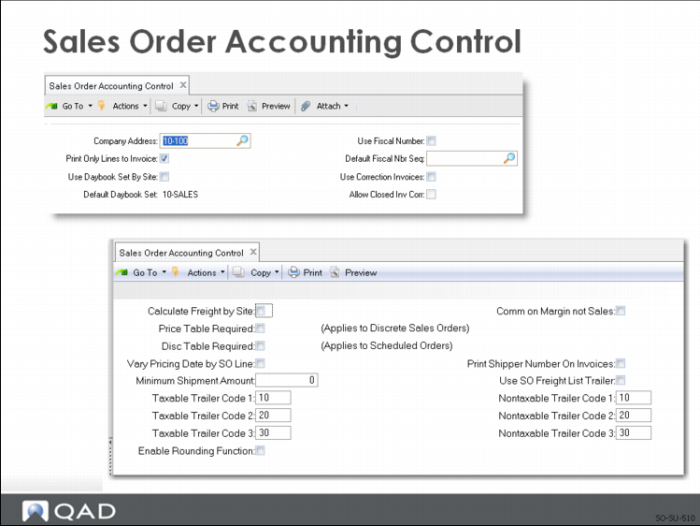
Print Only Lines to Invoice
Specifies whether to print all sales order line items or only the lines with non-zero quantity to invoice on invoices
• Yes: Only sales order lines with a non-zero Quantity to Invoice print on invoice documents. Any unshipped items or any items that have already been invoiced do not appear
• No: All sales order line items print on the invoice but only those items with a non-zero Quantity to Invoice are included in the total
This is a default; it can be changed on the Invoice Post and Print function. See also
Invoice Post and Print.
Calculate Freight by Sites
Determines whether freight charges are calculated based on the site on the order header or by the site on the order line item
• Yes: Freight charges are calculated using the site entered on the order line item
• No: Freight charges are calculated based on the site entered on the order header
Comm on Margin not Sales
Determines whether sales commissions are calculated based on the sales margin or on the sales amount
Price Table Required
If Yes, only items from an existing price list can be entered, and only if the price list item, unit of measure, and currency match exactly. If No, items can be entered whether a price list exists
Vary Pricing Date by SO Line
Determines whether the pricing date can be modified for each sales order line item or each RMA issue line item.
Minimum Shipment Amount
Specifies the minimum order value (in base currency). If the order value (in base currency) is less than the control value, a warning message displays in Sales Order Maintenance, Sales Order Shipments, and Pending Invoice Maintenance.
Print Shipper Number On Invoices
Yes or No.
Use SO Freight List Trailer
A trailer code associated with the freight list on the order header is used during order processing.
Taxable / Non-Taxable Trailer Codes
Specify frequently used codes as defaults (defined in Trailer Code Maintenance).
Enable Rounding Function
Enter Yes to enable invoice currency rounding for sales orders and customer schedules. When this field is Yes and you press Go, the system displays additional frames that let you specify the rounding methods used between combinations of currency, ship-from, and ship-to address. You also specify the GL account and sub-account used to track rounding differences. The top frame lists existing records. Use the bottom maintenance frame to add or modify records.
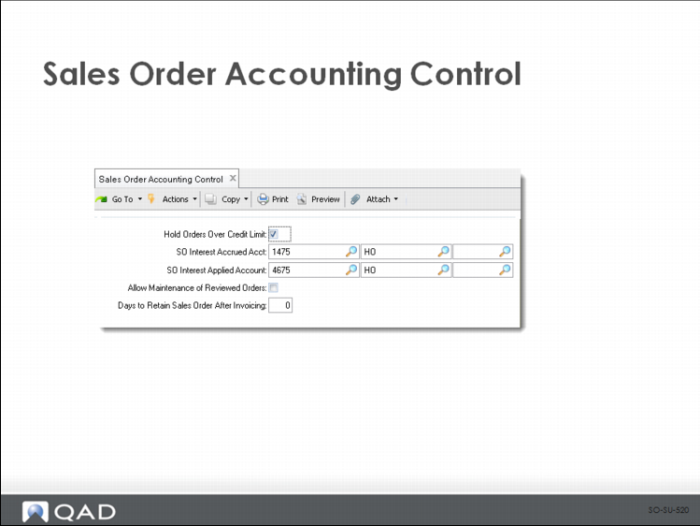
Hold Orders Over Credit Limit.
Default during credit verification.
SO Interest Accrued and Applied Accounts.
Used to track calculated credit term interest.
Allow Maintenance of Reviewed Orders
Leave unchecked to prevent orders from being modified using one of the following programs after they have been reviewed by a credit controller: Sales Order Maintenance, Pending Invoice Maintenance, RMA Maintenance, Material Order Maintenance, or Call Activity Recording.
Days to Retain Sales Order After Invoicing.
Specify the number of days after invoice post a fully shipped sales order can be deleted in Completed Sales Order Delete. Completed sales orders within this time frame cannot be deleted.
If set to 0, the completed sales orders are automatically deleted by Invoice Post and Print.