Operational Enhancements
Component Availability Check (CAC) New Statuses
Two new statuses were added to the EE CAC browse collections and the Planning and Scheduling Workbenches-embedded CAC:
Authorized Receipts Delayed: The same as Authorized Receipts except that the ASNs or work orders covering the requirement are past due (due date < today).
Scheduled Receipts Delayed: The same as Scheduled Receipts except that the POs or Work Orders covering the requirement are past due (date < today).
Planning and Scheduling Workbenches New Capacity Columns
Two new columns were added to the production order temp-table (tt-wo_mstr) that the system creates and populates when you search:
• Capacity Quantity Completed
The quantity completed to use for capacity purposes. The system sets it to the following formula for the production order as the default:
Quantity completed + quantity rejected
You can override this quantity by implementing code in the Capacity Quantity Completed user exit program. For more information, refer to Administration Guide: Planning and Scheduling Workbenches for workbenches version 2014 EE.
• Capacity Open Quantity
The quantity open to use for capacity purposes. The system sets it to the following formula for the production order:
Quantity ordered - capacity quantity completed
The two new columns were added to the workbenches:
• PSW Panels:
• Required capacity is now based on capacity open quantity.
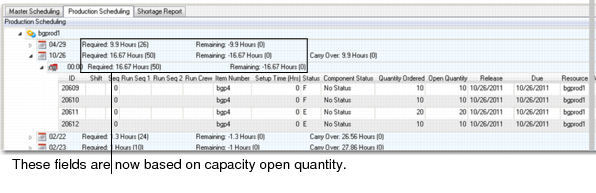
• In the left-hand structured grid, the release date and shift band totals—Required, Remaining, Cum Remaining, Carry-over, and so on— are now based on capacity open quantity.
PSW Panel Capacity Open Quantity Changes
• MSW Capacity Panel:
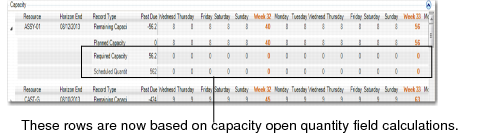
The Required Capacity and Scheduled Quantity rows are now based on capacity open quantity.
MSW Capacity Panel Changes
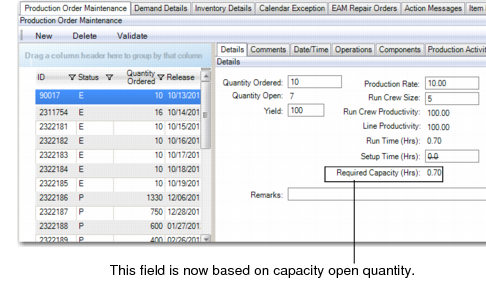
In addition, in the Workbenches-embedded Production Order Maintenance Details Panel, the Required Capacity (Hrs) field is now based on capacity open quantity.
The Capacity Quantity Completed user exit program provides the ability to set the production order’s capacity quantity completed to any value; for example, the quantity completed at a particular operation, instead of the production order’s quantity completed plus quantity rejected. See Administration Guide: Planning and Scheduling Workbenches for workbenches version 2014 EE.
Production Order Maintenance Changes
Lot Trace Workbench
2014 EE introduces Lot Trace Workbench, which is a powerful integrated data analysis browse that allows the user to track materials by item, lot/serial, backward and forward through the receiving, issuing, and other inventory processes. Included in this tracking functionality is the ability to trace data across multiple levels in the production process. Not only can specific data be identified and collected through this workbench, but it can then be exported to Excel, where it allows the user the flexibility for further manipulation and custom report formatting.
Companies that have lot-controlled inventory require the capability to have immediate access to current inventory data, as well as to historical data. When a product is returned, recalled, or inquiries are being made, tracing all the raw materials that are used to produce that product is necessary to investigate possible root causes for issues. The Lot Trace Workbench browse allows you to answer the following questions:
• Which material has been used in production?
• From which suppliers were the raw materials purchased?
This browse also allows you to analyze the impact of potential issues:
• What are the current levels of affected inventory?
• Where has this material been used?
• Where have materials been shipped?
With Lot Trace Workbench, you can collect this valuable information and:
• Document and report on affected inventories and materials.
• Determine what to do with inventory still on hand, such as inspecting material in quality control, putting inventory in quarantine, scrapping inventory, returning material to supplier, reworking, and so on.
Periodic Costing
The following topics discuss enhancements for this release.
Sales Order Returns
Sales order return functions now perform the return using the cost from the corresponding ISS-SO transaction.
Improved Transaction Adjustment Method
Periodic Cost Calculation now uses a new adjustment method to ensure more accurate calculations.
The updated adjustment logic begins by fully reversing the original transactions and then recalculating the PC GL transactions using the full amount to post the transactions to the accounts. The previous method created adjustments based on variances.
WIP for Co-Products
When performing work order accounting close for a co/by-product work order, the system has been enhanced to place the remaining WIP into the inventory account of the co-product.
Negative WO Receipts with Insufficient Inventory
When calculating a negative work order receipt in a situation where there is not enough quantity in inventory, the system now deducts the remaining quantity from the discrepancy account.
Example:
| Quantity | Unit Cost | Amount |
Inventory Balance | 10 | | 40 |
RCT-WO | -12 | 5 | -60 |
Since the unconsumed quantity in this example is 10, the cost of 10 will credit from the inventory account and the cost of the overissue quantity of 2 will credit from the discrepancy account.
Expected GL Transactions of RCT-WO:
Dr WIP 50
Cr Inventory 50
Dr WIP 10
Cr Discrepancy 10
Improved Unit Cost Information
Some reporting programs have been enhanced to include the updated unit cost after PC Unit Cost Adjustment has been run, as well as the historical unit cost of any period.
Modified programs include:
• Inv Detail by PC Cost Browse now always displays the up-to-date unit cost.
• Inventory and SF Movement Report and Inventory and WIP Balance Report now display the historical cost as of the period of the selected cost set.
New Delete/Archive Function
The new PC Item Cost Delete/Archive (30.5.22) function lets you archive and delete PC category cost and element cost data as required, based on specified ranges of item, site, and period.
New Browse Collections
You can use the following Periodic Costing .NET UI browse collections as one-stop programs to view and modify data. You can select a record in the top-level browse and drill down into the browse collection’s supporting browses, which display additional information about the record you selected. Periodic Costing browse collections include the following:
The following topics provide more information.
Transaction PC Cost Browse Collection
This browse collection contains a list of inventory transactions by number and type, effective date, item number and description, order number, site and location, and quantity changed. It also shows the transaction price, standard amount, PC unit cost and amount for each transaction as well as the entity, address, shipper number, ID, and operation.
To access supporting browses, you right-click the blue data in the top-level browse. When you do, a button displays. Click the button and the supporting browse of the same name displays below the top-level browse. The top-level browse lets you right-click the following to display a supporting browse:
Transactions PC Cost Supporting Browses
Field to Click | Browse that Displays |
Tran Nbr | Inv Operational GL Transactions |
Transaction Type | Code Master |
Order | Transaction Numbers |
Item Number | Item Master |
Site | Sites |
Location | Location Master |
When you right-click a transaction number, the system displays the supporting Inv Operational GL Transactions browse with GL reference data and GL transaction data. The Inv Operational GL Transaction browse displays additional data for the transaction you clicked in the header list. For this supporting browse, you can view additional data that shows the debit account for the GL transaction and the amount and the credit account and the amount.
You can follow the same pattern of right-clicking blue data in fields in the supporting browses. When you do, buttons display and the supporting browses display below the browse in which you clicked. For example, in the Inv Operational GL Transactions browse, you can right-click the transaction number or the account to display supporting browses.
Inv Operational GL Transactions Browse Collection
This browse collection lists all operational GL transactions for the inventory transactions. The top-level browse lists the transaction number, GL reference and reference ID, GL transaction type, account, sub-account, cost center (CC), project, BC debit and BC credit, document, order, date, item number and description.
To access supporting browses, you right-click the blue data in the top-level browse. When you do, a button displays. Click the button and the supporting browse of the same name displays below the top-level browse. For example, right-click the transaction number in the top-level browse and the system displays the supporting Transaction PC Cost browse, or right-click the account code and the system displays another supporting browse that shows the account codes.
Inv Operational GL Transactions Supporting Browses
Field to Click | Browse that Displays |
Tran Nbr | Transaction PC Cost |
Account | Account Codes |
Item Number | Item Master |
Sites | Sites |
Entity | Entity Codes |
By selecting a single record in the top-level browse, then drilling down, you can easily see which accounts are debited and credited for every inventory operational GL transaction.
Operation History Browse Collection
This browse collection provides a consolidated view of all transaction information for a work order. The top-level browse lists items by item number, ID, operation and description, the work center, the machine, quantity ordered and completed.
Supporting browses include the Operation Transaction, PC Work Center Rates, WO Components (which also shows the cost adjustments transactions), WO Receipts (and shows the WO reject and accounting close), OP Operational GL Transactions, and Subcontract Receipts (and shows the inventory transactions for the receipts).
To access even more supporting browses, right-click the blue data in the top-level browse. When you do, a button displays. Click the button and the supporting browse of the same name displays below the top-level browse.
Operation History Supporting Browses
Field to Click | Browse that Displays |
Item Number | Item Master |
ID | Work Order Routings and Work Order Routings Maintenance |
Work Center | Work Centers |
Machine | Work Centers by Machine |
Properly Balanced Inventory Account
This release of Periodic Costing provides an enhancement that ensures that the inventory account is properly balanced even when you:
• Make changes to the inventory account during the period.
• Have different accounts per location.
Previously, when you changed the inventory account in the product line record with on-hand inventory and inventory account balances for the item, the mod7 report displayed a very different balance than what you saw in GL. This made reconciliation difficult because the correct value was not known.
Now, when you update costs for a period using the WAVG or FIFO method, Periodic Cost Calculation (30.5.7.1) creates adjustment transactions to balance the amount in each inventory account for an item based on the calculated cost of the item. This results in the GL account balance accurately stating the inventory value associated with the account. It also ensures that the accounts are balanced when you summarize the inventory quantity in the locations for that account and multiply the summary by the calculated periodic cost for the item and that the summary is equal to the account balance for the item.
Cost Revalue Account
You can define a cost revalue account to ensure that inventory accounts are properly balanced when the unit cost for the item in the site changes. You define the cost revalue account in the Cost Revalue Account field in Periodic Costing Control (30.5.24).
The account is separate from other existing revaluation and adjustment accounts for visibility in reconciling any non-zero balance. The account is for situations in which different inventory accounts per location exist.
When different inventory accounts per location exist, an item can have multiple inventory transactions within the same cost period, but be linked to different inventory accounts. When this occurs, the unit cost for the item in the site changes. The inventory revaluation now reflects all inventory accounts in which the item holds an inventory balance.