Reporting Labor by Operation
You can report labor in Shop Floor Control by work order, employee, or work center, using:
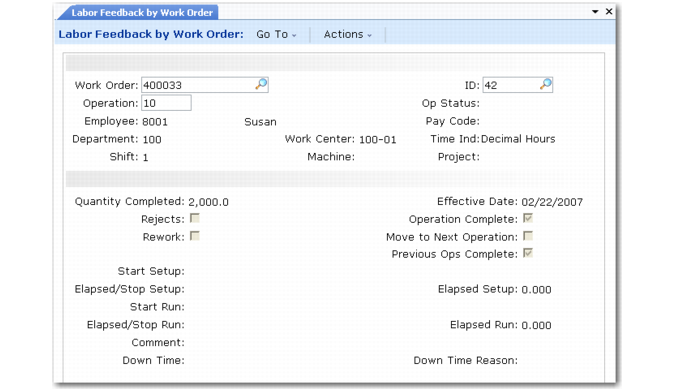
• Labor Feedback by Work Order (16.20.1)
• Labor Feedback by Employee (16.20.2)
• Labor Feedback by Work Center (16.20.3)
For each feedback transaction, you must specify an employee code, a department code, and a work center or production line code.
Labor Feedback by Work Order (16.20.1)
Employee
Some companies summarize the hours worked by all employees for an operation and record them in a single transaction. Others record the hours worked by each employee. Use the second method if you want to report on employee efficiency or examine labor rate variances.
You can calculate employee efficiency when you report labor by employee, provided that only one employee works on any given operation.
See
Utilization and Efficiency for more information.
The system calculates labor rate variances by comparing the labor rate defined for an employee in Actual Pay Rate Maintenance (14.13.21) to the standard labor rate for the operation’s work center, defined in Work Center Maintenance (14.5).
Note: The employee code specified for a transaction does not need to correspond to an actual person. You can set up an employee code in Employee Create (36.1.7.1) to be used for reporting purposes only.
Department
The department code defaults from the work order routing. The system creates GL transactions using the accounts associated with this department code. Changing the department code changes the accounts used for the GL transactions created by these programs.
Work Center
The work center code defaults from the work order routing. The system uses the work center setup, labor, and burden rates to calculate costs and create GL transactions. Changing the work center code results in method change variances when the work center rates differ.
Item Quantities
For each work order operation, you can record the item quantities completed, rejected, and reworked.
Note: Labor feedback transactions cannot be modified or deleted once they have been processed. To reverse the effect of incorrect transactions, you can enter transactions for negative values.
When you enter a transaction, the system moves either the quantity ordered or the quantity reported complete at the last operation to the operation being reported. Which quantity displays depends on the setting of Move Next Operation for the previous operation. The quantity open for an operation is this starting quantity minus the quantities completed and rejected at that operation.
Quantity Completed
The number of acceptable units produced at this operation, used to calculate variances, work center efficiency, and GL transactions:
• If Move Next Operation is Yes, the quantity completed for an operation automatically moves to the next operation. This occurs regardless of whether the previous operation is complete.
• If Move Next Operation is No, the quantity completed for an operation does not affect the quantity open at the next operation.
Set the default value for this field in Shop Floor Control (16.20.24).
Quantity Rejected
The number of unacceptable units produced at this operation that cannot be moved to the next operation.
Quantity Reworked
The number of unacceptable units requiring additional processing produced at this operation. These do not all need to result in good units that can be moved to the next operation.
Quantities reported as completed, rejected, and reworked do not affect the quantity open for a work order. If the reject quantity significantly reduces the expected receipt quantity for an order, you should use Work Order Maintenance (16.1) to reduce the order quantity to the expected quantity so that MRP plans based on the correct order quantity.
Rejected and reworked quantities are independent of each other. For example, if you report 25 units as rejected and later report 25 units as reworked, the system shows both the reject and rework quantities as 25. If you want to change the reject quantity to zero, you must specify a reject quantity of –25 units.
Reject and rework quantities have no impact on GL, since no transactions are created when they are reported. They are not used to calculate variances or work center efficiency.
Times
You can enter setup times, run times, and downtimes in decimal hours (D) or clock hours (H). For example, an hour and 15 minutes can be entered as 1.25 decimal hours or 01:15:00.
Enter elapsed setup and run times directly, or let the system calculate them from the start and stop times. For example, for a start time of 08:00:00 and a stop time of 14:45:00, the system calculates an elapsed time of 6.75 decimal hours.
Operation Status
Operation status codes indicate the detailed status of individual operations. The system automatically assigns status codes to operations as transactions are processed.
Queue
An operation’s status is automatically set to Queue when material is moved to that operation, either by releasing a work order, entering labor feedback for that operation, or using Operation Move Transaction (16.20.6) to manually move material.
When Move Next Operation is Yes in a labor feedback transaction, the next operation is automatically set to status Queue and quantities reported complete are moved to that operation.
Setup
An operation’s status changes to Setup when you report setup time for that operation.
Running
An operation’s status changes to Running when you report run time for that operation. This is not affected by the number of units reported as completed, rejected, or reworked.
Complete
An operation’s status changes to Complete when you:
• Report it as completed using one of the labor feedback transactions or Work Order Operation Backflush (16.19).
• Close it using Operation Complete Transaction (16.20.5).
When an operation is complete, you cannot process additional transactions against it. However, you can reopen operations if required using Work Order Routing Maintenance (16.13.13).
Hold
Indicates the operation is on hold. This status can only be set manually in Work Order Routing Maintenance.
A blank status indicates an inactive operation. An operation’s status is blank when the work order routing is first exploded and remains blank until you record activity for it.
Use Work Order Routing Maintenance to manually change an operation’s status, if required.