Setting Up Production Lines
A production line is defined at a site by specifying the hourly production rate for items produced on that line during a normal shift. One or more items can be made on the same production line, and the same item can be produced on several production lines, all at the same or at different production rates. Optionally, orders for an item can be allocated to several different production lines.
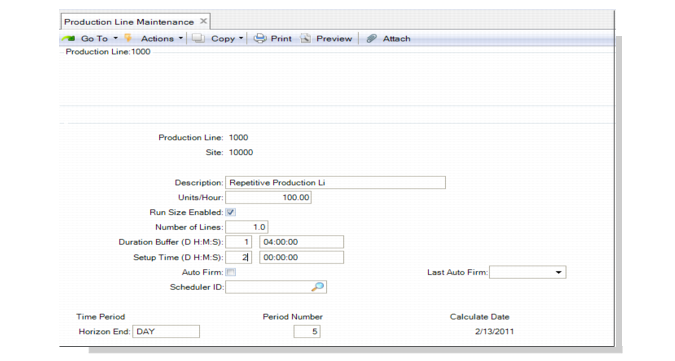
Production Line Maintenance (18.22.1.1)
Production Line and Site
Enter the name or code for the production line; then, enter the site for the production line.
Description
Optionally, enter a description of the production line.
Units/Hour
Enter the standard production rate on this line. The production rate for an item on a production line is equal to that of the operation with the lowest production rate. A production line is no faster than its slowest operation.
Run Size Enabled
Enter Yes to enable a link between the run crew size and the run rate. The default is Yes. When Yes, any modification to the run crew size on the production order causes the system to calculate the run crew productivity value and subsequently the required capacity and project duration values for the order. The field exists only at the production line header level.
Number of Lines
Enter the number of lines/machines the system uses to process the production order. The default is 1. The system uses it to calculate the production order duration by dividing the production run time by the number of lines/machines the production line represents. Changes to this field cause the system to recalculate duration hours and duration days.
Duration Buffer (D, H, M, S)
Enter the number of days in the first blank, then the number of hours, minutes, and seconds in the second blank for the duration buffer. Changes to this field cause the system to recalculate duration hours and duration days. You can use this field to add miscellaneous time required to a production order. This field is read at the production line header level.
Setup (D, H, M, S)
Enter the number of days in the first blank, then the number of hours, minutes, and seconds in the second blank required to set up the production line for this item. The default is 0 (zero). This field exists at the header and detail levels. The header value defaults to the detail level.
Auto-Firm
Specify Yes to have the system automatically firm orders scheduled on this production line using Auto Firm Planned Orders (22.20.2). Auto Firm Planned Orders firms planned orders for either production lines or work centers for a specific horizon or a range of dates.
If you use the .NET UI-only Planning and Scheduling Workbenches, you must set this field to Yes if you schedule for production lines and intend to firm planned orders in the workbenches. You must set the same-named field to Yes in Work Center Maintenance if you intend to firm planned orders for work centers using the workbenches. If Auto Firm is set to No, the system does not firm planned orders.
Last Auto Firm
Enter a date of the last auto-firm by selecting a date from the calendars that display when you click the drop-down icon in the .NET UI. You can see the date of the last auto-firm in work center and production line browses in QAD EE.
Scheduler ID
Enter a valid identification for the scheduler who typically schedules this production line.
Horizon End
Specify either Day, Week, or Month as the horizon end for this work center. This field is applicable only when Planning and Scheduling Workbenches are enabled in Site Maintenance.
Work centers display as resources within the Planning and Scheduling Workbench, which is a .NET UI only scheduling tool for both master schedules and production schedules. The workbench depicts the scheduling or sequencing horizon, depending on your order type and which schedule (master or production) with which you work in the workbench. You can change the future and history horizon within the workbench; however, the date you set here depicts the increment for the horizon end.
Period Number
Specify the number of periods to use for the scheduling horizon for this work center. This field is applicable only when Planning and Scheduling Workbenches are enabled in Site Maintenance.
Work centers display as resources within the Planning and Scheduling Workbench, which is a .NET UI only scheduling tool for both master schedules and production schedules. The workbench depicts the scheduling or sequencing horizon, depending on your order type and which schedule (master or production) with which you work in the workbench. You can change the future and history horizon within the workbench; however, the period number you set here depicts the number of periods for the horizon.
Calculate Date
The calculate date is read-only. The system calculates the date from period and period number, so if you set Horizon End to Day and Period to 5, the Calculate Date is 5 days starting with today. If you set Horizon End to Week and Period to 4, then the Calculate Date is 4 weeks from now including today.
Items Frame
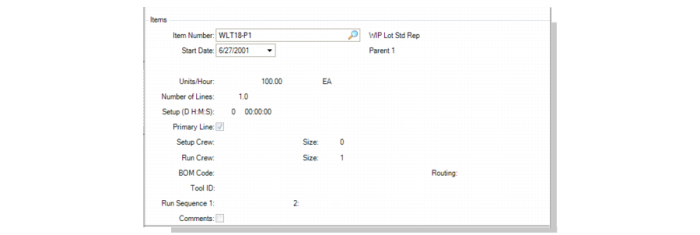
Use the Items frame to specify attributes and options for a specific item that you manufacture on the production line. The units/hours, number of lines, and setup are display-only and default from the production line setup.
Production Line Maintenance, Items Frame
Primary Line
Specify whether this item is produced on one or multiple lines.
Yes: 100% of the item’s production occurs on this line. If you assign a primary line for an item that already has one, the system displays a warning message and the item’s previous primary line is reset to No.
No: An item’s production can occur on multiple lines. To allocate item production percentages to different lines, use Line Allocation Maintenance (18.22.1.11) to set the percent of an item’s production for each line; see
Setting Up Line Allocations.
Setup Crew/Size
Specify a code that identifies the crew that typically sets up the production line for this item; then, specify the number of people in the crew. No scheduling or cost calculations use setup and run crew. This field displays on reports and inquiries.
Run Crew/Size
Specify a code that identifies the crew that typically runs the production line for this item; then, specify the number of people in the crew. No scheduling or cost calculations use setup and run crew. This field displays on reports and inquiries.
BOM Code/Routing
Enter a valid BOM code and routing for the item.
Tool ID
Enter a valid code for the tool that the run crew typically uses for this item to be produced on this production line.
Run Sequence 1/2
Enter the code for the item’s primary run sequence. A value is typically specified only for items that are line manufactured (Pur/Mfg code is L).
You can use run sequences to schedule items on production lines when approving MRP planned orders for line manufacture. When Sort by Run Sequence is Yes in Planned Repetitive Sched Approve, planned orders for all items produced on a given production line are scheduled by due date, primary run sequence, secondary run sequence, then item number.
After you enter a primary run sequence, enter a secondary run sequence in the 2 field. See
Run Sequences.