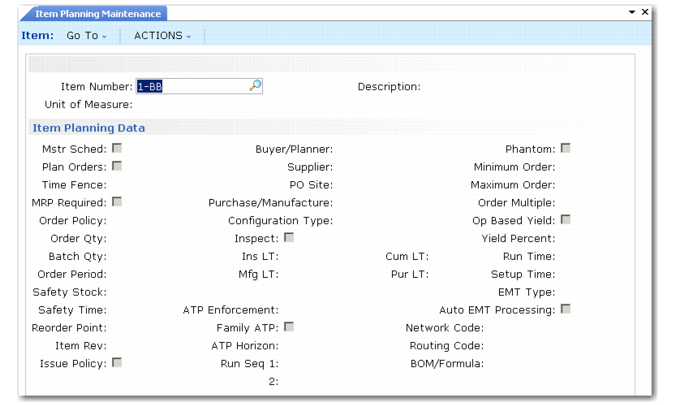
Item Planning Data
MRP uses item planning data to plan items. Define this data in Item Master Maintenance (1.4.1) or Item Planning Maintenance (1.4.7). If an item is used at multiple sites, you can set up planning data differently for each site using Item-Site Planning Maintenance (1.4.17). Data not defined in Item-Site Planning Maintenance defaults from Item Master Maintenance or Item Planning Maintenance.
Item Planning Maintenance (1.4.7)
Master Schedule
For non-master scheduled items planned by MRP, set Master Schedule to No. This lets you plan master scheduled and MRP-planned items separately, if required, using Selective Materials Plan (23.3). Items with Master Schedule set to No are excluded from reports and inquiries in the Forecasting/Master Plan (22) module.
For master scheduled items, set Master Schedule to Yes. Items subject to independent demand, such as end products or service parts, are usually master scheduled.
Plan Orders
When Plan Orders is Yes and a value is specified in the Order Policy field, MRP generates planned purchase and work orders to satisfy net requirements for this item.
If Plan Orders is No and an order policy is specified, MRP plans this item but does not generate planned orders for it. Only action messages, suggesting orders that should be placed, are generated.
Pur/Mfg Code
MRP uses the Pur/Mfg code to distinguish manufactured items from purchased items. A code of Manufactured, Routable, Configurable, Family, Line, Flow, or blank indicates that an item is usually manufactured, while a code of Purchased indicates that it is usually purchased.
MRP generates planned work or line orders for manufactured items and planned purchase orders for purchased items. However, you can create and approve planned work or line orders for purchased items or planned purchase orders for manufactured items. This field indicates only what the normal procedure is, not what it must be.
Run Sequences
Run sequences are used when MRP planned orders are approved for line manufacture using Planned Repetitive Schedule Approve (23.8).
If multiple items are produced on a single production line, efficiency can be improved by producing the items in a certain order. Run sequences let you control the order, or sequence, in which items are scheduled on a production line.
An item’s run sequences are sorted by primary run sequence and then secondary run sequence. A two-digit numeric value should be the first characters of a run sequence. This convention provides enhanced control over the sorting of run sequences.
Example: Items 100, 200, and 300 are produced on production line 500. These items are made of plastic and have different colors: items 100 and 200 are green, item 300 is white. To minimize the change-over time between items, they must be scheduled in the following sequence:
• Items 200 and 300 produced before item 100
• Item 300 produced before item 200
To make sure approved orders with the same due date for items 200 and 300 are scheduled before orders for item 100, enter 01Plastic as the primary run sequence for items 200 and 300 and 02Plastic for item 100. To schedule approved orders for item 300 before orders for item 200, enter 01White as the secondary run sequence for item 300 and 02Green for item 200.
When approving planned orders for these items with Planned Repetitive Schedule Approve (23.8), set Sort by Run Sequence to Yes.
Production Line Sequence Using Run Sequences illustrates the resulting production schedule for line 500.
Production Line Sequence Using Run Sequences
Production Sequence | Item Number
| Primary Run Sequence | Secondary Run Sequence |
1 | 300 | 01Plastic | 01White |
2 | 200 | 01Plastic | 02Green |
3 | 100 | 02Plastic | 02Green |
Order Policy
The order policy determines the number and size of each MRP planned order. If an item’s Order Policy is blank, it is ignored by MRP, and planned orders or action messages are not generated for it. Any value entered in the Order Policy field other than those listed in
Order Policy is processed by MRP as lot-for-lot.
Leave Order Policy blank for items planned manually based on a reorder point.
Order Policy
Order Policy | Description |
Period order quantity (POQ) | MRP calculates demand for this item over the number of calendar days specified as the Order Period and creates one order to satisfy this demand. |
Fixed order quantity (FOQ) | MRP generates planned orders for the quantity specified as the Order Quantity. If the quantity required exceeds this quantity, multiple orders are generated. If the quantity in the Min Ord field is greater than the specified order quantity, planned orders are generated for this minimum quantity. |
Lot-for-lot (LFL) | MRP generates a separate planned order to satisfy each net requirement. If there are many sources of demand, MRP creates many planned orders. When LFL policies are used across multiple product levels, running MRP may produce unmanageable numbers of manufacturing orders. |
One time only (OTO) | MRP generates a single planned order with a quantity of one unit. As long as one order for this item exists, the system will not create another. OTO can be used for prototype items, or for planning project activities and one-time events. |
Order Modifiers
MRP uses order modifiers along with order policies to determine planned order quantities.
Order Modifiers
Order Modifier | Description |
Order Quantity | The quantity for which all MRP planned orders are created for an item with an order policy of FOQ. |
Safety Stock | The quantity of this item maintained in inventory as protection against fluctuations in demand or supply. MRP processing considers safety stock a requirement, and schedules planned orders to cover this requirement. You should not designate safety stock levels for non-master scheduled items because it may cause MRP to overplan inventory. |
Minimum Order Quantity | The minimum quantity allowed for a planned order. If the net requirement is below this amount, MRP creates an order for this minimum quantity. To ensure that items that have decimal demand values due to yield or scrap calculations are ordered in whole number quantities, set this value to 1, or to any whole number. |
Maximum Order Quantity | When a net requirement exceeds this amount, MRP generates the action message Order Exceeds Maximum for the order created to fill this requirement. |
Order Multiple | When order policy is POQ or LFL, planned orders are created in multiples of this quantity. For example, if the order multiple is 100, planned orders are only created for quantities of 100, 200, 300, and so on. |
Yield % | The percentage of an order expected to be in usable condition. If Yield % is less than 100%, MRP plans orders for more than needed. For example, if the net requirement is 100 and the item Yield % is 50%, then the planned order quantity will be 200. You can enter this value manually or use Routing Cost Roll-Up (14.13.13) to calculate yield percent based on the yield percentages at each operation in the item routing. • If operation-based yield is No, MRP uses this yield percentage amount to calculate component requirements. • If operation-based yield is Yes, the yield percentage for components is derived from the parent item’s routing data. The item yield percentage is ignored. If an item’s yield percentage is less than 100 percent, MRP may generate planned orders for fractional quantities. To prevent this, set Order Minimum or Order Multiple to 1, or any whole number. |
Scrap % | The percentage of a component item expected to be scrapped during manufacture of the parent item.This value increases the component requirements for planned orders for that component-parent pair. Specify scrap % values for components in Product Structure Maintenance (13.5). When scrap percentage is greater than zero, MRP may calculate fractional component quantities, even if the component is a discrete item. For example, if one housing is required to build an item and the scrap factor is 5%, the system will calculate a requirement for 105.2631 housings to make 100 units. To prevent MRP from generating planned orders for fractional quantities, set Order Minimum or Order Multiple to 1, or any whole number. |
Lead Times
Lead time determines when MRP planned orders are due—manufacturing lead time for manufactured items, and purchasing lead time plus inspection lead time for purchased items.
For both purchased and manufactured items, if the lead time varies, you can define a safety time. MRP then calculates the planned order due date by adding safety time to the lead time.
Lead Times
Lead Time | Description |
Manufacturing Lead Time | The number of working days it takes to manufacture an item, including the time it takes to process paperwork, issue components, inspect the finished product, and receive it into stock. For DRP items, enter DRP transit and order time in this field so that this value is included in the cumulative lead time for this item. |
Purchasing Lead Time | The number of calendar days it takes to complete a purchasing cycle for an item, from the date the need for a purchase is recognized to the date the item is received. |
Inspection Lead Time | The number of working days it takes to inspect a purchased item after it is received. |
Safety Lead Time | The number of working days early that MRP plans to receive orders for an item, to allow for late deliveries. |
Cumulative Lead Time | The longest number of calendar days it takes to obtain an item, assuming that neither it nor any of its components are in stock. The system calculates this value, by converting manufacturing, inspection, and safety lead time to calendar days. |
Time Fence
The time fence is the number of calendar days inside of which MRP will not generate or adjust any planned orders, even if there are net requirements within that period. MRP still deletes a planned order, even if it is inside the time fence, if no demand is generated for that item.
Time fences are often used with master scheduled items and are usually set to greater than or equal to the manufacturing lead time.
Note: Based on the value of Max Dynamic Time Fence in MRP Control, the system may not use the Time Fence specified for the item. See
Max Dynamic Time Fence.
MRP Required
The MRP Required field is set by the system to indicate whether this item has had changes made against it and will be replanned the next time you run net change MRP. Yes indicates that the item will be replanned; No indicates that it will not.