Simulating Schedules in the Workbench
You can use a single repetitive schedule for an item that is manufactured on a single production line with a known rate of production. However, consider using Line Schedule Workbench (18.22.1.10) to create simulated schedules when:
• Many different items are produced on a single line.
• Several different lines produce the same item.
• The production rate of a line varies.
You can use Line Schedule Workbench to:
• Create a simulated repetitive schedule (line schedule) for a specific production line and site combination.
• Have the system automatically modify line schedules based on the capacity constraints of the specified production line.
In addition, Line Schedule Workbench lets you update or create repetitive schedules from MRP planned orders. When planned orders for line‑manufactured items are approved, these orders are added to the item’s line schedule. The sequence in which orders are added to a schedule can be controlled using the Sort by Run Sequence field in Planned Repetitive Sched Approve (23.8). You can review and modify sequences, quantities, and dates as needed.
Simulation usually takes place during production planning. The planner creates a line schedule that meets production requirements and balances line utilization and then uses it to generate repetitive production schedules.
The line schedules you create in the workbench are simulations only and are not considered by MRP or other planning functions until you copy them to repetitive schedules using Repetitive Schedule Update (18.22.1.18).
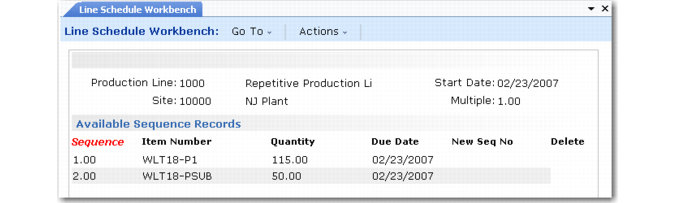
To create a simulated schedule, specify the production line, site, and start date. Set the Multiple field to a positive number to limit the quantity for each line sequence record to multiples of that number.
Then, enter production quantities and dates into the workbench or review and modify existing sequence records as needed. Each entry has a sequence (priority) number. By manipulating the sequence number, you can change the order in which items will be manufactured. Use Insert to create a new line sequence record in the workbench.
Line Schedule Workbench (18.22.1.10)
Determining Order Multiples
The Multiple field controls the minimum divisible schedule quantity for a workbench session. The default setting of 1.00 lets you create schedules with whole integer quantities only. When set to zero, Line Schedule Workbench attempts to use all available time to manufacture scheduled quantities. As a result, it will schedule decimal quantities if necessary.
You can set Multiple to any other quantity, as needed. This is useful if you plan orders in single units and schedule in multiples. Or, you can set Multiple to any meaningful decimal quantity such as 0.5. Then, you can enter schedule quantities in units of 0.5. A negative value is not allowed.
You cannot change the value of Multiple on existing schedules if non‑divisible quantities would result.
Sequence Numbers and Due Dates
The workbench uses sequence numbers and due dates to resolve scheduling conflicts. When two production runs are scheduled for the same due date but there is only enough capacity for one, the system gives priority to the one with the lower sequence number. After planning the first production run and making adjustments for changeover time, it plans output for the second production run. Because the system uses finite loading, the first scheduled due date for the second production run may be later than the date originally entered.
Whenever you create or modify a sequence record, the system automatically reschedules the production quantities and dates and reassigns new sequence numbers. To insert a new production quantity between two existing quantities, enter a sequence number with a value between the two and a due date equal to the earlier of the two dates.
Production Quantities
Add production quantities to the workbench directly or select from MRP planned orders. The system converts the quantities on the planned orders to schedule quantities and deletes the selected orders.
As a general rule, production quantities should be directly related to the period used for scheduling production. If production is scheduled by day, the production quantity should not be sufficient to cover an entire week. This becomes important when a production line is scheduled to process different products during a given week.
If MRP uses a POQ order policy and the period is a week or longer, the production quantities recommended by MRP planned orders might cover a week. In this case, separate the quantity recommended by MRP into smaller quantities.
One day is the shortest period you can use to schedule production. You can schedule multiple items each day, but if scheduled production is by shift, then you must summarize production into daily quantities before entering it into the workbench.
Scheduling and Lead Times
In some situations, different products manufactured on a line have significantly different lead times. Even if flow rates are similar through most of the line, some products might spend more or less time at an operation—for example, products that are burned-in, dried, aged, or cured.
When a line is changed over from processing one product to another with a significantly longer lead time, the line’s output is interrupted by the changeover time plus the new lead time. This might not be important if you are manually determining the due date for expected output from a line. But if the system encounters a scheduling conflict and reschedules due dates, these dates will not take into account the new lead time.
There are two ways to avoid this:
• Assign due dates manually and then monitor the line schedule to see if any due dates following a changeover have been automatically rescheduled.
• Increase the changeover time to reflect the increased lead time between two products. This way the changeover time reflects the total time a line is disrupted between model changes.
Deleting Sequence Records
Delete records from the workbench in two ways:
• Select one or more records for deletion and choose Delete.
• Reverse the original production quantity by entering a negative value. For example, enter a quantity of –2000 for a production quantity of 2000. The system deletes all of the scheduled quantities and dates created by that entry.
Reviewing Line Schedules
Use Line Utilization Report (18.22.1.15) to review the results generated by the workbench. This report provides information for evaluating the load placed by a line schedule on a production line if it replaced the existing repetitive schedule. It also shows the changeover load between shifts, when appropriate.