Repetitive Transaction Programs
The following sections describe the use and application of various transaction programs on the Advanced Repetitive menu.
Backflush Transaction
Backflush Transaction (18.22.13) is the primary tool for reporting production line activity and the only transaction that automatically backflushes component inventory. You can report the number of gross units processed, scrapped units, rejected units, and labor hours. Backflush Transaction can be used at both milestone and non-milestone operations. If the transaction is reported at the last operation, you can receive completed items into inventory.
You can backflush components of the current operation and any preceding non‑milestone operations. You can also backflush standard labor and burden if the routing record of the reporting operation, or any preceding non‑milestone operation, has Auto Labor Report set to Yes.
When you report that you have completed and moved items at the final operation, the quantity is posted as complete at the operation, and is also posted to the repetitive schedule and the related work order. If there are multiple schedules for an item, the system determines the earliest open schedule date and posts the completed quantities from that point forward.
If the system cannot find enough open balances, the operation is posted with the transaction quantity. However, the repetitive schedule and work order record are posted with the open quantity available.
You can modify repetitive schedule completions using Cumulative Completed Maintenance (18.22.2.6). You can view the repetitive schedule completions using either Schedule Inquiry (18.22.2.2) or Operation Schedule Report (18.22.2.5). You can view work order completions using Work Order Browse (16.2).
Backflush Transaction (18.22.13)
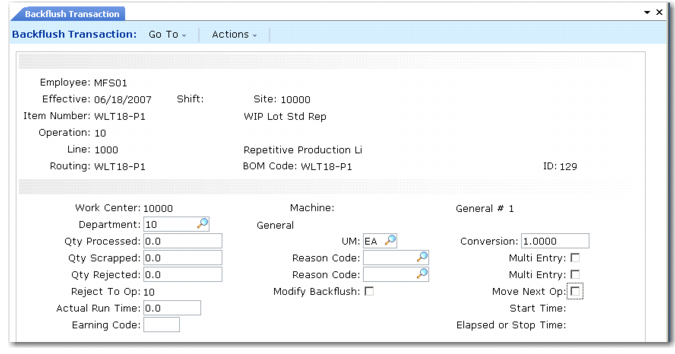
The following are fields in the second frame of Backflush Transaction (18.22.13). Work Center, Machine, and Department default from the routing operation and can be overridden.
Qty Processed
Shows the quantity processed through the operation. This value includes any quantity entered in the Qty Scrapped and Qty Rejected fields. Entering a value in this field has two effects.
• The input queue quantity is reduced by the amount entered.
• The output queue quantity is increased by the amount entered.
Components for the operation are backflushed by the quantities per unit extended by the quantity processed.
Qty Scrapped, Reason Code, Multi Entry
Report scrap quantity along with the processed quantity. Enter up to 10 scrap quantities and reason codes in a separate pop-up.
Qty Rejected, Reason Code, Multi Entry, Reject To Op
Report reject quantity along with the processed quantity. Enter up to 10 scrap quantities and reason codes in a separate pop-up. Reject To Op must reference either the current operation or the one that precedes it. The default is the current operation.
Modify Backflush
When Yes, the Component Issue frame displays so you can modify the default list of sites, locations, lot and serial numbers, and quantities used for component backflush and finished material receipt.
The component backflush logic considers the product structure in effect on the transaction effective date. If components are added, changed, or removed from the current product structure during the life of a cumulative order and backflush transactions occur, the differences cause material usage variances. Product structure and routing changes can be phased into cumulative orders by setting the cumulative order effective dates to match the product structure and routing effective dates.
Move Next Op
When Yes, the Receipt Data frame displays when reporting against the last operation. The Move Next Op field indicates whether the quantity processed—minus rejected and scrapped quantities—is moved to the input queue of the next operation. If the operation being reported is the last operation, the move increases finished goods inventory. This value defaults from the routing operation.
Note: You cannot add an operation to the routing for an open cumulative order. You must close the cumulative order, make the routing changes, roll up the cost, then open a new cumulative order.
Run and Setup Labor Transactions
Use these programs to easily report run and setup labor only for non‑milestone or milestone operations:
• Use Run Labor Transaction (18.22.14) to report regular labor chargeable against WIP.
• Use Setup Labor Transaction (18.22.15) to enter separate setup times, also charged against WIP.
• Use Down Time Transaction (18.22.20) and Non-Productive Labor Feedback (18.22.22) to report indirect labor. These transactions are not subject to applied burden.
Reject Transaction
Reject Transaction (18.22.16) has two uses:
• To reject previously backflushed units from an operation’s output queue to the same operation’s reject queue or to the reject queue of any preceding operation
• To reject units from an operation’s input queue and record the reject at the previous operation
Enter up to 10 different reject codes at a time. You cannot report hours, and no backflushing takes place.
Use Backflush Transaction (18.22.13) for most reject reporting. This transaction backflushes the rejected units and records all costs at the operation. When you use this transaction to report rejects at a milestone operation, the quantity must be in the input queue of the current operation or in the input or output queues of prior non‑milestone operations.
Note: If you are rejecting with backflush at a non‑milestone operation, the quantity to be rejected must be in the input queue of that non‑milestone operation.
Rework Transaction
When you first report rejected quantities, use the Reject To Op field in Backflush Transaction (18.22.13) or the To Operation field in Reject Transaction (18.22.16) to send the quantity to the operation where rework occurs. In WIP Status Inquiry (18.22.12), the rejected quantities appear as negative numbers in the output queue of the operation where the reject occurred, and as a positive number in the reject queue of the receiving operation.
Reworked units are backflushed at the operation rejecting them. After reworking items, use Rework Transaction (18.22.17) to move the reworked items back into the production line. Use the To Operation and To Queue fields to select the operation and queue, typically one of the following:
• The rejecting operation’s output queue
• The input queue of the operation following the rejecting operation
Note: This method requires an additional Move Transaction (18.22.19).
You can enter rework hours and issue additional components. However, no automatic backflushing takes place. Enter up to 10 reject quantities and reason codes at a time.
Scrap Transaction
Use Backflush Transaction (18.22.13) for most of your scrap reporting. It backflushes the scrapped units and records all costs at the operation.
Use Scrap Transaction (18.22.18) to scrap or remove quantities from any queue of an operation without backflushing. This transaction is often used to scrap previously rejected units. Enter up to 10 scrap quantities and reason codes at a time.
When scrapping from an operation’s input queue, the scrap quantity is first moved back to the prior operation’s output queue and then posted as scrap at that operation. This ensures a proper balance in the queues and cumulative quantities (as seen in the WIP Status Report and Browse).
You cannot report hours, and no backflushing takes place with this transaction.
WIP Adjust Transaction
You can reconcile actual WIP quantities with those recorded in your database by using the WIP Status Inquiry (18.22.12) or WIP Status Report (18.22.4.11). Labor hours cannot be entered, and no backflushing takes place. When quantities do not match, use WIP Adjust Transaction (18.22.21) to adjust quantities at an operation’s input, output, or reject queues. The current queue balances display when you run the program.
• When you adjust the output or reject queues, you change their balances at the current operation.
• When you adjust the input queue, the net change is made to the prior operation’s output queue as well as to the current operation’s input queue.
Each adjustment creates operation history records and generates GL transactions. A queue increase debits WIP and credits the Inventory Discrepancy account. Negative adjustments credit WIP and debit the Inventory Discrepancy account. You can designate a GL account, sub‑account, and cost center for the transaction. The default is the Inventory Discrepancy account from Product Line Maintenance (1.2.1) or Inventory Account Maintenance (1.2.13).
Open schedule quantities are also updated by this transaction. Increases in the balances of the final operation’s output queue increase scheduled completions and vice versa.
Move Transaction
Move Transaction (18.22.19) transfers quantities from an operation’s output queue to the following operation’s input queue. For the final operation, items are moved to finished material inventory. In this case, the Modify Receipt field lets you modify the default list of sites, locations, lot and serial numbers, and quantities.
You cannot report labor hours. This transaction normally has limited use, since an operation can be set to have the backflush transaction and rework transaction perform this task automatically.
Reporting Downtime and Non‑productive Labor
Use Down Time Transaction (18.22.20) and Non‑productive Labor Feedback (18.22.22) for reporting. These transactions do not charge costs against WIP. Both debit Cost of Production and credit Labor.
Down Time Transaction references the cumulative order, operation, item, production line, and site. Non‑productive Labor Feedback lets you enter a GL project code and record comments.
You can enter reason codes for both transactions, with type Downtime for Down Time Transaction and type Down for Non‑productive Labor Feedback.
Post Accumulated Usage Variances
Post Accumulated Usage Variances (18.22.9) calculates and posts accumulated usage variances in cumulative orders, according to the criteria entered. You can post usage variances on demand without having to close the cumulative order.
For each open cumulative order selected, usage variances are calculated by operation for component material, WIP material, labor, burden, and subcontract. The variances calculated are for the entire life of the cumulative order. The amounts to post are reduced by any amounts previously posted. Additionally, floor stock expense is posted.
Component Material Usage Variances
Component material usage variance is calculated as the difference between the actual and expected quantities issued, extended by the cumulative order operation component cost. The expected issue quantity is the cumulative order operation standard quantity required per unit multiplied by the quantity processed at the operation. When you issue component materials that are not in the cumulative order BOM for that operation, they are considered nonstandard and treated entirely as usage variance.
WIP Material Scrap Usage Variances
WIP material scrap usage variance is calculated as the difference between the actual and expected scrap quantities, extended by the cumulative order operation cost. The expected scrap quantity is the quantity processed less the cumulative order expected yield for that operation. For example, if the yield factor at an operation is 75%, and 100 units were processed at the operation, the expected scrap quantity would be 100 less 75%, or 25. The variance amount is posted to the Scrap account from the end-item product line.
You can scrap a quantity without producing a scrap posting. Consider the above example where yield is 75% and the expected scrap quantity is 25. If the actual quantity scrapped is 25, then no variance results. If there is no labor or component usage variance elsewhere, WIP is charged with exactly the amount of resources expected to produce 75. This is reflected in the fact that the operation cost includes an expected scrap amount.
If scrap is always posted regardless of yield, then Include Yield in Repetitive Control should be No. This sets the cumulative order yields to 100%.
Usage variances are posted only if GL standard costing is in effect for the finished item. Usage variances are not posted if GL average costing is in effect.
Labor and Burden Usage Variances
Labor and burden usage variances are calculated as the difference between actual and expected labor hours, extended by the cumulative order operation labor or burden rate. The expected labor hours equal the cumulative order operation standard labor hours per unit multiplied by the quantity processed at the operation.
Usage Variance Transaction Records
The system records each usage variance posting by creating an operation history record with one of the following types:
MUV-CMP (material usage variance—component)
MUV-WIP (material usage variance—work in process)
FLOORSTK (floor stock expense)
RLUV (run labor usage variance)
RBUV (run labor burden usage variance)
SLUV (setup labor usage variance)
SBUV (setup labor burden usage variance)
SUV (subcontract usage variance)
You can run this program in a non-update mode. In this case, the report is generated, but no database updates occur.