Defining Control Program Settings
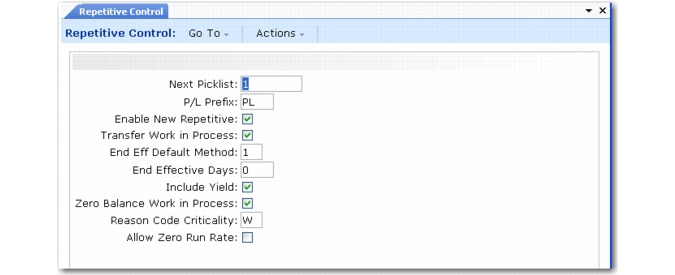
If you have previously used the Repetitive module, you must run Cumulative Ord Accounting Close (18.9) to close any open cumulative orders. Then, set the Enable New Repetitive field in Repetitive Control (18.22.24) to Yes.
Note: In addition to these Repetitive Control settings, use the WIP Transfer Account fields in Advanced Repetitive Accounting Control (36.9.12) to specify the account type, GL account, sub‑account, and cost center debited or credited when closing a cumulative order and transferring WIP to a new cumulative order.
Repetitive Control (18.22.24)
Next Picklist and P/L Prefix
Enter values to be used for automatic numbering of repetitive picklists.
Transfer Work in Process
Enter Yes or No to set the default for the same field in Cumulative Order Close (18.22.10).
End Eff Default Method
Specify the method you normally use to set end effective dates on cumulative orders. Choices are:
Blank: Start and end effective dates are not set.
1: Start and end effective dates match the dates of the GL period in effect during the transaction.
2: Start and end effective dates match the calendar start and end effective dates of the month of the transaction.
3: Start and end effective dates cover a number of days, so the transaction effective date falls in that interval.
The setting determines effective date calculation for orders created in the background by repetitive transactions or in batch using Cumulative Order Create (18.22.11).
End Eff Days
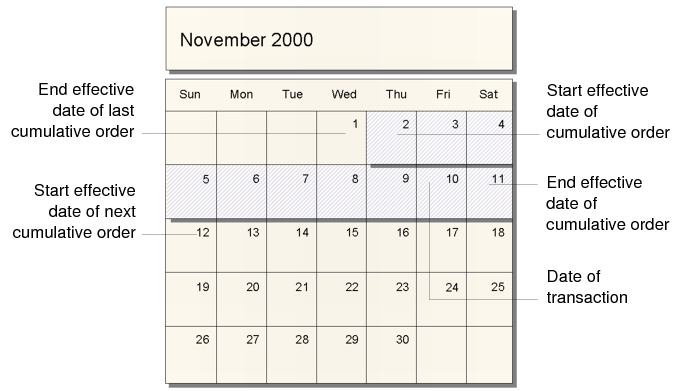
If End Eff Default Method is 3, specify the number of days that the start and end effective dates cover.
Example of End Eff Days Use shows how the system uses the End Eff Days field to set the start and end effective dates on cumulative orders. In this example, an End Eff Days value of 10 days is entered, as indicated by the diagonally shaded boxes.
Example of End Eff Days Use
Include Yield
Set this to Yes to have the system include the yield percent established in Routing Maintenance (14.13.1) in the cumulative order standard cost. It should match the setting for Include Yield % used normally when running other cost rollup functions.
For example, if there is a yield of less than 100% at an operation, this will cause the overall cost to manufacture to increase, since not all the material produced is expected to be good.
If No, then 100% is substituted for the Yield% field.
Zero Balance WIP
This field determines how queue quantities at non‑milestone operations are affected when production is reported at subsequent operations. This setting affects:
• Quantities processed in Backflush Transaction (18.22.13)
• Subcontract shipper issues in Sub Shipper Issue (18.22.5.11)
• Receipts from subcontract shippers or purchase orders using PO Shipper Receipt (5.5.5.11) or Purchase Order Receipts (5.13.1)
When Zero Balance WIP is Yes, the system does the following after transferring the item quantity processed, issued, or received from the input queue of the reporting operation and, when needed, the queues of previous non‑milestone operations:
• Moves any leftover quantities from previous non‑milestone operation queues to the input queue of the non‑milestone operation that directly follows the previous milestone operation.
• Sets all other queue quantities to zero for previous non‑milestone operations up to the preceding milestone operation.
When Zero Balance WIP is No, leftover quantities remain in non‑milestone operation queues until they are moved to subsequent operation queues or manually deleted using WIP Adjust Transaction (18.22.21).
Reason Code Criticality
Specify the system response when an invalid reason code is entered while recording repetitive backflush transactions.
W (Warning): The system displays a warning message and pauses; the system accepts the value when you press any key. This is the default value.
C (Critical): The system displays an error message and prompts you to continue. If you choose No, the system returns to the Reason field so you can modify it. If you choose Yes, the system accepts the value.
Allow Zero Run Rate
Specify whether item-level records defined in Production Line Maintenance can include a 0 (zero) value in the Units/Hour field.
No (default): The item Units/Hour defaults from the production-line run rate. The system always uses the item run rate when calculating schedules for the item. Although you can change the default, you cannot set it to 0.
Yes: The item Units/Hour defaults to 0. Unless you change it, the system uses the production line run rate when scheduling the item. Otherwise, it uses the specified non-zero item-level value.
Set the field to Yes to define a global run rate for all items on each production line. In Production Line Maintenance, you can then specify a Units/Hour value at the production-line level and leave all or most item-level fields set to 0. If individual items are exceptions, you can define item-specific run rates just for them.