Example of Using Lot Trace Workbench
Example: A customer raises a complaint related to a specific item received at the end of 2011. The following steps show how you can use Lot Trace Workbench to investigate the customer complaint to find the root causes of a product failure. In this example, you:
• Find out if there were other shipments sent to the same customer.
• Search for all shipments from that lot for every customer.
• Search existing inventory so that you can return any faulty parts if necessary.
• Find the batch/production order used to produce this specific lot.
• Find items/lots used for this batch order.
• Find how the product was produced and view the components issued to the work orders.
• View transaction data for the production of the item.
• Trace forward to view the total impact (view how many other work orders used this item).
1 Choose between a backward or forward search.
• Backward. Explore upstream processes back to the origin.
• Forward. Explore downstream processes forward to the final destination of goods.
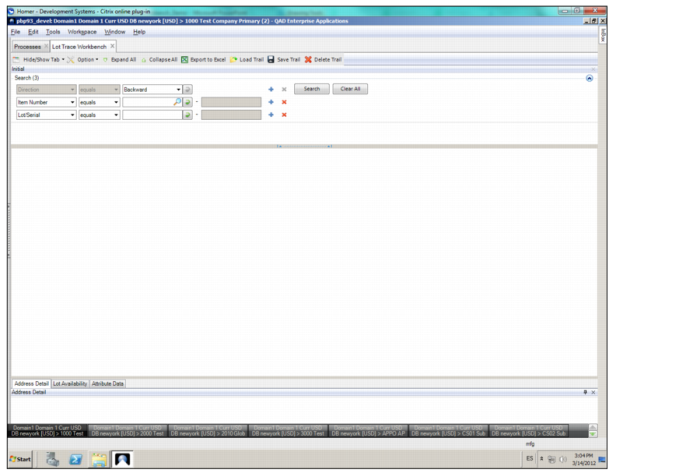
In this example, you are searching for details regarding a shipment in 2011 so you select a backward search.
Lot Trace Workbench Initial Screen
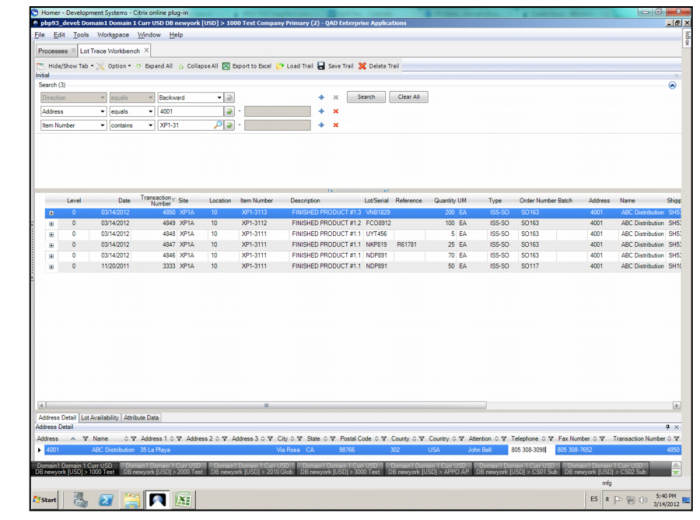
2 Enter the customer and the item information in the search fields and click Search. The search results, which appear in the trace panel, show that there was a shipment to the customer in November 2011. This record displays the shipment information, such as the order number, the shipper name, and the lot number.
Shipment Information for Customer Complaint
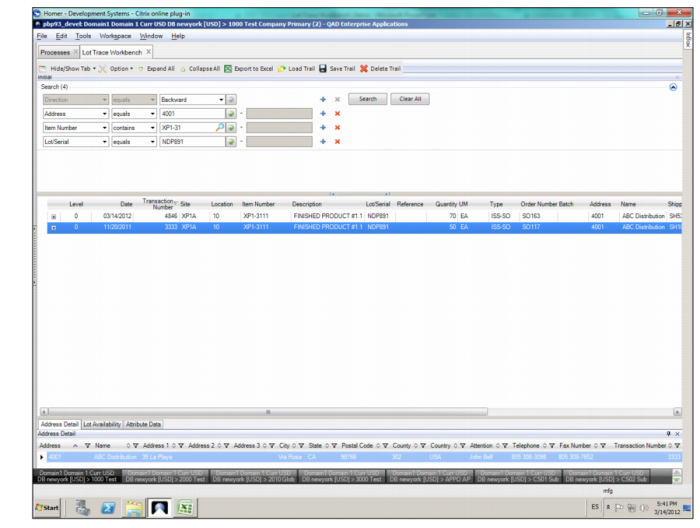
3 Add the lot number to the search criteria to find other shipments and inventory from that lot that have similar issues.
Search Results for All Shipments to Customer shows that the same lot was shipped at a later date to the same customer. With this information, you can contact the customer to find out if there were problems with this shipment as well.
Search Results for All Shipments to Customer
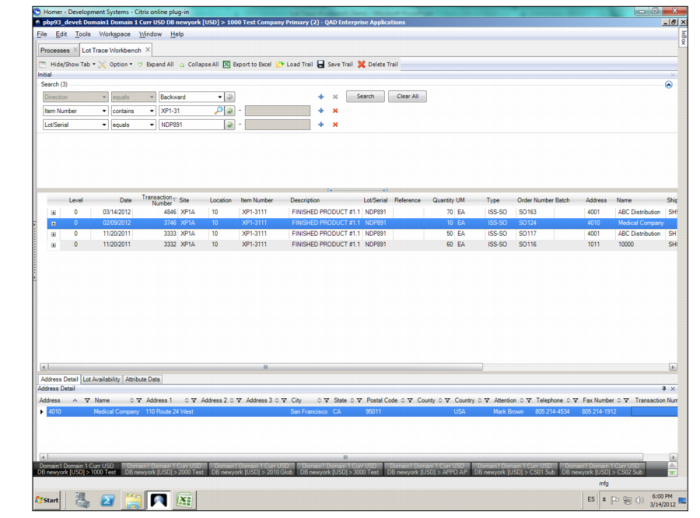
4 To search for all the customer shipments for this item-lot combination, search the item number and lot/serial number.
Search Results for All Shipments to All Customers shows that there were four shipments for that item-lot combination that were delivered to three different customers. With this information, you can contact the other customers to find out if they have had problems with those items as well.
Search Results for All Shipments to All Customers
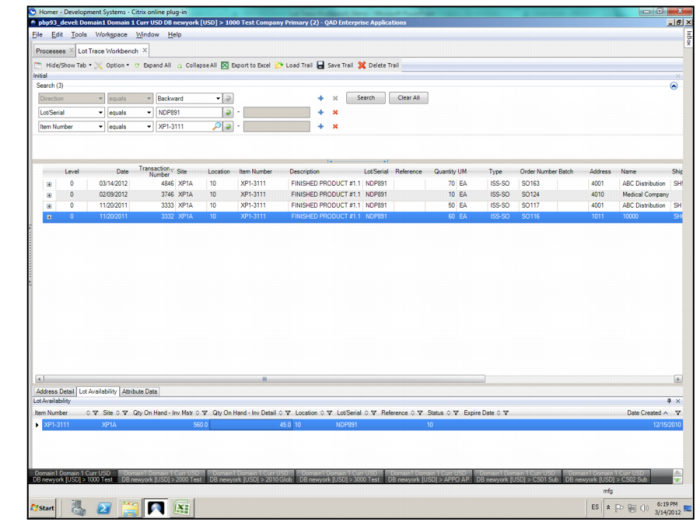
5 If all the customers are reporting failures from that item-lot combination, then search for all the inventory that has not been shipped yet. To view the current inventory levels, search for the item-lot combination.
Search Results for Existing Inventory shows that there is still inventory for this item-lot combination. With this information, you can put this inventory in quarantine so that the items are not shipped out to any other customers.
Search Results for Existing Inventory
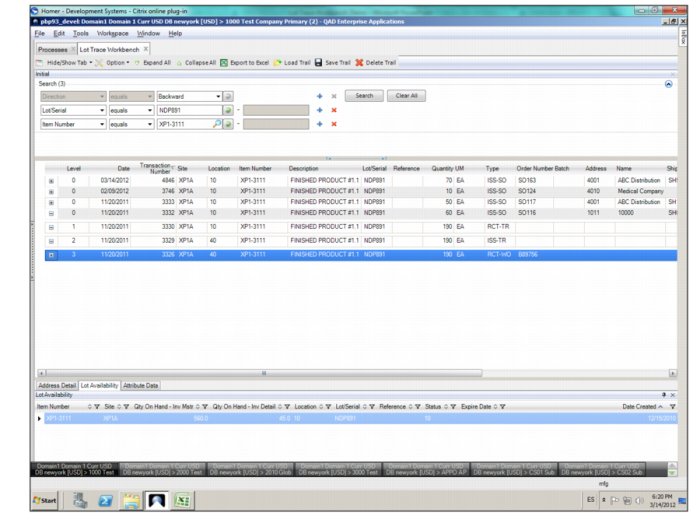
6 From the inventory details, drill down to view the transactional events for this specific lot to find out which batch or production order was used to produce this specific lot.
Trace Back for Root-Cause Analysis: Production Order Numbers
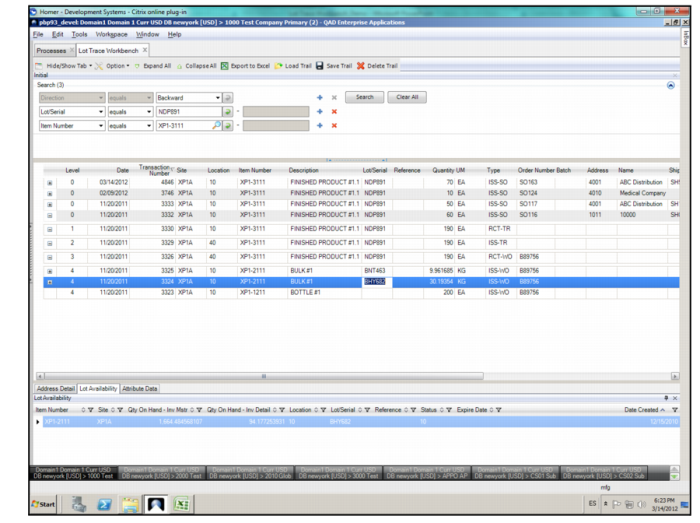
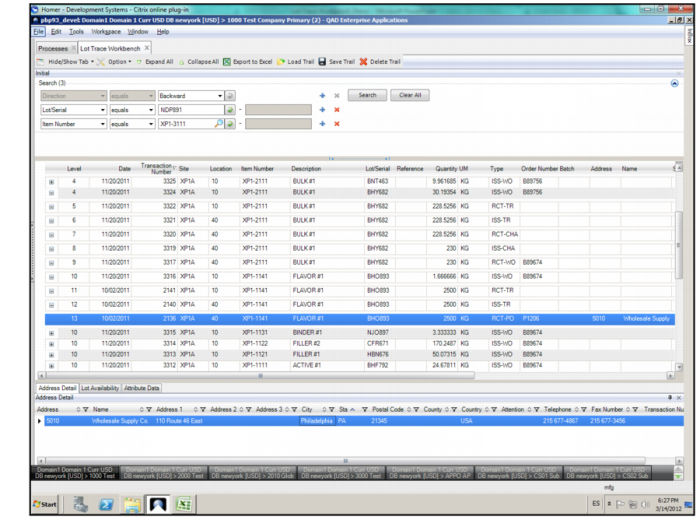
7 Drill down further to find the items and lots issued for this specific batch order.
Trace Back for Root-Cause Analysis: Product Component Information
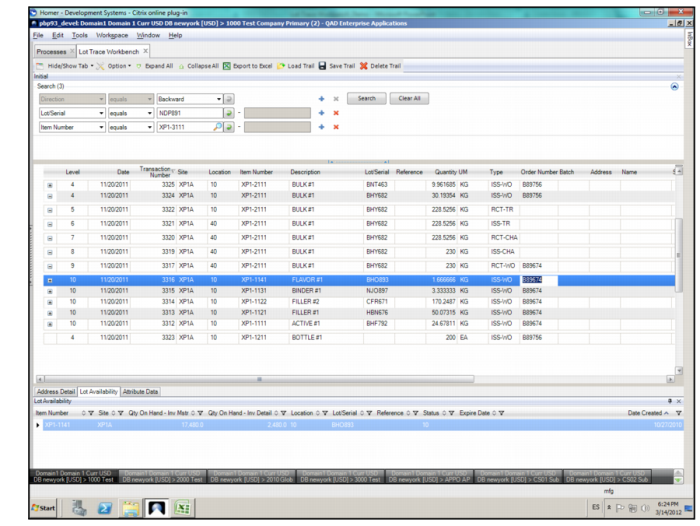
Trace Back for Root-Cause Analysis: Detailed Production Information
For this example, you discover that the item fails because of a production problem and not because of a bad component.
Trace Back for Root-Cause Analysis: Component Information
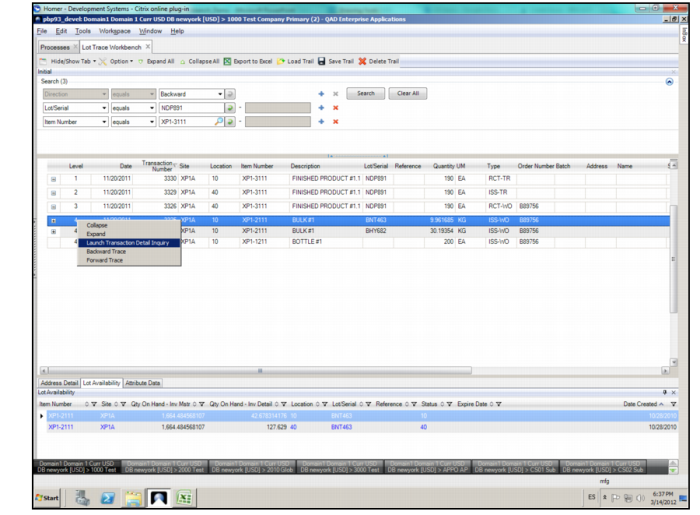
10 The next thing you must do is to view the data from the production transactions. To view the transaction data, right-click the record and select Launch Transaction Detail Inquiry.
Note: You can view the existing inventory at any level of the items used in the process.
Launch Transaction Detail Inquiry
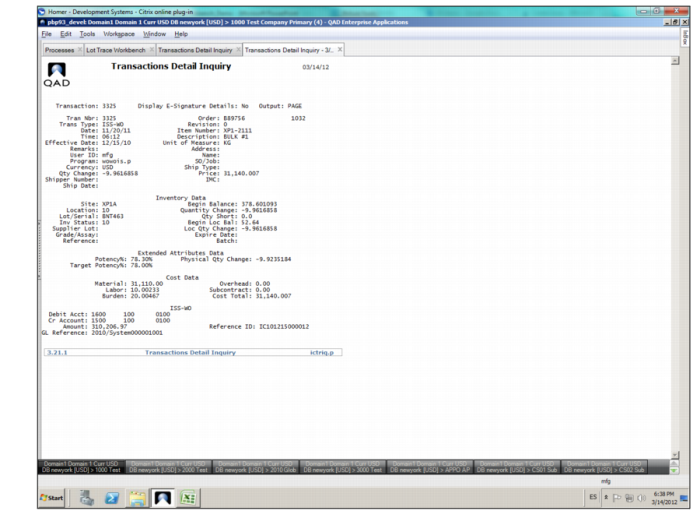
Transaction Detail Inquiry Information shows the transaction details that were conducted when the item was produced.
Transaction Detail Inquiry Information
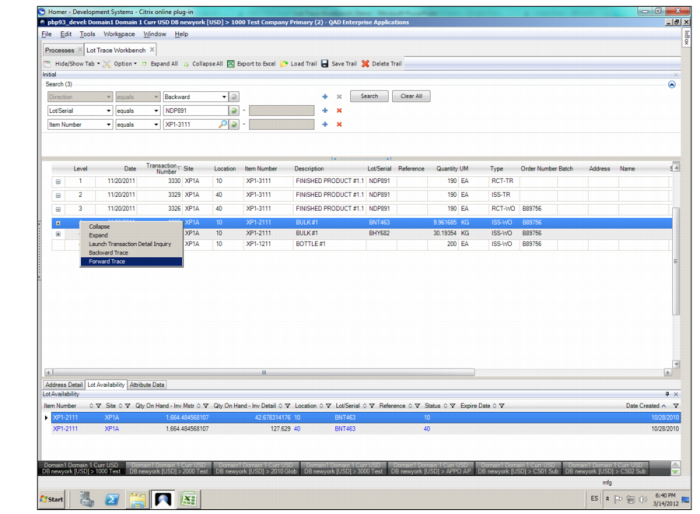
11 Once you have viewed the transaction data for the production of that item, run a forward trace to view the total impact of the production run. To run a forward trace, right-click on the record and select Forward Trace.
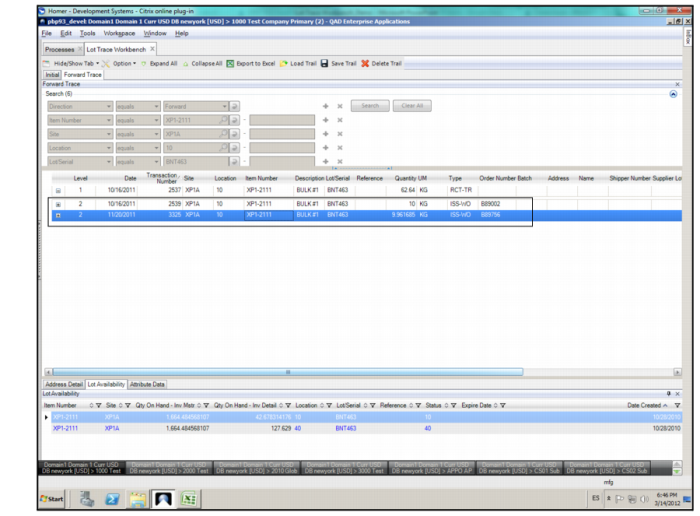
Trace Forward for Impact Analysis
Trace Forward for Impact Analysis: Work Order Information
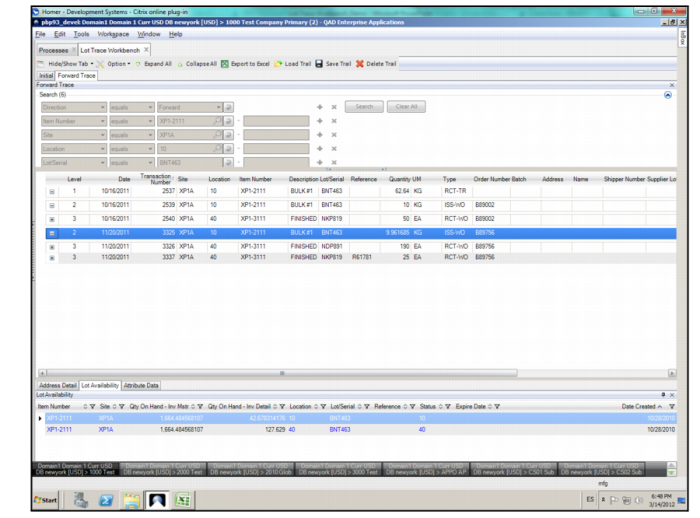
13 By drilling down, you see that these finished product work orders were used to create the same item but for three different lots. These items are related with three lot and sublot combinations of the finished product.
Trace Forward for Impact Analysis: Work Order and Lot Information
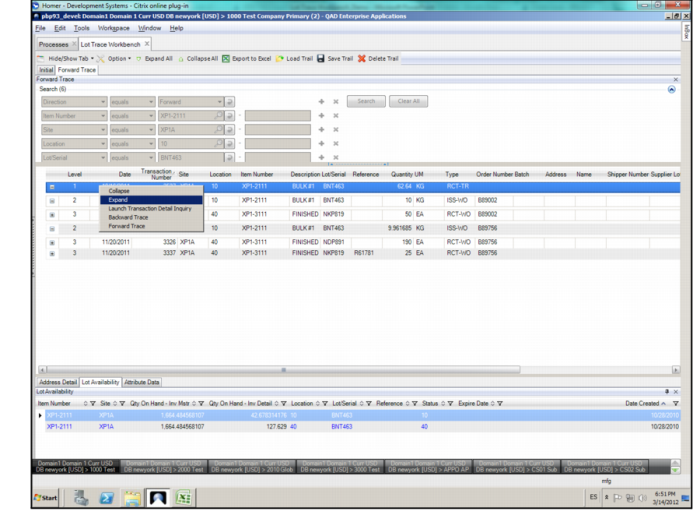
14 With this information, it is easy to determine if any of the items were shipped to other customers and if there is still inventory in stock. Right-click the record and select Expand.
Trace Forward for Impact Analysis: Inventory and Shipment Details
15 Verify the exact quantities available for each lot on hand and the list of forward-linked transactions starting with receipt of this specific inventory record.
Trace Forward for Impact Analysis: Verifying Inventory and Forward-Linked Transactions
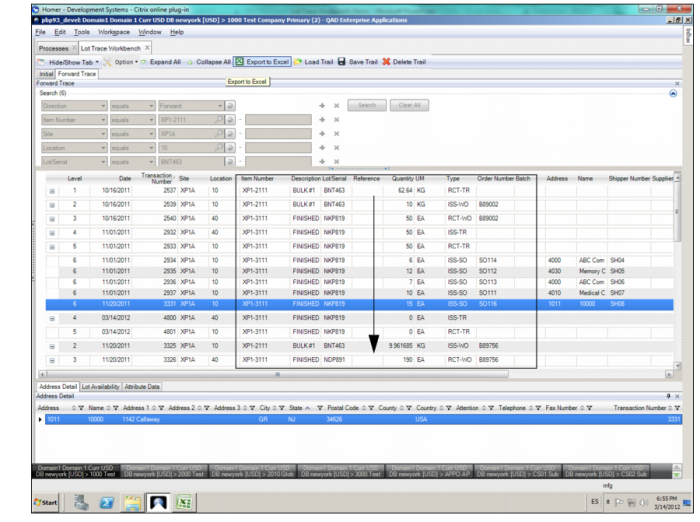
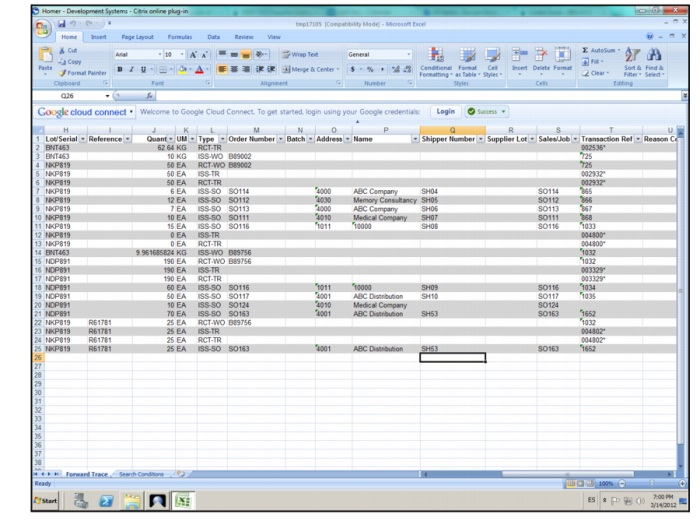
16 If desired, export the information to Excel so that you can apply more advanced filters and combinations. To export the information to Excel, click Export to Excel.
Export to Excel