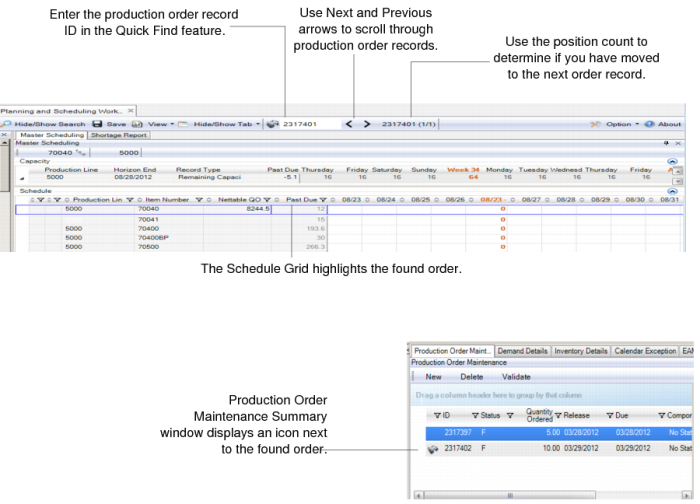
Quick Find
Within the MSW Schedule Grid, you can quickly find production order records by using the Quick Find feature in the toolbar.
Note: You can use this feature in the PSW, too; however, since the PSW displays a limited number of orders, the order may or may not be visible in the PSW. If the order is not visible in PSW, you can switch to the MSW and find the order using the next/previous buttons.
You can enter either numbers or text in the Quick Find feature. You can be at the site level, work center level, and so on. Once results display, click on the Next arrow (>) to go from find to find, one record at a time. For examples on criteria for the Quick Find search, see
Search Criteria Examples.
In both the Schedule Grid and the Production Order Maintenance Panel, you can easily find items by:
• Order ID
• Item number (when associated with a production order)
• Sales order
• Remarks
• User field 1 and 2 within the work order master table.
Use the following procedure to use the Quick Find feature:
1 Locate Find in the toolbar.
2 Enter numbers or text to find.
The Schedule Grid highlights the found order with your entered values. The Production Order Maintenance Panel displays an icon in the Summary panel next to the found order; see
Quick-Find Feature.
3 Optionally, use the right and left arrows as Next and Previous functions to scroll through records, starting from the found record.
4 Use the position count to determine whether the display moved to the next order.
Quick-Find Feature
Note the following regarding Quick Find abilities:
• When the system does not find any matches, the system displays a 0/0 in the position count.
• Search results are based on finding all records that contain the string you entered. To narrow the search, use the search navigators as shown in
Search Criteria Examples.
• When your results do not seem focused, click the next and previous arrows to focus the results.
• When an order has more than one field that contains a match, the system only counts this as one match.
• When you search for an item number that does not have a production order record and only a demand record, the Quick Find cannot locate the item number.
• When you have an item/order on multiple work centers or when both the production line and work center reference the same order, the system focuses on the first resource/item relationship found for the work order.
• When your results do not seem focused, click the next and previous arrow to refocus the result.
• The Quick Find does not work on Shortage Report Tab or on the PSW Production Order Browse.
Search Criteria Examples
The Quick Find search engine uses an advanced capability that lets you use special search characters in the search string to do advanced searches. The advanced search capability can be useful if you have many matches and want to narrow results.
Search Criteria Examples presents examples using search characters. For a complete list of symbols that you can use in Quick Find, refer to the following Web site:
Search Criteria Examples
Example Search Value | Results |
023 | The system finds matches on records that contain 023. For example, it finds a record for sales order SO10237. |
279$ | The system finds everything that ends with 279. For example, it finds order ID 13577279. |
^Call 323 | The system finds everything that begins with Call 323. For example, it finds orders with the remarks Call 323-555-1212. |
^78923$ | The system finds records that contain this and only this exact string of text. For example, it finds order ID 78923. |