Configuring Schedule
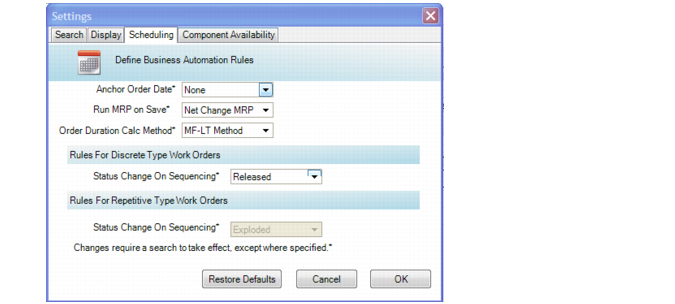
Use the fields in the Scheduling tab of the Settings window to set options for PSW.
Settings, Scheduling Tab
Anchor Order Date
Enter either None or Due Date to anchor the order date.
None: The system does not anchor dates.
Due Date. Choose Due Date when you want production order due dates to stay intact; for example, when you need to start a production order earlier than planned, but you want the due dates to remain. Anchoring a due date lets you lock in the production order due date so that it does not change during the production schedule process.
Example: As the master scheduler, you provide the shop floor with a schedule that shows production orders due by Friday. You must determine upon which date the production orders run, but only the Master Scheduler can change the Friday due date; therefore, you anchor the Friday due date.
Status Change on Sequencing
Indicate the status to which you want to change the order status when sequencing orders. Setting this field for either repetitive or discrete orders managed on production lines helps you to specify order rules. Select from Firm, Exploded, Allocated, Released, and Closed statuses.
PSW Forward Consumption
Specify Yes to consume capacity for future release dates. For more information, see
PSW Forward Consumption.
Yes: If a production order runs for more than one day, capacity beyond the release date is consumed.
Example: A release date of today has a capacity of eight hours. Tomorrow’s release date has a capacity of eight hours. You place an order under today’s release date, and the order requires 12 hours to run. The PSW release date for today shows 0 remaining hours capacity but the capacity for tomorrow’s release date shows four hours.
No: If a production order runs for more than one day, capacity beyond the release date is not consumed.
PSW Forward Consumption
You use the MSW to create a master schedule for the medium-to-long term range—week, month, or longer—balancing demand, supply, and capacity, typically at the departmental level. You use the PSW for the short-term range—one day to few days—sequencing and prioritizing production orders at the production line level. As such, it is critical at the production scheduling level to forward consume capacity when production orders run longer than a day and therefore, require the consumption of future capacity.
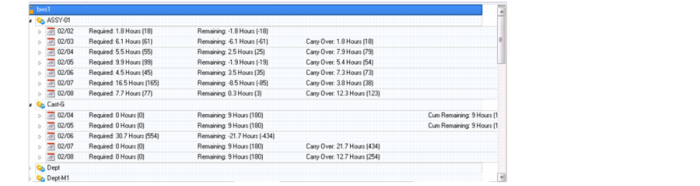
With the PSW forward capacity logic, you can see two new columns within the PSW Sequence Grid:
• Carry Over: The sum of load remaining from previous days.
• Cum Remaining: Any excess capacity for that day.
Schedulers can take advantage of the data that displays in these columns. Cum Remaining, which only shows when it is positive, is an opportunity to add load to a shift or release date, while Carry Over is indicative of overloading. So, for jobs that run for more than a day, the apparent overloading is managed by balancing over those days.
Example: Available capacity for today’s release date is 8 hours. The same amount of capacity of 8 hours is available for tomorrow’s release date. You place Production Order A under today’s release date and the order requires 12 hours to run. The PSW release date for today shows 0 (zero) remaining capacity and four hours of remaining capacity for tomorrow’s release date. When you have 12 hours of load on a day that has 8 hours of total capacity, then, you have –4 hours that show in the Cum Remaining for that day. Those –4 hours plus a carry over—that is, the excess load from the preceding day—display for tomorrow’s carry over. When only 4 hours remain on tomorrow
, the scheduler realizes than another job that takes only 7 hours and would normally complete, cannot be done tomorrow since there are 4 hours remaining after doing the carry over load. The other balance of 3 hours spills into the day after tomorrow
. PSW Forward Capacity-Related Columns shows the two new columns in the PSW Sequence Grid.
PSW Forward Capacity-Related Columns