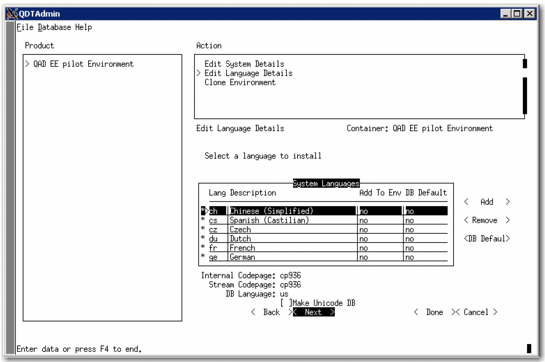
Editing Language Details
This screen allows you to add a language for this environment. The languages selected in this section are configured later during the database server creation step.
The default QAD Enterprise Edition language is US English. If you are using only US English in your installation, you do not need to install it and you can skip this section. If you require languages other than US English, install them using the following procedure.
Note: When selecting two or more languages with conflicting code pages, the system is automatically configured for a Unicode installation.
1 Select QAD <environment_name> under Product.
2 In the Action pane, select Edit Language Details.
3 In the Steps In Action Set pane, select QAD <environment_name>: Edit Language Details.
4 The Edit Language Details Screen appears. Highlight the language you want to install and select Add. The Add to Env and DB Default columns change from No to Yes.
Note: Beginning with QAD 2012 Enterprise Edition, you can select the Thai language for use in your environment. This feature allows you to use Thai characters in the data entry fields. The field labels, however, are in US English.
Edit Language Details Screen
5 Modify the code page settings by entering the new information in the Internal Codepage or Stream Codepage fields.
Note: Limit your changes. Erroneous code page modifications can cause unexpected behavior.
6 Repeat steps 2 through 5 for each language to add or modify.
7 To define a language as the default language for the QAD Enterprise Edition installation, highlight the language, select DB Default, and press Enter.
8 Select Done and press Enter to complete the changes.