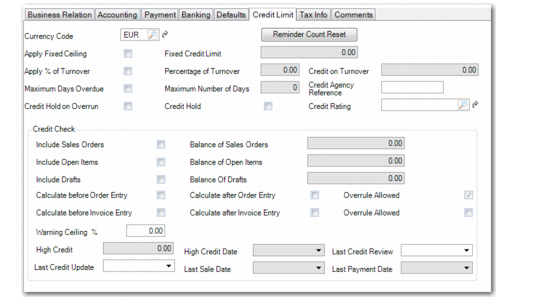
Credit Limit Tab
Use the Credit Limit tab to apply credit limits to customers. Managing customer credit is discussed in more detail in
Managing Customer Credit.
The maintenance of credit data is also available as a separate activity, Customer Credit Limit Maintain, which displays exactly the same tab as the one in the Customer Create and Modify activities. You must have access to the Customer Credit Limit Maintain activity in order to use the tab in Customer Create and Maintain.
Note: The Credit Limit tab is read-only in Modify mode. This prevents a customer credit limit from being raised or lowered when there is already activity in the system for this customer. You can, however, manually over-ride this restriction using Customer Credit Limit Maintain.
Customer Create, Credit Limit Tab
Field Descriptions
Currency Code
The default currency code defined in the Accounting tab displays. All the amounts you specify on the Credit Limit tab are displayed in this currency. When a customer account uses a different currency than the default, the open balance is converted using the default accounting exchange rate.
Reminder Count Reset
Click to reset the reminder level for all invoices for this customer. The reminder level on the invoice indicates the level of reminder letter that is sent to the customer when the invoice is overdue.
Use the following fields to indicate how you want to calculate the credit limit.
Apply Fixed Ceiling
When selected, you can enter a currency amount—in the customer’s default currency—in the Fixed Credit Limit field. This represents the maximum open balance over all entities that use the customer shared set.
Fixed Credit Limit
When Apply Fixed Ceiling is selected, specify the currency amount that determines the maximum credit extended to this customer.
Note: This credit limit is stored at the shared set, and not entity level.
Apply % of Turnover
When selected, you can enter a percentage in the Percentage of Turnover field.
Turnover is the total sales over the 12 months preceding the current month over all the entities in the customer shared set.
Percentage of Turnover
When Apply % of Turnover is selected, specify a percentage value. The system applies this percentage to the last year turnover and displays the result in the Credit on Turnover field. The amount is recalculated when you change the percentage.
Credit on Turnover
Displays the turnover limit amount, which is calculated by applying the percentage specified to the turnover amount.
Maximum Days Overdue
When selected, you can enter a value in the Maximum Number of Days field.
Maximum Number of Days
When Maximum Days Overdue is selected, specify the number of days that any invoice for this customer can be overdue before the system disallows any further credit. During credit checking, the system looks for any invoice that is overdue more than this number of days. If such an invoice is found, additional credit is refused, regardless of the size of the invoice.
Credit Rating
Enter an optional code rating the customer’s creditworthiness. Set up codes in Customer Credit Rating Create (27.20.5).
Credit rating is for reference only. It displays on the Customer Credit View and can help you evaluate customer credit issues.
Credit Agency Reference
If relevant, enter the credit agency reference number assigned to this customer. This field is for reference only. It displays on the Customer Activity Dashboard to help you investigate customer credit issues.
If your company does not use reference numbers as tracking identifiers, record any other company identifier you use for credit investigations.
One common credit agency is Dun & Bradstreet, a provider of business-to-business credit and business-related information for both publicly and privately held companies. The D&B number is a distinctive nine-digit number used as an identifier in electronic data interchange (EDI) and global electronic commerce transactions.
Customers doing business with your company using EDI can submit their D&B number as part of the registration and transaction processes. This number eliminates errors in electronic transactions and serves as a consistent trading partner identifier in business transactions.
Credit Hold on Overrun
Select this field and the system puts the customer on credit hold if any of the credit limits are violated when new orders for this customer are created.
Credit Hold
Select this field to put this customer on credit hold. All future orders for this customer are placed on hold, regardless of the outcome of credit checks. Additionally, any existing open orders for the customer are placed on hold.
The system displays a warning when you create or modify any AR transactions or any orders for a customer on hold.
Leave this field blank to perform credit checks for the customer according to the parameters set in Customer Credit Limit Maintain. If the Hold Orders over Limit field is selected in Sales Order Accounting Control (36.9.6), orders that cause the customer to exceed the credit limit are placed on hold. If Hold Orders over Limit is blank in Sales Order Accounting Control (36.9.6), only a warning is displayed for orders that cause the customer to exceed the credit limit.
Whether orders for this customer are also put on hold depends on settings in Sales Order Accounting Control (36.9.6). If you want to put all existing orders on hold, you can use Sales Order Auto Credit Hold (7.1.17). See
QAD Sales User Guide for details on sales orders.
Specify what document types to include when calculating the customer’s current credit amount. You must select at least one of these options when you have enabled Apply Fixed Ceiling or Apply % of Turnover.
• Select Include Orders to include the balance of open orders in the system.
• Select Include Open Items to include the balance of unpaid invoices.
The current balance is calculated and displayed in the fields next to the options.
Specify when to perform credit checks and whether users can override the system results.
• Select Calculate before Order Entry to perform the credit check before a new order is entered.
• Select Calculate after Order Entry to perform the credit check when saving a new or modified order and include the new order amount in the total.
• Select Calculate before Invoice Entry to perform the credit check before a new customer invoice is entered.
• Select Calculate after Invoice Entry to perform the credit check when saving a new or modified invoice and include the new invoice amount in the total.
When you have enabled credit calculation before and after order entry, the calculation is done at the beginning and end of the following programs, except where noted.
• Sales Quote Maintenance
• Sales Quote Release to Order
• Sales Order Maintenance
• Pending Invoice Maintenance
• Customer Scheduled Order Maintenance (only before)
• EDI PO Load
• RMA Maintenance
• Material Order Maintenance (only before)
• Call Maintenance (only before)
• Contract Quote Maintenance
• Contract Maintenance
Specify whether to allow users to enter transactions for a customer when the customer’s credit limit is exceeded. You define this using two Overrule Allowed fields: one for order entry and one for customer invoice entry.
When the fields are selected, the system displays a warning if a transaction causes a customer’s credit limit to be exceeded, and the user can continue entering or saving the transaction. When the field is cleared, the system displays an error message and the user cannot continue processing the transaction.
The Overrule Allowed field for order entry is always selected and is read-only. If a credit violation occurs when you create an order, the system displays a warning message and you can proceed with the transaction.
When you deselect the Overrule Allowed field for Check before Customer Invoice Entry, the system displays a warning message if there is a credit violation, but does not prevent you from continuing with the invoice creation. When you deselect the field for Check before Customer Invoice Entry, the system prevents you from saving an invoice for this customer if there is a credit violation. Deselect this field for both Before and After options to prevent a credit limit overrun for invoices.
Specify a warning ceiling percentage.
Warning Ceiling in %
Select to generate a warning message when the specified percentage of the credit limit has been reached.
Example: An organization includes open orders and unpaid invoices in the credit check for a customer. A customer credit limit is set at $100,000. A warning ceiling of 75% displays a warning when a transaction causes the sum of open orders plus unpaid invoices to exceed $75,000. The transaction can be completed.
If warning ceiling is 0%, no warnings are displayed.
The following fields are used to store and display additional credit information for reference:
High Credit
This field displays the highest amount of credit you have ever extended to this customer. This is the largest AR balance they have had open at one time.
This field is calculated and updated by various programs that create AR transactions, including Invoice Post and Print, Open Item Adjustment, Bank Entry, Customer Payment, Customer Opening Balance, and Customer Invoice. It helps determine customer creditworthiness.
High Date
This field displays the date the highest credit amount was extended to this customer.
Last Credit Review
Enter the date when the customer’s credit status was last reviewed.
Last Credit Update
Enter the date when the customer’s credit status was last updated.
Last Sale Date
The system displays the date an invoice was last posted for this customer. This date is updated by Invoice Post and Print (7.13.4).
Last Payment Date
The system automatically updates this date when transactions are posted in Banking Entry, Petty Cash, and Customer Payments.