Creating Customer Records
Use the Customer activities (27.20.1) to create, view, modify, or delete a customer. Account profile details cannot be modified if transactions already exist. A record can be deleted only if it is not referred to in the system. Instead, you can mark the record inactive.
Customers can be saved in draft format when Draft Instances is selected in System/User Settings, Change System Setting. When you save a record in draft format, none of the system validations are executed. You can then return later to complete the record by choosing the Customer Browse Drafts (27.20.1.7) activity and selecting the record you want to finish from the list. For more information on drafts, see
Introduction to QAD Enterprise Applications User Guide.
The Customer function supports these additional activities:
• Use Customer Credit Limit Maintain (27.20.1.6) to adjust the customer credit information. This displays exactly the same tab that displays in Customer Create. See
Credit Limit Tab.
• Use Customer Activity Dashboard (27.18.1) to view all customer credit-related information, including open items and payments, for one or multiple entities. From this view, you can drill down to the details of the invoices and credit notes. See
Credit Reporting and Views for details.
• Use Excel Integration (27.20.1.5) to export customer records to or load records from an Excel spreadsheet. For more information on Excel Integration, see
Introduction to QAD Enterprise Applications User Guide.
• Use Customer Bank Number Excel Integration (27.20.1.8) to import data related to customer banks.
After creating a customer here, specify additional operational data in Customer Data Maintenance (2.1.1). An e-mail is automatically sent to the members of the CustomerNotify role responsible for creating this data when a new customer is created.
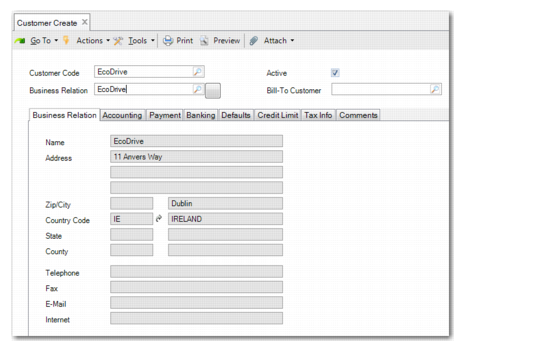
Customer Create
Field Descriptions
Customer Code
Specify a code (maximum eight characters) that identifies a customer. If the code you specify matches an existing supplier code, a warning message displays. You can choose to ignore the warning, and create the record. However, when a supplier and customer share the same code, they must reference the same business relation.
If you leave the Customer Code field blank, the system automatically generates a number for the record based on the sequence defined in Customer Autonumber Create. See
Autonumbering Sequences.
Business Relation
Choose a business relation code to associate with this customer. Address and contact details default from the headoffice address type of the business relation; you cannot modify the details here. After you have created a customer, you cannot modify the associated business relation.
Note: You can create a new business relation for the customer if necessary by clicking the Go To icon next to this field.
Active
Indicate if this is an active record. When you mark a record as inactive, all of the transactions that can be blocked in Blocked Transaction Maintenance (2.23.1) can no longer be completed. For example, you cannot create a new sales quote or order for the customer.
See
QAD Master Data User Guide for details about blocked transactions.
Bill-To Customer
Enter an optional code that identifies another customer that receives the bills for this customer.