Validation
The system validates all values when you click Save in Journal Entry Cross Co Excel Integration. No validation occurs until this point.
When creating standard or cross-company posting entries, the accounts, daybooks, sub-accounts, cost centers, and projects you specify must be valid within their associated shared sets for the entity in which the posting is being created. If you specify an invalid value, an error message is displayed.
You can create standard and cross-company postings on the following types of account: Standard, GL Open Item, Bank, Year-End, Fixed Assets, Tax, and System.
The following fields must be entered in Excel for a cross-company posting to be valid. If these mandatory fields are blank, an error is displayed.
• Level 1
• Posting Date
• Daybook Code
• Description
• Default Period
• Default Year
• Level 2 (non-source entity postings)
• Entity
• Level 3
• Account
• Amount
• Sequence Number
The system also ensures that the sum of the postings to the source entity equals the sum of the postings to the target entities.
You can use different currencies when posting to particular entities. The system then ensures that all postings balance. You can also post to entities that have different GL calendar years and GL periods to the source entity.
You can only post to daybooks from the official and management layers. However, daybook layers must be consistent across a posting; that is, postings can be to the official layer or the management layer, but a posting cannot contain a combination of both layers.
At level 3, the system ensures that the year and period entered are valid for the entity in which the cross-company posting occurs. In addition, the Sequence Number field must contain a non-zero value.
Error Messages
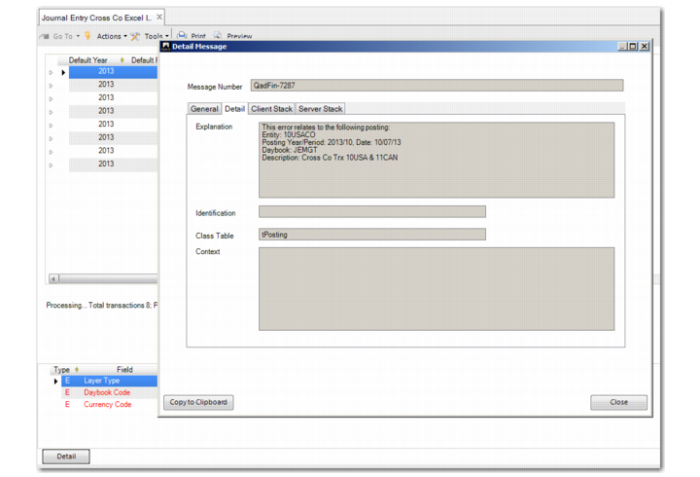
For each transaction posting that fails, an error message is displayed at the bottom of the screen. Each message contains a summary of the reason why the posting failed. To view more information on the posting, select the message and click the Detail button. In the Detail Message window, select the Detail tab. The details of the posting are shown, as displayed in
Journal Entry Cross Co Excel Integration, Error Details. This information helps you to identify the relevant line in the Excel spreadsheet. You can then fix the errors directly in the grid or you can export the unposted transactions to Excel for maintenance.
Note: The error messages are displayed in the order in which the transactions are saved and validated by the system. However, if you choose to sort the grid by another column, the transactions and error messages no longer match. Therefore, make sure that when you load and process transactions from an Excel file, the default layout is applied to the grid or you select to sort by the Posted field.
Journal Entry Cross Co Excel Integration, Error Details
Exporting Unposted Transactions to Excel for Maintenance
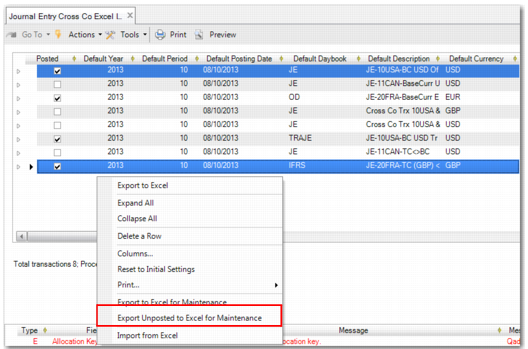
When a transaction fails to post, the Posted field is not selected. You can export the unposted transaction back to Excel for maintenance. Right-click in the grid and select Export Unposted to Excel for Maintenance, as displayed in
Journal Entry Cross Co Excel Integration, Export Unposted to Excel. Correct any errors to the spreadsheet and open Journal Entry Cross Co Excel Integration again to load the corrected transactions.
Journal Entry Cross Co Excel Integration, Export Unposted to Excel