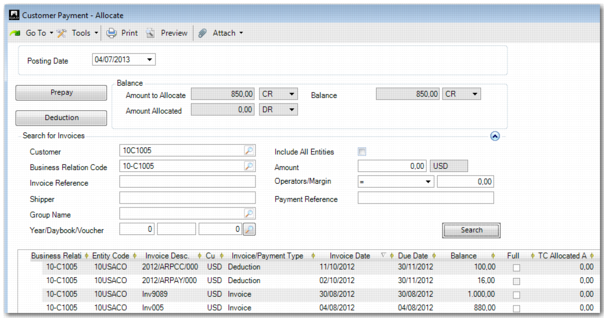
Allocating a Customer Payment
This screen displays when you click Allocate to retrieve open items for this customer to which you can allocate the customer payment.
Search For Invoices
Use the search criteria fields to select open items for allocation to the customer payment. You can simply search for all open items for this customer, or specific invoices or invoice amounts.
You can also allocate to open items for any customer in the system. The system retrieves the customer name and business relation details into the Allocation screen from the payment screen as defaults. Delete these details and click Apply to search for all open items for all customers.
Customer/Business Relation Code/Invoice Reference/Payment Reference
Specify the customer code, business relation code, invoice reference text, or payment reference to search for open items.
Shipper
Specify a shipper number to select invoices related to a specific shipment. This field applies to automatically created sales-related invoices.
Year/Daybook/Voucher
Specify a GL calendar year, daybook, or voucher number.
Amount
Specify an amount and a currency for the open item.
Operators/Margin
Specify a calculation operator and a margin for the amount. The amount and margin must be positive. The search returns both debit and credit matches.
When the operator is set to = and the margin is set to zero, the search returns open balances that equal the value in the Amount field.
When the operator is set to = and the margin is set to, for example, 10, the search returns open balances within a range of +10 or –10 of the value in the Amount field.
Include All Entities
Select this field to retrieve open items from other domains. The domains do not need to have the same shared set as the current domain.
Bill Year/Number
Enter the year and number of the bill that this amount belongs to. This field is added using Design Mode.
Click Search to display a list of open items that match the search criteria in the grid. Select Full in the row in the grid to allocate the full amount for the item. You can accept or modify the amount to be allocated.
Customer Payment Create, Payment Allocations
Field Descriptions
Posting Date
Specify a posting date for the payment.
Amount to Allocate/Allocated Amount/Balance
These read-only fields are updated by the allocation process.
Grid
TC Allocated
Enter the amount to allocate to the invoice. If you are not allocating the full amount, enter the partial amount here.
The system automatically splits the allocated amount into a TC Paid Amount and a TC Discount Amount, based on the credit terms and the payment date.
TC Discount = TC Allocated * Discount% / 100
TC Paid = TC Allocated – TC Discount
The relevant rounding method is then applied to the result.
Note: For invoices with tax, the payment amount also contains a tax component. If the tax setting Discount Tax at Invoice is set to Yes, the discount amount at the time of payment only applies to the tax base amount.
TC Discount
This field displays the discount that applies for early payment, based on the credit terms.
You can always overwrite the discount amount proposed by the system by entering the amount yourself. Then, the TC Allocated amount is recalculated as TC Paid + TC Discount.
TC Paid
Enter the amount paid, excluding the discount. The system recalculates the TC Allocated amounts automatically as TC Paid + TC Discount.
Creating a Deduction
You can record a deduction if a customer pays less than the amount owed. The process for entering deductions is similar to that for creating prepayments.
Deductions and how to record them are described in detail in
Processing Deductions.